How to Get Rid of YouTube Update Required Prompt
A practical guide to removing the YouTube 'Update Required' prompt across devices. Learn how to update the app, clear caches, test across platforms, and verify service status to restore normal YouTube access quickly.


This quick guide explains how to get rid of youtube update required prompts. If you see the notice, you’ll learn practical steps to resolve it by updating apps, clearing caches, and verifying device compatibility. We cover mobile, desktop, and smart TV scenarios, plus safe alternatives if updates aren’t possible. Follow these steps to restore normal YouTube access fast.
Understanding the Update Required message
The Update Required prompt on YouTube can show up for several reasons, ranging from app version mismatches to browser compatibility or device OS limitations. In many cases, the notice is the platform's way of insisting that you are not on a supported configuration, and continuing without updating can lead to missing features or degraded security. The phrase 'update required' appears in various forms across devices; knowing which version you are running is the first step. Update Bay's approach is to diagnose whether the root cause is an outdated app, an out-of-date browser, or a temporary service condition. This section helps you identify the likely trigger and what it means for your viewing experience, including the difference between an app update and a browser update. We'll also discuss legitimate prompts versus phishing messages and how to verify the source before taking action.
Why updates may fail to apply or appear outdated
Even when you click update, the system may not complete the installation due to network restrictions, storage limitations, or policy controls on managed devices. Some devices block background updates, while others require manual confirmation for each new version. In addition, region-specific app versions or beta channels may cause temporary mismatch warnings. You might also encounter a stale cache that makes an updated version appear as old. Finally, occasional YouTube outages or server-side prompts can show a prompt that seems to require an update even though nothing is wrong with your device. Understanding these scenarios helps you apply the right remedy rather than guessing.
How to update YouTube across devices
Mobile (iOS/Android)
- Open your device's app store, search for YouTube, and install any available updates. Allow the update to complete and restart the app.
- If you only see 'Update' in the store but the app won't update, ensure you have enough storage and a stable internet connection.
Desktop browsers
- Refresh the page, clear cookies for youtube.com, and check that your browser is up to date. If problems persist, try an alternate browser.
Smart TVs and streaming devices
- Open the device's app store, locate YouTube, and install the latest version. Sign out and sign back in if issues linger.
This section emphasizes testing across platforms to confirm you are on a supported configuration and that the prompt isn't due to a temporary outage.
Clearing caches and data to refresh prompts
Clearing cached data can remove stale flags that trigger the 'Update Required' notice. On mobile, go to your device settings, find YouTube, and clear cache (and data if necessary). On desktops, clear browser cache and cookies or open YouTube in an incognito window to test without saved data. If you still see the prompt after clearing, sign out of your YouTube account and sign back in to refresh your session.
When updates are blocked or unavailable: alternatives and safeguards
If an update cannot be installed due to device limitations, use the YouTube web interface on a supported browser or cast from a trusted device. Avoid following third-party download links; always use official app stores. Regularly checking for system updates is a good long-term habit, since OS gaps can affect app compatibility and security. If you suspect the prompt is a phishing attempt, verify the source by visiting YouTube's official site directly and avoiding links from suspicious emails or messages.
Tools & Materials
- Internet-enabled device(Ensure you can access the internet (Wi‑Fi or cellular))
- Updated YouTube app or supported browser(Download from official stores or use a modern browser)
- Clear cache/data access(On mobile or browser, helps remove stale data)
- OS/app update access(Some devices require OS updates for compatibility)
Steps
Estimated time: 25-40 minutes
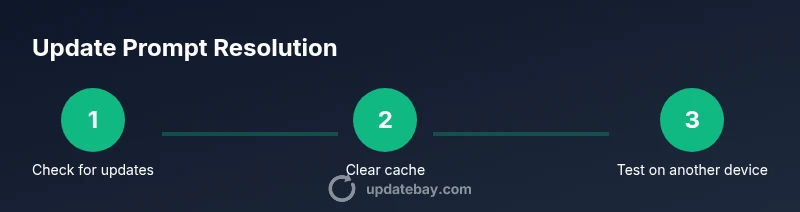
- 1
Check for updates and install the latest version
Open your device's app store or browser update settings and install any available updates. Restart the YouTube app or browser to complete the installation.
Tip: Keep a stable internet connection during updates. - 2
Clear cache and data
On mobile, clear YouTube cache and app data if needed; on desktop, clear browser cache and cookies or open an incognito window to test.
Tip: Clearing data may sign you out; have login details handy. - 3
Sign out and sign back in
Sign out of YouTube (and Google account if used), then sign back in to refresh tokens and access rights.
Tip: This helps verify that your session isn’t causing the prompt. - 4
Test on an alternate platform
If the prompt persists on mobile, try YouTube on a different device or browser to confirm whether the issue is device-specific.
Tip: If other platforms work, the problem may be device-specific. - 5
Check service status
Visit official YouTube or Google status pages to see if there is a known outage that could cause the update prompt.
Tip: Outages can mimic update prompts. - 6
Reinstall or reset if needed
If updates still fail, reinstall the YouTube app or reset app preferences as a last resort.
Tip: Back up saved data before reinstalling.
Frequently Asked Questions
What does 'Update Required' really mean on YouTube?
The prompt usually signals that your app, browser, or device falls outside the supported configuration. Updating to the latest version within official channels often resolves it and improves security. If unsure, verify with official sources before acting.
It means your software version may be out of date and needs an update.
I updated the app, but the message persists. What next?
If updates don’t fix it, clear app/browser data, test on another device, and check for outages. Sign out and back in to refresh tokens.
Try clearing data and re-signing in.
Can I bypass the update by using YouTube's web version?
Using the web version can work, but some features may still be restricted if the device is not on a supported configuration. Always use official updates.
The web version may help temporarily, but updates are still important.
What should I do if updates are blocked on a work device?
Contact your IT administrator for guidance or try a personal device. Company policies may prevent updates entirely.
IT may control updates; ask for policy details.
How long does it typically take to fix?
Most users resolve within 15-45 minutes depending on device type and network conditions.
Times vary, typically a short window.
Watch Video
What to Remember
- Update the app or browser to remove the prompt
- Clear caches; test across devices for confirmation
- Check for service outages that could trigger prompts
- Always use official sources to avoid phishing