How to Update or Reinstall the App: A Practical Guide for 2026
Learn how to update or reinstall the app across devices with a safe, data-backed method. This guide covers backups, platform-specific steps, and troubleshooting to keep your apps running smoothly in 2026.


You will learn how to update or reinstall the app safely, with data protection in mind. The guide covers prerequisites, backups, platform-specific steps, and troubleshooting tips to ensure a smooth, successful update or reinstall across devices.
Why updating or reinstalling the app matters
From a maintenance perspective, keeping apps current is one of the simplest ways to reduce risk and improve user experience. An update can fix security vulnerabilities, patch performance bugs, and introduce small but meaningful features that make daily tasks smoother. In some cases, app updates optimize battery usage, storage management, and interoperability with other services. The decision to update or reinstall the app should be guided by symptoms you notice: slower response, unexpected crashes, or features that stop working after a recent update. According to Update Bay, routine updates are part of healthy device hygiene, and in many cases, a timely update prevents more serious issues later. If you encounter a stubborn problem that a standard update won’t fix, a reinstall can be a worthwhile next step because it clears corrupted files or misconfigurations that linger after long-term usage. In short: updating is usually the first line of defense, while reinstalling is the last resort for persistent faults.
Tools & Materials
- Stable internet connection(Wi‑Fi recommended for large apps or updates)
- Account credentials for the app store or platform(Have your Apple ID/Google account ready to sign in)
- Backup method(Cloud backup or local export before making changes)
- Sufficient storage space(Ensure there is room for the update and temporary files)
- Device power source(Keep the device plugged in during update/install)
- Access to app store or platform marketplace(You may need to re-authenticate during reinstall)
Steps
Estimated time: Total time: 30-60 minutes
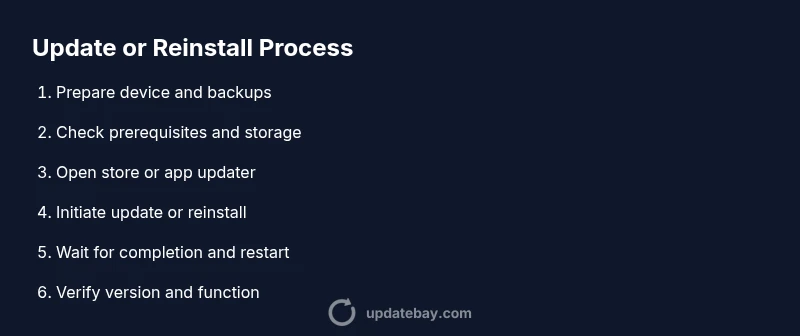
- 1
Check prerequisites
Verify you have power, stable internet, and access to your platform account. This minimizes interruptions and ensures you can sign in after updates or reinstall. If any prerequisite is missing, resolve it before proceeding.
Tip: Plug in the device or enable battery saver to avoid mid-update shutdown. - 2
Back up app data
Create a backup of app data or ensure cloud sync is up to date. This protects your information if something goes wrong during the update or reinstall and makes restoring settings easier.
Tip: If the app supports exporting data, consider exporting a local copy as an extra precaution. - 3
Open the app store or settings for updates
Navigate to the appropriate store (iOS App Store, Google Play, Windows Store, or the app’s own updater) to locate the available update. If you’re on desktop, some apps offer a built‑in updater within the app menu.
Tip: If Update is not visible, the app may require you to update via the OS store or may already be current. - 4
Initiate the update
Tap or click Update/Install to begin downloading and installing the new version. Avoid interrupting the process by locking the screen or switching networks.
Tip: If multiple apps update simultaneously, wait for each progress bar to complete before opening the app. - 5
Wait for download and installation
Let the update finish without opening the app. Depending on size and network speed, this can take a few minutes. Don’t cancel mid‑process.
Tip: If the device slows down, pause background tasks to prioritize the update. - 6
Verify the update and test core features
Open the app and confirm the version number matches the latest release. Run essential functions to ensure the update didn’t break core workflows.
Tip: Review release notes for new features and known issues. - 7
If issues persist, prepare for reinstall
If the app still misbehaves after updating, plan a reinstall. This can clear stubborn cache or corrupted files that a standard update can’t fix.
Tip: Document observed issues to help troubleshooting if you need to escalate. - 8
Reinstall the app if necessary
Uninstall the app, then reinstall it from the official store or installer. Sign back in and restore data from your backup if prompted.
Tip: Reinstall is a powerful fix for deep‑seated problems; always restore data from a backup.
Frequently Asked Questions
What is the difference between updating and reinstalling the app?
An update replaces the app with a newer version to fix bugs and add features. A reinstall removes the app completely, then installs it again, which can clear corrupted data and cache that updates can’t fix.
An update brings in newer features and fixes; a reinstall re‑installs the app to clear deeper issues.
Will updating affect my data or settings?
Most updates preserve data and settings, but some apps may reset preferences. Always back up first so you can restore if needed.
Usually your data stays, but it’s safer to back up before updating.
How do I reinstall an app on iOS or Android?
On iOS, delete the app and reinstall from the App Store. On Android, uninstall from Settings or the Play Store and reinstall. Sign in again to restore cloud data if available.
Delete, reinstall from the store, and sign back in to restore data.
Can I revert to a previous version after updating?
Some apps support downgrading, but it’s not always straightforward and can require manual steps or older APKs. Check the app’s support resources for guidance.
Downgrades aren’t always easy; consult support if you need to revert.
What if the update is blocked due to storage?
Free up space by deleting unused apps or files, or move data to cloud storage. Then try the update again.
If storage is the issue, clear space and retry the update.
Should I wait for a critical bug fix before updating?
If you’re not affected by known bugs, you can wait for a minor update. For security or critical fixes, update promptly.
If it affects security, update sooner rather than later.
Watch Video
What to Remember
- Update regularly to patch security flaws
- Back up before changes to protect data
- Use reinstall when updates fail to resolve issues
- Verify version and core functionality after changes
- Keep your OS and platform accounts ready for smooth sign‑in