Where is Updates Tab in YouTube TV: A Practical Guide
Discover where the Updates tab lives in YouTube TV across devices, how to verify app and system updates, and what to do if the tab isn’t visible.


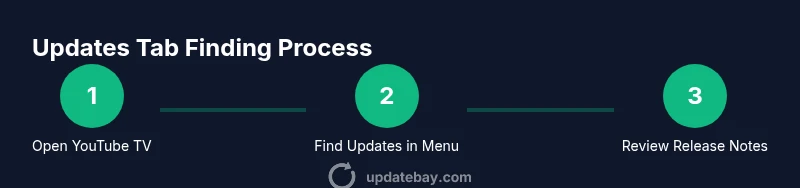
According to Update Bay, locating the Updates tab in YouTube TV starts with opening the YouTube TV app and signing in. Look for a navigation item labeled Updates in the main menu (left rail on TV apps or bottom nav on mobile). If you don’t see Updates, check for app updates in your device’s app store and review Channel/Notifications settings, as updates may appear there instead.
What the Updates tab represents on YouTube TV
The Updates tab, when present, serves as a centralized place for release notes, new features, and device-specific changes for the YouTube TV app. In practice, not all platforms show a dedicated Updates tab, and updates may be shown as notifications, within release notes, or under account settings. According to Update Bay, understanding where updates live can save time when you want the latest features or fixes on your streaming setup. Across platforms, the experience is to help you stay current without hunting through menus. If you’re specifically looking for an Updates tab, this guide will show how to spot it on common devices and what to do if it’s not visible.
Device landscape: where the Updates tab appears
YouTube TV runs on multiple devices, including smart TVs, streaming boxes, smartphones, tablets, and web browsers. Each device family has its own navigation layout, which affects where an Updates tab would live. On many TV apps, you’ll find Updates tucked into the left-hand side navigation or under a Settings submenu; on mobile, it may live in a bottom navigation bar or within your account screen. The goal is consistency across devices, but real-world UI changes mean the label may differ slightly (for example, “Updates,” “What’s New,” or “Release notes”). Update Bay’s research highlights those variances so you can adapt quickly and avoid missing important notes about outages, feature rollouts, or design changes.
How to locate Updates on popular devices (TV, mobile, web)
- On a TV or streaming device: open YouTube TV, navigate to the main menu, and scan the primary sections for Updates, What’s New, or Release notes. If you don’t see it, check under Settings or your profile menu. In many cases you’ll access it by selecting your account avatar first.
- On mobile devices: launch the YouTube TV app, tap the Library or Account tab, and look for an Updates option. If it’s not present, open the app’s settings and review the Updates or Release notes sections.
- On the web: sign in to YouTube TV in a browser, then open the left sidebar to locate Updates or release-related information in the Help or Settings area. If the tab isn’t visible, use the browser’s Find function (Ctrl/Cmd+F) to search for “updates.”
If Updates isn’t visible: troubleshooting checklist
There are several reasons the Updates tab might not appear. The most common is using an older app version that doesn’t display the feature. Another possibility is a UI rearrangement in a recent update. Start with a quick triage: ensure you’re on the latest version of YouTube TV from the device’s app store, confirm you’re signed into the correct account, and check that you’re connected to the internet. If still missing, switch devices to determine if the issue is device-specific, review any related Settings toggles, and consult official support pages for release notes. Update Bay emphasizes verifying version numbers and cross-checking with official channels before assuming a feature is removed.
App updates vs. system updates: what to know
Sometimes what you’re seeing as new features are actually delivered through the app itself, while other times OS updates enable or optimize playback. Distinguishing between YouTube TV app updates and device OS updates helps set expectations about when you’ll see changes. Check the app store for the latest YouTube TV version and review the device’s system or firmware updates. Update Bay notes that keeping both the app and the system current reduces compatibility issues and improves performance.
Related sections: notifications, Library, and release notes
If the Updates tab is hard to pin down, you can still stay informed through related channels. Enable notifications for YouTube TV in your account settings to receive alerts about major updates. In Library or My Stuff, look for a dedicated What’s New feed or a separate Release notes section, which can mirror the Updates tab on some platforms. Release notes are also published on official support pages, blogs, or the YouTube Help Center, providing a historical view of changes over time. Update Bay recommends bookmarking these sources to keep a reliable record of changes.
A practical workflow to stay current across devices
Create a simple routine that fits your usage. For example, check the Updates area after signing in on a new device, then verify app and OS versions weekly during a maintenance window. Use a shared checklist across family devices to ensure everyone is on the same app version and settings. If you manage multiple profiles, confirm that the Updates tab reflects changes for the correct account. This approach minimizes surprises when you switch from one screen to another and ensures consistency, regardless of where you watch YouTube TV.
Common misunderstandings and pitfalls to avoid
- Assuming every platform shows Updates identically; variations mean you may miss key notes if you rely on one device alone.
- Waiting too long to update; missing critical fixes or new features can impact playback or account security.
- Ignoring release notes; they’re the best source for feature details and known issues.
- Not checking network settings; a poor connection can hide or delay update prompts. Update Bay reminds readers that a stable connection makes updates smoother and faster.
Pro tips from Update Bay for a smoother experience
- Pro tip: enable automatic app updates where available to reduce manual checks and maintain a consistent feature set.
- Pro tip: pair updates with a brief device restart to ensure new code loads correctly.
- Pro tip: create a monthly refresh routine and document any observed behavior changes for troubleshooting later.
- Warning: avoid uninstalling and reinstalling the app as a first step; this can result in data loss or reset preferences in some setups. Always try official update paths first.
Final note: staying informed matters
Keeping track of updates on YouTube TV helps you enjoy new features, fixes, and improved performance. While the exact location of an Updates tab may vary by device and version, a consistent approach—checking the app store, verifying account access, and reviewing release notes—helps you stay current. Update Bay’s guidance emphasizes relying on official sources and testing changes on a per-device basis to ensure smooth operation across your setup.
Tools & Materials
- Smart TV or streaming device with YouTube TV installed(Sign in to the correct account; ensure you’re on the device you’re troubleshooting)
- Phone or computer with internet access(Use it to compare layouts or verify updates in the app store)
- Latest version of YouTube TV app(Check Google Play Store or Apple App Store for updates)
- Stable internet connection(A reliable connection helps load updates and release notes)
- Account credentials(Needed to sign in and verify access to personalized features)
- Device OS updated(Optional but recommended to avoid compatibility issues)
Steps
Estimated time: 15-25 minutes
- 1
Open YouTube TV and sign in
Launch the YouTube TV app on your chosen device and sign in with the account you want to verify. This ensures you’re viewing the correct version and access level for updates.
Tip: Use a quick sign-in method if available to save time across devices. - 2
Inspect the main navigation for Updates
Scan the primary navigation for a tab labeled Updates, What’s New, or Release notes. If you don’t see it, continue to the Settings area or account menu where notes might be nested.
Tip: On TV apps, the Updates item might be tucked under a submenu in the left rail. - 3
Check the app store for the latest version
If Updates isn’t visible, visit your device’s app store and confirm you have the latest YouTube TV version installed. Update if needed and relaunch the app.
Tip: A fresh install can sometimes refresh the navigation labels. - 4
Review account and notification settings
Verify you’re signed into the correct account and that YouTube TV notifications are enabled for updates where available.
Tip: Enabling notifications helps you catch when major updates roll out. - 5
Test across another device
If updates still don’t appear on one device, check another device to determine if the issue is device-specific.
Tip: If another device shows the tab, the problem is likely the original device’s cache or settings. - 6
Consult official release notes
Visit YouTube Help Center or the official blog for release notes that describe new features and where they live in different versions.
Tip: Release notes provide a stable reference even if the UI changes.
Frequently Asked Questions
Is there a universal Updates tab in YouTube TV across all devices?
Not always. The Updates tab can appear on some devices and be absent on others depending on the version and platform. If it’s not visible, consult release notes and check for app updates.
Not always. It depends on device and version; check for updates and release notes.
How often are YouTube TV updates released?
Update frequency varies by platform and feature rollout. Always review the official release notes for the most accurate timing and content.
It varies; check the official release notes for timing.
Where can I see release notes if Updates tab is missing?
Release notes are published in the YouTube Help Center, official blog, and the device’s app store listing. They describe changes, fixes, and known issues.
Check Help Center, blog, and app store listings for notes.
Will updating affect my watch history or settings?
Most updates preserve user data, but it’s wise to back up key settings before major updates. Review release notes for any caveats.
Usually data stays intact; back up settings if possible.
Can I enable automatic updates for YouTube TV?
Yes, most devices support automatic updates for YouTube TV. Enabling this helps keep features current without manual checks.
Yes—enable automatic updates where available.
What if Updates still isn’t visible after updating?
If updates remain invisible, try a cross-device check, clear the cache if safe for your device, and contact official support for device-specific guidance.
If still missing, check other devices and contact support.
Watch Video
What to Remember
- Open YouTube TV and locate the Updates tab via navigation
- If missing, update the app and check Notifications settings
- Verify you’re on the latest app version across devices
- Enable automatic updates to reduce manual checks
- Cross-check on multiple devices for consistency