Can You Update BIOS in Windows? A Practical Guide
Learn whether BIOS updates can be applied from Windows, when to update, and how to do it safely using official manufacturer tools or USB flash methods.


Yes, you can sometimes update BIOS from Windows, but only when the device vendor provides a supported Windows tool. In most cases, updates are done via a vendor utility or a bootable USB, not directly in Windows. Always use official files, back up data, and ensure a reliable power source before proceeding.
What BIOS/UEFI firmware updates do and why they matter
Firmware updates address compatibility, security, and stability at the lowest level of hardware initialization. They can fix rare boot issues, improve hardware recognition, and add support for newer operating systems or peripherals. According to Update Bay, the safest approach is to use only official vendor tools and follow model-specific instructions. BIOS/UEFI updates are not routine maintenance; they should be performed when a documented benefit exists or a critical fix is released. In Windows environments, you may have options to apply updates from within Windows or via a USB flash method, depending on your hardware vendor and device type. Desktop motherboards often support Windows-based utilities, while laptops may require a bootable USB or the vendor’s recovery flow. The key is to match the update path to your exact model and ensure you’re not flashing the wrong firmware.
Can you update BIOS in Windows? The concept and cautions
The short answer is: sometimes. BIOS updates alter firmware that initializes hardware during boot, so applying the wrong file or interrupting the process can brick the device. Many manufacturers offer Windows-based update utilities for convenience on supported models, but these tools are not universal. Always consult the official product page for your exact model and read the release notes before attempting an update. If your device isn’t supported for Windows-based flashing, the vendor will provide an alternative method, such as a bootable USB updater or a graphical BIOS flash directly in the UEFI interface. In short, can you update bios in windows depends on the model; for many systems, the safest option is to use the vendor’s official method.
Windows-based BIOS update utilities: when they exist
Some brands provide dedicated Windows utilities that automate firmware flashing with built-in verification. These tools typically perform compatibility checks, download the correct BIOS image, and guide you through the flash with progress indicators. They reduce the risk of selecting an incorrect file but still require an uninterrupted power source and a compatible Windows build. If your OEM offers such a tool, it is usually the simplest route for supported devices. If not, you’ll rely on a USB-based process or the BIOS/UEFI flash utility, which can be accessed during startup. Always choose the official utility or USB method published by the device maker to minimize risk.
USB or bootable media: updating BIOS from the firmware interface
When Windows-based flashing isn’t available, a USB-based update is common. This requires creating a bootable USB drive containing the BIOS image and a flashing utility, then rebooting into the USB environment to perform the update. The USB method is hardware-agnostic and often more robust against Windows-specific failures. However, it demands careful handling: format the drive with the exact file structure the vendor specifies, disable unnecessary startup programs, and avoid removing power during the flash. If your system supports a built-in BIOS update via a USB drive, follow the vendor’s exact steps to initiate the flash from the BIOS/UEFI menu.
Pre-update checks and safety precautions
Before starting any BIOS update, perform a series of checks to minimize risk. Confirm you’ve downloaded the correct BIOS file for your exact model and hardware revision. Back up current BIOS settings by taking photos or notes of key configuration values (boot order, virtualization settings, and any custom memory timings). Ensure your power source is stable: connect an AC adapter for laptops and ensure the desktop remains plugged in. Create a recovery plan in case something goes wrong, such as knowing how to use a fallback BIOS or recovery jumper. Read the vendor’s release notes to understand what changes the update introduces and whether a restart is required after flashing.
How to identify your hardware model and BIOS version
Start by identifying your system’s exact model and motherboard chipset. On Windows, run System Information (msinfo32) to view the system model and BIOS version. For laptops, check the label on the bottom or the battery compartment. On desktops, open the case panel or use a system inventory tool from the motherboard vendor. With the information in hand, visit the official support page to locate the correct BIOS package and flash method. Keeping a precise model number prevents accidental flashes of the wrong firmware, a leading cause of failed updates.
Choosing the right update path for your system
Not all systems support Windows-based BIOS updates. If the vendor offers a Windows tool and confirms it supports your model, that is usually the simplest path. If you own an older motherboard or a custom build, you may need to use a USB-based flash directly from the BIOS/UEFI. In some cases, newer systems provide automatic firmware updates through Windows Update or firmware management services; however, these are not universal. Always start with the vendor’s guidance, verify the exact model, and select the update route that aligns with your hardware and comfort level.
Post-update steps and verification
After flashing, the system will reboot and may return to default BIOS settings. Enter BIOS/UEFI to verify the new version is installed and reapply any required configurations (boot order, memory profiles, virtualization, secure boot). Save changes and boot normally. In Windows, verify the operating system is functioning correctly and check for any BIOS-related notifications from the vendor's software. If things seem off, revert to a previous BIOS version if the vendor provides a recovery option and consult official support resources for troubleshooting steps.
Troubleshooting failed updates and recovery options
If a flash fails, do not power off abruptly; wait for any recovery prompts or use the vendor’s BIOS recovery features (dual BIOS, recovery jumper, or emergency flash). Some devices automatically attempt rollback if a post-update failure is detected. Prepare a fallback plan, including access to a second machine for downloads and a means to re-create a bootable USB if needed. If recovery isn’t straightforward, contact the vendor’s support with your exact model, BIOS version before the update, and a detailed description of the failure.
Best practices and final recommendations
Only update BIOS when there is a documented benefit (security patch, bug fix, or new hardware support). Use official sources for the BIOS file, verify the checksum if provided, and ensure power stability. Maintain a current backup of critical data and consider testing updates on non-essential systems before applying them to primary machines. Document the new BIOS version and keep the vendor’s recovery options accessible. Regularly review vendor advisories to stay informed about firmware-related issues that may impact Windows compatibility.
Tools & Materials
- Official BIOS update file from the manufacturer(Download the exact model and revision; avoid generic packages.)
- Computer model and BIOS version information(Have these ready to confirm the correct update.)
- Reliable power source(AC adapter for laptops; uninterrupted desktop power.)
- Windows-based BIOS update utility (if supported)(Use only if the vendor confirms compatibility with your model.)
- USB flash drive (optional for USB-based flashing)(Format as required by the vendor (often FAT32).)
- Backup plan (recovery media or jumper for dual-BIOS systems)(Have a contingency in case of a failed flash.)
- Stable internet connection(Needed to download the correct BIOS package or tool.)
Steps
Estimated time: Estimated total time: 60-90 minutes
- 1
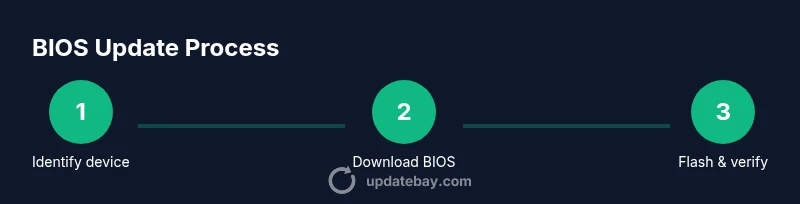
Identify hardware model and BIOS version
Open System Information (msinfo32) or the device label to capture the exact model. Note current BIOS revision to compare against the latest release notes from the vendor. This ensures you download the correct update and reduces the risk of installing the wrong firmware.
Tip: Take screenshots of the BIOS screen and save them with the model number in the filename. - 2
Check vendor release notes and determine upgrade path
Visit the official support page for your model and read the BIOS release notes. Confirm whether Windows-based flashing is supported and identify the recommended method (Windows tool vs USB). This ensures you follow the vendor-approved process.
Tip: If unsure, contact the vendor’s support before downloading any files. - 3
Download the correct BIOS package
From the manufacturer’s site, download the exact BIOS file for your model revision. Verify the checksum if provided and store the file in a dedicated folder to avoid mix-ups during flashing.
Tip: Do not rename the file after download until you finish the update to prevent path issues. - 4
Prepare your update method
If using a Windows-based tool, install it and ensure it detects your hardware. If using USB, create a bootable drive with the BIOS image and flashing utility as instructed by the vendor.
Tip: Make sure the USB drive is clean and not data-heavy; designate a dedicated flash drive for this task. - 5
Initiate the BIOS update
Run the vendor tool or boot into the USB environment and start the flash. Do not interrupt power, close other applications, or press random keys during the process. Follow progress indicators and wait for the process to complete.
Tip: If the tool reports success, do not power off during the first boot sequence. - 6
Verify the new BIOS version
After restart, re-enter BIOS/UEFI to confirm the updated version. Reconfigure any custom settings if needed and ensure hardware detects correctly in Windows.
Tip: Document the new BIOS version for future reference. - 7
Test system stability
Boot into Windows, run basic checks, and perform light stress tests to ensure stability. If issues arise, revert to previous BIOS via vendor recovery options if available.
Tip: Keep the system idle during initial post-update testing to catch anomalies early. - 8
Plan for future updates
Create a cadence for monitoring firmware advisories and apply updates only when necessary. Maintain backups and be prepared with recovery options in case a future flash is required.
Tip: Set up vendor notifications to stay informed on new firmware releases.
Frequently Asked Questions
Can you update BIOS in Windows, and is it safe?
Yes, you can in some cases using official vendor tools. Always follow the model-specific guidance and ensure a stable power supply to minimize risk.
Yes, but only with the vendor’s official method and a steady power supply.
Do BIOS updates erase my data?
BIOS updates should not erase your personal files, but a failed flash can cause boot issues or settings loss. Always back up important data and settings beforehand.
No, personal files usually stay intact, but a failed flash can cause boot or settings problems.
What should I do before updating BIOS?
Identify your model, read release notes, back up BIOS settings, ensure power, and download only the official file. Prepare a recovery plan in case something goes wrong.
Know your model, back up settings, and ensure power before updating.
What if the update fails?
Use the vendor’s recovery options, such as dual BIOS or a recovery jumper, and contact support with model, BIOS version, and failure details.
If it fails, use the vendor recovery options and seek support with details.
Is BIOS updating necessary for Windows performance?
Not typically for performance. Update only if the vendor notes a specific fix or added hardware support that you need.
Only if there’s a documented fix or support you need.
Can laptops update BIOS while on battery?
No. Always connect the AC adapter during a BIOS update to avoid power loss mid-flash.
Always plug in; updates can fail if power is lost.
Watch Video
What to Remember
- Identify model and exact BIOS version before updates.
- Use official vendor tools or USB recovery as directed.
- Back up data and BIOS settings; ensure stable power.
- Verify new BIOS version and test system stability.
- Document changes for future reference.