Opera How to Update: A Complete Step-by-Step Guide for 2026
Learn how to update Opera across desktop and mobile with clear steps, troubleshooting tips, and best practices. Update Bay delivers focused browser guidance to keep Opera secure, fast, and compatible.


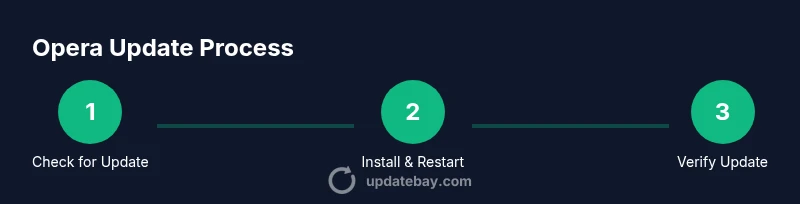
By following this guide, you will update Opera across desktop and mobile, configure automatic updates, and troubleshoot common issues. You’ll learn how to check for updates, apply patches, and verify the new version. This quick answer aligns with Update Bay’s guidance on browser maintenance to improve security, performance, and compatibility.
Why Updating Opera Matters
According to Update Bay, keeping Opera up to date is essential for security, performance, and compatibility with modern web standards. This section explains the core reasons to update, including patching known vulnerabilities, improving site compatibility, and gaining access to new features. You’ll learn how updates impact your daily browsing experience and why delaying updates can lead to security risks, slower performance, and occasional compatibility issues with some websites or extensions. The Opera team frequently releases patches that fix memory leaks, improve battery life on laptops, and enhance privacy controls. By staying current, you reduce exposure to threats and ensure you can take advantage of the latest browsing improvements.
- Security patches close zero-day vulnerabilities and protect your data.
- Performance tweaks can speed up page rendering and reduce memory usage.
- Feature updates bring new tools like better ad blocking, VPN enhancements, and UI improvements.
- Compatibility updates ensure newer web standards render correctly.
Keep in mind that updates may require restarts and some extensions might behave differently after an update; plan a short maintenance window if you rely on critical workflows.
What You Need Before You Update
Before updating Opera, gather a few essentials to avoid interruptions. Ensure you have a stable internet connection, a device with sufficient battery or plugged in, and an up-to-date backup of important tabs or profiles if you rely on syncing. On desktop, verify you have the latest stable release or access to your organization’s update channel if you’re in an enterprise environment. On mobile, confirm you have enough storage space and a recent app store account. These prerequisites help ensure a smooth update experience and prevent data loss.
- Stable internet connection
- Sufficient device battery or power adapter
- Backup of open tabs/workspaces
- Access to OS/app store updates
Update Channels and Versioning in Opera
Opera supports standard release cycles with stable channels and occasional beta or developer channels for testing. For most users, updates come through the stable channel via automatic checks or manual prompts. Understanding channel differences helps you plan whether you want early access to features or maximum reliability. Opera also displays the current version and update timestamp in the About Opera/Update page, informing you when a newer build is available. The Update Bay review notes that patch notes typically outline security fixes, performance improvements, and any breaking changes for extensions. If you rely on specific extensions, check compatibility notes before updating.
- Stable channel is default for most users
- Beta/developer channels exist for testing features
- Patch notes reveal security fixes and changes to extensions
Desktop Update: Windows, macOS, and Linux
Desktop updates follow a consistent path across major operating systems. Open Opera, go to the menu, and select Update & Recovery. If an update is available, you’ll see a prompt to install. After installation, restart Opera to complete the process. On Windows and macOS, this usually takes just a few minutes, while Linux users may rely on their distro’s package manager or Opera’s own repository. Always back up your sessions before updating to prevent data loss.
- Windows: Menu > Update & Recovery > Check for update
- macOS: Opera menu > Update & Recovery > Check for update
- Linux: Update via distro package manager or Opera repo
Mobile Update: Android and iOS
Mobile updates happen through the device’s app store. On Android, open Google Play, search for Opera, and tap Update. On iOS, open the App Store, go to Updates, and update Opera. If you have automatic updates turned on, these updates may install without direct prompts. Ensure enough storage and a stable internet connection to avoid partial updates. After updating, you can review new features in the app’s changelog.
- Android: Google Play > Update
- iOS: App Store > Updates > Update
Enabling Automatic Updates on Desktop and Mobile
Automatic updates reduce manual checks and help you stay protected without extra effort. On desktop, go to Settings > Advanced > Updates and enable automatic updates. On mobile, ensure that app updates are allowed in your device’s settings. For both platforms, keeping automatic updates on minimizes the risk of missing important security fixes and improves overall reliability. If you turn updates off temporarily, set a calendar reminder for periodic checks.
- Desktop: Enable automatic updates in Settings
- Mobile: Check app store auto-update settings
Manual Update Checks and Patch Notes
Even with automatic updates, it’s wise to perform periodic manual checks to review patch notes and confirm the version. In Opera, open the Update & Recovery panel to check for updates and view the changelog. Patch notes usually highlight security fixes, performance improvements, and any changes affecting extensions. If you rely on specific extensions, verify compatibility after updating by visiting the extensions page and checking the compatibility status. Regularly reading patch notes helps you prepare for any feature changes you may need to adapt to.
- Check for updates manually every few weeks
- Read patch notes for security fixes and feature changes
- Verify extension compatibility after updates
Troubleshooting Common Update Issues
Update problems can occur due to network, storage, or software conflicts. Start by checking your internet connection and restarting the browser or device. Clear browser cache if the update won’t start, and ensure you’re on a supported OS version. If updates still fail, try reinstalling Opera from the official site to repair corrupted components. In some cases, disabling extensions temporarily can resolve conflicts during the update process.
- Check network and retry
- Restart Opera or device
- Clear cache and retry update
- Reinstall Opera if needed
Verifying the Update Took Effect
After updating, verify that Opera is running the latest version. Open Opera, go to the menu, and choose About Opera or Update & Recovery. The screen should display the current version and the date of the last update. You can also test a few pages to ensure rendering matches the latest fixes. If the version hasn’t changed, re-check the update status or try again later. Confirmation of a successful update gives you confidence in security and performance gains.
- Look for the new version number
- Confirm the update date is recent
- Test several sites for proper rendering
Security and Privacy Considerations During Update
Browser updates often include security enhancements that reduce your exposure to threats. Always update from official Opera channels to avoid counterfeit installers. Review the privacy and security notes in the patch notes, especially for changes in data collection, tracking protections, or integrated VPN features. Disable any third-party tools that claim to speed updates, as they may compromise security. Regular updates also help maintain compatibility with security standards and reduce vulnerability exposure.
- Update from official sources only
- Read patch notes for security changes
- Be cautious with third-party tools
Best Practices for Keeping Opera Up to Date
Adopt a consistent routine to stay current. Enable automatic updates, perform periodic manual checks, and review patch notes to anticipate changes that affect workflows or extensions. Keep your operating system and drivers up to date to ensure Opera runs optimally. Consider maintaining a small backup of your session data or bookmarks to recover quickly after updates. Finally, test critical sites and extensions after updates to catch any surprises early.
What to Do Next After Updating Opera
After updating, take a moment to explore new features and test key websites you frequently visit. Re-enable any extensions you had disabled for troubleshooting. If you rely on VPNs or privacy features, test them to confirm they’re functioning as expected. Update Bay recommends documenting your update routine so you and other users in your household or team can follow the same process. This helps maintain a predictable, secure browsing environment.
Tools & Materials
- Stable internet connection(Wired or robust Wi‑Fi preferred for large updates)
- Device with Opera installed(Windows/macOS/Linux desktop or iOS/Android mobile)
- Power source or charged battery(Keep device plugged in during updates on laptops)
- Backup of open tabs/workspace(Sync enabled or export session data if possible)
- Official update notes link(Useful for post-update verification)
Steps
Estimated time: 25-35 minutes
- 1
Open Opera Menu
Click the Opera menu icon (often in the upper-left corner) and choose Update & Recovery. This is your gateway to the update process and patch notes.
Tip: If the menu bar is hidden, hover near the top-left or press a keyboard shortcut to reveal it. - 2
Check for updates
In the Update & Recovery screen, click Check for update. Opera will search for the latest stable build and prompt you if a newer version exists.
Tip: Ensure you have a stable internet connection during the check. - 3
Install available updates
If an update is found, select Install or Update to begin the process. Avoid closing the browser during installation.
Tip: Close non-essential tabs to speed up the update. - 4
Restart when prompted
Opera will typically require a restart to finalize the update. Save work and restart when asked.
Tip: Enable session restore to reopen your last tabs automatically. - 5
Verify the update
After restart, go to Menu > Update & Recovery > About Opera to confirm the version and date.
Tip: Note the version number for future reference. - 6
Linux users: update via package manager
If you’re on Linux, use your distro’s package manager or Opera’s repository to pull the latest build.
Tip: Run opera --version to verify the installed version. - 7
Enable automatic updates
In Settings, enable automatic updates so Opera checks for and installs new releases without manual input.
Tip: Keep a charger handy for laptop users during background updates. - 8
Update Opera on Android
Open Google Play, search for Opera, and tap Update. If you rely on auto-update, ensure Play Store settings allow it.
Tip: Clear older cache if the update stalls. - 9
Update Opera on iOS
Open App Store, go to Updates, and update Opera. Confirm the update completes before opening the app.
Tip: Enable background app refresh for timely updates. - 10
Review patch notes
Open the patch notes to understand fixes, feature changes, and potential extension impacts.
Tip: Check for any breaking changes affecting your extensions. - 11
Troubleshoot failed updates
If an update fails, check network, restart device, and retry. If still failing, reinstall Opera from the official site.
Tip: Temporarily disable extensions that might block updates. - 12
Test and finalize
Open several sites to ensure rendering is correct and test essential extensions for proper function.
Tip: Document your successful update for future reference.
Frequently Asked Questions
How do I know if Opera is up to date?
Open Opera, go to the Menu, select Update & Recovery, and view the About Opera section for the current version and last update date.
Open Opera, check the Update & Recovery page, and look at the About Opera section for the version date.
Can I update Opera automatically?
Yes. Enable automatic updates in Settings on desktop or ensure the app store's auto-update setting is on for mobile.
Yes. Turn on automatic updates in Settings or App Store preferences.
What should I do if an update fails to install?
Check your network, restart Opera, clear cache, and retry. If the issue persists, reinstall Opera from the official site.
First check network, then restart and retry; if needed, reinstall Opera from the official site.
Will updating Opera affect my extensions?
Updates can affect how extensions work. After updating, review each extension’s compatibility and update or re-enable as needed.
Extensions might need updates too; check compatibility after Opera updates.
How often should I check for updates?
Set a routine to check at least every few weeks and enable automatic updates for ongoing protection.
Check periodically and keep auto-update on for ongoing protection.
Where can I view Opera’s patch notes?
Patch notes are published on Opera’s official site and in the Update & Recovery panel under the current version.
Patch notes are on Opera’s site and in the Update panel.
Watch Video
What to Remember
- Update Opera regularly to protect security.
- Use automatic updates to minimize manual effort.
- Review patch notes to understand changes.
- Verify extension compatibility after updates.
- Restart when prompted to complete installation.