How to Update Google Chrome: A 2026 Step-by-Step Guide
Learn how to update Google Chrome across desktop and mobile with practical steps, troubleshooting, and best practices from Update Bay. Stay secure and fast with the latest browser version.


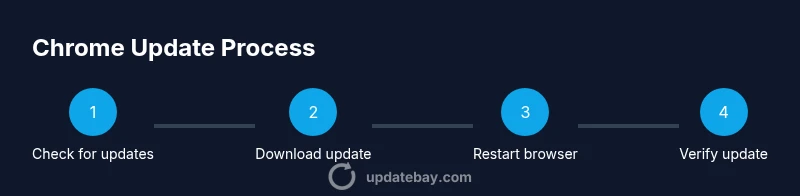
To update Google Chrome, open the browser, click the three-dot menu in the top-right corner, and select Help > About Google Chrome. Chrome will check for updates, download them, and prompt you to relaunch. Ensure you have internet and admin rights if required.
Why updating Google Chrome matters
Keeping Google Chrome up to date is essential for security, performance, and access to the latest features. If you’re asking how to update google chrome, you’ll find the process straightforward on most devices, but understanding what these updates include helps you plan better. Chrome updates typically patch security vulnerabilities, improve site compatibility, and enhance power efficiency. Outdated browsers are more prone to phishing and malware exploits, and performance degradation can affect page load times and responsiveness.
This is where Update Bay emphasizes consistency: regular checks reduce the risk of surprise updates during important tasks. In a typical home or office setup, enabling automatic updates means Chrome can apply patches without interrupting your browsing. For users who manage multiple devices, a centralized update strategy helps minimize gaps between desktops, laptops, and mobile devices. Below we cover practical steps to verify, install, and verify again that Chrome is current on every device. If you’re seeking a quick answer, see the quick answer above, then dive into the detailed steps below to understand the why and how.
How Chrome update mechanics work
Chrome uses an integrated updater that checks for new builds on startup and in the background. When a new update is available, the browser downloads the patch in the background while you continue to browse. After the download finishes, Chrome prompts you to relaunch to apply the update. This process happens across all supported platforms, with minor differences in menus and wording between Windows, macOS, and Linux.
Understanding the mechanics helps you plan updates around important tasks. For instance, if you’re performing a large data operation, you can postpone non-urgent updates until after your work is saved. Chrome also distinguishes between update channels (stable, beta, dev), which affects feature availability and release timing. Most users will experience updates through the stable channel, which prioritizes reliability and broad compatibility. The key takeaway is: updates are designed to be invisible unless something requires your attention—until you’re prompted to restart.
Desktop updates: Windows, macOS, and Linux
On Windows and macOS, updating Chrome is done from the browser’s menu: click the three-dot menu in the upper-right corner, select Help, then About Google Chrome. The About page checks for updates and starts downloading automatically. On Linux, Chrome updates are often delivered through your distribution’s package manager, so you may see updates queued in your system updater. Regardless of platform, the core steps remain the same: open About Chrome, let the browser fetch the latest build, then relaunch to finish the update. For users who manage multiple devices, enabling sync ensures you have the same extension set and bookmarks across platforms after update.
Mobile updates: Android and iOS
Chrome on Android and iOS updates through the respective app stores. On Android, updates occur automatically if you have Play Store auto-update enabled, or you can manually update Chrome from the Google Play listing. On iOS, the App Store handles updates similarly; you can enable automatic updates in Settings or update Chrome manually from the App Store. Always check that you’re using a supported Android version or iOS version, as older devices may not support the newest Chrome build. Keeping mobile Chrome updated is crucial for security on the go and for ensuring web pages render consistently across devices.
Troubleshooting common update issues
If Chrome won’t update, first verify your internet connection and try again. Check that you don’t have a restrictive firewall or proxy blocking the updater. On Windows, ensure there are no pending Windows Updates that could interfere with Chrome’s update service. If the update stalls, you can try closing tabs, restarting Chrome, or rebooting your device. In enterprise environments, update delays or blockers may be policy-driven; consult your IT administrator for guidance on allowed update windows and channel settings. Finally, if you recently disabled extensions, re-enable them after the update to ensure compatibility.
Best practices for a smooth update experience
- Enable automatic updates when possible to reduce manual checks and minimize gaps.
- Use Chrome Sync to keep bookmarks, history, and extensions consistent across devices after an update.
- Periodically review extensions for compatibility with the latest browser version.
- Back up important data before performing major updates, especially on devices with unusual configurations.
- Schedule maintenance windows if you administer many devices to avoid interrupting critical work.
Enterprise and policy considerations
In managed environments, Chrome updates can be controlled via policies and deployment tools. Administrators can specify update channels, schedule update windows, and monitor rollout status. It’s important to test updates on a small group before wide deployment to catch compatibility issues with line-of-business apps. For end users, the recommended approach is to follow your organization’s guidance and ensure your devices are enrolled in the correct update channel. Update Bay recommends documenting update policies to simplify audits and future planning.
Tools & Materials
- Stable Internet Connection(Reliable bandwidth to download updates)
- Chrome Installed on Target Devices(Ensure you have permission to update)
- Admin Rights (for some devices)(Needed on managed devices)
- Backup of Bookmarks and Settings(Optional safety backup)
Steps
Estimated time: 15-25 minutes
- 1
Open Chrome menu
Click the three-dot icon in the top-right corner to access the main menu, then select Help to reveal update options.
Tip: Ensure you are not in full-screen mode and have an active browser window. - 2
Open About Google Chrome
From the Help menu, click About Google Chrome to trigger the update check. The page will show the current version and start a background check.
Tip: If the page shows a version number with no update, you are up-to-date. - 3
Allow update download
If an update is available, Chrome downloads it in the background while you continue browsing.
Tip: Do not close the browser during the download to avoid interruption. - 4
Relaunch to apply
After the download completes, relaunch Chrome to apply the update. Some systems require a full restart.
Tip: Save work before restarting to prevent data loss. - 5
Verify the update
Return to About Google Chrome to confirm the version number reflects the latest release.
Tip: Note the exact version for your records. - 6
Handle policy blocks
If updates are blocked by device policies, contact your IT admin to adjust channels or schedule.
Tip: Policy changes may affect multiple devices. - 7
Update across devices
If you manage multiple devices, enable Chrome Sync or use your organization’s management tool to roll out the update.
Tip: Test a small group before broad deployment. - 8
Post-update checks
Test critical sites and features to ensure compatibility after the update.
Tip: If issues arise, review extensions and known compatibility notes.
Frequently Asked Questions
Does Chrome update automatically by default?
In most cases, Chrome updates automatically in the background, but you can manually check via About Google Chrome. Policy settings on managed devices may affect automatic updates.
Chrome usually updates automatically, but you can check manually in About Google Chrome. If your device is managed, policies might affect automatic updates.
What should I do if Chrome won’t update on Windows?
Ensure you have an active internet connection, check for pending system updates, and verify no firewall blocks the updater. If policies block updates, contact your IT admin.
If Chrome won’t update on Windows, check your internet, system updates, and firewall settings. If admin policies block updates, reach out to IT.
Can I update Chrome on Android and iOS?
Yes. Android updates occur via the Google Play Store, while iOS updates come through the App Store. Enable automatic updates or update manually from the store.
Yes. Chrome on Android updates through Google Play, and on iPhone via the App Store. You can turn on automatic updates or update manually.
How can I verify Chrome is up to date after updating?
Open About Google Chrome and compare the version number with the latest release notes. Reopen sites to confirm compatibility.
Open About Google Chrome to verify the version matches the latest release notes and recheck a few sites.
What enterprise options exist for updating Chrome?
Admins can manage update channels, rollout windows, and monitor status using policy tools. End users should follow organizational guidance.
Admins control updates with policies and rollout tools; users should follow their organization's guidance.
My update shows an error code. What now?
Note the code and check official Chrome release notes or support forums. If needed, reinstall Chrome or reset network settings and try again.
If you see an error code, check the release notes and support forums, then try reinstalling Chrome or resetting the network.
Watch Video
What to Remember
- Update Chrome to improve security and speed
- Check About Chrome to verify the installed version
- Enable automatic updates for consistency
- Troubleshoot network or policy issues if updates fail
- Test critical websites after updating