How to Update Your Browser to Chrome: A Practical Guide
A comprehensive, step-by-step guide to updating Chrome across Windows, macOS, Linux, and mobile devices, including prerequisites, troubleshooting, and post-update best practices to keep your browsing secure and fast.


Goal: update browser to Chrome across Windows, macOS, and mobile. You’ll verify your current version, trigger the built-in updater, restart Chrome, and test sites after updating. This guide covers prerequisites, the update path on desktop and mobile, troubleshooting, and post-update best practices so you stay current and secure. Whether you’re upgrading on a standalone PC, a work laptop, or a mobile device, this process helps keep browsing fast, secure, and compatible.
Why updating your browser to Chrome matters
According to Update Bay, updating browser to Chrome matters for security, compatibility, and performance. Keeping Chrome current reduces exposure to known vulnerabilities and helps ensure websites render correctly. When you update browser to Chrome, you gain access to the latest security patches, bug fixes, and features that improve page loading times and support modern web standards. For both tech enthusiasts and everyday users, staying updated minimizes risk and maximizes usability.
In this guide, we’ll walk through why Chrome is a strong choice, how updates work across devices, and practical steps to update with minimal disruption. You’ll learn to check your current version, trigger updates, verify success, and manage extensions after upgrading. Whether you rely on web apps for work, education, or entertainment, keeping Chrome current helps you stay productive and secure. Update Bay’s approach emphasizes clear, safe practices that you can apply today to update browser to Chrome confidently.
Chrome update channels and what changes you can expect
Chrome releases updates through several channels, with Stable being the default for most users. The Stable channel delivers reliable security patches and performance improvements without breaking changes. If you’re curious or testing new features, you might consider Beta or Dev channels, but those come with the risk of occasional instability. Understanding these channels helps you decide how often to update and what to expect when you update browser to Chrome. In practice, most users will keep to Stable and still receive regular, automatic updates that improve security and page rendering. The Update Bay analysis highlights that staying current reduces exposure to vulnerabilities and keeps compatibility with newly designed websites and web apps. When you update browser to Chrome, you benefit from an integrated updater that respects your OS and device constraints, minimizing manual steps while delivering essential improvements.
Prerequisites before you update to Chrome
Before you update browser to Chrome, take a moment to prepare. Confirm you have a stable internet connection and sufficient disk space, then back up critical data such as bookmarks and credentials. If you manage a work device, ensure you have admin rights or a temporary approval to install updates. Check that your extensions are compatible with the new Chrome version and note any enterprise policies that may restrict changes. In addition, pause any active downloads or video calls so the update process isn’t interrupted. A clean, prepared start reduces the chance of errors and makes the experience smoother. As described by Update Bay, proper prep is a cornerstone of a successful update to Chrome.
How to check your current Chrome version
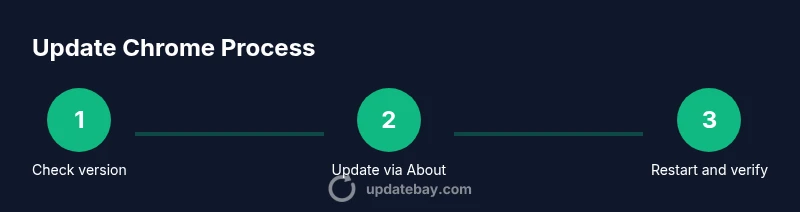
Knowing how to check your current Chrome version is the first step in the update browser to Chrome workflow. On Windows or Linux, open Chrome and go to the menu (three dots) > Help > About Google Chrome. On macOS, use the Chrome menu > About Google Chrome. The About page not only shows the version number but also triggers an automatic check for updates. If a newer version is available, Chrome will start downloading it immediately and prompt you to relaunch once the update completes. Regularly verifying your version helps you track update progress and ensures you aren’t running an outdated build that lacks recent protections.
The direct update path on Windows and macOS
On Windows, the simplest way to update browser to Chrome is through the built-in updater invoked from About Google Chrome. Open Chrome, select Help > About Google Chrome, and allow the updater to download and install the latest release. On macOS, the path is similar: Chrome > About Google Chrome will check for updates and install them when available. In both cases, you’ll typically be prompted to relaunch Chrome after the installation. If you’re on a managed device or a corporate network, ensure policy restrictions won’t block the update and that you’re connected to the company VPN if required. After the update, reopen Chrome and confirm the new version is active.
Verifying after update and how to handle failures
After updating browser to Chrome, verify that the new version is running by revisiting the About page or by checking the version string in the Help menu. Launch several web apps and pages you rely on to ensure compatibility and performance improvements are in effect. If the update fails to install, try a simple restart of Chrome, then retry the update. If necessary, restart your computer and run the update again. On some Linux distributions, you may need to use the system package manager to update Chrome (for example, apt or dnf) and then restart the browser. In persistent cases, a clean reinstall of Chrome can resolve stubborn update issues while preserving your profile through sign-in.
Security and privacy considerations after updating
Keeping browser security up-to-date is a core reason to update browser to Chrome. After updating, enable Safe Browsing, review password manager settings, and ensure that browser permissions align with your privacy preferences. Review installed extensions for any that request broad access and disable those that aren’t essential. Consider turning on hardware acceleration if your device supports it, which can improve performance for graphics-heavy sites. Finally, keep automatic updates enabled so future security patches arrive promptly and reduce the risk of exploitation.
Common issues and quick fixes
Update problems often revolve around network interruptions, antivirus software blocking the updater, or conflicting extensions. If the update stalls, temporarily disable extensions and try again. Ensure your firewall isn’t blocking Google update services. For corporate devices, verify that group policies don’t lock automatic updates. If you’re on Linux, use your distribution’s package manager to refresh the Chrome package. If Chrome still won’t update, visit Google’s official support resources for guided troubleshooting steps and consider a manual reinstall as a last resort.
What to do after updating: extensions, syncing, and backups
Post-update care matters as you update browser to Chrome. Re-enable or re-install extensions and verify their permissions after the update. Sign back into your Google account to restore sync settings for bookmarks, history, and passwords. Review your startup and search settings to ensure they align with your privacy and productivity preferences. Finally, consider exporting a fresh backup of important data to guard against accidental loss and to facilitate a quick recovery if something goes wrong in the future.
Tools & Materials
- Stable internet connection(5 Mbps or faster is recommended for smooth downloads)
- Device with Chrome installed(Windows, macOS, or Linux; admin access may be required)
- Backup/export bookmarks(Export bookmarks and passwords for safety before updating)
- Alternative browser (optional)(Useful fallback if Chrome update encounters problems)
- Disk space(Ensure several hundred MB are available for the update)
Steps
Estimated time: 20-30 minutes
- 1
Check prerequisites
Confirm you have a stable internet connection, sufficient disk space, and admin rights where required. Back up bookmarks and data so you can restore them if anything goes wrong during the update.
Tip: Backups reduce the risk of data loss if an update disrupts your profile. - 2
Open Chrome and access About
Launch Chrome and navigate to the menu (⋮) or Chrome menu, then choose Help > About Google Chrome. This screen will show the current version and begin a check for updates automatically.
Tip: Having other tabs closed can speed up the update check. - 3
Initiate the update
If an update is available, Chrome will download it automatically and prepare to install. Do not close Chrome during this process, as interruptions may cause partial installs.
Tip: If no update appears, you already have the latest version. - 4
Restart Chrome
When prompted, restart the browser to complete the installation. The update becomes active after the relaunch and a quick verification step.
Tip: Save work in other tabs before restarting. - 5
Verify the new version
Return to About Google Chrome to confirm the version number reflects the latest release. Open a few sites to ensure rendering and performance improvements are in effect.
Tip: Check for any extension compatibility prompts during first run after update. - 6
Handle a failed update
If the update fails, restart the device, retry the update path, or perform a reinstall if necessary. Linux users may need to use their package manager to refresh the Chrome package.
Tip: A clean reinstall often resolves stubborn issues while preserving your profile when you sign back in. - 7
Review security settings
After updating, review security and privacy settings, enable Safe Browsing, and audit extensions for permissions.
Tip: Disable extensions that request excessive permissions. - 8
Test and finalize
Test essential web apps, bookmarks, and saved passwords. Re-enable syncing if you turned it off and confirm that your preferences are intact.
Tip: Keep auto-updates enabled to stay protected.
Frequently Asked Questions
Do I need to uninstall the old Chrome version before updating?
No. Updates replace files in place and preserve your profile when you sign in. Uninstalling is not required for a normal update.
No, you don’t need to uninstall. Chrome updates replace the necessary files automatically.
Will updating Chrome affect my saved passwords and bookmarks?
Updating Chrome preserves your saved passwords and bookmarks. However, exporting a backup beforehand provides extra protection in case something goes wrong.
Your passwords and bookmarks should stay intact, but it’s wise to back them up first.
What should I do if Chrome won't update?
Check your internet connection, restart Chrome, and try again. If it still fails, try reinstalling Chrome or using the OS package manager on Linux.
If the update fails, restart, retry, and consider a reinstall if needed.
Can I update Chrome on mobile devices as well?
Yes. Update Chrome on mobile via the App Store or Google Play. Ensure automatic updates are enabled for security and performance improvements.
Mobile updates come through the app store; enable automatic updates to stay current.
Is it safe to enable auto-update for Chrome?
Yes. Auto-updates ensure you receive critical security patches and feature improvements as soon as they’re released.
Auto-update is safe and recommended for security.
How can I verify the update took effect?
Open About Google Chrome to see the version. Then test common sites and apps to ensure rendering and performance are improved.
Check the version in About Chrome and test a few sites.
Watch Video
What to Remember
- Verify current version and back up data.
- Use Chrome's built-in updater to install the latest version.
- Restart and confirm the new version is active.
- Enable auto-updates and review extensions for compatibility.