Driver Update for AMD: A Practical, Safe How-To Guide
Learn how to perform a safe driver update for AMD hardware, with Radeon Software guidance, OS paths, troubleshooting, and best practices for long-term stability.


Learn how to perform a safe driver update for AMD hardware. This guide explains when to update, which tools to use, and how to verify success. It covers Radeon Software, Windows and alternative OS paths, and essential precautions to avoid driver conflicts or instability. We also include common troubleshooting steps and links to official sources.
Why a driver update for AMD matters
A driver update for amd components can improve gaming performance, ensure compatibility with newer software, and fix known issues that affect stability. Regular updates help address security vulnerabilities and optimize power efficiency across modern GPUs. According to Update Bay, staying current reduces the chance of driver conflicts that can crash or degrade visuals. In practice, updating AMD drivers is part of a proactive maintenance routine that keeps your system responsive and ready for new software. This block explores the rationale behind updates and how they benefit both casual users and power enthusiasts.
What AMD driver updates typically include
AMD driver updates often bundle performance optimizations, bug fixes, security patches, and occasionally feature enhancements. You might see improved frame pacing in titles, reduced hitching in streaming, and updated APIs for newer games. Radeon Software may also add controls for color calibration, fan profiles, and power management. Update Bay’s experience suggests reviewing release notes before updating to understand what changes address your system. This context helps you decide whether an update is worth applying on your hardware.
How to verify your system's current driver version
Before updating, check your current driver version to establish a baseline. On Windows, you can view driver details in Device Manager under Display adapters, then select Properties to read the driver version and date. Cross-check this against AMD’s official release notes to confirm whether a newer build exists. For Linux, you can query the kernel module version via terminal commands, ensuring the correct mesa or amdgpu package is installed. This verification step saves you from unnecessary updates and confirms the exact version in use.
Step-by-step guide to updating AMD drivers (Windows)
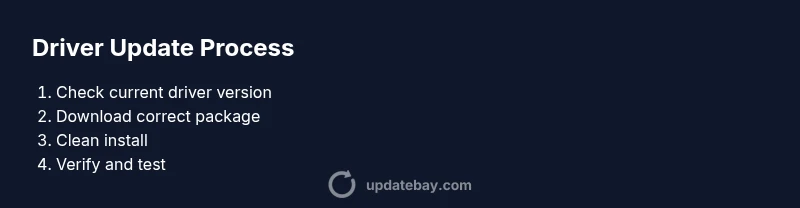
This section provides a focused workflow for Windows users using Radeon Software to update drivers. It outlines preparation, download, installation, and post install checks. The detailed steps appear in the dedicated STEP-BY-STEP block below, ensuring you can follow along without missing critical actions.
Troubleshooting common issues after an update
Even well tested driver updates can introduce hiccups. If you notice screen flicker, color glitches, driver timeouts, or games failing to launch after an update, there are targeted remedies. Rolling back to a previous driver version, performing a clean uninstall, or updating to a newer hotfix release often resolves symptoms. Always verify system stability after updates and consult official AMD notes for known issues and workarounds.
Best practices for ongoing AMD driver maintenance
Adopt a calm, scheduled approach to updates rather than reactive patching. Create a restore point before major updates, keep backups of critical data, and monitor performance after each change. Consider enabling automated backups and setting up a routine to check for new releases monthly. This ongoing maintenance helps you stay protected against regressions and ensures your graphics stack remains aligned with software requirements.
Tools & Materials
- AMD Radeon Software / Adrenalin Edition(Download from official AMD driver site and install the latest compatible version.)
- Stable internet connection(High-speed preferred for large driver packages.)
- Admin rights on the PC(Needed to install system drivers.)
- System restore point or backup drive(Allows rollback if the new driver causes issues.)
- Optional USB drive for offline installers(Useful if you need to install on an air-gapped machine.)
- Current GPU model and OS version details(Helps verify compatibility and select the correct driver package.)
Steps
Estimated time: 30-45 minutes
- 1
Prepare your system
Collect system details, ensure you have admin rights, and back up important data. This reduces the risk of data loss during installation and helps you recover if something goes wrong.
Tip: Verify you can access a restore point or backup drive before starting. - 2
Download the correct driver package
Visit the official AMD driver site or Radeon Software to locate the exact driver package for your GPU model and OS. Using the wrong version can cause compatibility issues and instability.
Tip: Double-check GPU model, OS version, and language settings before downloading. - 3
Create a system restore point
Create a restore point so you can roll back if the new driver causes issues. This is a safety net for major updates and helps you revert changes quickly.
Tip: Label the restore point with the driver version and date. - 4
Uninstall conflicting drivers if needed
If you have remnants from older driver installations, consider using the AMD cleanup utility or standard OS uninstaller to remove conflicts before installing the new driver.
Tip: A clean slate reduces the likelihood of post-install crashes. - 5
Install the downloaded driver
Run the installer, choose the clean install option if available, and follow prompts. Avoid modifying advanced options unless you know the impact on performance settings.
Tip: Restart the system after installation to complete driver integration. - 6
Verify installation and run tests
After reboot, open Radeon Software, check the driver version, and run a quick game or benchmark to confirm stability and performance gains.
Tip: If issues appear, check for optional hotfix drivers on AMD's site. - 7
Cleanup and review settings
Remove installers and review graphics settings, enabling VRAM usage optimizations if appropriate for your workload.
Tip: Document the final driver version for future reference.
Frequently Asked Questions
Do I need to update my AMD drivers regularly?
Regular updates can improve performance and security, but install only when there is a clear benefit or a known fix for your setup. Review AMD release notes and your own usage patterns before updating.
Regular updates can help, but check the release notes first to decide if updating is right for you.
Can I update AMD drivers on Windows and macOS?
AMD driver updates are primarily for Windows and Linux. macOS uses Apple supplied graphics drivers, so the AMD specific updates are not applicable there.
AMD updates mainly apply to Windows and Linux; macOS uses Apple drivers.
What if the update causes performance issues?
If issues occur, roll back to a previous driver version using the restore point or uninstall the new driver and reinstall an earlier build. Check release notes for known issues and hotfix releases.
If performance drops after update, revert to a previous driver and review the release notes for fixes.
Should I uninstall old drivers before updating?
A clean uninstall reduces conflicts. Use the AMD cleanup utility or the system's add remove programs feature to remove remnants before installing the new driver.
Yes, clean uninstall reduces conflicts before the new driver install.
Is admin access required to update drivers?
Yes, admin rights are typically required to install or update GPU drivers, especially when changing system level settings.
Admin rights are usually needed to install GPU drivers.
How do I verify the update after installation?
Open Radeon Software and confirm the driver version matches the release notes. Run a short game or benchmark to ensure stability and expected performance.
After installation, confirm the version in Radeon Software and test with a quick game.
Watch Video
What to Remember
- Plan driver updates during quiet usage windows.
- Always verify system stability after installation.
- Backups and restore points reduce risk.
- Use official sources for driver packages.
- Keep a record of driver versions for future reference.