How to Update Internet Drivers: A Practical Guide
Learn how to safely update internet drivers to boost network reliability, speed, and security. This practical guide covers Windows, macOS, and Linux with concrete steps.


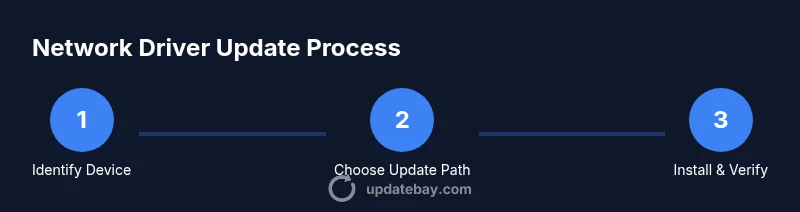
Update your network drivers with a safe, step-by-step approach: identify the network card, choose an update path (Windows Update or official site), download the correct version, install, and reboot. This process fixes connectivity issues, improves performance, and patches security gaps. Follow the guide to complete the update confidently. This applies to Windows, macOS, and Linux with small variations.
What is a network driver and why updates matter
According to Update Bay, network drivers are software components that enable your computer to communicate with network hardware. If you're here to learn how to update internet drivers, this guide explains why it's essential and how to do it safely across Windows, macOS, and Linux.
A network driver translates the signals your device sends into actions the hardware can perform. When manufacturers release updates, they fix bugs, improve compatibility with routers and access points, and patch security vulnerabilities that could be exploited remotely. Regular updates can improve stability, throughput, and feature support (for example, better power management on laptops or enhanced Wi‑Fi standards). The key is consistency: keeping drivers current reduces the odds of driver conflicts or dropped connections. In practice, updating is a risk-reward balance. The goal is to minimize downtime while maximizing performance. In the sections that follow, you’ll find practical steps, checks, and best practices to update internet drivers safely—whether you’re on Windows, macOS, or Linux.
Quick checks before updating
Before you touch drivers, perform a quick health check of your system. Confirm you have an active internet connection and admin access on your machine, and back up critical settings where possible. Record your current driver version and OS build, so you can compare before and after the update. Ensure you have adequate disk space and a stable power source, especially on laptops; an interrupted update can corrupt the driver stack. If you use VPNs or security software that filters traffic, temporarily disable them to prevent interference during installation. Finally, decide which update path you will use (Windows Update, official site, or a trusted updater tool) and prepare a restoration plan in case something goes wrong.
How to identify your network device
The first step in updating is knowing exactly which device you need to update. On Windows, open Device Manager and expand Network adapters to see the installed card. On macOS, go to About This Mac > System Report > Network to identify the built-in interface. On Linux, commands like lspci | grep -i network or lshw -C network reveal the device model and chipset. Note the vendor and model names (for example, Intel Wireless-AC 9560) and, if possible, the PCI ID. This precise information prevents accidentally installing the wrong driver. If you’re unsure, capture screenshots of the Device Manager or System Information pages for reference.
Update paths: Windows Update vs manufacturer drivers vs driver updater tools
There are several routes to update network drivers. Windows Update can provide stable, tested drivers that are broadly compatible, and is the safest starting point for basic network adapters. For the latest features or bug fixes, visit the device manufacturer’s site (e.g., Intel, Realtek, Broadcom) to download the exact driver package matching your OS and architecture. Third-party updater tools exist but carry higher risk of bundled software or incorrect versions, so use them only if you trust the source. In most cases, a combination approach—Windows Update for baseline stability and a manufacturer driver for the latest enhancements—works best.
Step-by-step: manual driver update via Device Manager (Windows)
- Open Device Manager and locate Network adapters. 2) Right-click your network device and choose Update driver. 3) Select “Search automatically for updated driver software” to let Windows look online. 4) If you’ve downloaded a driver package from the manufacturer, choose “Browse my computer for drivers” and point to the downloaded folder. 5) Follow prompts, then restart if prompted. 6) After reboot, verify the driver version in Device Manager. 7) Test connectivity by loading a site or performing a quick speed test.
Step-by-step: clean install and rollback considerations
A clean install removes old driver remnants that can conflict with new files. Uninstall the current driver first, then reboot and install the new package from the official source. If issues arise after updating, use the rollback option in Device Manager (Driver > Roll Back Driver) or restore from a prior system state. Always back up your essential data before performing driver changes. If you’re unsure, seek official guidance from the vendor’s support page.
Troubleshooting common issues after updating
If the network connection becomes unstable, first verify the basic settings: IP configuration, DNS, and gateway. Disable IPv6 if it’s causing conflicts, then re-enable. Check for dual-mode interference from VPNs or firewall rules. If updates cause dropouts, revert to the previous driver and try a different version. Update logs can help identify whether a specific driver release introduced the problem.
Best practices and safety checks
Always download drivers from official sources and verify the file signature when possible. Create a system restore point before updating and keep the old driver handy for quick rollback. Schedule updates during low-demand hours to minimize downtime. Consider enabling driver update notifications in your OS to stay informed of new releases. After updating, run routine checks like page loading, streaming tests, and latency tests to confirm stability.
Verifying your network performance after update
After a successful update, re-run basic connectivity tests. Compare before/after results using a simple speed test and verify that file transfers and streaming are smooth. Monitor for a few days to ensure there are no intermittent drops. If performance is lacking, revisit the update path or consult the vendor’s knowledge base for known issues with specific OS versions.
Tools & Materials
- Computer with internet access(Windows, macOS, or Linux; admin rights may be required)
- Web browser or network connection(Used to download drivers or access Windows Update)
- Administrative access (admin rights)(Needed to install drivers and change system settings)
- Official driver installer or download source(From the manufacturer website or Windows Update; verify OS and arch)
- Backup tool or system restore point(Create a backup or restore point if updating system drivers)
Steps
Estimated time: 30-45 minutes
- 1
Identify your network hardware
Open Device Manager (Windows) or System Information (macOS) and record the exact model and vendor of your network adapter. If you’re on Linux, use commands like lspci or lsusb to identify the device. This ensures you download the correct driver before proceeding.
Tip: Take a screenshot of the device details for easy reference. - 2
Decide update path
Choose between Windows Update, the device manufacturer’s site, or a reputable driver updater. Windows Update is safest for baseline drivers, while manufacturers often offer the latest versions and specific fixes for your hardware.
Tip: If you’re unsure, start with Windows Update to minimize risk. - 3
Download the driver
From the official source, select the exact operating system version and architecture (32-bit vs 64-bit). Save the installer in a known location and avoid third-party mirrors.
Tip: Verify file name and digital signature if available. - 4
Install the driver
Run the installer and follow prompts. If offered, choose a clean install to remove old files. Do not interrupt the process once it starts.
Tip: Close other applications to prevent conflicts. - 5
Restart and verify
Reboot the computer after installation. Open Device Manager to verify the driver version and confirm the device appears without errors.
Tip: Test network connectivity by loading a page or running a speed test. - 6
Rollback if needed
If issues appear after update, revert to the previous driver via Device Manager or use a system restore point.
Tip: Document the previous version number for easy rollback. - 7
Final checks and documentation
Run basic network tasks, note any changes, and keep a record for future updates. Consider setting a reminder for regular driver reviews.
Tip: Schedule periodic driver checks to maintain performance.
Frequently Asked Questions
What should I do if my network adapter isn't listed in Device Manager after updating?
If the adapter doesn’t appear, open Device Manager and choose View > Show hidden devices. Look for disabled entries under Network adapters and re-enable them. If it’s still missing, use Windows Update for a generic driver or roll back to the previous version.
If your adapter isn’t visible, show hidden devices in Device Manager, re‑enable any disabled entries, and consider Windows Update or rollback if needed.
Is it safe to update drivers from the manufacturer website?
Yes, only download from the official manufacturer site and select the correct OS version and architecture. Avoid third‑party mirrors. After installation, reboot and test connectivity.
Yes—download from the official site, pick the right OS, install, and reboot.
Can Windows Update auto-update network drivers?
Windows Update can install many drivers automatically, which is convenient for stability. However, the latest feature-rich drivers may not always be available there; you can also visit the vendor site for the newest version.
Yes, Windows Update can update drivers automatically, but it may not always have the latest versions.
What if the update breaks my network connection?
Roll back the driver via Device Manager (Driver > Roll Back Driver) or use a System Restore point. Then re-test after reinstall or consider using a different driver version.
If the update breaks connectivity, rollback the driver or restore the system to a prior point.
Do I need to update drivers on macOS or Linux?
Mac uses built‑in network drivers bundled with macOS, so updates happen with system updates. Linux updates are handled by the kernel; you typically update via package managers or a kernel upgrade.
On Mac, updates come with macOS; on Linux, use your distro's package manager to update the kernel or modules.
Watch Video
What to Remember
- Identify the exact network device before updating
- Use official sources to avoid malware
- Back up or create a restore point first
- Install, reboot, and verify connectivity
- Know how to rollback if issues arise