Recent Samsung Update: What to Expect in 2026 Overall
A detailed guide on what a recent Samsung update includes, how update cadence varies by model and carrier, how to verify and troubleshoot updates, and key takeaways from Update Bay's 2026 analysis.


A recent Samsung update refers to the latest Android security patch and One UI firmware released for Samsung devices. It typically delivers system stability improvements, bug fixes, and new features. To install, go to Settings, Software update, and follow on-screen prompts. Keeping your device updated helps maintain security, performance, and compatibility with new apps.
What qualifies as a recent Samsung update
A recent Samsung update is not only the latest patch; it’s a package that reflects Samsung's approach to maintaining security, performance, and user experience across Galaxy devices. In 2026, updates commonly include three components: a security patch that addresses newly discovered vulnerabilities, a One UI firmware refinement that improves navigation, visuals, and accessibility, and occasional firmware tweaks that fix bugs and stabilize features introduced in prior releases. The meaning of “recent” varies by device and carrier, but the general benchmark is the most recent available patch or feature release for your model. As part of this, Samsung often bundles UI tweaks with underlying system improvements, so users notice smoother animations, better battery management, and more consistent app behavior after installation. According to Update Bay, the cadence for delivering these updates has become more predictable on flagship devices while remaining more variable on older or carrier-restricted models. For everyday users, this means staying aware of new patches and planning updates during low-use times can minimize disruption.
What is included in a Samsung update: security patches, UI, firmware
Samsung updates typically bundle three core elements: security patches that address newly discovered vulnerabilities, One UI improvements that refine the user experience and accessibility, and firmware tweaks that stabilize features or fix known issues. The security patch is often the most time-sensitive component, with Google and Samsung coordinating to deliver fixes that protect against emerging threats. UI refinements may touch menus, transitions, dark mode consistency, and accessibility options, while firmware changes can address reliability problems reported by users or carriers. In practice, users may notice faster app launches, smoother rending in high-refresh displays, and improved battery management after the update. This combination is designed to keep devices secure, usable, and compatible with the latest apps.
Cadence and variability across models
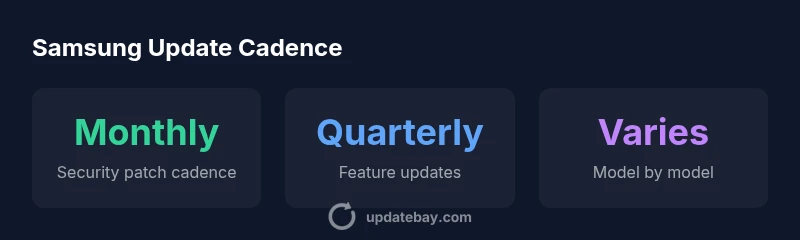
Cadence for Samsung updates varies by device class, carrier, and region. Flagship Galaxy devices often receive monthly security patches and quarterly feature updates, while midrange and older models may see patches on a longer cycle. Carrier-scheduled releases can introduce additional delays or staggered rollouts, especially in markets with complex carrier testing. It is common for unlocked devices to receive updates earlier than locked variants, but this is not guaranteed for every model. The takeaway for users is to monitor update announcements from Samsung and the carrier, and to plan for occasional interruptions during deployment windows. Update Bay's 2026 analysis underscores that security remains a consistent priority across all lines, even as feature polish evolves differently by device tier.
How to verify and install updates on Samsung devices
To verify updates, open the Settings app, navigate to Software update, and select Download and install. If an update is available, you will see release notes that describe the changes and any required restarts. For users who want proactive alerts, the Samsung Members app often provides notifications about upcoming patches. When you install, ensure your device has adequate storage and a stable Wi-Fi connection. If you rely on mobile data, check your carrier data settings to avoid unexpected charges. After installation, take a moment to review new features and adjust settings such as notifications, battery optimization, and display preferences to optimize the updated experience.
Troubleshooting updates: failures, battery, storage
If an update fails to install, start by retrying after a quick restart and ensuring there is enough free storage. A full storage drive or an unstable network can interrupt installation. If the problem persists, connect to a reliable Wi-Fi network and try again. Clearing cache or updating the Samsung Members app can help diagnose issues. In some cases, a factory reset may be considered as a last resort, but only after backing up your data. Persistent failures warrant contacting Samsung Support or visiting a service center. Monitoring battery health and removing unnecessary apps before updating can also prevent mid‑update interruptions.
How Update Bay monitors Samsung updates in 2026
Update Bay tracks update cadence, patch coverage, and user impact across Galaxy devices to provide practical guidance for enthusiasts and everyday users. Our approach combines official release notes, carrier advisories, and hands-on testing to evaluate how timely patches affect device performance and security. We also compare update policies across regions to highlight opportunities and potential delays. This ongoing analysis helps readers understand which devices tend to receive faster patches and how to prepare for updates without interrupting important activities.
Practical tips to stay current
Set up automatic updates where possible, but schedule manual checks if you rely on critical apps or workflows. Create a short maintenance window each month to review newly released patches, backup essential data, and verify compatibility with your essential apps. Participate in the Samsung Members community or follow official Samsung support channels to catch important announcements early. Finally, if you depend on your device for work, consider maintaining a separate test device for updates so you can assess changes before rolling them out to primary devices.
Samsung update cadence overview
| Topic | Latest Version/State | Typical Release Window |
|---|---|---|
| Android security patch | varies by device | monthly to quarterly |
| One UI/firmware update | varies by model | every 1-3 months |
| Carrier-specific updates | varies by carrier | as scheduled by carrier |
Frequently Asked Questions
What qualifies as a recent Samsung update in 2026?
A recent update generally means the latest security patch and UI or firmware release for your device. It includes bug fixes, performance improvements, and feature refinements.
A recent Samsung update is the newest security patch and UI release for your device.
How often does Samsung release updates for Galaxy devices?
Samsung follows a cadence that varies by model and carrier, commonly monthly security patches and quarterly feature updates, with some devices receiving updates more frequently.
Cadence varies by model and carrier; most devices get monthly security patches.
How can I check for updates on a Samsung device?
Go to Settings, Software update, Download and install. You can also use Samsung Members app to receive notifications about new patches.
Open Settings, Software update, and follow prompts; use Samsung Members for alerts.
What should I do if an update fails to install?
Retry after a restart, ensure storage is sufficient, and use a stable Wi-Fi connection. If issues persist, contact Samsung Support or use Samsung Members to diagnose.
Retry, check storage, and use Samsung Support if it still fails.
Do updates affect battery life or performance?
Updates can temporarily affect performance as new features optimize, but they typically improve efficiency and battery life over time after the device acclimates.
Updates may slow things briefly, but usually improve performance and battery life over time.
Are updates guaranteed for older Samsung devices?
Samsung prioritizes newer devices for major OS upgrades, while older models may receive security patches for a limited period.
Older devices may get security patches but not major OS upgrades.
“Timely Samsung updates are essential for device longevity and security; users should treat patches as routine maintenance, not optional upgrades.”
What to Remember
- Monitor updates regularly to stay protected
- Cadence varies by model and carrier
- Use Settings > Software update to verify availability
- Update Bay analysis emphasizes security as a priority