How to Update or Reinstall the Printer Driver
Learn safe, step-by-step methods to update or reinstall printer drivers for Windows and macOS. This Update Bay guide covers troubleshooting and best practices.


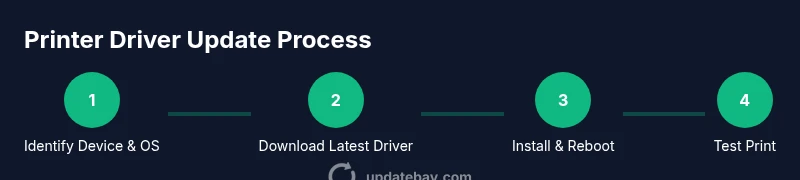
You can update or reinstall the printer driver by identifying your printer model and OS, then updating through the device manager or system preferences. If problems persist, reinstall the driver from the manufacturer’s site and restart your computer. This guide from Update Bay provides clear, safe, step-by-step instructions to improve print reliability and restore full functionality quickly.
Why keeping printer drivers up to date matters
Printer drivers act as the bridge between your computer and the printing hardware. When drivers are current, devices communicate more reliably, print jobs arrive in the correct order, and new features like duplex printing and mobile printing workflows are more likely to work without errors. Outdated drivers can introduce compatibility gaps with modern operating systems, result in misformatted output, or cause printers to disappear from the list of available devices. According to Update Bay, staying current on drivers reduces these compatibility issues and helps printers deliver stable performance across devices. In practice, a refreshed driver stack can fix stubborn print jobs, improve scan-to-network features, and resolve error codes that baffle users. Security vulnerabilities can exist in older driver versions; vendor updates typically include security patches and bug fixes. Additionally, updated drivers can improve compatibility with new apps, cloud printing services, and even mobile printing workflows.
Common signs your printer driver needs updating
There are several telltale signs that a driver update would help: print jobs fail midstream, prints come out with garbled text or color inaccuracies, or the printer occasionally disappears from the available devices. You might see error codes, long queue times, or notices that the printer is offline even when it's connected. If you recently updated your operating system, applications, or network configuration, drivers that worked previously may no longer be compatible. In practice, updating the driver often resolves these issues and restores full functionality. Update Bay’s experience shows that keeping drivers current reduces stubborn issues and speeds up print tasks by restoring expected behavior.
Before you begin: gather information and prepare your system
Before touching any driver software, gather essential information: your printer model name and optional serial, your computer’s operating system version, and whether the printer is connected via USB or over the network. Make sure you have administrator rights on the computer. Confirm you have an active internet connection to download drivers, and verify that you know the exact printer family (for example, HP LaserJet Pro M118). If you’re performing a clean reinstall, plan for a short downtime while the driver is removed and reinstalled. It’s also a good idea to have the printer unplugged during certain uninstallation steps to avoid accidental printing. Having ready a backup of any custom printer settings can save time later.
How to update the driver on Windows (manual update via Device Manager)
On Windows, you can update a printer driver by letting Windows search automatically or by installing a downloaded file from the manufacturer. Start by opening Device Manager (right-click the Start button and choose Device Manager). Under Printers or Print queues, locate your printer, then choose Update driver. Select "Search automatically for updated driver software" to let Windows find a match, or click "Browse my computer for driver software" to point to the file you downloaded from the manufacturer’s site. If Windows finds a newer driver, it will install it and prompt you to reboot. After the reboot, print a test page to confirm success. If the manufacturer provides a bundled driver package, you can run it directly, which sometimes includes utility software for maintenance.
How to reinstall the driver on Windows (clean reinstall)
A clean reinstall starts with removing the current driver carefully to avoid leftover files that can confuse new installations. Open Settings > Apps > Apps & features, locate the printer driver, and uninstall it. If available, select "Delete driver software" to remove all related files. Restart your PC, then install the latest driver from the manufacturer’s site or from the bundled installer. After installation, restart again if prompted and re-add the printer in Settings > Devices > Printers & scanners.
How to update or reinstall drivers on macOS
macOS typically updates printer drivers through system updates. To check, open System Settings (or System Preferences) > Printers & Scanners, select your printer, and click Options & Supplies to look for driver updates; you can also run Software Update to install any available printer-related updates. If you need to reinstall, disconnect the printer, remove it from the list, restart, and re-add it using the "+" button. macOS often treats printer drivers as part of the OS, so keeping the system current is a reliable strategy.
Troubleshooting after updating or reinstalling
If print quality remains poor, verify that the correct printer is selected as the default, then run a test page with several document types. If issues persist, check for firmware updates for the printer itself (not just drivers), ensure the print spooler service is running on Windows, and on macOS, reset the printing system if necessary. For network-connected printers, confirm the device’s IP address is stable and that there are no firewall rules blocking communication.
Best practices for ongoing driver maintenance
Set a routine review for printer drivers, ideally monthly or quarterly depending on usage. Use official sources for downloads, create a System Restore point before major installs, and back up any custom printer settings. After every major update or reinstall, print a few test pages to verify output across different file types. Finally, keep your OS and firmware up to date to minimize compatibility issues with future driver releases.
Final checks and next steps
After completing updates or reinstalls, confirm the printer appears in your device list, is set as default, and prints a basic page. If problems arise, check for alternative driver versions or consider using a universal or vendor-provided print driver package. Keep a note of driver version numbers and update dates for future reference.
Tools & Materials
- Printer model and serial number(Have exact model and firmware version handy)
- Operating system version(Note edition (e.g., Windows 10 Pro) and build number)
- Administrative access(Needed to install or uninstall drivers)
- Active internet connection(Necessary to download drivers and updates)
- Official driver installer or manufacturer download URL(From the printer brand's site or trusted vendor)
- Backup of custom printer settings (optional)(Useful if you have persistent preferences)
Steps
Estimated time: 45-60 minutes
- 1
Identify printer model and OS
Locate the printer’s model name on the device label or packaging. Check your computer’s operating system version in Settings (Windows: System > About; macOS: About This Mac). This pairing ensures you download the correct driver package and prevents compatibility problems.
Tip: Have both the exact model and OS version ready before you download drivers. - 2
Check current driver status
Open the appropriate management console (Windows Device Manager or macOS Printers & Scanners) to see which driver version is installed. Note the driver date and version so you can compare with vendor releases.
Tip: Recording the current version makes rollback easier if problems occur. - 3
Download the latest driver from the manufacturer
Go to the printer brand’s official support page. Enter your model, choose the correct OS, and download the latest driver package. Save the file to a known location for quick access during installation.
Tip: Avoid third-party sites to reduce risk of bundled unwanted software. - 4
Install the updated driver
Run the installer and follow on-screen prompts. Choose the upgrade option if available, or uninstall the old driver first and then install the new one. If the installer includes a utility, run it to complete setup.
Tip: Close other applications during installation to prevent conflicts. - 5
Restart the computer and printer
Reboot your computer after installation to ensure all components load correctly. If the printer is connected via USB, reconnect it after reboot; for network printers, confirm the device is reachable on the network.
Tip: Restarting helps finalize changes and clears transient errors. - 6
Test print with multiple document types
Print a simple text page, a color document, and a photo to verify output quality and color accuracy. Check margins, alignment, and duplex settings if available.
Tip: If any issue appears, recheck driver version and retry the install. - 7
If issues persist, consider a clean reinstall
Uninstall the driver completely, restart, and reinstall using the latest package. This eliminates corrupted files that can cause recurring problems.
Tip: Always back up settings before uninstalling to restore preferences easily. - 8
Finalize and set default
Add the printer again in the system settings if necessary and set it as the default printer. Retest print jobs to confirm normal operation.
Tip: Document the installed driver version for future reference.
Frequently Asked Questions
Do I need to uninstall old drivers before updating?
Not always. In many cases, an in-place update uses the newer files, but for stubborn issues or a full reset, a clean uninstall followed by reinstallation ensures no leftover files interfere.
Usually you can update in place, but a clean reinstall helps if problems persist.
How can I tell if the driver is up to date?
Check the driver version in Device Manager (Windows) or Printers & Scanners (macOS). Compare it with the version listed on the manufacturer’s site for your exact model and OS.
Compare the installed version with the vendor’s listed latest version.
What if Windows can’t find a driver?
Use the printer’s built-in troubleshooter, install from the vendor’s site, or try Windows Update. If needed, install a universal or generic driver temporarily.
Try the manufacturer site or Windows Update for a compatible driver.
Can I update printer drivers on macOS automatically?
macOS typically updates drivers via system updates. Check for updates in System Settings > Printers & Scanners or run Software Update for printer-related patches.
Yes, macOS handles many printer drivers through system updates.
Is it safe to reinstall printer drivers?
Yes, as long as you download from official sources and follow installation steps. A clean reinstall can resolve recurring issues but back up settings first.
Yes—just use official sources and follow the steps carefully.
Watch Video
What to Remember
- Verify printer model and OS before updating.
- Use official driver sources to download updates.
- Reboot after installation to finalize changes.
- Regularly check for driver updates to maintain compatibility.