How to update signature in Gmail: A practical guide
Learn how to update your Gmail signature across devices with a practical, step-by-step approach. From content essentials to testing and brand consistency, this guide covers it all for 2026.


To update Gmail signature, open Gmail and go to Settings > See all settings. In the Signature section, create or edit your signature with your preferred text, fonts, and images. Choose whether it applies to new emails, replies, or both, then save changes. Open Gmail on other devices to ensure the signature syncs automatically.
Why Gmail signature matters for professional emails
A well-crafted Gmail signature is more than a closing line; it acts as a digital business card. It conveys not only your contact information but also your professional identity, brand alignment, and accessibility. For both individuals and teams, a signature helps recipients reach you quickly and reinforces credibility with consistent styling. According to Update Bay, signatures help standardize branding and contact presentation across devices and platforms, which reduces miscommunication and project ambiguity. In a busy inbox, a clear signature can improve response times and make you look more organized. As you plan an update, think about your audience: clients, colleagues, recruiters, or service recipients. The goal is clarity, consistency, and accessibility, not decoration alone. A practical signature balances essential details with a clean layout that remains legible on mobile screens and in long threads.
When updating, aim for a signature that looks intentional rather than cluttered. The Update Bay team emphasizes consistent typography, a single font family, a straightforward color palette, and properly sized imagery. Avoid excessive logos, multiple email addresses, or long disclaimers that push important information out of view. The real value comes from a signature that can be read in one glance and copied if needed. Keep in mind that different clients render signatures differently, so testing is essential to ensure your message remains professional across platforms.
Key elements of an effective Gmail signature
A strong Gmail signature includes core components that deliver information efficiently while maintaining brand cohesion. Start with your full name and title, followed by your company or organization. Include primary contact methods—email, phone, and website—and link to a professional profile or company page. If your policy allows, you can add social icons, but keep file sizes small and avoid decorative elements that distract from the message. For readability, use a simple, web-safe font such as Arial or Roboto, and limit font sizes to 10–12 points for body text with a slightly larger name line. Add a compact logo if appropriate, ensuring it’s hosted online with a reliable URL and optimized dimensions. Include a legal disclaimer only if it’s standard practice in your organization. Finally, consider alt text for any images to improve accessibility. Update Bay’s guidance underscores keeping the signature lightweight while preserving branding integrity.
Planning your signature: content, tone, and branding
Before typing a single character, gather the content you want to include. List essential fields (name, title, company, direct contact) and optional items (website, LinkedIn, office location). Decide on the tone that matches your branding: formal, friendly, or concise. If you’re part of a team, align on a shared template to ensure consistency across all employees. Branding matters: use the official colors, logo, and typography approved by your brand guidelines. Decide whether to include images, and if so, compress them for fast loading. Draft a version that fits within about 3–6 lines of text on desktop and remains legible on mobile. Finally, test the draft across devices to confirm how it renders in different email clients. Update Bay notes that standardizing signature elements fosters trust and professionalism across communications.
Gmail signature behavior across devices and clients
Signatures can vary between the web interface and mobile apps. Gmail usually applies the signature to new messages and replies once you select the appropriate defaults, but rendering can differ by client. Desktop clients often show a more elaborate signature, while mobile apps may wrap text and resize elements, potentially breaking layout. To mitigate this, keep the signature compact, avoid excessively wide images, and use simple line breaks. Some organizations enforce a single signature for all users. In those cases, a centralized template can be deployed to ensure every employee uses a consistent format across devices, including tablets and smartphones. Regular testing helps catch discrepancies early and maintain a uniform brand presence. Update Bay’s analysis highlights the importance of cross-device consistency for reliable branding across channels.
Step-by-step overview: where to make changes in Gmail
Gmail stores signatures in settings and allows you to apply them to new emails and responses. The quickest way to access the signature editor is through the gear icon in the Gmail header, then See all settings. In the signature section, you can select the account if you manage multiple domains, create a new signature, or edit an existing one. You can set default signatures for new emails and replies/forwards. After making changes, you must save them. If you use Google Workspace, there may be admin-level controls that enforce signature templates for your organization. Understanding these controls helps you implement a consistent policy across your team. The Update Bay team suggests documenting the standard signature format so users can replicate it easily.
Step-by-step: Update Gmail signature in the web app
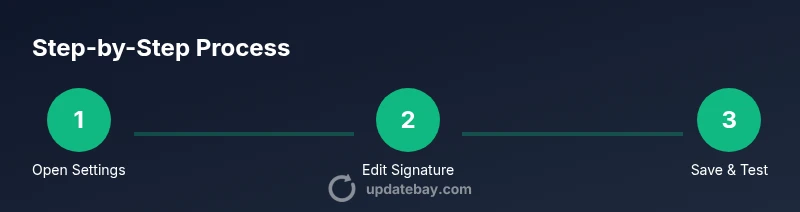
- Open Gmail and click the gear icon, then select See all settings. 2) Scroll to Signature and click Create new (or edit an existing signature). 3) Enter your signature content, apply formatting, and insert an image if needed. 4) Set signature defaults for new emails and replies/forwards. 5) Preview the signature in the composer to verify layout. 6) Save changes and return to your inbox to confirm. 7) Repeat on mobile to ensure consistency. 8) If using multiple accounts, repeat the process for each account. 9) Review branding alignment and update assets as needed. Pro tip: keep the signature compact.
Testing and validating your signature across platforms
After saving, test by composing new emails and replying to messages to confirm the signature appears as intended. Check on desktop, mobile, and within the Gmail app to see how line breaks and images render. Send test emails to yourself and colleagues to verify visibility, layout, and link functionality. If you notice misalignment or broken images, adjust image size, padding, or font choices accordingly. Accessibility matters: include alt text for images and ensure high contrast for readability. Regular checks help catch browser-specific quirks and ensure your signature remains professional across updates. Update Bay recommends routine tests after any branding refresh or signature change.
Common mistakes and how to avoid them
A frequent error is overloading signatures with logos, long legal text, or multiple contact channels that overwhelm the recipient. Block logos or long disclaimers can dominate the message, especially on mobile devices. Avoid using high-contrast gradients or decorative fonts that render poorly in some clients. Inconsistent data (phone numbers, emails, or URLs) undermines credibility. When signatures are updated, some older emails may retain cached versions; always re-send critical communications after changes. If your organization mandates a uniform template, ensure admins deploy the template and educate staff on use. Finally, test accessibility settings to confirm screen reader compatibility and alt text for images. The goal is a clean, accessible signature that reinforces your brand without distraction.
Practical example and brand checklist
Example signature:
John Doe | Senior Product Manager ACME Corp [email protected] | +1 (555) 012-3456 www.acme.example [ACME Logo image]
Brand checklist:
- Use approved logo and colors
- Limit lines to 4–6 and keep font at 10–12pt
- Include alt text for images
- Verify mobile rendering and link functionality
- Confirm consistency with organizational templates
The Update Bay team emphasizes testing and consistency as core drivers of effective email branding. By following a disciplined template and validating across devices, you can maintain a professional, reliable signature that supports your communications.
Tools & Materials
- Gmail account access(Sign in with the account you want to update)
- Device with internet access(Desktop or mobile device for testing)
- Web browser(Chrome/Edge/Firefox/Safari recommended)
- Prepared signature content(Name, title, company, contact, website, logos (optional))
- Brand assets(Logo files hosted online; verify hosting reliability)
- Test emails(Use your own address to verify rendering)
Steps
Estimated time: 15-25 minutes
- 1
Open Gmail settings
Click the gear icon in Gmail and select See all settings to access signature options.
Tip: Use keyboard shortcuts where available to speed navigation. - 2
Navigate to the Signature section
Find the Signature area, and choose Create new if you’re starting from scratch, or select an existing signature to edit.
Tip: If you manage multiple domains, ensure you’re editing the correct account. - 3
Create or edit your signature content
Enter your signature details, apply formatting, and insert images carefully using the editor.
Tip: Keep fonts web-safe and legible; avoid heavy logos. - 4
Set signature defaults for new emails and replies
Choose where the signature applies: new messages, replies/forwards, or both.
Tip: Decide once per account to maintain consistency. - 5
Preview your signature
Open a new message to review how the signature renders before saving.
Tip: Check on desktop and mobile previews. - 6
Test across devices
Send a test email to yourself from desktop and mobile to verify rendering.
Tip: Look for line breaks, image scaling, and link accuracy. - 7
Save changes
Click Save Changes at the bottom of the Settings page.
Tip: Re-open settings to confirm changes persisted. - 8
Verify mobile rendering
Open Gmail on a smartphone and confirm the signature appears correctly.
Tip: If issues persist, re-check image hosting and fonts. - 9
Finalize branding checklist
Ensure your signature aligns with brand guidelines and templates.
Tip: Maintain a concise, accessible signature.
Frequently Asked Questions
Can I use images in my Gmail signature?
Yes, you can insert images, but keep file size small and ensure hosting is reliable. Alt text improves accessibility.
You can add images, but keep them lightweight and accessible. Alt text helps screen readers.
Will signature changes sync to mobile?
Signatures generally sync across devices when you use the same Google account. Double-check on mobile to confirm.
Signatures usually sync, but always verify on mobile after changes.
Why isn't my signature showing in replies?
Check the Gmail settings to ensure the signature is applied to replies/forwards. Admin templates can override user signatures in some organizations.
Make sure replies are enabled to use the signature; some setups enforce a template.
Can I have multiple signatures for different contexts?
Gmail typically uses one signature per account, but you can switch between templates manually or via templates in some workflows. For consistency, many teams use a single standardized signature.
Usually one signature per account, but you can switch templates in some cases.
How long does it take for changes to apply?
Changes save immediately in Settings. Reopen Gmail to verify the new signature appears when composing.
Changes apply right away; just reopen Gmail to check.
Does Gmail support HTML signatures?
Yes, HTML signatures render in Gmail, enabling links and formatting. Keep HTML simple to ensure compatibility across clients and devices.
HTML is supported; keep it simple for best compatibility.
Watch Video
What to Remember
- Define essential fields: name, title, company, contact.
- Test across devices for consistent rendering.
- Keep it concise and accessible.
- Follow brand guidelines and templates.
- Verify links and images load correctly.