Can You Update a World in Minecraft? A Practical Guide to Upgrading Worlds Safely
Learn how to safely update a Minecraft world across Java and Bedrock editions, with backups, version checks, and a clear upgrade workflow.


Yes. You can update a Minecraft world by upgrading your game edition, adjusting world data for version compatibility, and testing in a copy first. Start with a full backup, choose the target edition (Java or Bedrock), and follow a tested upgrade workflow. This guide explains safe upgrade steps, edition-specific tips, and rollback options.
Can you update a world in Minecraft? An initial reality check
In practice, can you update a world in minecraft? The short answer is yes, but with critical caveats. Edition differences, data integrity, and backup strategies all shape the outcome. The question isn’t merely “Can I load the same world in a newer build?” but rather, “What changes will this upgrade apply to my saved world, and can I recover if something goes wrong?” Update Bay has found that most upgrade issues originate from not aligning the edition, version, and mod/datapack state before loading the world in the target version. Start with a thorough plan and a safe backup. Then you can proceed to testing on a copy, validating structures, items, and redstone networks, and finally applying changes to your main world if everything looks good.
Edition differences and why they matter
Minecraft comes in multiple editions, each with its own world format and data handling. Java Edition stores worlds as a folder of region files, with level.dat capturing global data. Bedrock Edition uses a different chunk format and a more compressed data model. This means opening a Java world in Bedrock or vice versa can corrupt data unless you explicitly convert or migrate using supported tools. The Update Bay team emphasizes edition alignment: always target the same edition and preferably the same version across all devices and clients that will access the world. When you plan an upgrade, document which edition you’re using and which version you’re moving to, so you’re not surprised by unintended data changes afterward.
Backups and safety-first mindset
Backups are the cornerstone of any upgrade. Create a full, verifiable copy of the entire world directory before you touch any files. Store backups off the primary drive to prevent accidental overwrites. If possible, keep multiple restore points: a clean clone, a pre-update snapshot, and a post-update fallback. Test the upgrade on a duplicate world to observe how new mechanics, blocks, or items affect existing builds and farms. Having a rollback plan in place means you can revert quickly if you spot issues, minimizing downtime for players and preserving progress. The Update Bay guidance is clear: no upgrade is worth risking your work; backups empower you to experiment safely.
Version compatibility: matching your target edition
After choosing the target edition, verify version notes for the exact build you’ll upgrade to. Updates often include terrain changes, new blocks, and altered entity behavior. Check hardware requirements and ensure any datapacks or mods will load with the new version. In multiplayer settings, confirm that all clients and servers are aligned on edition and version to prevent desyncs or data conflicts. If you encounter a mismatch, pause and adjust before loading the world—compatibility is the foundation of a stable upgrade.
Step-by-step upgrade workflow (high-level)
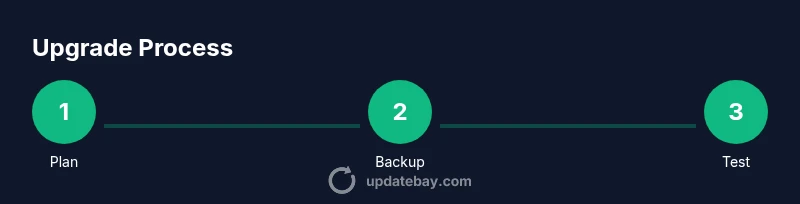
A practical upgrade workflow is: plan, back up, prepare, upgrade, test, and iterate. Define your target edition and version, then create a full backup and a sandbox copy for testing. Update the launcher or client to the target build and load the test world. Look for crashes, missing blocks, or unexpected terrain, and document every observed change. If the test is successful, apply the upgrade to the main world and communicate changes to players. Time varies with world size; larger worlds require longer testing windows and more iteration.
Handling mods, datapacks, and world generation changes
Mods and datapacks can complicate upgrades. Some rely on specific IDs or chunk formats that change across versions. First test the copy without mods to verify core stability, then reintroduce compatible add-ons gradually. For datapacks, verify compatibility notes and remove any that conflict during the upgrade. Be aware that altered world generation rules may yield different terrain in new chunks, even if existing structures remain intact. If seeds are important for your builds, test seed behavior after updating to confirm reproducibility.
Troubleshooting common issues after update
If you encounter crashes or missing blocks, start with your backups and re-run the upgrade with a slightly different approach (e.g., a different edition setting or a later patch version). Check launcher logs and game console errors for data format or mod conflicts. Use available repair tools or commands to fix corrupted chunks, and don’t hesitate to seek community guidance on bug reports. Most issues resolve by reverting to a known-good backup and attempting the upgrade again with updated notes.
Performance considerations and post-update testing
Post-update testing should include performance checks: frame rates, load times, and chunk rendering. Monitor memory usage, disk space, and network stability in multiplayer contexts. For large worlds, consider increasing allocated RAM for the client and ensuring storage is optimized. Run a structured set of tests across representative regions, verify major farms and redstone setups, and confirm inventory integrity. If lag persists, investigate whether the update changed gameplay rules or if hardware limitations are the true bottleneck.
Tools & Materials
- Backup storage (cloud or external)(Create a full copy of the world including region files and level.dat)
- Minecraft launcher / target edition client(Set to the exact edition and version you plan to upgrade to)
- World save directory access(Know where your world IDs live (e.g., Windows: %appdata%\.minecraft\saves\YourWorld))
- Sufficient disk space(Have at least 2x the current world size free for backups and test copies)
- Test world (optional)(Create a duplicate world for upgrade testing without touching the main copy)
Steps
Estimated time: 2-3 hours
- 1
Define target edition and version
Identify whether you’re upgrading to Java or Bedrock, and select the exact version. Document your upgrade goals and known compatibility constraints before touching the world.
Tip: Write the target version down and confirm that addon/datapack dependencies are compatible. - 2
Create a full backup
Copy the entire world directory to a safe location. Verify the backup by restoring the copy in a test environment to confirm it loads correctly.
Tip: Test the backup by loading it in a separate launcher profile to ensure integrity. - 3
Prepare a test world
Duplicate the world into a sandbox or separate folder and prepare the test environment with only core game files. This protects your main world during early testing.
Tip: Label test copies clearly to avoid accidental main-world edits. - 4
Update the launcher and load the test world
Install the target edition and version in the launcher, then open the test world to observe stability and data changes.
Tip: Watch for crash prompts or errors during first load. - 5
Validate data integrity
Move through key systems (farms, farms, redstone, inventories) and check for corrupted chunks or item loss. Note any anomalies.
Tip: Run a quick test run in multiple areas to catch region-specific issues. - 6
Decide on a rollback plan
If issues appear, revert to the pre-upgrade backup and reassess. This plan should outline exact steps and rollback timing.
Tip: Keep rollback scripts or utilities ready for instant restoration. - 7
Plan a staged deployment
If the test is successful, roll the update out to a limited group of players first, then scale up as confidence grows.
Tip: Communicate downtime and version requirements beforehand. - 8
Document changes
Keep a changelog of what changed, which versions were used, and what issues were observed during the upgrade.
Tip: A documented history helps future upgrades and troubleshooting. - 9
Finalize the upgrade
Apply the upgrade to the main world once testing is clear, then announce the update to all players and provide version-specific guidelines.
Tip: Monitor after launch for any new surprises and be ready to respond quickly.
Frequently Asked Questions
Can I update a Minecraft world without losing progress?
Yes. Back up the world before upgrading, and test the upgrade on a duplicate copy to verify that progress and structures remain intact.
Yes—back up first and test on a copy to protect your progress.
Will updating change my world seed or terrain?
Seeds are generally preserved, but terrain generation can differ with new version rules. Always test on a sandbox copy to observe any changes.
Seeds usually stay the same, but terrain can shift with new rules. Test on a copy.
Should all players update to the same version before joining a world?
Yes. In multiplayer, ensure all clients and servers run the same edition and version to prevent desyncs and data loss.
Yes—everyone should be on the same version to avoid issues.
What if I use mods or datapacks?
Mods and datapacks can break after updates. Test upgrades with a copy, then re-enable compatible add-ons once stability is confirmed.
Mods can break after updates; test first and re-enable only when compatible.
How long does a world upgrade typically take?
Time varies with world size and edition. Plan for several hours, including testing and potential rollback steps.
It varies; plan for several hours with testing and potential rollback.
Can I revert a world after updating?
Yes, if you have a recent backup. Restore the pre-upgrade copy and attempt the upgrade again with updated notes.
Yes—restore a backup to revert and try again later.
Watch Video
What to Remember
- Back up your world before upgrading.
- Check edition compatibility and notes.
- Test on a duplicate world first.
- Coordinate with players for multiplayer upgrades.
- Maintain a rollback plan and changelog.