How to Fix Updates Failed Windows 11
Learn practical, tested methods to resolve failed Windows 11 updates. This guide covers common causes, fixes, and safe troubleshooting steps to minimize downtime and keep your PC running smoothly.


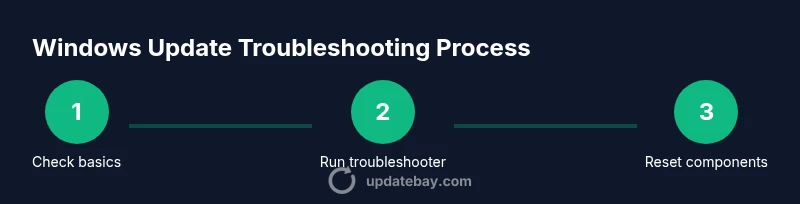
To fix updates failed Windows 11, begin with quick checks (stable internet, sufficient disk space, correct system time). Then run the Windows Update troubleshooter, reset update components if needed, and install updates in Safe Mode if issues persist. Document error codes and reboot to complete the loop. These steps cover most common causes and minimize downtime.
Why Updates Fail on Windows 11
According to Update Bay, update failures are often caused by a mix of network issues, insufficient disk space, misconfigured services, corrupted system files, antivirus interference, or driver conflicts. When Windows Update cannot complete, it usually shows a generic error and a code that hints at the underlying problem. In this guide you’ll learn how to diagnose and resolve the most frequent failure scenarios. In particular, if you’re wondering how to fix updates failed windows 11, start with basic checks and move to targeted fixes. For example, a flaky internet connection or a full drive can interrupt downloads; an out-of-date driver may block new components; security software can interfere with update modules. The goal is to establish a reliable baseline before deeper repairs. Start by confirming your device has a stable internet connection, adequate free space on the system drive, accurate system time, and that Windows Update services are running. These checks alone resolve many failures and set the stage for precise repairs.
Common Errors and How to Interpret Them
Windows Update messages can be terse, but they typically point to a root cause category. Hardware or driver issues reveal themselves as compatibility errors; service misconfigurations appear as failed startup; corrupted system files emerge when checks fail. It helps to note the exact text of the error message and any error codes that accompany it. While there are many variants, a pattern emerges: connectivity problems, component corruption, or blocked services. Collecting these details makes the next steps faster and reduces wasted attempts at fixes. The Update Bay team emphasizes documenting the error as you work through the troubleshooting path to build a clear history if you need expert help later. This approach is especially helpful when you search for guidance on how to fix updates failed windows 11, as consistency aids diagnosis.
Safe, Stepwise Troubleshooting Path
This path is designed to minimize risk while resolving update failures. Start with the simplest checks, then move to targeted repairs only if needed:
- Verify network connectivity and date/time accuracy.
- Run the built-in Windows Update troubleshooter and follow its recommendations.
- Reset Windows Update components to clear stuck downloads and stalled services.
- Check system integrity with SFC and DISM, repair corrupted files, then retry updates.
- Test updates in Clean Boot or Safe Mode to isolate third-party interference.
- Review drivers and consider rolling back recently installed ones if problems began after a driver update.
Following these steps in order prevents unnecessary rework and increases the chance of a clean update installation. The process aligns with best practices from Update Bay to minimize downtime and confusion when addressing update failures.
How to Inspect and Repair Common Errors
After basic checks, advanced diagnostics help strip away noise, revealing the core issue. Use the following commands and tools in an elevated Command Prompt or PowerShell window:
- SFC /scannow to repair corrupted system files.
- DISM /Online /Cleanup-Image /RestoreHealth to fix component store issues.
- If you have installation media, DISM /Online /Cleanup-Image /RestoreHealth /Source:WIM path can assist when the component store is unrecoverable.
- CHKDSK /f can check disk integrity and repair bad sectors when disk errors are suspected.
If the troubleshooter or command-line repairs indicate a specific problem (for example, a missing component or a blocked service), follow the on-screen prompts to repair or re-enable that component. After repairs, reboot and attempt the update again. Avoid running multiple heavy repairs at once; perform one targeted fix, test, then proceed. This section mirrors the practical, methodical approach Update Bay recommends for resolving update failures.
When to Seek Professional Help and Next Steps
If updates still fail after you’ve completed the common fixes, escalate. Gather logs, error codes, and a brief history of what you tried, and contact trusted support resources. The Update Bay team recommends scheduling a guided session with a technician or using official Microsoft support channels for persistent failures or risk of data loss. For ongoing reliability, consider setting a maintenance window for updates, keeping drivers current, and enabling safeguards like System Restore points. If you manage a business environment, document a formal rollback plan and a fallback update path to minimize downtime during future update cycles.
Preventive Maintenance Tips to Keep Updates Smooth
Prevention beats remediation for Windows updates. Regular housekeeping helps keep the update process smooth. Practice these habits:
- Schedule automated maintenance tasks to run updates during off-peak hours and monitor results.
- Regularly check for driver and firmware updates from hardware vendors and install them when recommended.
- Keep antivirus software compatible and up-to-date, but pause security modules temporarily if you suspect interference during updates.
- Create restore points before major updates and back up important data to external storage.
- Monitor event logs after updates and prepare a quick rollback plan if something goes wrong.
By establishing a routine, you’ll reduce the odds of encountering update failures and improve overall system stability.
Tools & Materials
- Stable internet connection(Wired Ethernet preferred for reliability; switch to Wi-Fi if no kabel is available)
- Sufficient free disk space on the system drive(Free space helps downloads and extraction during updates)
- Administrative privileges on the device(Admin rights needed to run troubleshooting tools and commands)
- Backup storage or external drive(Back up important data before major repair steps)
- Windows 11 recovery media or installation media (optional)(Useful if you must repair system files from outside the OS)
- Access to a Power source(Ensure the device stays powered during troubleshooting)
Steps
Estimated time: 60-90 minutes
- 1
Open Settings and Check for Updates
Open the Settings app, go to Update & Security > Windows Update, and click Check for updates. Note any error messages and take screenshots if needed. Ensure the device is plugged in and has a stable internet connection before proceeding.
Tip: Have admin rights handy and close unnecessary background apps to speed up the process. - 2
Run the Windows Update Troubleshooter
In Settings, access Troubleshooters and run the Windows Update troubleshooter. Follow the on-screen recommendations precisely, applying each suggested fix. Reboot after the troubleshooter completes to see if updates install cleanly.
Tip: If it suggests stopping a service, do so only as directed and return it to its normal state after the fix. - 3
Reset Windows Update Components
Stop the BITS and Windows Update services, rename the SoftwareDistribution and Catroot2 folders, then restart services and try again. This clears stuck downloads and clears corrupted data that can block updates.
Tip: Perform these steps from an elevated command shell to ensure proper permissions. - 4
Run System File Checker and DISM
Open an elevated command prompt and run SFC /scannow followed by DISM /Online /Cleanup-Image /RestoreHealth. If you have installation media, use DISM /Online /Cleanup-Image /RestoreHealth /Source:WIM to supplement the repair.
Tip: If SFC finds issues but cannot fix them, run DISM again and reboot before retrying updates. - 5
Boot into Safe Mode and Retry
Restart the PC into Safe Mode with Networking and attempt the update again. Safe Mode minimizes driver and startup program interference that can block updates.
Tip: If the update succeeds in Safe Mode, it indicates third-party software interference; consider a clean boot test to identify it. - 6
Check Drivers and Perform a Clean Boot
Update or rollback recently installed drivers that may conflict with updates. Perform a clean boot to start Windows with a minimal set of startup programs and services, then retry the update.
Tip: Document any driver changes and test updates after each adjustment.
Frequently Asked Questions
Why do Windows 11 updates fail to install?
Update failures typically arise from network problems, corrupted system files, blocked services, or driver conflicts. Identifying the underlying cause helps you choose the right fix rather than attempting random methods.
Update failures usually come from network issues, corrupted files, or driver conflicts. Identify the cause to choose the right fix.
Should I reset Windows Update components?
Resetting update components clears stuck downloads and stalled services, which resolves many common failure scenarios. Follow the official steps and reboot before attempting updates again.
Reset update components to clear stuck downloads and stalled services, then reboot and retry.
Can antivirus software cause update failures?
Yes, sometimes antivirus or security software can block update modules. Temporarily disabling protection or configuring it to allow Windows Update can help, but re-enable protection after updates complete.
Security software can block updates; temporarily adjust settings and re-enable protection after updating.
Is Safe Mode necessary for updates?
Safe Mode can isolate third-party interference and confirm if the issue is software-related. If updates install in Safe Mode but not normally, consider a clean boot to identify culprits.
Safe Mode helps isolate problems; use it to test updates with minimal software running.
What should I do if updates still fail after troubleshooting?
If issues persist, consult official Microsoft support or a reputable technician. Gather error codes and logs to expedite assistance, and consider a controlled repair or backup-driven reinstall if required.
If problems persist, seek official support with logs, and consider a controlled repair if needed.
How long do Windows updates typically take?
Update duration varies by patch size and system performance. Expect multiple restarts and plan for a maintenance window to avoid data loss or interruption during critical updates.
Update durations vary; plan for a maintenance window and multiple restarts.
Watch Video
What to Remember
- Start with basics: network, space, and time settings.
- Use built-in tools before heavy repairs.
- Back up data and set restore points before changes.
- If issues persist, escalate with logs and expert help.