How to Stop Updates on Steam: A Practical Guide
Learn practical steps to stop Steam updates, pause downloads, and apply per-game rules to update only when you launch. Save bandwidth, control timing, and keep patches when you choose with this comprehensive, step-by-step guide.


You can stop updates on Steam by pausing all downloads in the client and adjusting per-game update settings to update only when you launch a game. This helps save bandwidth and avoid unwanted downloads, while keeping security patches when you choose to update manually. The steps below guide you through pausing, delaying, and managing updates for Steam and individual games.
Why stop updates on Steam? Why you might want to
In many scenarios, stopping or delaying updates on Steam can help you manage bandwidth usage, prevent interruptions during peak work or gaming sessions, and control when patches install. The goal is not to disable essential security updates, but to give you a deliberate window for when updates occur. According to Update Bay, many users seek practical ways to reduce background data while maintaining control over their software ecosystem. If you’re dealing with slow internet, limited data plans, or scheduling conflicts, learning how to stop updates on Steam can be a valuable skill.
Understanding the update system: global vs per-game
Steam handles updates at two levels: globally (downloads during gameplay and background updates) and per-game (each title can have its own update rule). The global setting affects all games, while per-game rules let you specify how a particular title should behave. This separation is what makes pausing updates feasible without sacrificing critical patches for other titles. Keep in mind that system and client updates may still occur automatically when you restart Steam.
Impact on performance and bandwidth
Background updates can consume bandwidth even when you’re not actively playing. Pausing updates reduces network load, speeds up start times for new sessions, and can prevent drags on your system when you’re trying to stream or work online. However, delaying patches may temporarily postpone important fixes, compatibility changes, or security improvements. Balance is key: pause when needed, but plan to apply patches on a schedule you control.
Global pause: pausing all Steam updates
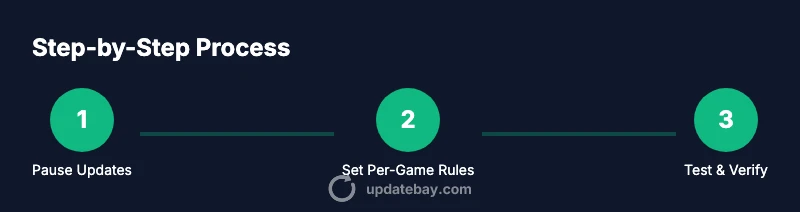
To pause all downloads, open the Steam client, go to the Downloads section, and click the Pause button. This stops all active transfers until you resume. Use this as a temporary measure if you’re about to begin a critical activity and don’t want any background activity. Remember that this does not uninstall anything; it merely halts ongoing and queued downloads.
Set per-game update rules: only update when I launch it
Right-click a game in your Library, select Properties, then go to the Updates tab. Choose “Only update this game when I launch it.” This setting prevents automatic background updates for that title, waiting until you start the game. You can apply this to multiple games to tailor updates to your schedule. The per-game approach is a powerful way to maintain control without turning off updates entirely.
How to temporarily pause updates for a single game
If you don’t want a specific title to update for a while, use the per-game rule above and avoid launching it until you’re ready for patches. This method is especially useful for games with large patches or slow connections. When you’re ready, launch the game to trigger the update process. It’s simple, effective, and avoids forcing updates on all titles.
Scheduling and bandwidth considerations
For users with limited data plans, consider setting a daily or weekly window for updates. Use Steam’s bandwidth limiter (found in Settings > Downloads) to cap download speeds during peak hours. Pair bandwidth control with per-game rules to precisely manage when and how patches download. This approach minimizes disruption while keeping your library current on your terms.
Security: when to update vs delaying
Security patches are important, so avoid delaying updates for critical vulnerabilities. The general guideline is to apply security-related patches within a reasonable window, while non-critical feature updates can be scheduled for off-peak times. If you’re unsure about a patch’s importance, check the release notes and consider updating after your planned maintenance window. Balance is essential to protect your system without sacrificing convenience.
Troubleshooting common issues
If updates still trigger unexpectedly, verify you didn’t leave any games set to “Always keep this game up to date.” Check the Updates tab for each game and ensure Steam isn’t set to a global auto-update policy. If downloads stall, use Clear Download Cache from Settings and restart Steam. Ensure you’re running the latest Steam client version to avoid bugs that re-enable updates.
Best practices and recommended workflows
Create a simple schedule for updates (e.g., “update on Tuesdays after work” or “only when launching a game”). Keep essential security patches in a defined window, and apply non-critical updates on a separate cadence. Periodically review per-game settings as your library grows. A consistent routine reduces surprises and keeps your system secure and responsive.
How to verify settings persist
After adjusting, restart Steam and re-open the Library to confirm each game retains its chosen update behavior. Launch a game to ensure its patching process begins as expected. If a game reverts to automatic updating, re-check the per-game settings and reapply if necessary.
Tools & Materials
- Steam client(Installed and up-to-date.)
- Active internet connection(Stable, broadband recommended.)
- Access to Steam Library(Needed to modify per-game updates.)
- Note-taking method(Optional for tracking which games are paused.)
Steps
Estimated time: 10-15 minutes
- 1
Open Steam and access Settings
Launch the Steam client and open the Settings/Preferences area. This is where you can manage both global and per-game update settings.
Tip: If you’re on a laptop, connect to power to avoid interruptions during adjustments. - 2
Pause all downloads globally
Navigate to the Downloads tab and click Pause to halt all active and queued downloads immediately.
Tip: Using this first ensures a clean slate before you adjust per-game rules. - 3
Right-click a game and open Properties
In your Library, right-click the game you want to control and choose Properties, then switch to the Updates tab.
Tip: You can access multiple games from the same method if needed. - 4
Set Updates to 'Only update this game when I launch it'
In the Updates tab, select 'Only update this game when I launch it' to prevent automatic background updates for that title.
Tip: This setting is saved per game and applies even after restarting Steam. - 5
Repeat for other games you want to control
Go through your Library and apply the same per-game update rule to any titles you don’t want updating automatically.
Tip: Prioritize critical games first if you have many titles. - 6
Resume or adjust global updates as needed
If you decide to update all games later, re-open the Updates tab and switch the status back to the default or preferred setting.
Tip: Consider a planned maintenance window for bulk updates. - 7
Optionally limit bandwidth for downloads
In Settings > Downloads, enable a bandwidth limit to control data usage during updates.
Tip: Helps prevent updates from hogging bandwidth during busy hours. - 8
Check for client updates and restart if needed
Ensure your Steam client is up to date and restart Steam after applying settings to ensure changes take effect.
Tip: Updates to the client can reset some in-app preferences if not restarted. - 9
Verify per-game settings have saved
Open a sample game’s Updates tab again to confirm the chosen option is still active.
Tip: A quick sanity check saves future frustration. - 10
Document your workflow
Record the schedule and per-game decisions so you can maintain consistency over time.
Tip: A simple note helps you apply the same rules across future libraries.
Frequently Asked Questions
Can I stop Steam from updating games completely?
No, Steam cannot disable updates entirely. You can pause all updates temporarily and set per-game rules to update only when you launch specific titles. This gives you control while leaving essential patches accessible on your schedule.
You can’t turn updates off completely, but you can pause them and set per-game rules so patches install only when you choose to launch a game.
Will pausing updates affect game security?
Pausing updates can delay security patches for some games. For critical vulnerabilities, apply patches promptly. Use per-game rules to defer less urgent updates during busy times.
Pausing updates can delay security patches for some games, so apply critical patches on a set schedule.
How do I resume updates later?
Return to each game’s Updates tab and select the desired setting (e.g., Always keep this game up to date). Repeat for other games as needed, then resume downloads from the Downloads page if you paused globally.
Go back to the per-game settings and re-enable updates, then resume downloads from the Downloads page if you paused globally.
Does Steam client updates follow the same rules?
Steam client updates are managed separately and may install automatically when you restart Steam. It’s best to periodically check for client updates and apply them as needed while using your per-game update strategy for games.
Client updates are separate and may install automatically when you restart Steam; manage them by checking for updates regularly.
What if a game reverts to automatic updates?
If a game reverts, recheck its Updates tab and reselect 'Only update this game when I launch it.' Restart Steam to ensure changes take effect.
If a game reverts, just re-select the per-game option and restart Steam to apply it.
Watch Video
What to Remember
- Pause updates to control bandwidth and interruptions
- Use per-game update rules for precise control
- Balance security with convenience by scheduling patches
- Verify settings after making changes to ensure persistence