How Often Update BIOS: Cadence, Risks, and Safe Practices
A data-driven guide on how often to update BIOS, how to evaluate releases, and safe practices for desktops, laptops, and servers.


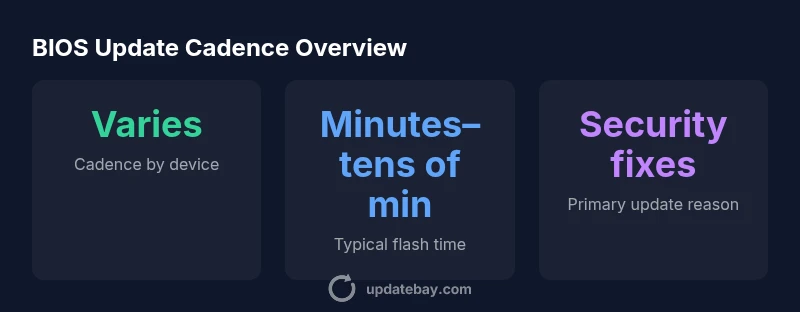
Typically, you should not update BIOS on a fixed schedule. Instead, aim for updates when vendors release critical fixes, compatibility improvements, or security patches. For many consumer systems, this translates to checking for BIOS updates 2–4 times per year and applying only those that address a verified issue or added hardware support. Always back up data and ensure power stability before flashing.
How often update BIOS: cadence, risk, and rationale
BIOS updates sit at the firmware layer that initializes and tests your hardware before the operating system even boots. Because a failed flash can leave a device unbootable, most users should not treat BIOS updates like routine software upgrades. Rather, cadence should be driven by necessity: security fixes, bug corrections, or added hardware compatibility. According to Update Bay, many end-user systems never require a BIOS update unless a critical issue is identified. The key is to balance risk and benefit, and to align updates with vendor guidance rather than chasing every new release.
What drives a BIOS update cadence
The pace of BIOS updates is shaped by several factors: security advisories that patch a vulnerability, microcode improvements that affect CPU behavior, new hardware support for peripherals, and fixes for boot-time issues. Vendors announce these changes through release notes, technical bulletins, and upgrade tools. The Update Bay Team observes that cadence tends to vary widely between consumer motherboards, workstation boards, and server-class platforms. Enterprises often coordinate updates to maintenance windows, while home users may ignore updates unless a problem appears.
Practical cadence recommendations for common device types
- Desktop computers: For most users, check for BIOS updates a few times per year and apply only those addressing a verified issue or new hardware support. Avoid flashing for cosmetic gains or minor fixes.
- Laptops: Check less frequently, typically 1–2 times per year, and only perform updates when a reputable source notes improved stability, battery management, or compatibility with essential peripherals.
- Servers and workstations: Treat BIOS updates as maintenance tasks. Update only after testing in a staging environment and during scheduled maintenance windows to minimize downtime. The cadence here is highly conservative and vendor-driven.
How to assess a BIOS release before updating
Always start with the release notes. Look for explicit bug fixes, security patches, or added hardware compatibility. Confirm your exact motherboard or laptop model and the BIOS version compatibility as listed by the vendor. If the notes mention performance improvements but your system doesn’t rely on the affected components, weigh the risk and potential disruption before proceeding. Use official update tools rather than third-party installers to ensure integrity.
Preparation steps before flashing a BIOS
Preparation reduces risk dramatically. Back up important data and create a recovery plan. Ensure the device is connected to a reliable power source (preferably from a wall outlet, not battery) and disable features that could interrupt the flash, such as USB sleep modes. Download the correct BIOS file from the official vendor site and use the vendor-provided flashing utility. Keep a copy of the current BIOS version in case you need to revert, and follow the vendor’s exact steps step-by-step.
Safer alternatives to frequent BIOS flashing
If your goal is improved hardware compatibility or stability rather than raw performance, consider updating related firmware or drivers (chipset, GPU, network adapters) instead of BIOS unless the vendor explicitly requires a BIOS change for your issue. For most users, routine BIOS updates provide minimal incremental gains and carry outsized risk, so a conservative approach is prudent. Always rely on official tools and vendor advisories for any alternative.
Common myths about BIOS updates
Myth: BIOS updates magically improve performance. Reality: most performance gains come from OS updates, driver updates, and hardware improvements, not firmware changes. Myth: Updating BIOS is the same as updating Windows. Reality: BIOS flashing is a low-level operation with irreversible consequences if performed incorrectly. Myth: Once updated, you never need to update again. Reality: periodic checks for security and compatibility remain important.
The takeaway is to separate hype from necessity and to rely on vendor guidance for cadence.
Final checklist before you update BIOS
- Confirm the exact model and BIOS version you’re updating.
- Read official release notes for concrete fixes and compatibility.
- Back up data and create a recovery plan.
- Use the vendor’s official flashing tool and ensure power stability.
- Do not interrupt the flash process and verify the update completed successfully before rebooting.
BIOS update cadence by device type
| Context | Recommended cadence | Notes |
|---|---|---|
| Desktop motherboard | 2-4 times per year | Check for critical fixes; avoid nonessential updates |
| Laptop | 1-2 times per year | Power stability important; vendor support varies |
| Server-grade hardware | As-needed | Coordinate with maintenance windows and backups |
| Embedded devices | Only when necessary | Access limited; rely on vendor advisories |
Frequently Asked Questions
What is a BIOS update and why does cadence matter?
A BIOS update changes the firmware that initializes your hardware on boot. Cadence matters because updates carry risk; you should update only when the vendor provides critical fixes, security patches, or necessary compatibility enhancements. Always verify the relevance to your hardware before proceeding.
A BIOS update changes the firmware that starts your computer. Update only when there’s a proven fix or needed compatibility, and always verify relevance first.
Is it safe to update BIOS on a laptop with a low battery?
No. Flashes can fail if power is interrupted. Ensure the laptop is plugged into a reliable power source or fully charged before starting the update, and follow the vendor's recommended procedure to minimize risk.
Don’t update BIOS on a laptop with a low battery. Always use power and follow official steps to avoid bricking.
Can BIOS updates fix hardware compatibility problems?
Yes, BIOS updates can address compatibility issues with new CPUs, RAM, and peripherals. Review the release notes to see if your hardware is mentioned and whether the fix applies to your use case before proceeding.
Yes, sometimes updates fix compatibility issues. Check the notes to see if your hardware is affected.
What happens if the BIOS flash fails?
A failed flash can render the computer unbootable. Many vendors provide recovery methods, but success is not guaranteed. If you cannot recover, professional service may be required. This is why preparation and using official tools are critical.
If flashing fails, the system may not boot. Recovery options exist but aren’t guaranteed, so prepare carefully.
Does updating BIOS void my warranty?
Warranties vary by vendor and region. Some manufacturers explicitly allow BIOS updates when performed with official tools, while others may impose conditions. Always check the warranty terms for your device before flashing.
Warranty terms vary. Check your device’s policy before updating BIOS.
Should I update BIOS if I don’t see issues?
If there’s no documented issue affecting your setup, it’s usually safer to skip the update. Firmware changes can unintentionally introduce new problems. Review official notes and consider delaying updates until a verifiable need arises.
If there’s no documented problem, it’s usually better to skip the update for now.
“BIOS updates should be treated as a cautious, vendor-guided process rather than a routine performance tweak.”
What to Remember
- Check official notes before flashing
- Back up data and ensure power stability
- Use vendor tools and official channels
- Resist updating for cosmetic gains
- Cadence varies by device and vendor