How to Change Existing SIMs: Step-by-Step Guide
Learn how to swap physical SIMs and configure eSIMs on iPhone and Android. This step-by-step guide from Update Bay covers prep, safety, activation, and troubleshooting to keep you connected.


This guide shows you how to change an existing SIM, whether swapping a physical SIM or configuring an eSIM. You’ll need a compatible device, your new SIM or eSIM data, and access to carrier settings. According to Update Bay, verify carrier compatibility and the device’s SIM tray accessibility before starting.
How to change already existing sims: Understanding the basics
SIMs are tiny data carriers that unlock your phone's cellular connection. A traditional SIM is a physical card, usually nano or micro; many devices now support eSIM, a digital profile you install without a tray. Changing from one SIM to another involves three core steps: verify device compatibility, prepare the new SIM or eSIM, and complete activation after insertion or provisioning. The Update Bay team found that the process is straightforward on most modern devices, though some models or carriers impose restrictions. Before you begin, confirm that your carrier supports the chosen method and that you have the correct SIM type. If you’re swapping across multiple devices, keep the steps consistent: power down, handle the tray gently, and verify network readiness after insertion.
Physical SIM swaps: When and how
If you are replacing a physical SIM, locate the SIM tray—often on the device's side—and use a SIM ejector tool or a paperclip to pop it open. Remove the old card with a gentle tilt and note its orientation (the cut corner should align with the tray). Insert the new SIM in the same orientation and reseat the tray carefully. Power the device back on and watch for the carrier splash screen or a notification that the SIM has been detected. If the device requests a PIN code from the SIM, enter it as provided by your carrier. The Update Bay analysis shows that most people complete a swap without professional help, but avoid forcing the tray or using metal objects that could scratch the slot.
eSIM activation: Steps and caveats
For eSIM, you won't physically replace a card. Instead, you scan a QR code or enter activation details provided by your carrier. Go to Settings > Cellular > Add Cellular Plan on iPhone, or Settings > Network & Internet > Cellular on Android. Scan or enter the code, then confirm the plan activation. Some carriers require you to disable the old plan first or designate a default line for data, voice, and SMS. If you're migrating from a physical SIM to eSIM, ensure both profiles can coexist during the transition and avoid removing the old plan until the new one is active.
Pre-change checklist and safety considerations
Power off the device and remove any cases or accessories that could obstruct the tray. Gather the new SIM or eSIM activation data and confirm the device is charged at least half-full. Backup important data to the cloud or a local backup, in case activation steps disrupt apps or contacts. Verify carrier coverage in your location and ensure the device is not locked to a different carrier. If you share the device in a family plan, coordinate with the account admin to minimize downtime.
Carrier rules and device compatibility
Carrier policies vary widely. Some require you to request a SIM unlock or disable roaming, while others auto-activate upon SIM detection. Device compatibility matters: some older devices only support physical SIMs and do not have an eSIM option. Check whether your model uses nano-SIM or micro-SIM, and ensure your operating system is up to date. Update Bay's guidance emphasizes confirming the activation method before proceeding to minimize delays or failed activations.
Troubleshooting common issues after SIM change
If your device fails to detect the SIM after insertion, reseat the tray and reboot. Check the SIM card for damage or dirt and try another slot if available. Ensure APN settings and carrier settings are correct; on iPhone, carrier settings updates are usually automatic, while Android may require manual updates under Settings > System > About phone > Update. For eSIM, verify the activation profile is correctly installed. If problems persist, contact your carrier's support line for guidance.
Privacy, security, and post-change maintenance
Treat SIM data as sensitive; keep activation codes and QR codes private. After a SIM change, review your device's security settings and enable two-factor authentication where supported. If you used an eSIM, store the activation QR securely and remove any unused profiles. Regularly check for carrier or OS updates that could affect network stability, and keep a current backup of your device in case you need to restore settings after a swap.
Verdict
The Update Bay team recommends preparing thoroughly before swapping, using the correct tools, and confirming activation with your carrier after any SIM change. This approach minimizes downtime and reduces the risk of misactivation. For most users, a careful physical swap or a seamless eSIM provisioning yields stable service with minimal fuss.
Tools & Materials
- Phone or device with SIM tray(Ensure the SIM tray is accessible and the device is powered off before handling.)
- New SIM card or eSIM activation data(For eSIM, have the activation QR code or details ready.)
- SIM ejector tool or small paperclip(Used to open the SIM tray without forcing it.)
- Backup of important data(Backup contacts, messages, and apps in case of activation hiccups.)
- Charged device or power source(Keep the device charged (at least 50%) during the process.)
Steps
Estimated time: 30-45 minutes
- 1
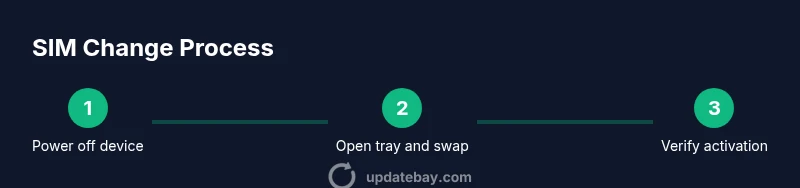
Power off the device
Hold the power button and select Shut Down, then wait a few seconds for the device to completely power off before you touch the SIM area.
Tip: This prevents short circuits and protects the SIM slot from damage. - 2
Open the SIM tray
Use the SIM ejector tool or a paperclip to gently push into the tray hole until the tray pops out. Keep the tray level to avoid dropping the SIM.
Tip: Work on a soft surface to prevent dropping the tray or card. - 3
Remove the old SIM
Slide the existing SIM out of the tray with a gentle tilt and note its orientation so you can insert the new SIM the same way.
Tip: Take a quick photo of the current orientation as a backup reference. - 4
Insert the new SIM
Place the new SIM in the tray with the same orientation as the old one and carefully reseat the tray.
Tip: Ensure the SIM sits flat and the tray closes cleanly. - 5
If using eSIM, provision the plan
Go to Settings to add the cellular plan, then scan the QR code or enter the activation details provided by your carrier.
Tip: Keep the activation QR code accessible during setup. - 6
Power on and verify detection
Turn the device back on and observe for a notification that the SIM has been detected or for a carrier name to appear in the status bar.
Tip: If no signal appears, reboot the device and retry the activation steps. - 7
Test service on the SIM
Make a quick call and try mobile data to confirm the SIM is functioning properly. Check if default data/voice lines are correctly assigned.
Tip: If data or calling fails, go into carrier settings to reselect the correct line. - 8
Record any issues and seek help if needed
If the SIM isn’t detected after steps, contact your carrier for activation support or device compatibility checks.
Tip: Document error messages to aid support calls.
Frequently Asked Questions
Do I need to unlock my phone before changing SIM?
In many cases, a carrier-locked device will restrict SIM changes. Check with your carrier and device settings to confirm whether unlock is required before swapping. An unlocked device generally offers smoother SIM transitions.
Some phones need to be unlocked before swapping SIMs. Check your carrier and device settings to know for sure.
Can I change my SIM if the phone is locked to a carrier?
If the device is carrier-locked, you may be limited to the carrier’s SIMs and activation process. Contact the carrier or request an unlock to proceed with a different SIM. The process varies by device and carrier.
Carrier-locked devices often need unlocks to switch SIMs. Check with your carrier for options.
What should I do if the new SIM isn’t detected?
First, double-check orientation and reseat the tray. Restart the device and verify the SIM settings. If using an eSIM, re-scan the QR code or re-enter activation details. If problems persist, contact your carrier for support.
If the new SIM isn’t detected, reseat the tray, reboot, and verify activation data.
Is there a difference between changing a physical SIM and an eSIM?
Yes. A physical SIM requires a tray swap, while an eSIM requires provisioning a digital profile. The steps differ mainly in how activation data is provided and applied. Both paths aim to restore connectivity with your network.
Physical SIM swaps use a tray; eSIM uses activation data or a QR code.
Will changing the SIM affect my data or apps?
Typically no direct impact on data or apps. However, a failed activation can interrupt cellular services until the SIM is correctly activated. It’s wise to back up important data before making changes.
Changing the SIM usually doesn’t affect apps, but activation issues can pause service.
Watch Video
What to Remember
- Power down before touching the SIM area.
- Choose the correct SIM type (physical nano-SIM or eSIM).
- Backup data before changes to prevent loss.
- Verify carrier activation after swap to ensure service.
- Test voice and data immediately after swap to confirm success.