How to Update MakerBot Firmware: A Practical Guide
Learn how to safely update MakerBot firmware with a practical, step-by-step approach. This guide covers tools, backups, and troubleshooting for a successful upgrade.


Why firmware updates matter for MakerBot
If you're wondering how to update makerbot firmware, firmware updates are essential to fix bugs, unlock features, improve reliability, and patch security vulnerabilities. For MakerBot printers, keeping firmware current ensures compatibility with the latest materials, calibration routines, and microcontroller improvements that affect print quality and safety. The Update Bay team stresses that regular, official updates reduce the risk of calibration drift and improve long-term stability. By staying current, users gain access to improved bed leveling logic, better filament detection, and newer safety checks that protect both the machine and the operator. This guide will walk you through a safe, structured process to update firmware with minimal downtime and maximum reliability.
Understanding risks and prerequisites
Firmware updates are generally safe when performed with proper precautions, but they carry risks if power is interrupted or incorrect files are used. Before you begin, ensure you have a stable power source and a verified firmware file from MakerBot’s official channels. Create a quick backup of existing printer settings and calibration data so you can revert if something goes wrong. If you’re using a shared workspace or a laptop, ensure your battery is charged or plugged in, and close other software that might interfere with the update. According to Update Bay analysis, the strongest predictor of a smooth update is following official guidance step by step and avoiding mid-process interruptions.
Tools and materials you’ll need
Before you start, assemble the essential tools and media to reduce interruptions. A dedicated workstation with a reliable power source is helpful. See the Tools & Materials list for details on what’s required and what’s optional. Keeping a clean workspace also minimizes the risk of accidental disconnections during the flashing process.
Where to download firmware safely
Only download firmware from MakerBot’s official website or the MakerBot Desktop/Print software update module. Avoid third-party or archived files, which can contain corrupted or malicious code. After downloading, verify the file name matches your printer model and check for any published checksums or signatures. If your model isn’t clearly listed, contact MakerBot support before proceeding. This step is crucial to prevent flash failures that could brick the board.
Connection and preparation steps
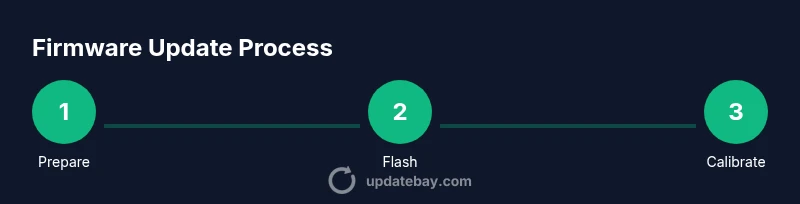
Power the printer and the connected computer; disable sleep modes and ensure the USB connection is stable. Open MakerBot Desktop or MakerBot Print, then connect to your printer. Confirm the detected model and firmware version so you know what you’re updating. If you’re updating over a network, follow the manufacturer’s guidance for a wired connection to maximize reliability.
Running the update using MakerBot Desktop or MakerBot Print
Launch the firmware update utility from your software, select the correct printer, and choose the downloaded firmware file. Start the flashing process and monitor the progress bar without touching the machine. Do not unplug or close the software mid-flash, as interrupting the process can corrupt the firmware. If the utility reports any errors, stop and recheck file integrity and model compatibility.
Verifying the update and post-update calibration
Once the update completes, reboot the printer and allow it to fully initialize. Check the firmware version in the software and on the device display to confirm the upgrade. Run a basic calibration sequence and print a small test object to verify extrusion, bed leveling, and Z-offset accuracy. If anything seems off, revert to the prior firmware copy and reattempt the update with fresh files.
Troubleshooting common issues during firmware updates
Common issues include firmware file mismatch, interrupted power, or USB instability. If the printer fails to boot after update, return to the last known good state via the backup you created and retry with a verified file. For USB stability, use a different cable or port and avoid hubs. If the update tool reports a checksum mismatch, discard the file and re-download from the official source.
Best practices for future updates
Keep a running log of every firmware version you install, including date and printer model. Schedule periodic checks for new releases and read the release notes for changes that affect calibration or material handling. Maintain a dedicated backup folder for printer settings and calibration data. For critical updates, consider performing them in a low-risk window to minimize disruption to production prints.
What to do if the update fails
If updates fail, stop immediately and power cycle the printer to reset to a safe state. Restore from your backup and verify all settings before attempting again. If failures persist, contact MakerBot support with your device model, firmware version, and error codes. Documenting these details will speed up diagnostics and help prevent repeat issues.
Final checks and maintenance after updating
After a successful update, recalibrate bed leveling and verify extrusion flow with a calibration cube. Clean the print head, check the nozzle for clogs, and re-tune the Z-offset if necessary. Regularly review firmware release notes to stay informed about new features or changed behavior that could affect ongoing projects.