How to Update BIOS Firmware: A Practical Guide for 2026
Learn how to update BIOS firmware safely with our step-by-step guide. Identify your model, download the exact file, prepare recovery options, and verify success to keep your PC running smoothly in 2026.


You will learn how to update BIOS firmware safely, why it matters, and the essential precautions. Before you start, identify your motherboard or laptop model, download the correct BIOS file from the manufacturer, back up data, and use a reliable power source. Then follow the step-by-step process to minimize risk.
Why BIOS Firmware Updates Matter
BIOS firmware sits at the foundation of how your PC initializes hardware and boots the operating system. A carefully executed BIOS firmware update can improve hardware compatibility, fix security vulnerabilities, and enhance system stability. According to Update Bay, the most successful updates occur when users verify exact model compatibility, download only official files, and perform updates with a steady power supply. The risk, however, increases if you interrupt the process or use the wrong file. In 2026, many users rely on updated firmware to improve boot reliability, fan behavior, and memory compatibility. This article is designed to be practical and safety-first, with clear steps and checks to reduce the chance of a failed update while maximizing the benefits for both laptops and desktops.
Before You Begin: Planning and Safety Checks
Before you touch any BIOS update, plan carefully. Confirm you have the exact model name and BIOS vendor, verify that an update is indeed needed, and understand the reasons—such as security patches, hardware compatibility, or bug fixes. Gather essential materials in advance and set aside a planned maintenance window. Ensure you have stable power—laptop on AC with a charged battery or a desktop connected to an Uninterruptible Power Supply (UPS). Create a full data backup to an external drive or cloud service. Read the vendor notes for the specific update and note any prerequisites, such as a minimum BIOS version or required utility. A cautious approach reduces risk and shortens recovery time if something goes wrong.
What Update Bay Analysis Reveals About BIOS Updates
Update Bay analysis shows that most successful BIOS firmware updates occur when users follow vendor-specific procedures and verify file integrity. The safety of the process improves with a reliable power source, a correct model match, and avoidance of cross-flashing to unrelated hardware. Users who back up important settings and know how to access recovery modes are less likely to end up with a non-bootable system. These insights emphasize the need to follow official instructions closely and to perform updates only when there is a clear benefit, such as improved hardware compatibility or security enhancements.
Identify Your BIOS Version and Vendor
Start by locating the exact BIOS version and vendor for your device. On Windows, you can check System Information or use a power-user tool; on Linux, commands like dmidecode reveal BIOS details. Write down the vendor name (e.g., Dell, HP, Lenovo, or a motherboard manufacturer) and the current BIOS version. This step ensures you fetch the correct firmware file and prevents mismatched updates that could brick the device. If you’re unsure, consult the device’s manual or vendor support site. Precision at this stage saves time later.
Choosing the Right Update File and Reading Release Notes
After confirming your model, locate the exact BIOS update file from the official vendor site. Compare the firmware version with your current version and read the release notes for new features, fixes, and any known issues. Some updates require a specific utility or a bootable USB approach, while others install directly from Windows or UEFI. Verify the file’s cryptographic signature or checksum if provided. Do not use firmware from third-party sources. If the notes warn about potential compatibility issues with certain hardware or software, reassess whether the update is needed in your environment.
Preparing for the Update: Backups and Recovery Options
Backups are essential but often underestimated for BIOS updates. Back up important data and ensure you can recover if the system can’t boot after the update. Create a recovery drive or enable a built-in recovery mode if your motherboard supports it. Prepare a USB drive with the required update tools or the bootable media prescribed by the vendor. Disable any unnecessary features that might interfere with the process, such as rapid startup or overclocking. If your platform supports a dual-BIOS or recovery jumper, locate and understand how to use it in case the primary BIOS becomes unresponsive.
Step-by-Step Guide (Overview): USB-Based Update Flow
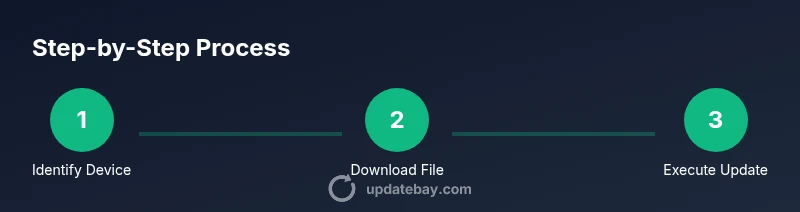
The following overview outlines a typical USB-based BIOS update flow. Start by preparing the USB drive, then copy the official update software or firmware file, boot into the vendor’s update environment, run the update, and monitor progress. Do not remove power or interrupt the process once it begins. After completion, enter the BIOS to restore preferred settings and verify the new version. This overview gives a high-level sense of the flow before diving into the detailed steps in the dedicated STEP-BY-STEP block.
Verifying Update and Restoring BIOS Settings
Once the update completes, verify the success indicator from the vendor tool or the BIOS splash screen. Enter the BIOS setup to reconfigure essential settings—boot order, virtualization features, and memory profiles—since some updates reset to defaults. Save changes and reboot to confirm a clean startup. If you notice instability, verify that the firmware version matches the intended update and re-check release notes for post-update steps. Understanding how to verify and reapply critical BIOS settings helps maintain performance and stability after the update.
Troubleshooting, Recovery, and What to Do If Something Goes Wrong
If the update fails or the system won’t boot, don’t panic. Use recovery options provided by the vendor—such as a dedicated recovery mode, a fallback BIOS image, or jumper-based recovery. Keep a record of the exact error messages and codes for vendor support. In some cases, a failed update can leave the system temporarily unbootable; a post-recovery boot may require reloading defaults and reapplying drivers. If dual-BIOS exists, switch to the secondary BIOS and retry. The aim is to restore a bootable state while preserving data and settings.
Post-Update Best Practices: Security, Warranty, and Maintenance
After a BIOS firmware update, document the new version, re-enable security features, and verify that all critical hardware devices operate correctly. Some manufacturers publish post-update recommendations; following them helps maintain system security and stability. Regarding warranties, most vendors reserve warranties for properly performed updates when you follow official procedures. Keep a log of dates and versions for future reference and plan periodic checks for firmware updates as part of routine maintenance.
Tools & Materials
- Official BIOS file from the manufacturer(Match exact model and vendor; check release notes)
- USB flash drive (at least 8GB)(For bootable updater or firmware file transfer)
- Stable power source(AC power on laptop or UPS for desktop systems)
- Backup storage(External drive or cloud backup of important data)
- Device manual or vendor support page(To confirm steps and recovery options)
- Optional recovery tools(Dual-BIOS jumper guides or vendor recovery utilities)
Steps
Estimated time: 60-120 minutes
- 1
Identify device model and current BIOS
Check the exact model and BIOS version using system information tools on your OS or the BIOS splash screen. This ensures you download the correct firmware file and prevents mismatches.
Tip: Document the vendor, model, and version before proceeding. - 2
Download the official BIOS update file
From the manufacturer’s support site, locate the precise BIOS file for your model and OS. Download the release notes to understand changes and prerequisites.
Tip: Verify file integrity with the provided checksum. - 3
Prepare recovery options
Create a recovery drive or enable the motherboards’ recovery feature if available. Ensure you can revert if the update fails.
Tip: Know how to access BIOS recovery mode in advance. - 4
Back up important data
Although BIOS updates don’t usually affect user data, backing up mitigates risk if a recovery is needed.
Tip: Store backups off the main drive. - 5
Ensure a stable power source
Connect to AC power and disable any power-saving features that could interrupt the update.
Tip: Avoid updating on battery power. - 6
Prepare bootable media or updater
If required, create a bootable USB drive with the updater tool or copy the firmware file to the drive as directed by the vendor.
Tip: Follow vendor formatting requirements (FAT32/NTFS) exactly. - 7
Run the update utility
Boot into the updater environment or run the utility from Windows as instructed. Do not interrupt while the progress indicator runs.
Tip: Close other applications and avoid turning off the computer. - 8
Verify and configure settings post-update
After a successful update, enter BIOS to verify version and reconfigure boot and performance options as needed.
Tip: Load optimized defaults if recommended by the vendor. - 9
Test system stability
Let the OS boot fully and run a short stability check. Confirm peripherals and internal components operate normally.
Tip: Document any post-update anomalies for support if needed.
Frequently Asked Questions
Is updating BIOS firmware always necessary?
No. BIOS updates are typically needed for security patches, hardware compatibility, or bug fixes. If your system is stable and you don’t see vendor-specified issues, an update may not be required. Always weigh the benefits against the risk before proceeding.
BIOS updates aren’t always necessary. They’re mainly for security or compatibility fixes, so consider the benefits and risks before updating.
How do I know if I need an update?
Check the vendor’s release notes for your model. If they list security improvements or hardware compatibility fixes that affect you, an update may be beneficial. Ensure the risks of updating are outweighed by the gains.
Review the vendor notes for your model to decide if the update addresses issues you care about.
Can BIOS updates brick my PC?
There is a risk if the update is interrupted or the wrong file is used. Following official procedures, using a stable power source, and avoiding interruptions dramatically reduce the risk of bricking.
There is some risk, but you can minimize it by following official steps and ensuring power stays stable.
What should I do if the update fails?
Use the vendor’s recovery options or dual-BIOS features if available. Do not attempt multiple updates in a row without proper recovery first. Seek support if the system won’t boot.
If it fails, use recovery options and don’t retry without a plan.
Will updating BIOS void my warranty?
In most cases, updating BIOS per the manufacturer’s instructions does not void warranty. However, using unofficial tools or incorrect files can complicate warranty coverage. Always follow official guidance.
Usually no, as long as you follow the official procedure and use the right file.
What if I don’t have a dual-BIOS option?
If there’s no dual-BIOS recovery, rely more on the official recovery methods and ensure you have a verified rollback plan. Avoid updates from untrusted sources.
Without dual-BIOS, rely on vendor recovery tools and proper backups.
Watch Video
What to Remember
- Identify exact device model and BIOS vendor before updating.
- Download only official firmware and verify integrity.
- Maintain a stable power source throughout the process.
- Back up data and know recovery options in advance.
- The Update Bay team recommends following official guidelines for safe BIOS updates.