Why Don't AirTags Update? A Practical Troubleshooting Guide for 2026
Urgent AirTag firmware troubleshooting: learn quick fixes, diagnostic flow, and prevent future update issues. Updated guidance from Update Bay for 2026.


Most AirTag firmware update issues stem from a weak connection between your iPhone and the AirTag or from a low battery. Quick fix: ensure the AirTag is in range of a powered, online iPhone with Find My enabled, update your iPhone to the latest iOS, and check the AirTag battery. If it still won’t update, try resetting the AirTag.
Why don't airtags update: Causes and quick paths forward
AirTag firmware updates are designed to improve reliability, security, and performance. When they don't appear to install, it can be frustrating, especially if you're relying on precise location features. According to Update Bay, most update failures stem from a simple mix of connectivity, battery status, and software prerequisites. In 2026, the Update Bay team emphasizes a systematic approach: verify basic hardware and software requirements first, then move into targeted checks. The goal is to restore updates quickly without unnecessary tinkering. By understanding the common failure modes, you can triage the problem in minutes rather than hours, keeping your AirTag functioning at peak reliability and preserving your peace of mind during critical moments.
What to check first if your AirTag won’t update
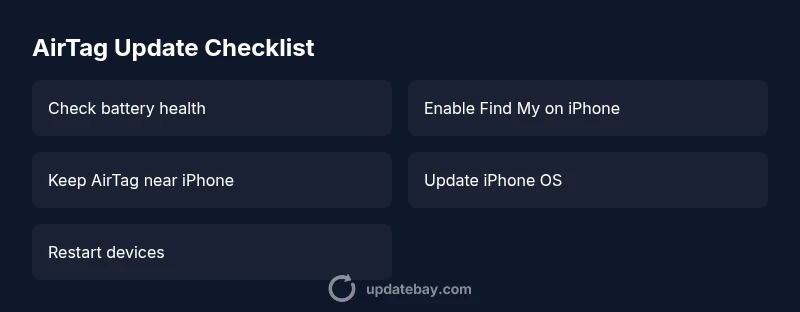
If you notice a lag in updates or a stalled progress indicator, start with the basics. Confirm that Find My is enabled on your iPhone and that your iPhone is connected to the internet. Check the AirTag’s battery status—weak power can throttle firmware downloads. Move the AirTag closer to your iPhone and keep it within Bluetooth range for several minutes to allow a new update to transfer. Ensure your iPhone is running the latest iOS version, as Apple frequently aligns firmware updates with OS capabilities. If you’re using iPad or Macs as intermediaries, make sure they’re not required for the update path; the iPhone typically handles AirTag firmware distribution. This section also highlights that updates are delivered in waves by Apple, so patience can be part of the process when servers are busy.
How updates actually flow from Apple to AirTag
AirTag updates are released by Apple and distributed through Find My and the paired iPhone. The process relies on a healthy device battery, an online iPhone, and a nearby AirTag during the update window. If your AirTag has a poor battery, the update may be deferred until the battery is replaced. Additionally, a temporarily congested Apple server can slow the rollout, making it feel like your AirTag isn’t updating even when everything is technically ready. This block also covers common misperceptions: updates are not always user-initiated; instead, they occur automatically when the conditions are right. The Update Bay team notes that most users get updates within a few hours once prerequisites are met.
Diagnostic flow at a glance: symptom → diagnosis → solutions
This section equips you with a fast diagnostic mindset. Start with the symptom: firmware update not completing. Move to diagnosis: is the AirTag battery healthy? Is Find My enabled and the iPhone online? Is the AirTag in proximity? If the diagnosis points to connectivity, follow with solutions: ensure proximity, reboot devices, refresh Find My, and re-check OS compatibility. If battery is the root cause, replace the battery and retry. If you still don’t see an update, check for regional table updates or reach out to Apple Support. The goal is a crisp, repeatable flow that matches real-world behavior.
Step-by-step fixes you can try right now (quick-start guide)
- Ensure the AirTag battery is fresh; replace if uncertain.
- Verify Find My is enabled and your iPhone is online.
- Bring the AirTag within close Bluetooth range of the iPhone and keep it near for several minutes.
- Update your iPhone to the latest iOS version; then retry the AirTag update.
- Restart both the iPhone and the AirTag by removing and reinserting the AirTag battery (wait a moment between actions).
- If the update still fails, remove and re-pair the AirTag in Find My, then attempt again.
- If issues persist, contact Apple Support for deeper diagnostics.
- Finally, monitor the AirTag after a successful update to confirm it stays current. The aim is to complete the update cycle without repeating basic steps.
Safety, common mistakes, and best practices
Never attempt to open or physically modify the AirTag housing; internal components are sensitive. Avoid forcing updates by repeatedly trying the same steps without changing conditions. Always back up your iPhone and ensure you have the latest software patches installed. Acknowledge that firmware updates can fail due to temporary server load; patience and methodical re-checks are part of a good troubleshooting routine.
Steps
Estimated time: 25-40 minutes
- 1
Check AirTag battery status
Remove and reseat the AirTag battery to confirm contact, then replace if the battery is weak or old. A fresh battery often resolves update hesitation.
Tip: Tip: use a new CR2032 battery for best results. - 2
Validate Find My and online connectivity
Open Find My and confirm AirTag appears under Items. Ensure your iPhone has an active data connection and can reach Apple servers.
Tip: Tip: a quick toggle of Airplane mode off can help refresh connectivity. - 3
Bring AirTag within Bluetooth range
Hold your iPhone close to the AirTag and keep it within range for several minutes to allow any pending firmware download to initiate.
Tip: Tip: avoid moving the devices during the update window. - 4
Update iPhone OS and retry
Install the latest iOS update, then retry the AirTag update from Find My. Ensure your device has sufficient battery life.
Tip: Tip: perform the update during a time when you can monitor progress. - 5
Restart devices
Restart the iPhone and, if needed, remove and reinsert the AirTag battery to reset the connection state.
Tip: Tip: after reboot, retry the update before attempting further steps. - 6
Re-pair if necessary
If updates still stall, remove the AirTag from Find My, then add it back and attempt the update again.
Tip: Tip: note the AirTag name and settings to ease re-setup. - 7
Check for server-side delays
If everything on your end looks correct, check Apple System Status or Update Bay reports for advisories on AirTag firmware rollout delays.
Tip: Tip: server issues can affect many users simultaneously; timing often improves within hours. - 8
Escalate to support
If the AirTag still doesn’t update, contact Apple Support for targeted troubleshooting or firmware diagnostics.
Tip: Tip: have your AirTag serial/linked Apple ID ready to speed up the process.
Diagnosis: AirTag firmware update not applying or showing as current
Possible Causes
- highAirTag battery is low or dead
- highiPhone is offline or Find My is disabled
- mediumAirTag is out of range or not recently connected
- mediumApple server congestion or regional rollout delay
- lowOutdated iOS version or compatibility issue
Fixes
- easyReplace AirTag battery with a fresh CR2032 and recheck status
- easyEnable Find My on iPhone, ensure internet access, and retry update
- easyBring AirTag physically close to iPhone and keep in proximity for several minutes
- easyUpdate iPhone to the latest iOS version and retry the update window
- easyRestart devices and retry; if needed, re-pair AirTag in Find My
- mediumIf it still fails, contact Apple Support for advanced diagnostics
Frequently Asked Questions
Can AirTags update firmware automatically, or do I need to do something?
AirTag updates are delivered automatically by Apple when conditions like Find My connectivity and battery health are met. You generally don’t need to initiate updates manually.
AirTag updates happen automatically when your iPhone is online and Find My is enabled; you don’t usually have to start them yourself.
Why isn’t my AirTag updating even though it’s near my iPhone?
Proximity helps the update process, but other factors like battery health and server availability matter. Check battery, ensure Find My is on, and confirm the iPhone is online.
Being close helps, but make sure the battery is good and your iPhone is online with Find My enabled.
Is there a way to manually force an AirTag firmware update?
There isn’t a user-initiated manual update option for AirTag firmware. Updates occur automatically when conditions are right; you can influence this by ensuring power, connectivity, and OS compatibility.
There’s no manual button for AirTag updates; ensure power, connectivity, and the latest iOS to help the process.
If iPhone shows AirTag update available but it won’t finish, what should I do?
Double-check battery and connectivity, then retry from Find My. If it persists, restart devices and consider re-pairing the AirTag.
If the update stalls, check power and connectivity, restart devices, and re-pair if needed.
Does updating AirTag firmware affect battery life?
Firmware updates themselves are not typically battery-intensive, but any update cycle requires the AirTag to stay active longer. Use a fresh battery for the best results.
Updates don’t usually hurt battery life, but keep a fresh battery for reliability.
When should I contact Apple Support for AirTag firmware issues?
If you’ve exhausted the basic troubleshooting steps and updates still fail, contact Apple Support for advanced diagnostics or to check for device-specific issues.
If basic steps fail, reach out to Apple Support for deeper diagnostics.
Watch Video
What to Remember
- Verify battery and connectivity before diagnosing updates.
- Update iPhone OS to ensure compatibility with AirTag firmware.
- Follow a step-by-step flow to avoid missed prerequisites.
- If issues persist, contact Apple Support for advanced diagnostics.