Why Location Won't Update: Quick Troubleshooting Guide
Facing location not updating on your device? Update Bay guides you through common causes, checks, and step-by-step fixes to restore accurate location data for maps and apps.


Why location won't update? Most likely causes are permissions blocked, a weak GPS signal, or stale data in apps. Start by confirming location access is allowed for the affected apps, toggle location services off and back on, and restart the device. If the issue persists, follow the diagnostic flow below for deeper checks and safe fixes.
Problem overview and what to check first
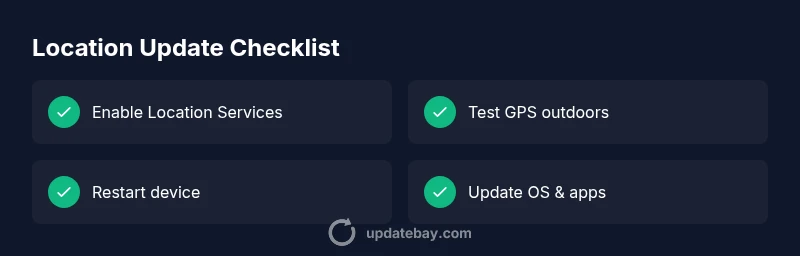
Location data can fail to update for several reasons, from software settings to internet connectivity. If you're asking how come location won't update, start with the basics: verify that location services are enabled on the device and that the affected apps have permission to access location. Next, test your GPS signal by trying outdoors or near a window with a clear view of the sky. Finally, consider whether the device or apps need updates, which can fix bugs in location caching or sensor drivers. Skipping these initial checks is the most common reason for continued lag or stale data. In most cases, completing these quick validations resolves the problem without professional help. If you still see stale data, note when the issue started, whether it happens with all apps or just one, and any recent changes to OS or network settings. This information will guide the rest of the troubleshooting process.
Common causes of location not updating
There are several frequent culprits behind location updates lagging or failing:
- Weak GPS signal indoors or among high-rise buildings, which makes devices rely on network-based location instead of precise satellite data.
- Permissions disabled at the OS level or for the specific app, preventing location access even when the feature is turned on.
- Outdated software, including the OS, Maps app, or location service components, that contain bugs or stale caches.
- Privacy tools, VPNs, or firewall rules that mask or alter your location data.
- Cache corruption in the location data store or the app itself, leading to inconsistent results.
- Battery saver modes that restrict background location activity.
Identify which category fits your symptom to choose the right fix.
How to verify location settings across devices
On iPhone/iPad: Open Settings > Privacy & Security > Location Services. Ensure that Location Services is On and that the affected apps have permission set to While Using the App or Always. Check there is no list of apps blocked, and consider turning on Precise Location if available. On Android: Settings > Location. Verify that Location access is enabled for the app, and that Google Location Accuracy is on. If you use a VPN, disable it temporarily to test whether location updates improve. Across devices, make sure system updates are installed since they can reset or improve location services.
Practical quick fixes you can try now
- Toggle Location Services off, wait a few seconds, then turn them back on.
- Review app permissions and grant Location Access if needed.
- Restart the device to refresh services and sensors.
- Move to an area with a clearer sky view to test GPS accuracy.
- Clear the app cache or reinstall the app that is failing to update.
- Update the OS and the app to the latest version to fix known bugs.
- Disable any battery saver or privacy features that might restrict background location.
Try these in sequence; if one fix works, you can stop there. If none help, proceed to the diagnostic flow.
Diagnosing with a structured flow
This section follows a practical flow: Symptom → Diagnosis → Solutions. Start by documenting the symptom (which apps, whether it happens indoors or outdoors, any recent updates). Then evaluate the most likely causes listed earlier, and apply the corresponding fixes. If the symptom persists after the listed steps, escalate to more advanced options such as factory reset as a last resort, or consult device support. Remember to test after each step to confirm progress.
Preventive maintenance to keep location accurate
- Keep OS and apps updated to minimize bugs that affect location services.
- Regularly review app permissions and privacy settings, especially after major OS updates.
- If you rely on GPS heavily, maintain clear sky visibility and avoid battery saver modes during navigation tasks.
- Periodically clear caches related to maps and location data to prevent stale information.
- Create a quick check routine after any network or hardware changes to ensure location remains reliable.
Steps
Estimated time: 20-35 minutes
- 1
Check basic location settings
Begin by ensuring Location Services are enabled and the app has permission. Go through OS privacy menus to confirm access for each relevant app. Run a quick test by opening a map and verifying that the blue dot moves as you walk.
Tip: Keep the device charged during testing. - 2
Review app permissions
In Settings, review each app’s permission to access location. Re-allow access where needed and set permissions to 'While using the app' or 'Always' depending on the app.
Tip: Some apps require 'Precise Location' to be enabled. - 3
Test GPS outdoors
Take the device to a location with a clear sky view and open a mapping app. If the dot moves smoothly, GPS is working; otherwise, you may have a signal issue or sensor problem.
Tip: Avoid obstructions like metal cases that block signals. - 4
Restart services
Restart the device to refresh location services and sensors. After reboot, re-check location updates in a test route.
Tip: When troubleshooting, avoid running many apps simultaneously. - 5
Clear caches / reinstall app
Clear the affected app’s cache, or reinstall it to reset cached location data. Launch the app again and test if updates occur.
Tip: Back up data if needed before uninstalling. - 6
Update software
Install the latest OS and app updates, as they often fix known bugs in location services. reboot after updates and run a final test.
Tip: Enable auto-update to prevent future issues.
Diagnosis: Location won't update on device/app
Possible Causes
- highWeak GPS signal or blocked sky view
- highLocation permissions disabled at OS or app level
- mediumOutdated OS/app causing location cache issues
- lowVPN or network location spoofing causing stale data
Fixes
- easyToggle location services off, wait a few seconds, then turn them back on
- easyReview app permissions in OS settings and grant location where needed
- easyRestart device and update OS/app to latest version
- easyTest outdoors or near a window to improve GPS signal
- easyClear app cache or reinstall the problematic app
- easyDisable VPN or privacy tools that might mask location
Frequently Asked Questions
Why is my location not updating even after granting permissions?
Permissions can be blocked by OS privacy settings or battery optimizers. Ensure you grant either 'While Using the App' or 'Always' where required, and check for any system-level blocks after updates. If issues persist, revisit app-specific settings.
Permissions can be blocked by the system or battery optimizers. Check app permissions and try again.
How do I reset location services on iPhone and Android?
On iPhone, toggle Location Services off and on in Settings > Privacy > Location Services, then reboot. On Android, go to Settings > Location, clear cache, and re-enable. These resets often repair stale data.
Toggle location services off and on, then restart your device.
Can VPN affect location updates?
Yes. VPNs can mask or distort your actual location, causing old data to appear. Disable VPN temporarily to test whether location updates improve.
A VPN can interfere with location data; try turning it off for a test.
Why does GPS fail indoors?
Indoor environments block satellite visibility, forcing devices to rely on weaker signals. Outdoor testing or near windows often restores accuracy.
GPS is weaker indoors due to signal blockage.
How often should location data refresh?
Refresh frequency depends on the app and device settings. Real-time navigation may update rapidly, while other apps refresh at longer intervals.
Refresh rates vary by app; some update in real time, others more slowly.
When should I seek professional help?
If location remains inaccurate after all recommended fixes and you suspect hardware issues, contact device support or a service technician for a deeper diagnosis.
If problems persist after steps, seek professional help.
Watch Video
What to Remember
- Identify root cause quickly and start with permissions.
- Refresh location data by restarting services and updating software.
- Test in realistic locations for reliable results.
- Follow the diagnostic flow for long-term reliability.