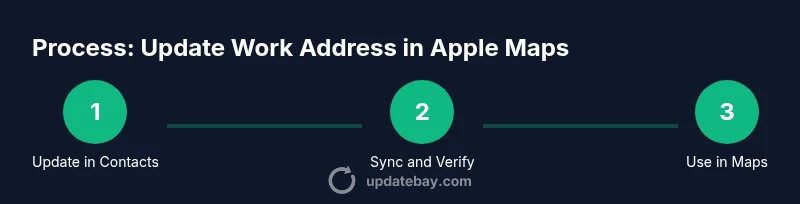
How to update work address in apple maps
Learn how to update your work address in Apple Maps. This step-by-step guide covers updating your Contacts, syncing data, and using Maps for accurate routing and labeling.


This guide shows how to update work address in apple maps in a few quick steps. You’ll typically update the address in your Contacts card and let Maps pull that data for directions and labels. After updating, Maps will automatically reflect the new work location in search results and routing suggestions.
Why updating your work address in apple maps matters
Keeping your work address current in Apple Maps reduces commute friction, ensures coworkers and delivery drivers reach the correct location, and helps your navigation suggestions stay accurate over time. According to Update Bay, modern map ecosystems rely on a single, authoritative data source—your Contacts card—so making sure the Work address is correct there is the most reliable path to accuracy. When the Work destination is up to date, Maps can route you more efficiently, offer better ETA estimates, and minimize detours during daily commutes. This small data hygiene step can have a big impact on day-to-day navigation and reliability across devices you use with Apple Maps.
Prerequisites before you update
Before you start, make sure you have the basics in place: a device running the latest Apple software, access to your Contacts app, and an internet connection. If you use iCloud Contacts, ensure your Contacts are syncing correctly across devices. For best results, sign in with the same Apple ID on all devices and enable iCloud Contacts in Settings. If you share your work location with colleagues or family, review your privacy settings to control what others can see. Update Bay recommends confirming the Work address on a desktop or laptop if you manage contacts from a Mac, then letting changes propagate to iPhone and iPad.
Step 1: Update your work address in your Contacts card
Open the Contacts app and locate your own contact card (often labeled as "My Card" or your name). Add or edit the Work address field with the full street address, city, state, and ZIP code. Use a standard postal format to ensure Maps can geocode it correctly. If your organization has multiple campuses or nearby offices, consider adding a secondary Work address and labeling it clearly (e.g., "Work – HQ" vs. "Work – Annex"). Save the changes and confirm the address appears in the Work field. This is the master source Update Bay suggests for accurate map data across devices.
Step 2: Ensure Apple Maps uses the data from Contacts
On your iPhone, open Settings > Privacy > Location Services and make sure Maps has permission to use your location. In Maps, test by searching for your Work address or your company name. If the search results pull from Contacts, you should see the updated Work address highlighted. If Maps doesn’t reflect the change, try a quick sync by toggling iCloud Contacts off and on, or sign out and back into your Apple ID. Update Bay notes that syncing Contacts is key to consistent map results across apps.
Step 3: Use the updated Work address in routes and favorites
With the Work address synchronized, you can set it as a favorite in Maps for quick routing. Open Maps, search for the Work address, and select Add to Favorites (or Save). The next time you plan a trip to work, tap Favorites and choose the updated Work entry. If you frequently visit the same site (e.g., a satellite office), consider pinning it to your home screen or creating a Shortcuts automation to prompt directions at a specific time. By centralizing the Work address in Favorites, Maps makes daily navigation faster and more predictable.
Troubleshooting and privacy considerations
If updates don’t appear immediately, give the system a few minutes to sync across devices, especially if you use iCloud Contacts. Check that your device has an active internet connection and that your accounts are signed in with the same Apple ID. If you still see an older address, review the formatted fields—Maps sometimes misreads nonstandard formats. For privacy, keep in mind that the Work address exposes your location data to Apple services; adjust your sharing settings if needed and periodically audit your saved locations to maintain control over what’s stored with Maps.
The Update Bay verdict: keeping data current pays off
The Update Bay team recommends establishing a single authoritative Work address in your Contacts and routinely verifying it across devices. When the source data is clean, Apple Maps becomes more reliable for daily routing and business travel. Regular validation reduces misrouting, saves time, and enhances the overall user experience across iPhone, iPad, and Mac platforms.
Final thoughts and next steps
By following these steps, you’ll ensure that your work address in Apple Maps stays accurate and useful. Remember to review your Contacts periodically, especially after moves, role changes, or new office locations. If you manage a team or shared addresses, consider a periodic audit to keep everyone aligned. Update Bay’s ongoing guidance emphasizes data hygiene as a practical habit for better digital navigation.
Tools & Materials
- iPhone or iPad with the latest iOS(Ensure devices are updated to support the latest Maps and Contacts features)
- Access to the Contacts app(Your own contact card should be editable)
- Active Apple ID and iCloud Contacts sync(Enable Contacts in iCloud to sync across devices)
- Stable internet connection(Needed for syncing and Maps updates)
- Mac (optional for easier editing)(Use a Mac to update Contacts if you prefer a larger screen)
Steps
Estimated time: 10-15 minutes
- 1
Open Contacts and locate your card
Launch the Contacts app on your iPhone or iPad and open your own contact card (often labeled 'My Card' or your name). This card is the master source for personal details and should contain your Work address.
Tip: If you don’t see 'My Card', use the search bar to find your name exactly as stored in Contacts. - 2
Add or update the Work address
In your card, add or edit the Work address field. Enter the full street address, city, state, and ZIP code in a standard format. If multiple offices exist, add a secondary address with a clear label.
Tip: Use the exact postal formatting recognized by Maps (e.g., street, city, state, ZIP). - 3
Save changes and verify
Save the updated card and double-check that the Work address appears in the Work field. If you use multiple devices, ensure iCloud Contacts is enabled so changes sync automatically.
Tip: Open Maps and search for the Work address to confirm it geocodes correctly. - 4
Test in Maps
Open Apple Maps and run a search for your Work address or company name. If the data pulls from Contacts, you’ll see the updated address with a Work label. If it doesn’t, retry syncing or sign out/in to your Apple ID.
Tip: Try directions from a typical start point to confirm routing uses the updated location. - 5
Create a quick route or favorite
In Maps, save the Work address as a Favorite for fast routing. This makes daily trips faster and reduces the chance of choosing an incorrect location.
Tip: Add a shortcut or automation to remind you to check your Work address before leaving for work.
Frequently Asked Questions
Do I need to update Home and Work addresses separately?
Yes. Home and Work are separate fields in Contacts. Keeping both up to date helps Maps provide accurate routes and reminders for different destinations.
Yes. You should update both Home and Work addresses in Contacts so Maps can differentiate between destinations when guiding you.
Will Apple Maps update instantly after editing my Contacts card?
Updates usually propagate quickly if iCloud Contacts syncing is enabled, but the exact delay can vary by device and network.
Typically, it updates soon after syncing, but you may see a short delay depending on your network.
What if Maps doesn’t show the updated address after syncing?
Check iCloud Contacts settings, ensure you’re signed into the same Apple ID, and try toggling Contacts sync off and back on. A sign-out and sign-in can also help reset data links.
If Maps isn’t updating, check iCloud Contacts, sign out and back in, or toggle sync off and on.
Can I update work addresses on a Mac for use on iPhone?
Yes. Edit your Work address in Contacts on macOS. With iCloud Contacts enabled, changes sync to iPhone and iPad, making Maps reflect the update across devices.
Yes. Edit on Mac and let iCloud sync the changes to your iPhone.
Is it safe to share my work address with Maps?
Apple Maps uses your device data to provide services. Review your privacy settings to control what is shared with apps and automation. Regularly audit saved locations.
Maps uses your data to help you navigate; adjust privacy settings if you have concerns.
Watch Video
What to Remember
- Update the Work address in your Contacts card first.
- Sync Contacts across devices to reflect changes in Maps.
- Test the update in Maps to verify routing accuracy.
- Use Favorites to speed up daily commutes to work.