Why don t AirTags update location: Troubleshooting Guide
Urgent, practical guide to why don t AirTags update location, common causes, diagnostics, and step-by-step fixes to restore reliable Find My updates for everyday use.


AirTag location updates often stall when Find My relies on nearby Apple devices, network conditions, or the AirTag battery status. The most likely cause is a weak Find My signal or a dead battery. Start with checking the AirTag battery, then confirm Find My is enabled on your iPhone and that the tag is within range of the Find My network. If needed, move to a busier area.
Why don t airtags update location: a quick reality check
According to Update Bay, many users become frustrated when an AirTag stops updating location and shows stale data in Find My. The question why don t airtags update location often centers on signal quality, battery health, and network availability. The Update Bay team found that routine checks—battery, Find My settings, and device status—solve most cases in minutes. This guide helps you tackle the issue urgently and effectively, with practical steps you can perform today.
Common causes of stale AirTag location
There are several repeat culprits behind location staleness. A dead or weak AirTag battery tops the list, followed closely by Find My network gaps in your environment. iPhone software too old or location services disabled can delay updates. Physical barriers and long distances from other iPhone users can also slow data refresh. Understanding these causes helps you prioritize fixes quickly without unnecessary tinkering.
Quick home checks you can perform now
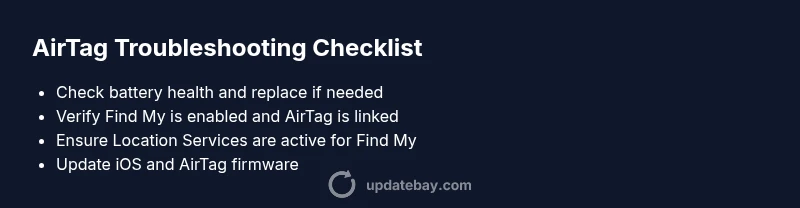
- Inspect the AirTag battery visually and test replacing it if you suspect wear. A fresh CR2032 usually resolves many delays.
- Open the Find My app and confirm the AirTag is linked to your Apple ID and that Find My is turned on.
- Ensure your iPhone has location services enabled and that Find My is allowed to use your location in the background.
- Check for a recent iOS update; updates can improve network reliability and Find My performance.
- Move to an area with more passive iPhone activity if you are in a sparsely populated region, as Find My relies on nearby devices.
How battery life impacts location updates
AirTag batteries degrade over time, reducing the chance that your tag can broadcast a reliable signal to nearby iPhones. In practice, a near-dead battery may cause intermittent location updates or no updates at all. Replacing the battery with a fresh CR2032 is a simple, everyday maintenance step that fixes many issues. If the new battery doesn’t help, consider re-pairing the AirTag with your iPhone. This often clears minor pairing hiccups that block updates.
Software, Find My network, and privacy considerations
The Find My network aggregates signals from millions of iPhone and iPad devices to pinpoint a tag’s location. If you are outside a dense urban area, the network may be slower, and updates can lag. Check that iPhone and iPad software is up to date, and verify that privacy settings are not overly restrictive in a way that blocks Find My data. In some cases, corporate or school devices restrict background data, which can impact AirTag reports.
Diagnosing the exact cause: a practical test plan
To identify the source of the issue, reproduce the problem in a controlled way. Move the AirTag to a different bag or item and observe if location updates appear on the map. If updates resume in a different context, the original location or data path may be blocked. Attempt a fresh pairing on a nearby iPhone to verify if the problem is device-specific or account-related.
The top fix: battery, pairing, and network checks
The most common fix is to replace the battery, re-check Find My settings, and re-pair the AirTag if necessary. Start with a battery replacement and ensure the AirTag shows as online in Find My. If the issue persists, remove the AirTag from Find My, then re-add it. These steps resolve the majority of stale location cases and restore timely updates.
Safety, privacy, and when to seek help
Never open the AirTag casing beyond the battery compartment to avoid damage or void warranties. If updates still don’t appear after battery and re-pairing attempts, contact Apple Support or visit an Apple Store for a diagnostic. Privacy settings can impact Find My reporting; ensure you understand who can help refresh location data while maintaining safety.
Preventive habits to keep AirTag updating reliably
- Regularly replace AirTag batteries and test the tag at least every few months.
- Keep iPhone Find My and Location Services enabled and up to date.
- Periodically review app permissions and privacy settings related to Find My.
- Maintain a reasonable expectation of network-based updates in low-density areas.
Steps
Estimated time: 20-30 minutes
- 1
Verify the symptom and basic checks
Start by confirming the AirTag is physically present and the iPhone shows the tag in Find My. Check the battery and your iPhone’s Find My settings, ensuring location services are enabled for Find My in the background.
Tip: Keep the AirTag within a few meters of your iPhone during tests. - 2
Test the battery and replace if needed
If the AirTag battery is old or swollen, replace it with a fresh CR2032 and test updates again. A new battery often restores reliable beacons even in low-signal environments.
Tip: Use a fresh battery from a reliable source; do not mix used batteries. - 3
Review Find My and Apple ID settings
Open Find My, verify the AirTag is linked to your Apple ID, and confirm Find My is turned on. Check that your iPhone is signed in to iCloud and that Find My iPhone is enabled.
Tip: Sign out and back in if you suspect account sign-in issues. - 4
Update software on iPhone and AirTag
Install the latest iOS update on your iPhone and ensure AirTag firmware is current if available. Updates can improve compatibility with Find My networks.
Tip: Restart your device after updates for best results. - 5
Test in different locations and contexts
Move the AirTag to a different bag or item and observe updates on Find My. Test in a busier area to see if updates appear more quickly.
Tip: If updates appear in one context but not another, compare network exposure. - 6
Re-pair the AirTag if problems persist
Remove the AirTag from Find My, reset it, and re-add it to your Apple ID. This can clear stubborn pairing data that blocks location reporting.
Tip: Keep your AirTag close to the iPhone during re-pairing.
Diagnosis: AirTag location not updating in Find My
Possible Causes
- highAirTag battery is dead or very low
- highFind My network is temporarily unavailable or sparse in area
- mediumiPhone or iCloud Find My settings disabled or not signed in
- mediumAirTag is out of range or blocked by physical barriers
- lowAirTag or device firmware needs update
Fixes
- easyReplace the AirTag battery with a fresh CR2032 and reattach
- easyMake sure Find My is enabled and the AirTag is paired to your Apple ID
- easyCheck iPhone’s location services and ensure Find My is allowed
- easyUpdate iPhone to the latest iOS version
- easyMove to an area with more passive iPhone users to boost Find My network
- mediumReset AirTag and re-pair if issues persist
Frequently Asked Questions
Why doesn t AirTag update location as expected?
Often the issue is a weak Find My signal, a dead AirTag battery, or outdated software. System settings and privacy controls can also affect updates. Start with battery replacement and Find My checks before deeper troubleshooting.
Commonly it’s a weak signal or dead battery. Start with a battery check and Make sure Find My is enabled.
How long does it take for AirTag location to refresh after a fix?
Refresh times vary by environment, but most users see updates within a few minutes once the battery is healthy and Find My is functioning.
Most updates show within a few minutes after fixes like a fresh battery are in place.
Can low battery alone cause stale updates without other issues?
Yes, a low battery can prevent the AirTag from broadcasting signals, leading to stale updates even if other settings are correct.
A weak battery can stop signals, making updates late or unseen.
Is resetting the AirTag safe for preserving data?
Resetting clears pairing data and helps if updates aren’t working, but you’ll need to re-link the AirTag to your Apple ID afterward.
Reset clears data; you’ll re-link to your Apple ID afterwards.
Will updating the iPhone fix AirTag location issues?
A software update can improve Find My compatibility and network reliability, potentially resolving the issue.
Keeping iPhone software current can fix many Find My problems.
What should I do if I’m in a low Find My network area?
In sparse networks, updates may lag. Try moving to a busier area or waiting for nearby devices to come within range.
If you’re in a low network area, moving to a busier spot often helps.
Watch Video
What to Remember
- Enable Find My and Location Services.
- Check and replace AirTag battery when needed.
- Keep iPhone updated for network reliability.
- Re-pair AirTag if issues persist.
- Test in different environments to identify network gaps.