Why don t locations update on iphone: A practical troubleshooting guide
Fix why don t locations update on iphone with fast checks, privacy settings, and a clear step-by-step guide to restore accurate location updates on iPhone.


Most likely causes are Location Services being disabled, missing app permissions, or weak network conditions. Quick fixes: re-enable Location Services in Settings > Privacy & Location Services, grant the correct permissions for each app, and refresh your network by toggling Airplane Mode. If issues persist, update iOS and try a network reset. According to Update Bay, staying current minimizes location glitches.
Why the issue occurs
If you're wondering why don t locations update on iphone, the answer often lies in a combination of settings, network conditions, and software state. The most common culprits are Location Services being disabled, apps lacking permission, weak network connections, or an outdated OS. According to Update Bay, most location delays are caused by misconfigured permissions or toggled-off services, which are easy fixes once you know where to look. This guide walks you through step-by-step fixes so you can regain accurate, timely updates without guessing. The goal is to restore reliable location data for maps, rideshare, and fitness apps.
Quick checks you can run first
Before diving into deeper fixes, run these quick checks. Ensure Location Services are enabled globally and that the specific apps you rely on have permission to use your location. Check that your iPhone isn’t in Battery Saver or Low Power mode, which can affect background location updates. Verify your date, time, and time zone are correct because an incorrect clock can skew location timestamps. If you run into a VPN or network proxy, disable it temporarily to see if it’s interfering. Update Bay analysis shows that these low-friction steps resolve a large share of user reports, especially when done in sequence.
Location Services and app permissions: what to verify
Location Services must be turned on for the iPhone as well as for the apps that need it. Go to Settings > Privacy & Location Services (or Privacy & Security) and ensure Location Services is enabled. Then check each app’s permission: set to While Using the App or Always, depending on the app's needs. Precise Location may be required for navigation apps. If permissions are recently changed, reopen the apps to apply the new settings. The Update Bay Team notes that permission misconfigurations are the top cause of delayed updates.
Network conditions and GPS reality
Reliable location updates rely on a mix of GPS signals, Wi‑Fi triangulation, and cellular data. If you’re indoors, in a vehicle, or in an area with dense high-rise structures, GPS can be noisy or slow. A strong Wi‑Fi or cellular connection helps iOS triangulate your position faster. Be mindful of extended background data restrictions that some networks impose; if a VPN is active, it can mask or delay location data. In these cases, try toggling Airplane Mode briefly or reconnecting to a different network to test responsiveness.
App behavior vs. system-wide updates
Some apps update location in the foreground only, while others rely on background updates. Ensure Background App Refresh is enabled for the apps that need it and that Location Services is allowed in the background. For apps requiring precise positioning, enable Precise Location. If an app seems stuck, force-close it and relaunch, or sign out and back in to refresh tokens. The Update Bay team observes that user reports often hinge on background update settings rather than the app itself.
Advanced troubleshooting steps you can take
If the basics aren’t solving the issue, try these deeper steps in order:
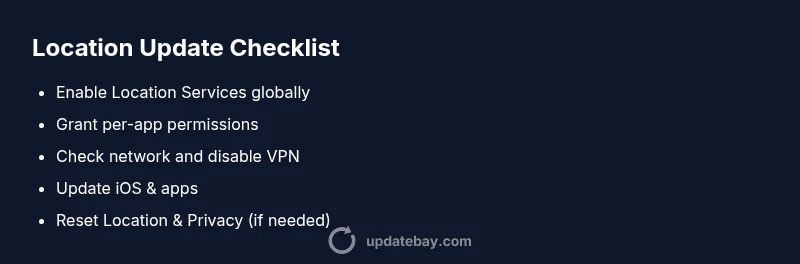
- Reset Location & Privacy: Settings > General > Transfer or Reset iPhone > Reset Location & Privacy. 2) Reset Network Settings: Settings > General > Transfer or Reset iPhone > Reset Network Settings. 3) Update iOS and apps: Settings > General > Software Update and the App Store. 4) Turn Location Services off, then on again, and restart the device. 5) Temporarily disable VPNs or security profiles that might affect geolocation. Each step reduces variables and helps identify the source of the problem. Tip: back up your data before resets and re-test after each step.
Prevention and best practices to keep locations accurate
Keep iOS updated because many location bugs are resolved in minor and major releases. Regularly review app permissions after OS updates, because defaults can shift. Avoid VPNs or proxies when you need precise location, and disable battery saving while navigation is active. Calibrate compass by moving in patterns and performing routine device restarts. These habits cut recurring delays and improve overall reliability.
When to seek professional help
If location updates persist despite following the steps above, contact Apple Support or visit an Apple Store. There may be device-level issues such as faulty sensors or hardware calibration that require professional diagnosis. Also consider checking with your carrier if location data services are affected by network provisioning. The Update Bay team recommends documenting the steps you’ve tried to speed up the support process.
Steps
Estimated time: 15-30 minutes
- 1
Verify Location Services are enabled
Open Settings and ensure Location Services is toggled on. Check both the global switch and the per-app permissions to confirm each app can access your location as needed.
Tip: If you recently updated iOS, re-check permissions as defaults can reset. - 2
Check app-specific permissions
Review each app’s location permission (Always or While Using) and ensure Precise Location is enabled where required (e.g., maps). After changing, relaunch the app to apply changes.
Tip: Some apps require you to sign in again after permission changes. - 3
Confirm date, time, and time zone
Set Date & Time to Automatic and verify Time Zone is correct. Incorrect clock settings can affect timestamped location data.
Tip: A quick reboot can help the system re-read these settings. - 4
Test with multiple apps
Check if several apps update location to determine if the issue is app-specific or system-wide. If only one app is affected, focus on that app’s settings or contact its support.
Tip: If navigation apps work but others don’t, the problem is likely app-specific. - 5
Assess network and VPN status
Ensure stable Wi-Fi or cellular data. Disable VPN temporarily to test if it’s masking location data, then try a different network.
Tip: Network stability is often the quickest fix for laggy updates. - 6
Check background updates and battery settings
Ensure Background App Refresh is enabled for essential apps and that Low Power Mode isn’t restricting background activity during use.
Tip: Test updates with Background App Refresh disabled briefly to compare results. - 7
Update iOS and apps
Install any available iOS and app updates, as these often fix known geolocation bugs and improve compatibility.
Tip: Back up your data before major updates. - 8
Reset Location & Privacy (last resort)
If nothing works, reset Location & Privacy settings to default, then reconfigure permissions carefully.
Tip: Keep notes of prior settings to re-create your preferences later.
Diagnosis: Location updates on iPhone not updating or lagging
Possible Causes
- highLocation Services disabled globally
- highApp permissions denied or set incorrectly
- highWeak network connectivity or VPN interference
- mediumOutdated iOS or apps causing compatibility issues
- lowBackground updates restricted or battery optimization affecting updates
Fixes
- easyEnable Location Services and per-app permissions
- easyVerify date/time settings and automatic time zone
- easyToggle Airplane Mode and reconnect to network; disable VPN if active
- easyUpdate iOS and apps to latest versions
- mediumReset network settings or perform a Location & Privacy reset
Frequently Asked Questions
Why won't my iPhone update my location in apps?
Common reasons include Location Services being off, apps lacking permission, or network issues. Try enabling services, granting permissions, and testing with a network change.
Location updates can fail if services or permissions are off; try enabling them and testing with a network change.
How can I tell if Location Services are enabled globally?
Go to Settings > Privacy & Location Services and ensure Location Services is on. If it’s off, no app can access location. Then verify per-app permissions.
Open Settings and confirm Location Services is on, then check each app's permissions.
Do background updates affect location accuracy?
Yes. If Background App Refresh or Low Power Mode restricts background work, location updates may lag. Enable background refresh for essential apps and avoid low power mode during navigation.
Background updates can affect accuracy; disable low power mode when you need precise updates.
Should I reset all settings to fix this?
Resetting all settings can fix misconfigurations but will erase saved networks and preferences. Try Reset Location & Privacy first, then reset all settings if needed.
Resetting can help, but it’s a last resort after trying other fixes.
When should I contact Apple Support?
If the issue persists after trying the steps, there may be hardware or account-related problems requiring professional help. Contact Apple Support or visit a Store.
If it still doesn’t work after trying fixes, contact Apple Support for help.
Watch Video
What to Remember
- Check Location Services and app permissions first
- Ensure stable network conditions for timely updates
- Keep iOS and apps updated to fix known bugs
- Follow the diagnostic flow to isolate the issue