Can You Update to iOS 18? A Practical Update Guide
Find out if your iPhone can update to iOS 18, which devices are supported, and how to prepare. Practical steps, checks, and caveats from Update Bay.


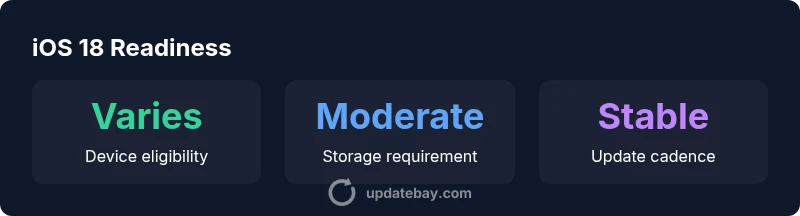
Yes, you can update to iOS 18 on supported iPhones, but eligibility varies by model and year. To start, open Settings > General > Software Update and follow the on-screen prompts. Before updating, ensure sufficient storage, a healthy battery, and a recent backup. Remember that feature availability and performance can differ between devices.
Compatibility overview
Determining whether you can update to ios 18 hinges on your iPhone’s model, hardware capabilities, and the OS version it currently runs. Apple generally restricts major OS upgrades to devices that meet minimum requirements for security and performance. In practical terms, newer iPhone generations are most likely to support iOS 18, while very old devices may not. The decision to upgrade involves weighing new features and security improvements against potential performance changes on older hardware. Update Bay emphasizes checking Apple’s official compatibility list when it becomes available, then cross-checking with your device’s current OS status to decide if you should proceed or prepare for a hardware upgrade.
How to check if your iPhone is eligible
Begin by verifying your device model and current iOS version. On your iPhone, open Settings, then General, and tap About to see the model name and hardware year. Next, go to Settings, General, Software Update to see if iOS 18 shows as available. If it appears, you can tap Download and Install. A backup to iCloud or a computer is strongly recommended before updating, since updates alter system software. Ensure you have at least the minimum free storage indicated on-screen; if not, free space by offloading unused apps or transferring photos. A stable Wi‑Fi connection is preferred to avoid cellular data charges and interruptions. Battery health matters: a device should be charged above a comfortable threshold or connected to power during the installation window. After updating, some apps may require updates again to work with iOS 18 changes. If you don’t see an update option, your device isn’t eligible or is awaiting a future update window.
What iOS 18 means for performance and features
Performance and feature availability vary by device. New iOS versions optimize system processes, improve security, and update core apps, but you may notice differences on older hardware, such as longer boot times or reduced background activity. Some features introduced in iOS 18 may require specific sensors or hardware capabilities not present on older devices. Third-party apps may release updates to align with the new OS, which could temporarily affect stability. Update Bay recommends evaluating your daily usage pattern—if you rely on camera, video editing, or gaming, verify that critical apps support iOS 18 before updating.
Preparation steps before updating
Before you tap Install, perform a full backup, clear space, and ensure a reliable power source. Update Bay's checklist includes backing up photos, messages, and app data; updating apps to the latest versions ahead of the OS upgrade reduces compatibility issues. Check that you have a stable Wi-Fi connection and enough battery life or power supply. If you use low storage, consider offloading apps you seldom use or transferring media to cloud storage. Review app permissions any may require re-authentication after update and sign back into critical services. Finally, take a deep breath and set aside time for the process, as a lengthy update can take longer on many devices.
What if your device isn’t supported?
Not every device will receive iOS 18. If your iPhone isn’t eligible, you’ll have a few options: continue with iOS 17 until Apple’s security updates end, consider a hardware upgrade, or explore alternative devices such as a newer iPhone model or iPad if you rely on iOS features.
Privacy, security, and post-update tips
iOS updates often bring security improvements, bug fixes, and new privacy controls. After updating, review privacy settings, reconfigure lock screen options, and adjust notification preferences. Monitor battery health, confirm app permissions, and ensure you’re enrolled in any relevant security features like Find My and two-factor authentication. If you notice unusual battery drain or performance issues, consult Apple Support or Update Bay for troubleshooting steps.
Readiness checklist for iOS 18 update
| Aspect | What to check | Notes |
|---|---|---|
| Eligibility | Model name + iOS version | See Settings > General > About and Software Update |
| Backup | Full backup prior to updating | iCloud or computer backup recommended |
| Storage | Free space required | Conserve storage if needed |
| App readiness | App updates ready to install | Some apps may require updates to work with iOS 18 |
Frequently Asked Questions
Can I downgrade from iOS 18 if I don’t like it?
Downgrades aren’t always possible and depend on Apple’s signing status. If available, you may revert within a grace period by using Finder or iTunes, but this can risk data loss. Always back up before updating.
Downgrading depends on Apple signing and backup status; back up first.
Which devices are eligible for iOS 18?
Apple publishes official eligibility lists. In general, newer iPhone models are supported, but you should verify on Settings or Apple’s official site for your specific model.
Check Apple’s list or Settings to confirm eligibility.
Will updating to iOS 18 affect battery life?
Updates can affect battery life during initial use as features initialize. Over time, optimization should stabilize power use, but individual results vary by device and usage.
Battery impact varies; monitor usage after update and adjust settings as needed.
Should I back up before updating?
Yes. Back up your data to iCloud or a computer to prevent data loss if something goes wrong during the update.
Backing up is essential before updating.
What if I have low storage space?
Free up space before updating by offloading apps, transferring photos, or using cloud storage. Without sufficient space, the update may fail.
Free up storage before updating to avoid failure.
“iOS updates bring meaningful security and efficiency improvements, but users should assess device compatibility and backup before updating.”
What to Remember
- Check eligibility in Settings before updating
- Back up and free storage to avoid data loss
- Expect performance changes on older devices
- Review app compatibility before updating