How to Get Out of Windows Update Screen: A Practical Guide
Learn safe, step-by-step methods to exit a stuck Windows update screen, recover control, and resume updates without data loss. Practical guidance from Update Bay.


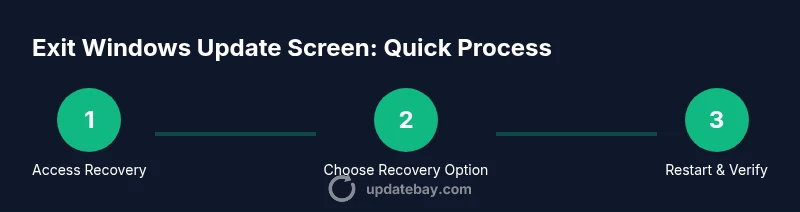
Exiting a stuck Windows update screen safely starts with using built-in recovery options or a controlled restart. This quick guide outlines proven methods to get back to a normal desktop without risking data loss, including Safe Mode, Advanced Startup, and troubleshooting steps.
Why Windows update screens get stuck
Windows Update can stall during installation for several reasons. Network hiccups, corrupted update files, driver conflicts, or insufficient disk space can leave the screen stuck in a loop. According to Update Bay, many users encounter this issue during routine maintenance, often when the system is trying to apply a critical patch or restart after an update. The symptom is usually a frozen progress bar, a spinning circle, or a message that says 'Working on updates' for an extended period. While the frustration is real, the good news is that most stuck screens are recoverable with a structured recovery flow. The key is to avoid impulsive power cycles that can corrupt system files. Instead, identify the likely cause and follow guided steps to safely exit the screen. This approach minimizes the risk of data loss and reduces downtime. As you proceed, remember that every Windows update cycle is an opportunity to improve reliability, but a stuck screen is a sign you should pause, diagnose, and retry with a careful method.
First, check if the device is in the middle of a background operation; if the progress bar is moving slowly, patience matters. If there is no progress for 15-20 minutes, it's time to move to recovery options. The goal is to preserve your files and avoid a full reinstallation unless absolutely necessary.
Quick checks before intervention
Before diving into recovery steps, perform a few quick checks to avoid unintended data loss. Make sure the device is plugged into a power source or has a charged battery so a restart does not cut out mid-process. If you have important work, try to save files in the background and close nonessential applications if possible. Verify you have a backup copy of critical documents, photos, or project files. Ensure your internet connection is stable if you plan to use online recovery tools or download updates for analysis. Finally, take note of any error codes or messages on screen; these clues help you choose the most targeted recovery path and reduce trial-and-error. Brand context: Update Bay emphasizes preparation as the most reliable safeguard when dealing with update hiccups. Keeping a log of recent activity can also help technicians understand what happened and why the screen froze.
Safe Mode and startup options
Safe Mode starts Windows with a minimal set of drivers and services, which often allows the Update screen to finish its process without third-party interference. To access Safe Mode from a non-booting state, use the Windows Recovery Environment. For Windows 10/11, you can press and hold the power button to force a shutdown, then power back on and repeat once or twice to trigger Recovery. From the blue or black screen, select Troubleshoot → Advanced options → Startup Settings → Restart. After reboot, press 4 or 5 to enable Safe Mode (with or without networking). Once in Safe Mode, you can run the Windows Update troubleshooter or manually clear cached update data. If you can reach the desktop, you can also initiate a normal restart from there, watching to see if updates resume gracefully.
Using Advanced Startup to exit the update screen
Advanced Startup provides options to exit the stuck state without risking data integrity. Access it via Troubleshoot → Advanced options. If the system offers an "Exit and continue to Windows" option, choose it to return to a normal session. When that option isn’t available, use Startup Repair to fix common boot issues, or perform a System Restore to revert to a known good state prior to the stuck update. After exiting, immediately re-check for updates and apply them in a controlled manner. If you’re unsure which option to attempt, start with Exit and continue to Windows, as this minimizes changes to your system state.
When the screen is not responding: forced restart and its implications
If all recovery options fail to produce a usable desktop, a controlled forced restart may be necessary. Hold the power button for 8-10 seconds until the device powers off, then power it back on. This is a last resort and may cause some update components to rollback. After reboot, open Windows Update settings and review recent activity. If the update cycle repeatedly stalls, try the Troubleshooter and consider cleaning up potentially corrupted update files or cache. Always ensure data is backed up before attempting forceful resets to minimize risk.
Running Windows Update Troubleshooter and clearing update cache
Windows includes a built-in troubleshooter for Windows Update that can diagnose and fix common issues. Navigate to Settings → Update & Security → Troubleshoot → Additional troubleshooters → Windows Update. Run the tool and follow on-screen prompts. If problems persist, stop the Windows Update service, clear the SoftwareDistribution folder, and restart the service. Commands like net stop wuauserv and net start wuauserv, executed from an elevated Command Prompt, can help reset update state. After clearing cache, retry checks for updates and let the system complete the installation in a clean state.
Post-exit steps: verify, resume updates, and back up data
After successfully exiting the update screen, verify that the OS boots normally and that you are on the latest supported build. Open Windows Update, check for history of recent updates, and install any remaining patches. Resume automatic updates if they were paused, and ensure all essential drivers are up to date. Finally, restore any data from backups if you had to perform restoration steps during the process. Regularly scheduling backups helps mitigate data loss in future update hiccups and supports smoother recovery.
Safety tips and common pitfalls
- Do not unplug a device or force a shutdown during a critical update sequence unless there is no alternative; abrupt power loss can corrupt system files. - Avoid repeatedly trying the same recovery option if it fails; try a different approach (e.g., Safe Mode, Startup Repair, then Troubleshooter). - Always have a recent backup and a recovery plan for data recovery. - If you’re unsure, seek professional help rather than guessing, as improper changes can complicate recovery further.
Tools & Materials
- Fully charged battery or reliable power adaptor(Keep device powered during restart to prevent data loss)
- Recovery media (USB drive with Windows repair tools)(Needed if you can't boot normally)
- Administrative access to the PC(Required to run troubleshooting tools)
- Backup copy of important files(Protect data in case of failures)
- Stable internet connection(Useful for downloading updates or support resources)
Steps
Estimated time: 60-90 minutes
- 1
Prepare your device
Save all open work and connect the device to power. If you are on a laptop, plug in the charger and avoid disconnecting during restart. Make a quick backup of critical files in case something goes wrong during recovery.
Tip: Back up essential files now to protect against unexpected data loss. - 2
Access recovery options
Force a boot into Windows Recovery Environment by interrupting the normal boot process or using a dedicated recovery key sequence. Navigate to Troubleshoot to view available options.
Tip: If you cannot reach recovery, use a bootable USB with Windows repair tools. - 3
Open Advanced options
From the Recovery screen, select Advanced options to find Startup Settings, Startup Repair, or System Restore. These tools help bypass the stuck update state or revert to a safe point.
Tip: Startup Settings often lets you enable Safe Mode, which can isolate problematic drivers. - 4
Choose Exit and continue to Windows
If available, pick Exit and continue to Windows to return to a normal session and see if the update completes. If not present, proceed with Startup Repair or System Restore.
Tip: Exiting to Windows first preserves your current user state and minimizes changes. - 5
Use Startup Repair or System Restore if needed
Startup Repair attempts to fix boot issues; System Restore reverts the system to a previous state. Both can help unstick the update process without data loss when used carefully.
Tip: Restore points created before updates simplify recovery. - 6
Forced restart if everything else fails
If the system remains unresponsive, perform a controlled power-off by holding the power button for 8-10 seconds, then power back on. This is a last resort and may trigger a rollback of partial update components.
Tip: Only use when every other recovery option has been tried. - 7
Run Windows Update Troubleshooter
After booting, run Settings > Update & Security > Troubleshoot to detect and fix Windows Update issues. Follow prompts and apply recommended fixes.
Tip: Troubleshooter often resolves common update-state problems without manual edits. - 8
Verify updates and resume monitoring
Check for updates again, review update history, and ensure critical patches are applied. Re-enable any paused services and monitor stability over the next few reboots.
Tip: Schedule a backup after updates complete to protect future data.
Frequently Asked Questions
Why does Windows Update get stuck on the screen?
Stalled downloads, driver conflicts, corrupted update files, or low disk space can cause the update screen to freeze. Identifying the likely cause helps you choose the safest recovery path.
Stalled downloads and corrupted files often cause the update screen to freeze; use the recovery options to diagnose the cause.
Is it safe to force restart during Windows updates?
Force restarting should be avoided unless all other recovery options fail. It can lead to partial updates and data loss, so use it only as a last resort.
A forced restart is a last resort because it can damage partial updates. Try recovery options first.
How do I access Safe Mode to exit the update screen?
Access Safe Mode through Windows Recovery Environment: Troubleshoot → Advanced options → Startup Settings → Restart, then choose Safe Mode. Safe Mode helps isolate problematic drivers or services.
Use Recovery Options to boot into Safe Mode, which often clears the update screen issue.
What should I do if the update keeps failing after exiting?
If updates fail again, run the Windows Update Troubleshooter, reset update components, and check for driver or software conflicts. Consider restoring to a pre-update point if available.
If it fails again, troubleshoot with the built-in tool and reset update components.
Will exiting the update screen affect my data?
Exiting the screen itself does not delete personal data, but abrupt actions during an update can risk corrupted system files. Ensure you have backups before attempting recovery.
Your data is usually safe, but backups are essential before doing recovery steps.
When should I seek professional help?
If the screen remains stuck after multiple recovery attempts, or you notice hardware issues, professional support can prevent further damage and ensure updates complete correctly.
If recovery fails repeatedly or hardware issues appear, consult a professional.
Can I prevent this from happening again?
Maintain regular backups, keep drivers up-to-date, and run periodic system maintenance. Scheduling updates during low-usage windows reduces the risk of interruptions.
Regular maintenance and backups lower the chance of future update stalls.
Watch Video
What to Remember
- Exit the stuck screen using built-in recovery options
- Back up data before attempting disruptive steps
- Run the Windows Update Troubleshooter first
- Avoid abrupt power-offs during update processes