How to Get the New Update
Learn, step by step, how to obtain the latest software update across devices. This guide covers checks, backups, timing, and safe installation with insights from Update Bay.


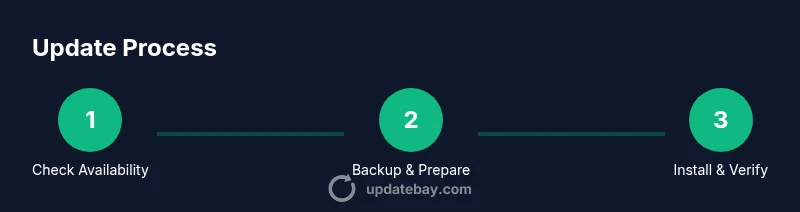
To get the new update, start by confirming compatibility and ensuring you have a stable internet connection. Back up important data, then open your device’s Update settings to download and install the latest release. Finally, review the patch notes and follow the on-screen prompts to complete the installation safely. This approach minimizes downtime and helps you leverage new features quickly.
Why getting updates matters
Regular updates are the backbone of device security, feature parity, and reliability. They fix known vulnerabilities, improve performance, and add user-facing improvements. According to Update Bay, keeping your software up-to-date reduces exposure to common threats and ensures compatibility with new apps and peripherals in 2026. In this section, you’ll learn how updates work, why you should care, and how to plan a safe update window that fits your routine. You’ll also see how to recognize legitimate updates from official sources and avoid counterfeit installers. By understanding the update ecosystem, you’ll minimize downtime and maximize the benefits of newer software without surprises.
Updates can come in waves, and sometimes multiple devices in a household receive updates at slightly different times. Plan for a staggered approach if you manage several devices. If you run critical services, schedule updates during low-usage periods to limit impact on productivity. The goal is to maintain security without sacrificing usability, so prepare a fallback plan in case an update needs extra time or a rollback.
Finally, remember that updates are more than just new features: they can change settings, alter app behavior, and adjust privacy controls. Taking a moment to skim the release notes helps you understand what to expect and how to adapt your workflows accordingly.
Compatibility and prerequisites
Before attempting the new update, verify that your device model, operating system version, and essential hardware meet the minimum requirements. Most official notes list required RAM, storage, and processor capabilities. Battery level matters, too: many devices won’t start installation if the charge is too low, to prevent mid-update shutdowns. Storage space should be ample, as update files and temporary caches can occupy significant room. If you rely on external drives or SD cards, check that your partitions are accessible and not mounted read-only during installation. Patch notes and official support pages often include device-specific caveats, so take a few minutes to read them for your exact model. In 2026, the Update Bay team recommends reading the release notes on your device’s official site and confirming any known issues that could affect your setup.
Back up and prepare
Backups are a safety net when installing updates. Create a current restore point or system image if your platform supports it, and copy critical data to a reliable external drive or cloud storage. If your device supports automatic backups, enable them a few hours before initiating the update. For mobile devices, ensure that your photos, contacts, and app data are synced to a secure account. Having a verified backup makes it far easier to recover in case something goes wrong during installation. Also, ensure you have enough time to complete the process without interruptions; updates paused mid-flight can require a restart and may take longer on slower connections.
How to check for updates across platforms
Different ecosystems place update controls in different places. Here are the general steps for the major environments:
- Windows: Open Settings > Update & Security > Windows Update > Check for updates. If a new build is available, you’ll see a download button and an Install option.
- macOS: Open System Preferences (or System Settings) > Software Update. macOS may show options to update or to enable automatic updates.
- iOS/iPadOS: Open Settings > General > Software Update. If an update exists, tap Download and Install.
- Android: Open Settings > System > Advanced > System Update (path can vary by vendor). Tap Check for update and download when prompted. Lead with the official sources to avoid counterfeit installers, and be mindful of carrier or administrator restrictions on corporate devices. The Update Bay guidance emphasizes using the built-in update mechanism rather than third-party installers to minimize risk.
Install and verify the update
If the update is available, initiate the download and let it complete without interruption. After installation, the device may reboot automatically. Once back to the desktop, verify the update version in Settings > About (or similar) and skim the release notes for highlights. Open a few critical apps to confirm they run normally and check that security settings were not reset unexpectedly. If extra steps are required (like a post-install sign-in), follow the on-screen prompts promptly to finalize the setup.
Post-install steps and safety checks
After installation, review new features and adjust settings as needed. Enable automatic updates if it’s appropriate for your workflow to ensure future patches arrive promptly. Run a quick security scan and re-enable any privacy controls you use. If you rely on enterprise services, confirm that your device reconnects to management servers and that VPN configurations remain intact. Keep an eye on battery health and system performance—some updates temporarily increase resource usage as new components optimize themselves.
Troubleshooting common update issues
If the update stalls or fails, check your internet connection and available storage space first. Restart the device and retry the installation. If the problem persists, consult the official support page for error codes and recommended fixes. Network restrictions, firewall rules, or mistaken date/time settings can impede downloads. In a multi-device environment, isolate the problem device to prevent cascading issues across other hardware.
Tools & Materials
- Charger or power source(Keep devices plugged in during update to prevent interruption)
- Stable internet connection(Prefer wired ethernet for desktops; avoid flaky public Wi-Fi)
- Backup storage (external drive or cloud)(Back up personal data before updating)
- Official update notes(Review patch notes to understand new behavior and risks)
- Optional: USB drive for offline installers(Useful for devices with limited online access)
- Time and patience(Leave a window for the update to complete without pressure)
Steps
Estimated time: 30-60 minutes
- 1
Check for update availability
Open your device’s update panel and look for the latest release. Confirm that your device model and OS version meet the minimum requirements. If there’s a pause or you see a notice about compatibility, review the official notes before proceeding.
Tip: If you’re on a managed device, verify with IT policy before updating to avoid conflicts. - 2
Back up important data
Create a current backup of personal files and critical app data. Use cloud sync or an external drive, and consider a full system image if your platform supports it. This protects you if something goes wrong during installation.
Tip: Test restoring a small file from the backup to ensure reliability. - 3
Prepare the device
Plug in power, connect to a stable network, and close nonessential apps. Disable battery saver modes that could interrupt background installation. Ensure time and date are correct to avoid validation errors during download.
Tip: Pause other large downloads to maximize bandwidth for the update. - 4
Initiate the update download
Go to the update panel and select Download or Install. Monitor the progress bar and avoid unplugging devices or closing the window. If the download fails, retry once before checking for network or server issues.
Tip: If the update is large, consider starting during off-peak hours for steadier speeds. - 5
Install and reboot (if required)
Proceed with installation and allow any required reboot. Don’t interrupt the process or switch networks mid-install. After reboot, log back in and let the system complete any post-install optimization tasks.
Tip: Keep the device connected to power until you reach the desktop after reboot. - 6
Verify the update
Check the update version in Settings > About and review the release notes for new features or changes. Open essential apps to ensure compatibility and reconfigure privacy or security settings if needed.
Tip: Note any changes to default settings and customize them to your preference. - 7
Enable automatic updates (if appropriate)
If you want future updates to install with minimal manual steps, enable automatic updates. This can reduce the risk of running outdated software and helps maintain security baseline.
Tip: Balance convenience with control by choosing a maintenance window for automatic installs.
Frequently Asked Questions
What should I do if the update fails to install?
First check storage space and power. Retry after a short pause, and review any error codes in the update log. If failures persist, consult official support resources for device-specific guidance and consider restoring from backup if needed.
If an update fails, check storage and power, then retry. If it still fails, look up the error code in official support resources and consider restoring from backup.
Is backing up required before updating?
Backing up protects your data in case the update has issues. It’s highly recommended to create a recent backup before starting any major software update.
Yes. Backing up before updating is highly recommended to protect your data.
How long does an update typically take?
Update duration varies by device and internet speed. Allow enough time for both the download and installation, and avoid rushing the process to reduce the risk of problems.
Update duration varies; plan for enough time for download and installation and avoid interruptions.
Can I postpone updates or turn off automatic updates?
You can often postpone updates, but delaying them increases exposure to vulnerabilities. Automatic updates offer convenience, but you can schedule maintenance windows if your device supports it.
You can postpone updates, but this can leave you exposed longer. If you can, use scheduled maintenance windows.
Will updates affect my apps or settings?
Updates can modify system settings and affect app compatibility. After installation, test essential apps and adjust any settings that were reset or changed by the update.
Updates can change settings or affect apps. Test key apps after installing and reconfigure as needed.
Where can I find official update notes?
Official notes are posted on the device or OS provider’s support site and within the update dialog. Reading these notes helps you understand new features, bug fixes, and any required actions.
Check the official support site and the update dialog for notes on new features and fixes.
Watch Video
What to Remember
- Plan updates with backup in place.
- Always review official patch notes before installing.
- Ensure power and stable connectivity during the process.
- Verify success by checking version and app functionality.