Is Beta Update Good for iPhone? An Analytical Review
A comprehensive, evidence-based look at iPhone beta updates: benefits, risks, and best practices from Update Bay to help you decide when to enroll.


When you ask is beta update good for iphone, the answer is nuanced: beta updates provide early access to features and fixes, but they can introduce instability and data quirks. They’re best for developers and enthusiasts who can tolerate bugs; for everyday users, the public release is generally safer. Before enrolling, ensure a full backup and be prepared to revert.
How iOS Beta Updates Work
iPhone beta updates are pre-release builds distributed through Apple's Beta Software Program. They let testers explore new features, interface tweaks, and bug fixes before the public release. For many readers wondering is beta update good for iphone, the answer is nuanced: you gain early access and a chance to influence quality, but you also invite instability and unexpected behavior. Beta software is tested on a subset of devices and apps, and the experience can vary by model, carrier, and region. In practice, a beta may include performance regressions, new UI elements, or changes to settings you rely on. Because beta builds are not final, they require more careful data management such as regular backups and a willingness to revert if you encounter show-stoppers. The Update Bay team found that while some users report thrill and engagement with new features, others encounter battery fluctuations, app crashes, and occasional data syncing hiccups during the testing window.
What to Expect in Early Betas
Early iOS betas tend to introduce new features and design tweaks that testers will see before most users. Expect changes to Settings, Control Center, and biometric flows, plus early bug fixes that target known issues. However, early builds can be unstable, with apps crashing or services like iCloud syncing behaving inconsistently. If you value stability on a daily driver, you may want to defer enrollment until later betas or until a public release candidate approaches. The Update Bay analysis highlights that device differences—such as iPhone model, storage, and carrier—can magnify or dampen these effects, so your mileage may vary.
Testing Methodology and Real-World Testing
Beta testing for iPhone involves controlled rollouts to registered testers, followed by rapid feedback cycles. Update Bay analysis shows that testers document battery variance, app compatibility notes, and performance fluctuations across builds. Real-world testing often reveals issues not present in simulators, including quirks in messaging, health data syncing, and camera performance. To minimize risk, testers should enable detailed crash reporting, monitor temperature and battery trends, and maintain clean backups. Public beta programs typically provide release notes that describe known issues, workarounds, and expected behaviors, helping testers decide when to report anomalies and when to disengage.
Benefits for Developers and Power Users
Beyond early access, beta updates function as a feedback mechanism that helps developers refine apps for a broader audience. Power users gain insight into new APIs, system behaviors, and privacy controls ahead of general release. This early exposure can accelerate app optimization and compatibility testing. For organizations that rely on iPhone fleets, betas can inform deployment planning and user education before a company-wide rollout. The Update Bay team notes that strategic testing on specific apps and workflows yields the most valuable data, reducing downstream support requests after launch.
Common Drawbacks You Should Know
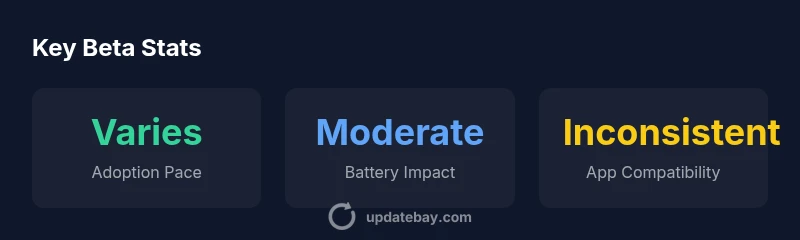
The biggest caveat with beta updates is instability. Crashes, reboot loops, and unexpected UI changes can interrupt daily tasks. Battery life is another concern: early betas may show higher drain as new features initialize in the background. App compatibility can lag behind iOS changes, leaving some popular tools behaving oddly or failing to launch. Finally, there is a risk of data loss if backups are not up to date; beta testing should be paired with a robust backup plan and a clear rollback strategy. The Update Bay team consistently observes these patterns across different beta programs and devices.
Practical Safety Steps Before Enrolling
If you decide to try a beta, take practical precautions:
- Backup your iPhone completely to iCloud or a computer.
- Use a secondary device if possible, or ensure you can restore without impact to critical data.
- Review the beta release notes and known issues before installing.
- Schedule testing windows that don’t coincide with important deadlines.
- Keep a rollback path ready, including steps to unenroll and reinstall the latest public release.
Backup Strategy: How to Prepare
Backups are your safety net when testing beta software. Create a full backup before enrolling, preferably on a wired computer for the best restore fidelity. Verify that you can restore from the backup and test essential apps in a controlled way after restoration. For many users, this preparation minimizes the anxiety of beta testing and ensures data integrity if problems arise.
Managing Battery Life and Performance
Battery life can fluctuate in beta builds due to new background tasks and sensor updates. To manage expectations, monitor battery drain after key updates, disable features you don’t need temporarily, and avoid heavy gaming during unstable periods. Performance improvements may appear in later betas, but initial sessions often include short-term regressions. Remember that optimization is a core goal of subsequent releases, so early battery concerns are usually addressed as the beta cycle progresses.
App Compatibility and Feature Parity
Not every app may be ready for beta iOS builds, leading to crashes or unexpected behavior. Core features like messaging, health data, and photo libraries may show inconsistencies across builds. If your work depends on a particular app, verify its stability in the beta before committing significant time or data. In many cases, developers update their apps in tandem with iOS betas, reducing friction over successive releases, but you should stay cautious with mission-critical tools.
How to Enroll Safely and Revert if Needed
Enrollment is typically done through the Apple Beta Software Program. Before enrolling, ensure you have a complete backup, and understand how to unenroll and install the latest public release when you’re done testing. If problems arise, you can revert to the public release by restoring from your backup or exiting the beta program. The option to roll back gives you confidence to experiment without losing access to a stable environment.
Is Beta Update Good for iPhone? A Revisit
Throughout the beta cycle, consider whether the new features align with your needs and risk tolerance. If you rely on precise battery performance, stable backups, and consistent app behavior, you may prefer waiting for the public release. If you’re a tester or developer who benefits from early access and can tolerate some instability, beta updates can be valuable when used with safeguards. The decision ultimately depends on your device’s role, your tolerance for disruption, and your commitment to data safety.
Decision Framework for Beta Adoption
Use this quick framework when deciding whether to enroll:
- Identify your priority: stability or early access?
- Confirm you can back up and revert without data loss.
- Check critical apps and services for known beta issues.
- Plan testing windows around work or important events.
- Be prepared to unenroll if problems persist and non-beta updates are required.
Positives
- Early access to new features and fixes
- Opportunity to provide feedback that shapes the final release
- Potential insights into device performance and app behavior
- Helps plan updates for fleets or teams
Downsides
- Instability and crashes during the beta period
- Battery drain and thermal fluctuations in early builds
- Variable app compatibility across devices
- Risk of data loss if backups are not current
Balanced choice for enthusiasts; proceed with caution.
Beta updates offer early access to features and fixes but carry instability and compatibility risks. Use only if you can back up, revert, and tolerate potential disruption on a daily-use iPhone.
Frequently Asked Questions
What is an iPhone beta update and how does it differ from the public release?
Beta updates are pre-release iOS builds made available for testing before the official public release. They let you experience new features, but they can be unstable and may include bugs. Use them with backups and prepared rollback plans.
Beta updates are pre-release iOS builds for testing; they bring new features but can be unstable. Always back up and be ready to revert.
How do I enroll in the iOS beta program?
Enrollment is usually done through Apple's Beta Software Program. You’ll install a beta profile, then receive beta builds via Settings > General > Software Update. Remember to back up first and consider using a secondary device.
Join the beta program through Apple's site, install the profile, and enroll. Back up first.
Will installing a beta void my warranty?
Installing a beta does not void your warranty by itself, but issues arising from beta software can be treated as user-induced risk. Apple may provide limited support for beta-related problems. Always back up and be mindful of data safety.
Beta software isn’t a warranty voider by default, but issues caused by beta may limit support. Back up first.
Can I revert from a beta to the public release?
Yes. If the beta becomes problematic, you can unenroll and reinstall the latest public build. Restoring from a prior backup can also help return you to a stable state. Plan a rollback in advance.
You can unenroll and reinstall the latest public build, or restore from backup to regain stability.
Should I install betas on my primary device or a spare?
If you rely on your device for work or critical communication, use a spare device for betas. A primary device exposes you to more risk, but it’s your choice if you can manage backups and rollback confidently.
Betas on a spare device reduce risk; on a primary device, back up and be ready to revert.
How should I back up before installing a beta?
Back up your data fully to iCloud and a computer. Verify you can restore from the backup, and ensure your key apps are tested in the beta environment. This minimizes data loss risk.
Back up completely, then verify you can restore. Test important apps after backup.
What to Remember
- Back up before enrolling in a beta update
- Expect some instability and app quirks
- Test critical apps early and plan a rollback
- Beta is best for enthusiasts, not essential daily drivers
- Watch for battery behavior and performance changes