Update Your iPhone Without Wi-Fi: Practical Steps
Learn how to update your iPhone without a Wi‑Fi connection. This guide covers updating via a computer, using a personal hotspot, prerequisites, step-by-step methods, and troubleshooting to keep your device secure and up to date.


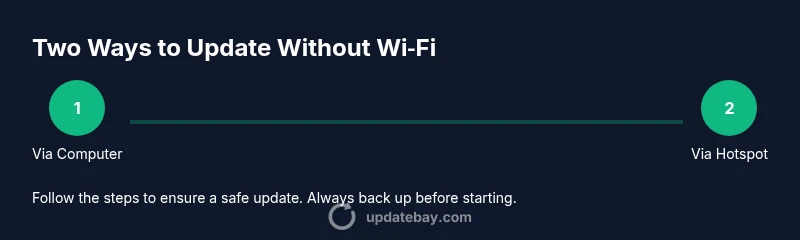
If you need to update without wifi iphone, your best options are to update via a computer with Finder or iTunes, or to use a personal hotspot to create a temporary Wi-Fi network. Both methods require a cable or network connection to begin, a charged device, and a recent backup. This guide walks you through the steps and safety notes for each path.
Why updating without Wi-Fi might be necessary
In many everyday scenarios, you may not have reliable access to a Wi‑Fi network when your iPhone flags a software update. You might be traveling, working remotely, or dealing with a network outage. The concept of the update without wifi iphone is not about bypassing safeguards; it’s about using alternative, legitimate methods to bring your device up to date. Keeping iOS current is essential for security, performance, and new features. This section explains why you’d need an offline or non‑Wi‑Fi path and what to expect during the process. You’ll learn how updates are delivered in these situations and why a backup is crucial before starting.
For many users, updates are released over the air via Wi‑Fi, but Apple also supports updating through a computer or with a mobile hotspot when Wi‑Fi isn’t accessible. Understanding these options helps you stay protected even when you’re off the grid or limited on data. Update Bay’s approach is to lay out practical steps you can follow safely, without making you jump through unnecessary hoops. This guidance aligns with general best practices for device maintenance and data integrity.
Preparing before you update
Before you begin, there are a few non‑negotiable steps to protect your data and ensure a smooth update, especially when you’re working without a traditional Wi‑Fi connection. First, back up your iPhone either to iCloud or your computer. A recent backup is the safety net if something goes awry during the update. Next, confirm your iPhone is charged or connected to a power source; updates can take a while and devices may reboot multiple times. Finally, verify you have the necessary tools and access: a cable to connect to a computer, a computer with iTunes or Finder, and a stable internet connection on the computer if you’re downloading the update via the computer.
If you plan to use a personal hotspot instead of a fixed Wi‑Fi network, ensure your data plan supports the additional usage and be mindful of battery consumption. With these preparations in place, you can proceed with either method confidently. Update Bay notes that planning ahead reduces interruptions and lowers the risk of incomplete updates, which can leave devices in an uncertain state.
What you need to know about official options
Apple’s standard approach to updating iPhones revolves around two main paths: a Wi‑Fi connection for over‑the‑air (OTA) updates and a computer‑based update via Finder (macOS Catalina and later) or iTunes (Windows or older macOS). The computer route is especially useful when a reliable Wi‑Fi network isn’t available. It requires a physical connection via a cable and a compatible computer with the latest management software. OTA updates over cellular data are not the typical default since they can consume significant data; if you’re using a hotspot, you’re effectively creating a temporary Wi‑Fi network that the iPhone uses to download and install the update. This distinction matters for data usage and battery life. In short: update without wifi iphone is most reliably achieved by using a computer or a hotspot rather than trying to fetch the update directly over a cellular connection.
For official guidance, you can consult Apple Support resources that describe updating via Finder/iTunes and using iCloud backups, as well as reputable technology outlets that explain the process for non‑Wi‑Fi scenarios. Update Bay emphasizes following official steps to avoid corrupting the device or losing data.
Preparing hardware and software: safety and space considerations
A smooth update requires not only the right connection method but also a few hardware and software prerequisites. Ensure your Mac or PC has sufficient storage to download the update file, which can be several hundred megabytes to a few gigabytes in size. Connect your iPhone with an Apple‑supplied cable and trust the computer if prompted. If you’re using a hotspot, keep your phone plugged in to a charger to manage battery drain. Turn off unnecessary apps on the iPhone to free up system resources during the installation. Finally, make sure you’ve updated the computer’s operating system and iTunes/Finder to the latest versions because compatibility issues can delay or derail the update.
In general, having a backup in place and ensuring power during the update reduces the risk of a failed installation. Update Bay’s guidance is to prepare methodically so you don’t run into mid‑update disruptions that could leave the device in an unusable state.
Method A: Update via a computer using Finder or iTunes
This method is reliable when you don’t have a stable Wi‑Fi connection. It relies on a USB/Lightning or USB-C cable to connect your iPhone to a computer with Finder (macOS Catalina+ on Mac) or iTunes (Windows or older macOS). The process typically involves trusting the computer on the iPhone, checking for updates in Finder or iTunes, and installing the downloaded update. Because the update is downloaded through the computer, you don’t need a direct Wi‑Fi connection on the iPhone itself. This path is particularly useful when you’re traveling, in an area with weak cellular signals, or simply unable to connect to a reliable Wi‑Fi network.
Expected outcomes include a reboot of the device, a short installation phase, and a final verification step to ensure the iPhone is running the latest iOS version. Update Bay advises ensuring the computer has adequate disk space and that the connection remains stable throughout the installation.
Method B: Update via a personal hotspot (tethering) to provide a temporary wireless network
If you’re in a location without Wi‑Fi but have cellular coverage, you can enable a personal hotspot on your iPhone to supply a temporary Wi‑Fi network for the update. This approach uses your iPhone’s cellular data to create a local network that your device can connect to and download the update. It can be slower and more data‑intensive than a household Wi‑Fi network, so monitor your data plan and battery life. Before starting, confirm that your hotspot is discoverable and that your laptop or PC can connect to it reliably.
Once connected, perform the standard OTA update as you would on a typical Wi‑Fi network. The difference lies in the source of the internet connection being your phone’s cellular data instead of a router. After completion, turn off the hotspot to conserve data and battery. Update Bay notes that hotspot updates work best when the hotspot device has a strong signal and is plugged into power during the download and install.
Step-by-step at a glance: what to expect during the install
During any update, you’ll see progress indicators on the iPhone and possibly a firmware progress bar on the computer screen. The time can vary based on the device model, the size of the update, and your connection type. Expect one or more reboots. It’s important not to disconnect the device until the process completes. If you encounter issues, you can retry, or switch to the alternative method (computer vs hotspot). Always verify that the final screen confirms the iOS version change. After the update, review essential settings and re‑enable any features that may have been temporarily disabled during installation.
By preparing properly and choosing the right update path for your situation, you can successfully update without wifi iphone without risking data loss or device instability. Update Bay’s approach is to emphasize readiness, patience, and verification at the end of the process.
Post‑update verification and best practices
After the installation finishes, take a few minutes to verify that essential apps run correctly and that your settings are intact. Confirm the iOS version by going to Settings > General > About. If anything feels off, perform a quick backup to ensure you can restore if needed. Remember to review privacy and security settings because new updates sometimes modify permissions or features. If you’ve used a hotspot, monitor data usage and consider reconnecting to a trusted Wi‑Fi network to resume normal data‑consumption habits. This approach keeps your device secure and performing optimally while you navigate updates without wifi iphone.
Tools & Materials
- Lightning (or USB-C) charging cable(For connecting iPhone to computer; use the cable that came with the device when possible)
- Computer with Finder or iTunes installed(macOS Catalina+ uses Finder; Windows or earlier macOS uses iTunes)
- Stable internet access on the computer(Needed to download the update file via the computer if using method A)
- Recent full iPhone backup(Best practice in case something goes wrong during update)
- Personal hotspot (optional)(Needed only for the hotspot method if no Wi‑Fi is available)
Steps
Estimated time: 45-90 minutes
- 1
Connect iPhone to computer
Use the appropriate cable to connect your iPhone to the computer and unlock the device. If prompted, tap Trust This Computer and enter your device passcode. This establishes a secure link for the update process.
Tip: If the computer doesn’t recognize the iPhone, try a different USB port or restart both devices. - 2
Open Finder or iTunes
On macOS Catalina and later, open Finder and select your iPhone from the sidebar. On Windows or older macOS, launch iTunes and click the device icon. This is where update options are located.
Tip: Ensure you’re using the latest Finder/iTunes version to avoid compatibility issues. - 3
Check for updates
In Finder or iTunes, click 'Check for Update' to see if a newer iOS version is available for your device. If an update is available, you’ll be prompted to download and install it.
Tip: If space is tight, free up storage on the computer to avoid download failures. - 4
Download and install
Proceed with downloading the update on the computer, then install it onto the iPhone. Do not disconnect the device during the installation.
Tip: Keep the iPhone charged or connected to power to prevent mid‑update shutdowns. - 5
Allow the update to complete
The device will restart during the update. Let the process finish without interference; this can take 15–45 minutes depending on the model and update size.
Tip: Avoid using the device for heavy tasks until the update completes. - 6
Verify the update
After restarting, go to Settings > General > About to confirm the iOS version shown matches the latest release.
Tip: If the version isn’t updated, retry the update flow or check Apple Support for issues. - 7
Disconnect and test
Safely eject the iPhone from the computer and perform a quick test of essential features (camera, messaging, apps) to ensure stability.
Tip: If problems arise, restore from your backup and retry the update. - 8
Optional: re‑enable features
Re‑enable any settings that were disabled during installation and rejoin your networks if needed.
Tip: Review privacy settings after update for any new permissions.
Frequently Asked Questions
Can I update my iPhone without a Wi‑Fi connection?
Yes, you can update without Wi‑Fi by connecting your iPhone to a computer using Finder or iTunes, or by using a personal hotspot to create a temporary Wi‑Fi network for the update. The computer path downloads the update via the computer, while the hotspot path shares cellular data.
Yes. Use a computer with Finder or iTunes, or enable a hotspot to create a temporary Wi‑Fi network for the update.
What should I do before updating without Wi‑Fi?
Back up your iPhone, ensure the device is charged or plugged in, and have a reliable connection to the computer or hotspot. Backup protects your data if something goes wrong during the update.
Back up first, then update with a stable connection to your computer or hotspot.
How long does an update typically take?
Update duration varies by device model and update size, typically ranging from 30 to 90 minutes. More time may be needed if a large OS update is released.
Most updates take between 30 and 90 minutes, depending on your device and the size of the update.
What should I do if the update fails?
If the update fails, retry the process using the other method (computer vs hotspot). Check for sufficient storage, use a different USB port, and ensure power remains connected. Restore from backup if needed.
Retry the update with an alternate method, check storage, and restore from backup if necessary.
Is it safe to update using a hotspot?
Hotspots work but consume more battery and data. Only use this method if you have enough data, a strong signal, and your device is plugged in during the update.
Hotspots are convenient but use power and data wisely; keep the device charging during the update.
Watch Video
What to Remember
- Plan backup and power before starting
- Choose the update path that matches your connectivity
- Follow official steps to avoid data loss
- Verify the final iOS version after installation
- Use a hotspot only ifWi‑Fi is unavailable and data is sufficient