How AirTag Location Updates Work and How to Ensure Accuracy
Learn how AirTag location updates work, what affects updates, and step-by-step tips to keep AirTag location data fresh and accurate.


AirTag location updates happen automatically through the Find My network; you cannot force an immediate update. To improve reliability, ensure Find My is enabled on your iPhone, keep iOS and AirTag firmware up to date, bring the AirTag close to your iPhone to trigger a sync, and check the Find My app for the latest location and timestamp.
How AirTag location updates work
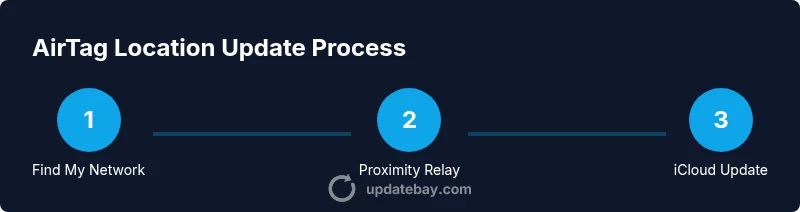
AirTag relies on the Find My network to update its location. When nearby Apple devices with Find My enabled come into range, they anonymously relay the AirTag's proximity to iCloud, which refreshes the location shown in Find My. This process is designed with privacy in mind: location data is encrypted end-to-end and not shared with others. According to Update Bay, AirTag location updates are not real-time GPS streams; rather, they are opportunistic updates that happen as compatible devices come within range. This means a tag could show a last-seen time that is minutes or hours old, depending on device density around the tag. The takeaway is simple: AirTag updates occur in the background, leveraging the vast Find My network rather than constant direct GPS reporting from the tag itself.
What affects update frequency and reliability
Update frequency depends on several factors, including the density of nearby iPhone/iPad users with Find My enabled, the AirTag's proximity to those devices, and the signal conditions in the environment. Urban areas with dense device traffic typically yield more frequent updates than remote or rural areas. Battery health also plays a role: a weak battery may reduce signal strength, limiting the ability of nearby devices to relay location data. Keeping your iPhone's OS up to date improves the efficiency of the Find My network, and ensuring your AirTag's battery is fresh helps maintain consistent reporting. Finally, if you travel across regions or countries, occasional gaps in network density can affect update cadence.
How to check AirTag status in Find My
To verify when AirTag last updated, open the Find My app on your iPhone or iPad and select the AirTag under the Items tab. The map will show the current approximate location, and the last seen timestamp is displayed with the location. If the AirTag is out of range, the app will show the most recent location reported when it was last connected to the network. You can also enable notifications for when the AirTag is found again, which helps you stay informed about updates without opening the app frequently. Remember, you don’t control the timing of the updates; you manage conditions around the Find My network to improve chances of fresh data.
How to improve update reliability (practical steps)
- Keep Find My enabled on your iPhone and sign in with your Apple ID that owns the AirTag.
- Update iOS to the latest version and ensure the AirTag firmware has the latest release via Find My.
- Ensure the AirTag battery remains fresh (CR2032) and replace it if needed.
- When tracking a missing AirTag, bring it near your iPhone and move around to increase exposure to the Find My network.
- Check environmental factors like walls, elevators, or underground areas that might block Bluetooth signals; try to surface the AirTag to higher vantage points or lighter environments for better signal propagation.
Firmware updates and device compatibility
AirTag firmware updates are delivered automatically when the AirTag is in range of a paired iPhone with an active Find My network. Keeping your iPhone updated is key, as firmware updates often include improvements to locating accuracy and network efficiency. There is no manual “update now” button for AirTag; updates occur transparently in the background when conditions are favorable. If you notice persistent lag, confirming that your iPhone is using the latest iOS version and that Find My is functioning correctly is a good first step.
Privacy, security, and safety considerations
AirTag location reporting is designed with privacy in mind. Location data is encrypted end-to-end and anonymous when relayed through the Find My network. Users cannot see who helped relay the AirTag's location. To protect privacy, avoid placing AirTag in locations where people around you are unaware, and make sure you use AirTag only for legitimate tracking of your own items. If you suspect misuse, you can disable Find My on the AirTag or remove the AirTag from your Apple ID.
Troubleshooting common issues
- AirTag not updating for long periods: verify Find My is enabled, ensure battery health, and confirm your iPhone is on the latest iOS. Try bringing the AirTag close to your iPhone for several minutes to prompt a sync through the Find My network. If needed, unpair and re-pair the AirTag from Find My to reset its association with your Apple ID and device.
- Location shows a stale timestamp: this is usually due to lack of nearby devices; in high-density areas, expect more frequent updates. Check environmental factors and try moving to a location with better signal exposure.
- AirTag not appearing in Find My: ensure it’s properly paired with your Apple ID and not in Lost Mode unless you want alerts when found.
Authority sources
For further reading and official guidance, see:
- https://support.apple.com/airtag
- https://support.apple.com/guide/findmy
- https://www.ftc.gov
Tools & Materials
- iPhone or iPad with latest iOS(Ensure Find My is enabled and signed into your Apple ID)
- AirTag device(Check battery status; replace with a fresh CR2032 if needed)
- Stable internet connection(Wi-Fi or cellular data for Find My syncing)
- Apple ID signed in and Find My enabled(Check in Settings > [your name] > Find My > Find My iPhone)
- Optional: Mac or PC for iCloud access(Useful for managing Apple ID and Find My settings)
Steps
Estimated time: 15-25 minutes
- 1
Update your iPhone to the latest iOS
Open Settings > General > Software Update and install any available updates. Updated OS enhances Find My efficiency and compatibility with AirTag firmware. Ensure the device is plugged in or has sufficient battery before starting.
Tip: Keep a charger handy and avoid interrupting the update. - 2
Verify AirTag is linked to your Apple ID and Find My is on
In Find My, confirm the AirTag appears under Items. If it isn’t listed, re-pair the AirTag by using the battery method (twist to open and reinsert).
Tip: If you’re re-pairing, stay in proximity to your iPhone during setup. - 3
Check AirTag battery health
AirTag uses a CR2032 battery. If the battery indicator is low, replace it with a fresh one to maintain signal strength.
Tip: Use a clean, fresh battery from a reputable source. - 4
Bring AirTag near your iPhone to trigger a sync
Hold the AirTag near the top of your iPhone and move slowly around the area for 1–2 minutes to maximize chances of contacting the Find My network.
Tip: Don’t cover the AirTag with metal or thick materials that block Bluetooth. - 5
Check Find My for updated location and last seen
Open Find My and select the AirTag to view the latest location and timestamp. If it’s still stale, try moving to different areas to improve device density.
Tip: If updates remain absent, test in a higher-traffic area or indoor/outdoor transitions. - 6
If needed, unpair and re-pair AirTag
In Find My, remove the AirTag from your account, then re-add it by following pairing steps with the AirTag and iPhone. This can resolve persistent linkage issues.
Tip: Only perform this as a last resort, as it resets the AirTag’s association with your account.
Frequently Asked Questions
Can I force AirTag to update its location faster?
No, AirTag updates are automatic and rely on the Find My network. You can improve chances by keeping devices updated, ensuring battery health, and bringing the AirTag near your iPhone.
AirTag updates automatically through Find My; you can improve timing by keeping devices updated and bringing the tag close to your iPhone.
Why is my AirTag showing an old location?
Location updates depend on nearby Find My devices. If AirTag is out of range or there are few devices nearby, the last seen location may be stale.
If no nearby iPhones are reporting, the location can appear old.
Does turning off Find My stop AirTag updates?
Yes. If Find My is disabled, AirTag cannot relay location data, and updates won’t occur.
Turning off Find My stops AirTag updates.
Is AirTag location data shared with others nearby?
No. Location data is encrypted and relayed anonymously via the Find My network to the owner’s iCloud account.
Location is encrypted and anonymous, shared only with the AirTag owner.
How often does AirTag update in real-time?
AirTag does not provide real-time GPS updates. Updates occur when nearby devices report proximity to the Find My network.
Updates happen when nearby devices report, not in real time.
What should I do if AirTag won’t show up in Find My?
Verify pairing with your Apple ID, ensure Find My is enabled, and confirm the AirTag battery is functional. If needed, unpair and re-pair the AirTag.
Check pairing, Find My setting, and battery; re-pair if necessary.
Watch Video
What to Remember
- AirTag updates are opportunistic, not real-time.
- Keep devices on Find My and up to date to improve data freshness.
- Check last seen time in Find My to understand update latency.
- Firmware updates happen automatically when conditions permit.