How to Stop Location Updates: A Practical Privacy Guide
Learn how to make your location not update across devices by adjusting system settings, app permissions, and browser controls. This Update Bay guide covers practical steps and verification to protect your privacy.


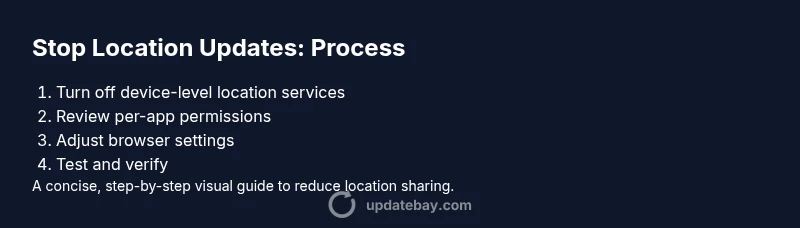
According to Update Bay, to stop location updates you’ll adjust device-wide location settings, revoke app permissions, and tighten browser controls. If you’re wondering how to make your location not update, use these practical steps across iOS, Android, and desktop environments to minimize tracking without disabling essential features. This quick answer outlines the core approach and trade-offs you should expect.
How to make your location not update: basics and premise
Location updates are not just about GPS; many apps and services use a mix of GPS, Wi-Fi positioning, Bluetooth beacons, and cell-tower signals to infer your position. If you want to reduce or stop automatic updates, you must approach it at several layers: system services, app permissions, and browser controls. The Update Bay team emphasizes that privacy is a spectrum: you can retain essential functionality (for example, navigation when actively using an app) while limiting background location access. The challenge is to identify where updates originate and which actions trigger them. Start by auditing your devices for active location services and the apps with the most permission access. On mobile platforms, location sharing can happen in the background or only when the app is in use; on desktop, browsers may request your precise location when you visit certain websites. By mapping these data flows, you can design a strategy that minimizes updates without breaking critical features. If you routinely use services that require location during trips, consider creating separate profiles or accounts with restricted sharing to protect your general location when not actively navigating. Remember that some apps cache location data, so turning off location services does not always erase history; you may also need to clear app data or revoke tokens in connected accounts. This perspective aligns with Update Bay’s privacy guidance for 2026.
Device-by-device overview: where location updates originate
Location data reaches your devices from several sources, and the exact mix depends on the platform in use. On iOS, location services can be demanded by a broad set of apps in the background or only while in use. Android tends to offer granular controls per app and a separate setting for background activity. Desktop browsers rely on browser permissions and the site’s own requests, sometimes supplemented by Wi‑Fi triangulation. The key idea is to distinguish background updates from in-use updates. Update Bay analysis shows that most users unintentionally permit background access across multiple apps, creating a silent stream of location signals. By cataloging which apps and sites have access, you can apply a layered strategy that preserves essential functionality while cutting back on passive sharing. In practical terms, start by turning off background location for nonessential apps, then tighten per-app permissions to “while using” or “deny,” depending on your comfort level.
Quick wins: core settings to switch off today
You can dramatically reduce location updates with a small set of high-impact changes. First, disable global location services on devices when you don’t need them, or switch to a mode that asks for permission per use. Second, revoke continuous background location permissions for apps you rarely use. Third, adjust browser settings to block sites from requesting precise location or to always ask before sharing. Fourth, enable a “limit ad tracking” style option if available, so you’re less tied to location-based ad profiles. Fifth, review any connected accounts that may share location data and disconnect those that are unnecessary. These steps form a practical, action-oriented plan that you can implement over a weekend. Update Bay’s guidance emphasizes validating each change against daily tasks to ensure you don’t lose important capabilities.
App permissions: revoking access without breaking apps
Per-app location permissions determine how often an app can access your position. Many apps function adequately with “While Using” permissions, while others can operate with no location data at all. Begin by listing the apps you use most and check their current permissions. For each, switch to “While Using” or “Ask Every Time” if available, and disable background access where possible. For essential apps (maps, rideshare, emergency services), consider keeping location enabled but only when the app is in use or while actively navigating. Reacquaint yourself with how permission prompts appear on your device so you aren’t surprised by future requests. As you prune permissions, note how app behavior changes and be prepared to reconfigure if a service seems to rely heavily on location data for core features. Update Bay notes that deliberate permission management can preserve usability while reducing exposure.
Browser controls and websites: tighten location sharing on the web
Web location requests can be powerful, but they shouldn’t be trusted by default. In Chrome, Safari, Firefox, and Edge, go to site settings and turn off “Location” or set it to “Ask first” only for trusted sites. Disable precise location sharing from websites unless you’re actively using a service that requires it. Consider clearing site data that stores location preferences and review any saved permissions in your browser’s privacy settings. If you frequently use online maps or travel sites, you may choose a temporary adjustment—disable location for normal browsing and re-enable only on demand. Finally, log out of accounts that may reuse your browser’s location to enhance privacy.
Testing and verification: confirm updates stopped
Verification is essential after you change permissions. Start by visiting a location-aware site or app and checking whether it can still determine your position. Use a general maps site, weather service, or AR-enabled app to see if location data is reported. On desktops, you can test with a browser’s permission controls and review the corresponding prompts. If you still notice location updates, recheck background permissions and any connected devices that might be sharing location through a linked account. Regularly test after updates to ensure future changes don’t revert older settings.
Trade-offs and potential issues
Blocking location updates can reduce the convenience offered by maps, rideshare, and local weather features. Some apps may rely on location for personalized alerts or real-time data. You might experience degraded accuracy in navigation or targeted content, and in some cases, critical services could require temporary access. Plan for a fallback: keep location on for specific tasks and turn it off afterward. The goal is to strike a balance between privacy and usability, recognizing that some trade-offs are inherent. Update Bay’s 2026 privacy guidance recommends documenting your preferred settings and revisiting them periodically, especially after OS updates or app changes.
Next steps and ongoing privacy hygiene
Establish a routine for privacy checks. Schedule quarterly audits of location permissions, review new app permissions on installation, and stay aware of changes in browser privacy controls. Consider using a dedicated privacy profile or separate accounts for activities that don’t require location. Remember to reappraise settings after major OS updates, app updates, or changes in your daily workflows. Consistency is the key to maintaining a lower location footprint while preserving essential functionality. The Update Bay team’s ongoing privacy hygiene recommendations can help you stay in control.
Tools & Materials
- Smartphone with iOS or Android(To disable device-level location services)
- Web browser (Chrome, Safari, Firefox, Edge)(To adjust site/location permissions)
- PC or Mac computer(Useful for desktop browser settings and reviewing connected accounts)
- App permission review checklist(List of apps to audit first)
Steps
Estimated time: 25-45 minutes
- 1
Open device settings and locate Location Services
Open the Settings app on your device and locate Location or Location Services. Review which apps have access and whether permissions are 'Always', 'While Using', or 'Never'.
Tip: Start with the apps you use daily to maximize impact. - 2
Turn off background location for nonessential apps
In the Location Services menu, disable background access for apps that don’t need to track you constantly. This reduces passive updates even if the app is not in use.
Tip: If an app needs location for a task, switch to 'While Using' instead of 'Always'. - 3
Revoke precise location for nonessential apps
For apps where location is not critical, disable precise location. This prevents high-accuracy updates that can be used to refine your position.
Tip: Some apps may request 'approximate' location instead; keep an eye on prompts. - 4
Adjust per-app permissions to 'While Using' or 'Ask Next Time'
Go app by app and set permissions to a minimal level. Use 'Ask Next Time' where available to retain control for future decisions.
Tip: Document which apps you adjust for quick reference. - 5
Review browser settings for location sharing
Open your main browser’s privacy settings and block or prompt before sharing location. Remove any stored location permissions for sites you don’t trust.
Tip: Remember to apply changes across all major browsers you use. - 6
Clear stored location data and tokens on connected accounts
Sign out of services that might reuse your location data across devices and revoke tokens that permit cross-device sharing.
Tip: Revisit connected services after changes to ensure no hidden links remain. - 7
Test location controls with a simple site
Visit a location-check site to verify that location sharing is blocked or limited as intended. Review results and adjust as needed.
Tip: If the site still reports a location, recheck permissions and cached data. - 8
Review and maintain privacy settings regularly
Set a schedule to audit permissions and settings, especially after OS or app updates. Privacy is a moving target; stay proactive.
Tip: Keep a short changelog of settings you’ve adjusted for quick future reference.
Frequently Asked Questions
Will turning off location updates affect maps or ride-sharing apps?
Yes, some features may require location data. You can toggle access per app or temporarily re-enable for specific tasks.
Turning off location will affect maps and rides. Re-enable per app when needed.
Does disabling location stop all tracking?
Disabling location reduces many data points, but apps can still infer location from IPs, Wi‑Fi, or user-input data. Consider additional privacy controls.
It reduces tracking but may not stop it completely.
What about location sharing in social apps?
Review each app's permission settings; choose 'While Using' or 'Ask Every Time' when available. Disconnect or delete apps you no longer use.
Check each app's permissions; opt for minimal sharing.
Will this affect weather apps or augmented reality features?
Some features rely on location; you may adjust settings for those apps or use manual location entry when needed.
Some apps will have reduced accuracy; you can adjust per-app.
How can I verify location updates are blocked?
Use a location test site or your device’s permission logs to confirm no location is reported in the background.
Test with a site to ensure no location is shared.
Watch Video
What to Remember
- Take a layered approach across device, app, and browser.
- Disable background location where possible while preserving essential features.
- Regularly audit permissions to prevent drift.
- Test verification after changes to confirm updates stopped.
- Maintain ongoing privacy hygiene.