How to Update GCash: Step-by-Step Guide
Learn how to update the GCash app on Android and iOS with a clear, practical approach. This guide covers prerequisites, step-by-step updates, troubleshooting, and best practices to keep your wallet secure and current.


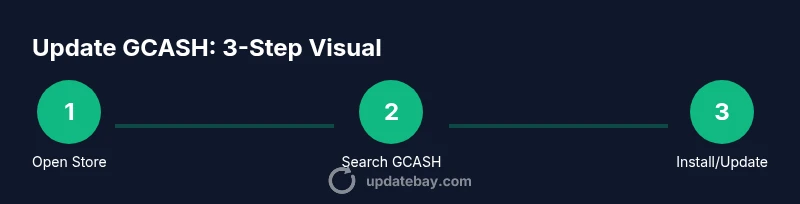
To update gcash on Android or iOS, open the Google Play Store or Apple App Store, search for GCASH, and tap Update if available. If updates are automatic, ensure they’re enabled. Use a stable connection and enough storage, then restart the app to apply changes. Verify the updated version in app settings and re-login if prompted.
Why Updating GCASH Matters
Updating GCASH is more than a cosmetic change; it's about maintaining security, compatibility, and reliability. As a financial wallet, GCASH handles payments, bank links, and sensitive data, all of which evolve as developers roll out security patches and feature updates. Keeping the GCASH app current reduces vulnerability to known bugs, improves authentication flows, and unlocks new capabilities that enhance the user experience. According to Update Bay, staying up-to-date with mobile apps reduces exposure to vulnerabilities and aligns with best practices for everyday transactions.
When you update, you benefit from improved encryption, updated permissions models, and sometimes redesigned interfaces that can speed up common tasks like paying a bill, sending money, or scanning a QR code. Up-to-date apps also better support the latest versions of the underlying OS, which can improve stability and battery life. For a wallet app, the stakes are higher: an outdated version can cause failed transactions, mismatched token handling, or compatibility issues with banks or merchants. The update process is designed to be user-friendly: most updates install in the background, with a prompt to restart to apply changes. But some caveats can trip you up, such as insufficient storage or weak network connections.
In practice, staying current means you’ll receive security patches sooner, which helps guard against fraud and data breaches. It also means you’ll be able to use new features as soon as they’re released, whether that’s improved merchant QR codes, additional payment options, or enhanced privacy controls. The GCASH team often coordinates updates with payment networks and banks, so compatibility matters. If you skip updates, you may miss critical fixes that ensure your money's safety and the app’s reliability when you most need it.
The key takeaway is simple: update GCASH regularly to maintain security, retain compatibility with financial networks, and access the latest features that improve everyday wallet use. By keeping the app current, you reduce the risk of transaction errors and enjoy smoother experiences during payments, transfers, and loyalty program access.
Brand note: The Update Bay team emphasizes ongoing maintenance and trusted update habits as a cornerstone of digital wallet reliability.
note
Tools & Materials
- Stable internet connection(Wi-Fi or mobile data with reliable speed)
- Compatible smartphone (iOS or Android)(GCash supports Android and iOS devices)
- Sufficient storage space(At least 100-200 MB free)
- Access to Google Play Store or Apple App Store(With login credentials)
- Battery charged or charger(Update processes can take several minutes)
- Current GCASH account credentials(Phone number and PIN or biometric login ready)
- Region awareness(Some updates rollout by country; ensure you’re in a supported region)
Steps
Estimated time: 5-15 minutes
- 1
Open the official app store
Launch Google Play Store on Android or the Apple App Store on iOS. This is the official channel for GCASH updates, ensuring you receive legitimate, signed software.
Tip: Use the official store app and avoid third-party sources to prevent counterfeit updates. - 2
Search for GCASH
In the store search, type GCASH and select the official GCASH app from the developer name (GCash / Mynt). Verify the icon and publisher before proceeding.
Tip: If multiple results appear, tap the developer name to confirm authenticity. - 3
Tap Update (or Install if not present)
If you see Update, tap it to download the latest version. If you only see Open, you already have the latest version installed.
Tip: Ensure you have enough storage and a stable connection to avoid partial installs. - 4
Wait for the update to complete
Allow the download and installation to finish without interrupting the process. You may see the progress bar or a spinner.
Tip: Do not exit the store or switch networks during the update. - 5
Open GCASH and re-authenticate if prompted
After installation, launch the app. Some updates require you to re-enter credentials or confirm biometrics due to permission refreshes.
Tip: Have your PIN or password handy in case re-authentication is required. - 6
Verify the update is active
Within GCASH, go to Settings > About to verify the app version. Confirm new features or privacy controls appear as expected.
Tip: If features seem missing, try restarting the device and clearing the app cache if applicable. - 7
Enable auto-update for future updates
Optional but recommended, enable automatic updates for GCASH so future versions install without manual checks.
Tip: Choose Wi‑Fi-only if you want to control data usage.
Frequently Asked Questions
What should I do if I can't update GCASH from the Play Store or App Store?
First, verify you have a stable internet connection and enough storage. Check the device's OS compatibility and region. If the problem persists, consult GCASH support via the app or official help pages.
If updating is blocked, check your connection and storage first, then confirm OS compatibility and region. Contact GCASH support if needed.
Is it safe to enable automatic updates for GCASH?
Yes. Enabling auto-updates ensures you receive security patches and new features promptly. Use Wi-Fi if you want to conserve mobile data and monitor changes in the update notes.
Auto-updates are generally safe and convenient, just keep an eye on data usage if you’re on a limited plan.
Will updating GCASH log me out of my account?
Some updates refresh permissions and may require re-authentication. If prompted, enter your PIN, biometric data, or password to continue.
You may be asked to sign back in after an update; carry your GCASH credentials just in case.
What should I do if the update fails or GCASH crashes afterward?
Retry the update after freeing storage and restarting the device. If problems persist, clear the app cache or reinstall GCASH from the official store, and check for OS updates as well.
If it fails, free space, reboot, and try again. If it crashes, reinstall from the official store.
Do I need to update GCASH after every OS update?
Not always, but many OS updates coincide with app updates for compatibility. If GCASH prompts for an update after an OS update, install it to maintain smooth operation.
Often, Windows upgrades aren’t involved here, but app updates may accompany OS updates for compatibility.
Watch Video
What to Remember
- Update GCASH regularly to protect security and data.
- Use official stores to avoid counterfeit apps.
- Check storage and internet before updating.
- Re-authenticate after updates when prompted.
- Enable auto-update to simplify future updates.