Can You Put Patch? A Practical Guide to Patching Software
Learn how to safely apply patches to software, devices, and firmware with practical steps, backups, testing, and rollback strategies. A complete guide for Update Bay readers in 2026.


Can you put patch? Patching is the process of applying updates to software, firmware, or devices to fix bugs, close security gaps, and add features. Yes, you can put a patch, but always verify the source, back up data, test changes in a controlled environment, and monitor results after deployment.
Why Patch Management Matters
According to Update Bay, patch management is a foundational practice for maintaining system security and reliability. Patches close vulnerabilities that attackers commonly exploit and fix bugs that can cause outages or data loss. For tech enthusiasts and everyday users, a disciplined patching routine reduces the chance of unexpected downtime and keeps critical applications up to date. When you can consistently apply patches on a known schedule, you gain visibility into what changed, why it changed, and how it affects your environment. This clarity helps you communicate with stakeholders and reduces the scramble that follows unplanned incidents. In short, patch management isn't just about software updates—it's about risk management, compliance, and long-term stability.
- It lowers the window of exposure to new threats.
- It improves software quality and user experience.
- It builds a repeatable process that scales with your environment.
Can You Patch Different Environments?
Patching is not a one-size-fits-all activity. Different environments—desktop operating systems, server deployments, cloud services, mobile apps, and embedded firmware—require tailored approaches. Desktop software patches may be delivered via built-in update mechanisms, while server patches often demand careful scheduling and maintenance windows. Firmware patches for devices like routers and IoT gear may need vendor-specific imaging tools and validation steps before rollout. In all cases, the core principles apply: verify the patch against a trusted source, test it in isolation, and have a rollback plan. The Update Bay guidance emphasizes starting with inventory and impact analysis to determine which patches are relevant to your setup, then prioritizing high-severity fixes first.
Pre-Patch Planning: Backup and Assessment
Before applying any patch, you should establish a safe baseline. Create a full backup or snapshot of affected systems, plus ensure you have recent, tested restore procedures. Inventory all affected assets, including versions, configurations, and dependencies. Conduct a risk assessment to identify potential compatibility issues. If possible, clone a staging environment that mirrors production so you can validate the patch without risking actual data. Document the expected outcomes and acceptance criteria, so you can measure success after deployment. This planning stage is where many incidents are avoided, and according to Update Bay analysis, thorough preparation correlates strongly with successful patch outcomes.
Step-by-Step Patch Deployment (Safe Method)
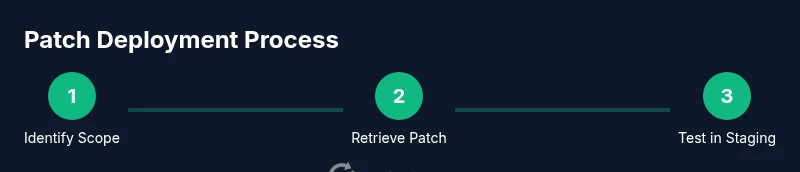
- Identify Patch Scope: Determine which systems and components are in-scope for the patch based on vendor advisories and exposure risk. 2) Retrieve Patch from Trusted Source: Download from official vendor websites or trusted repositories, avoiding third-party mirrors. 3) Validate Patch Integrity: Check checksums or signatures if provided and confirm compatibility with your environment. 4) Prepare Backups: Ensure you have verified backups or rollback points before applying changes. 5) Test Patch in Staging: Run the patch against a non-production copy to catch incompatibilities. 6) Schedule Deployment Window: Pick a low-traffic period and notify users. 7) Deploy Patch to Production: Apply the patch using approved methods, monitoring progress. 8) Verify Patch and Monitor: Confirm patch installation, run functional tests, and watch for anomalies. 9) Document and Close Ticket: Record results, lessons learned, and next steps.
Pro tip: automate repeatable checks where feasible to catch drift between environments. A thorough test plan reduces surprise outages and helps you maintain system health post-patch deployment.
Verification and Rollback Strategies
Verification is not a single event; it’s a process. After patching, run a suite of smoke tests to verify core functionality and security checks to ensure patches closed known gaps. Log changes to track what was updated and when. Have a rollback plan ready: know how to restore from the backup, reconfigure services, and re-run validations quickly if something goes wrong. A tested rollback script or documented runbook should be part of every patch project. If the patch introduces unexpected behavior, your rollback should be simple, fast, and reproducible. Update Bay recommends rehearsing rollback drills in a controlled environment so your team can act confidently during a real incident.
Common Patch Pitfalls and How to Avoid Them
Rushing patches during a busy period is a common source of mistakes. Skipping backups or bypassing testing can turn minor issues into major outages. Make sure to verify vendor recommendations and avoid applying patches that conflict with custom configurations. Patch fatigue—applying every patch as soon as it’s released—may overwhelm environments with frequent changes. Instead, implement a risk-based prioritization and a staged rollout strategy. Ensure you have a clear communication plan for stakeholders and end-users about expected downtime and feature changes. By anticipating potential disruptors, you reduce the chance of post-patch incidents and improve overall system stability.
Patch Management Best Practices and Next Steps
A mature patch program relies on policy, automation, and visibility. Establish standard operating procedures for patch approvals, testing, and deployment. Use a centralized patch management tool when possible to track patches across devices and software. Regularly review patch status dashboards and adjust prioritization as needed. Educate users about the importance of patches and security hygiene. By following a formal, repeatable process, you’ll reduce risk and keep systems resilient against evolving threats. The Update Bay framework emphasizes continuous improvement: measure outcomes, solicit feedback, and refine your patching cadence over time.
Tools & Materials
- Administrative access to target systems(Needed to install patches.)
- Official patch file or patch management package(Download from vendor or trusted source.)
- Backup solution or snapshots(Create reliable restore points.)
- Test/staging environment(Mirror production as closely as possible.)
- Patch management tool or deployment scripts(Automates and standardizes deployments.)
- Change management documentation(Record approvals and rollout details.)
- Monitoring and logging tooling(Detect post-patch anomalies quickly.)
- Rollback plan and runbooks(Be prepared to revert changes.)
Steps
Estimated time: 2-4 hours
- 1
Identify Patch Scope
Review vendor advisories and inventory all affected systems to determine what needs patching. Prioritize critical assets and assess business impact before proceeding.
Tip: Document affected hosts and patches in a central tracker. - 2
Retrieve Patch from Trusted Source
Download the patch from the official vendor site or verified repository. Avoid third-party mirrors that may host tampered files.
Tip: Enable signature verification if provided by the vendor. - 3
Validate Patch Integrity
Check file hashes or digital signatures to ensure authenticity. Confirm compatibility with your current environment and dependencies.
Tip: Keep a record of checksum results for audit trails. - 4
Prepare Backups
Create full backups or VM snapshots of systems that will be patched. Verify restorability before proceeding.
Tip: Run a quick restore test in a non-production system. - 5
Test Patch in Staging
Apply patch to a staging environment that mirrors production. Run functional and security tests to identify issues.
Tip: Use representative data to uncover edge cases. - 6
Schedule Deployment Window
Plan a maintenance window with minimal user impact and notify stakeholders. Ensure rollback resources are ready.
Tip: Coordinate across teams to avoid conflicting changes. - 7
Deploy Patch to Production
Apply the patch using approved methods. Monitor progress and confirm completion on all targeted hosts.
Tip: Automate progress reporting to your change log. - 8
Verify Patch and Monitor
Run post-deployment tests and monitor system health, performance, and security alerts for 24–72 hours.
Tip: Keep an eye on backups and logs for anomalies. - 9
Document and Close Ticket
Record patch details, outcomes, and any follow-up actions in your ticketing system.
Tip: Capture lessons learned to improve future patches.
Frequently Asked Questions
What is a patch and how does it differ from a patch note?
A patch is a code update that fixes issues or adds features. Patch notes describe what changed and why, serving as a guide for users and admins. Patches are applied to software or firmware, while patch notes are the accompanying documentation.
A patch is an update that changes code to fix bugs or add features, and patch notes explain what the patch does and why it was released.
Can I patch without causing downtime?
Downtime depends on the patch, environment, and deployment method. Use staging tests, maintenance windows, and rolling updates to minimize user impact. In many cases, you can patch with zero-downtime strategies, but plan for a small window if needed.
Downtime depends on the patch and environment; plan maintenance windows and use safe deployment methods to minimize disruption.
How do I know a patch is safe for my system?
Assess patch safety by validating source integrity, testing in a staging environment, and reviewing vendor advisories. Check for known issues, compatibility notes, and required prerequisites before deployment.
You verify safety by checking the patch source, testing in a staging setup, and reading vendor advisories.
What should I do if a patch breaks something?
If a patch breaks functionality, revert to the backup or snapshot quickly using your rollback plan. Notify stakeholders, document the incident, and re-evaluate patch compatibility before attempting a re-application.
If issues arise, rollback is the fastest fix; then investigate compatibility before trying again.
Should I patch everything at once or stagger the rollout?
Staggered rollouts reduce risk by limiting blast radius. Patch critical systems first, validate results, then extend to remaining assets in batches with monitoring.
Patch in stages to limit risk; validate each phase before proceeding.
Is patching different for Windows, macOS, and Linux?
Yes. Each OS has its own update mechanisms, patch formats, and testing requirements. Follow vendor guidelines for Windows, macOS, and Linux, and ensure cross-platform consistency in your process.
Different operating systems have distinct patching methods; follow each vendor’s guidance.
Watch Video
What to Remember
- Patch early to reduce exposure to vulnerabilities.
- Test patches in a safe environment before production.
- Back up data and have rollback plans ready.
- Verify success and monitor after deployment.
- Document changes for future audits.