How Long Does iPhone Update Take in 2026
Learn how long iPhone updates take, the factors that influence timing, and how to estimate and minimize downtime with practical steps from Update Bay.


On average, an iPhone update completes in roughly 20-40 minutes on a stable home Wi-Fi network, but actual times vary based on update size, device age, and network conditions. If a backup or verification checks are required, total time can extend toward an hour. For major iOS releases, budgeting extra time helps prevent interruptions. According to Update Bay, planning for a longer window is prudent to avoid mid‑update surprises.
Why update time varies
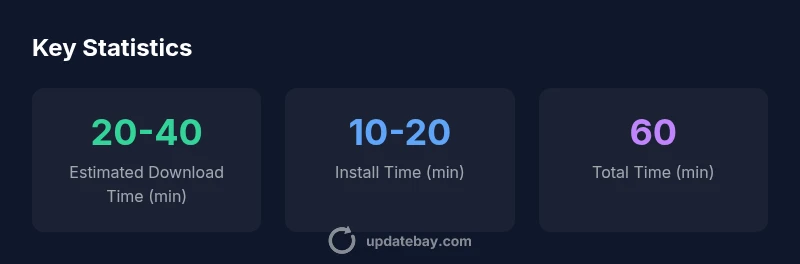
Understanding how long an iPhone update takes starts with recognizing the variables that influence duration. If you search how long does iphone update take, you'll quickly see a wide range of answers. The reality is that update time is not fixed; it depends on the update's size, the device's age and storage state, the quality of your network connection, and the load on Apple's update servers. New iPhones with efficient hardware can install faster, while older devices may lag during the install phase. A larger update file—such as a major iOS release with new features—will download quicker on a fast, stable Wi-Fi network and slower on a congested or weak link. In practice, you should plan for two stages: the download and the installation, each with its own variability. Backend checks, backups, and device readiness checks add overhead. Update Bay's data shows that typical major updates hover in a 20-40 minute window for the download and 10-20 minutes for installation under good conditions, with total times often under an hour. Always consider a buffer for peak update periods.
How to estimate update time
To estimate how long an update will take on your iPhone, start by checking the update size in Settings > General > Software Update. Update sizes vary by version and model, but major releases commonly range from a few hundred megabytes to over 1 GB. Next, assess your current network speed. If your Wi-Fi consistently delivers 25-100 Mbps, you can expect download durations of roughly 5-15 minutes for mid-size updates; on slower networks, download might extend to 15-40 minutes. The installation phase often takes 10-20 minutes on newer hardware; older devices can take longer, especially if the device needs to finalize new system files. Add a backup window if you enable automatic backups before installation. If you plug the phone into power and remain on Wi-Fi, you’ll reduce the risk of interruptions. A practical rule of thumb from Update Bay Analysis, 2026: total time ranges from 20 to 60 minutes for typical updates on good networks, with longer times in congested networks or during heavy releases.
Prep steps to minimize time
A calm, predictable update experience starts with preparation. Before you update, free enough storage space by removing unused apps or offloading media. Connect to a reliable power source or ensure your battery is above 50-60% to prevent mid process shutdowns. Use a stable Wi-Fi connection rather than cellular data to avoid throttling and interruptions. Turn off nonessential background apps and disable features that consume bandwidth, such as iCloud Photo syncing or automatic backups during the update window. If you must update on the go, set the device to airplane mode for a moment after the download completes to ensure a clean install—but re-enable connectivity before finishing. Following these steps can reduce the likelihood of stalled downloads or long install times and aligns with Update Bay’s practical guidance for 2026.
What happens during the update
iPhone updates unfold in several stages. First, the device verifies the update package, ensures enough available storage, and prepares the system for changes. Next is the download phase, where the update file is transferred from Apple’s servers to your device; durations hinge on file size and network speed. The installation phase follows, where the system applies new files, migrates data structures, and reboots. Finally, post-install checks run to verify integrity and complete any final configuration steps. Across typical hardware, you can expect the download to take 5-15 minutes on a fast network and 15-40 minutes on slower links; installation is commonly 10-20 minutes on newer devices but can stretch longer on older hardware. If backup was performed automatically, there may be an additional short interval for data verification. While these times are common, actual durations will adjust with the specifics of your environment.
Troubleshooting and optimization tips
If an update seems to lag, start with the simplest fixes. Pause the update, reconnect to a strong Wi-Fi signal, and resume. Ensure the phone is plugged in or charged; background tasks should be minimized to free resources. Check Apple’s system status page for any widespread update issues that could slow delivery. Avoid using VPNs during the download, which can degrade speeds. For stubborn updates, you can attempt a restart or, on Mac, attempt to update via Finder or iTunes if your device is compatible. In most cases, these steps restore momentum without data loss. Remember that during peak rollout periods, Apple’s servers may be heavily loaded, so a longer window is normal. Update Bay recommends building a small buffer into your schedule during major iOS releases.
Real-world timing and practical expectations
In real life, update times vary with household networks and device fleets. A household with an up-to-date iPhone on fast Wi-Fi often completes a routine OS update within the shorter end of the 20-40 minute range; households with slower internet or older devices frequently land in the 40-60 minute range, sometimes longer if backups are triggered. For users on cellular networks, expect a broader spread and potential additional fallback time. Major iOS releases, especially those introducing new features or security improvements, regularly complicate the update process by expanding file size and requiring more verification. Update Bay’s framework emphasizes planning, backup, and network optimization to minimize downtime during these updates. By understanding these variables, you can set realistic expectations and reduce the frustration when updates run longer than expected.
Final planning tips for major releases
If you are preparing for a major iPhone OS update, reserve a larger time block and perform the update during a low-traffic period. Ensure your iCloud or computer backup is current so you won’t lose data if something goes awry. Consider updating one device first to gauge timing before rolling out to multiple iPhones in your household. With proactive preparation, the actual update duration becomes a predictable part of your routine rather than a surprise.
Estimated timing ranges for common scenarios
| Scenario | Estimated Download Time | Estimated Install Time | Total Time |
|---|---|---|---|
| Average Wi-Fi (25-100 Mbps) | 5-15 min | 10-20 min | 15-35 min |
| Slow network or cellular | 15-40 min | 20-40 min | 35-60 min |
| Major release on fast network | 5-12 min | 15-25 min | 20-40 min |
Frequently Asked Questions
How long does an iPhone update typically take?
Most updates finish within 20-40 minutes on Wi-Fi, but times vary with update size and network conditions. Always factor in extra time during major releases.
Most iPhone updates take about 20 to 40 minutes on Wi-Fi, but bigger updates can extend the time, especially on slower networks.
Does the update time depend on the iPhone model?
Yes. Newer models may install faster due to improved hardware, but larger OS updates can still take longer on older devices.
Yes. Newer iPhones often install updates faster, but the file size and your device’s age matter a lot.
Can I speed up the update process?
Yes. Use a strong Wi-Fi connection, keep the phone charged, free storage, and minimize background tasks. Try during off-peak hours when servers are less busy.
Use solid Wi-Fi, charge the device, free space, and limit background tasks to speed things up.
Is it safe to update over cellular data?
Apple recommends Wi-Fi for updates to avoid data charges and slower speeds. If you must use cellular, ensure you have enough data and a stable connection.
Wi-Fi is preferred. Cellular updates can be slower and may use a lot of data.
Should I back up before updating?
Yes. Back up to iCloud or a computer to protect data in case something goes wrong during the update.
Definitely back up before updating to stay safe.
“Update Bay Team notes that update timing is inherently variable, driven by file size, network conditions, and device performance; budgeting a buffer helps avoid mid-install interruptions.”
What to Remember
- Plan for two stages: download and install.
- Expect 20-40 minutes on good Wi-Fi for typical updates.
- Back up and keep the device charged to prevent interruptions.
- Slow networks or older devices extend the timeline.
- Use prep steps to minimize downtime during updates.