How to Fix Update Netflix Household
Learn how to fix update Netflix household across devices with this step-by-step guide from Update Bay. Verify status, update apps, re-authenticate, and align devices to your household to ensure compliant streaming.


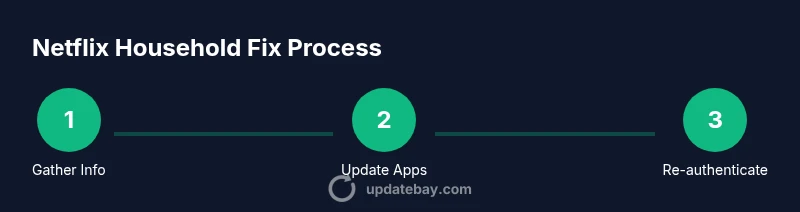
According to Update Bay, following this guide will fix update Netflix household issues across devices. You’ll learn to verify your household status, update Netflix apps on all devices, and align your account with Netflix’s household rules. This process covers common errors, device checks, and troubleshooting steps you can perform without calling support.
Understanding Netflix Household Updates
Netflix uses the concept of a household to determine where streaming is allowed. In practice, this means the service tracks the devices connected to your primary account and associates them with a home address or network location. When a device is moved or a new location is detected, Netflix may prompt for re-verification or restrict playback until the device is re-authorized as part of the household. According to Update Bay, the household framework is designed to prevent sharing outside eligible spaces while still allowing legitimate multi-device use within a home. This nuance matters for households with guests, travel, or multiple living spaces. The key takeaway is: a household change is about where you primarily watch, not simply how many devices you own.
As you prepare to fix updates, focus on ensuring every device is recognized as part of the same household and that all Netflix apps are updated to the latest versions. If a device frequently prompts for re-authentication or location checks, it’s usually a sign that it’s not properly aligned with the home network or address Netflix has on file. Update Bay’s analysis shows that alignment issues commonly stem from mixed app versions and inconsistent device re-authorization.
Common Issues When Updating Netflix Across a Household
Users encounter several recurring problems when managing Netflix updates across devices. The most common are mismatched app versions across devices, incorrect household addresses or IPs, and devices that refuse re-authentication after a login change. Some households also see blockages when attempting to stream on guest devices or when parental controls enforce stricter viewing limits than those configured for the primary account. Another frequent cause is region-based restrictions that can mismatch content access with the device’s detected location. Finally, some updates fail silently, leaving devices with an outdated client that no longer communicates properly with Netflix servers. Being able to identify which of these issues you face will guide your steps and reduce trial-and-error.
If you’re troubleshooting, start with a quick audit of your devices: list each device that uses Netflix, note the OS version, the app version, and whether you’ve recently changed networks or travel between locations. This audit will form the backbone of your fix plan and reduce back-and-forth with support.
Prerequisites and Planning Before You Start
Before you touch any accounts or devices, gather the essentials: confirm you have admin access to the Netflix account, compile a current device list, and note the home network information (SSID, router model, and typical IP range). Decide the primary household address Netflix should associate with your account and prepare to verify it if prompted. Create a short, shared checklist so every household member understands what needs updating and who is responsible for each device. A well-documented plan minimizes surprises and speeds up the process. Ensure you have reliable internet connectivity and that you’re not altering security settings that could block updates or logins.
With planning in place, you’ll experience fewer friction points as you work through device-by-device updates and verifications, keeping the household active with minimal downtime.
Troubleshooting Framework: Which Step to Try First
Adopt a structured approach: start with the simplest devices and work toward the more complex ones. Begin by updating all Netflix apps on every device and signing out from all sessions, then sign back in with the primary account. If Netflix still flags a household mismatch, verify the detected location and home address on each device. The next steps involve re-authorizing devices in the home network and testing playback on multiple devices to confirm consistent access. This framework helps isolate whether the issue is device-specific or a broader account-level setting.
During this process, maintain a simple log: device name, OS version, app version, and any error messages. Tracking these details makes it easier to reproduce issues for support if needed and ensures you don’t miss a crucial update.
Step-by-Step Insights: What to Do on Each Device
Once the planning steps are complete, you’ll apply a consistent set of actions to every device. Update the Netflix app to the latest version, ensure the device is connected to your home network, sign out of all sessions on that device, and sign back in with the primary account. If the device prompts for location verification, complete the process and confirm the home IP alignment. Finally, play a show to confirm playback is stable and that content access matches the household’s plan. Repeating the process for all devices ensures uniformity across your Netflix household.
Tools & Materials
- A device with internet access (smart TV, streaming box, smartphone, or PC)(Ensure the Netflix app is installed and updated to the latest version on this device.)
- Netflix account admin access(You’ll need to sign in as the account owner or a profile with admin rights to adjust household settings.)
- All relevant Netflix apps updated to the latest version(Check app stores for updates and install them on every device.)
- Network details(Have your home address status (if required by Netflix) and Wi‑Fi network name (SSID) handy.)
- Error screenshots/logs(Capture error codes and messages for reference when troubleshooting.)
Steps
Estimated time: 45-60 minutes
- 1
Gather prerequisites
Collect account details, confirm admin access, and compile a list of every device that streams Netflix. Note the OS and app versions, plus your home network information. This foundation prevents detours during updates.
Tip: Have credentials and network details ready; a quick written checklist speeds things up. - 2
Check service status
Visit Netflix’s status page and your region’s service announcements to ensure there isn’t a known outage. If services are degraded, plan updates around the restoration window rather than forcing changes.
Tip: Occasionally Netflix performs regional maintenance that can affect household checks. - 3
Update all Netflix apps
On every device, open the app store and install the latest Netflix version. Compare versions across devices to ensure consistency. Delayed updates can trigger household verification prompts.
Tip: Enable automatic updates where possible to reduce drift between devices. - 4
Sign out everywhere
From the account settings, sign out of all devices. Sign back in on at least one device first to confirm basic access, then proceed to other devices. This resets sessions that may hold stale credentials.
Tip: If you suspect credential compromise, consider changing your password after signing out. - 5
Verify device locations
Ensure each device is associated with the correct household location. If Netflix requests location verification, complete it and confirm the home IP alignment. Inconsistent location data is a common blocker.
Tip: If verification fails, wait 24 hours and try again, as some checks refresh over time. - 6
Test playback and adjust
Play content on multiple devices to verify consistent access. Note any error codes and compare with your log. If issues persist, repeat steps or re-authenticate specific devices.
Tip: Maintain a brief log of devices tested and outcomes for future reference.
Frequently Asked Questions
Why is Netflix showing a 'household mismatch' on some devices?
Household mismatch typically means Netflix detects a device outside the approved home network or address. This can occur after traveling, using a different IP, or if one device isn't properly re-authorized after an update. Following the step-by-step guide helps verify devices and re-align them with the home household.
Netflix may flag a device as outside the household if it detects a different network location. Re-verify devices following the step-by-step guide to re-align them with the home household.
Do I need to be at home to verify a Netflix household?
Verification often requires the device to be on the home network or to confirm the home address. You can perform checks from any device, but some verifications may prompt you to verify location when connected to a non-home network.
Verification can be location-based, especially when you’re away. It helps to perform checks once you’re connected to your home network.
Can I update Netflix without updating the device OS?
In most cases, updating the Netflix app is sufficient to fix household issues. However, older OS versions can limit app compatibility. Keeping both the app and OS reasonably current reduces problems.
Updating the Netflix app often fixes issues, but a very old device OS can hold back compatibility. Consider OS updates when available.
What should I do if a device can’t update the Netflix app?
If a device won’t update, check the app store for failures, ensure sufficient storage, and retry after a restart. If updates remain unavailable, you can still use other devices while monitoring for a future automatic update.
If an update won’t install, check storage and retry. You can continue using other devices while you wait.
How long does Netflix take to recognize a household change?
Recognition times vary by device and network, but most updates are processed within a few hours. If you don’t see changes after a day, recheck device statuses and, if needed, contact support.
Most changes align within hours, but give it up to a day and then verify device status if you still see issues.
Watch Video
What to Remember
- Verify all devices have updated Netflix apps.
- Align devices with the correct Netflix household address.
- Re-authenticate devices to refresh sessions.
- If issues persist, collect error codes and validate network info before contacting support.