How to Update Python Safely in 2026
A comprehensive, step-by-step guide to updating Python across Windows, macOS, and Linux, with safe practices, environment management, and troubleshooting for 2026.


By the end of this guide, you will be able to update Python on Windows, macOS, or Linux, verify the new version, and ensure your projects keep running smoothly. You’ll learn to choose the right update path (official installer, package manager, or a version manager), handle multiple Python versions, and test environments after upgrading. Basic prerequisites: internet access, admin rights, and a backup plan.
Why keeping Python up to date matters
Staying current with Python reduces security risks, improves performance, and ensures compatibility with modern libraries. The Update Bay team has observed that environments using the latest Python interpreters tend to experience smoother dependency resolution and fewer surprises after patch releases. For developers and power users, updating Python is a foundational maintenance task that pays off with fewer runtime issues and better toolchain support. In practical terms, you’ll benefit from improved syntax features, better stdlib modules, and ongoing security patches. As you learn how to update python, remember that some projects depend on specific versions; plan updates in a controlled way to minimize disruption.
Prerequisites and safety considerations
Before you start updating Python, confirm you have a reliable internet connection and administrator or root access on your machine. Create a backup of important projects and virtual environments, and note down installed packages that your apps rely on. If you use virtual environments, consider updating the base interpreter first and then recreating environments to avoid path mismatches. Finally, be mindful that some system-level Python versions are tied to your operating system’s package manager; altering them can affect system tools. With these precautions, you’re ready to proceed.
Choosing the update path: official installers, package managers, or version managers
There isn’t a single universal method for how to update python across all platforms. On Windows, the official Python installer is typically the simplest path, offering a guided upgrade with PATH options. On macOS and Linux, package managers (Homebrew, apt, dnf, pacman) or a version manager like pyenv provide flexibility for multiple Python versions. If you regularly juggle versions across projects, a version manager can reduce conflicts and preserve project-specific runtimes. The key is to pick a method that aligns with your workflow and test thoroughly after upgrading. This decision will shape the rest of your steps.
Windows: update Python using the official installer
Windows users usually update Python by downloading the latest installer from python.org and running it. The installer offers an Upgrade Now option, and you should ensure that “Add Python to PATH” is checked so your command prompts pick up the new version automatically. You may choose to install for all users or just for your account. After installation, open a new Command Prompt and run python --version and pip --version to confirm the upgrade and that the package manager is working.
macOS: update Python with Homebrew or the official installer
macOS users have two clean paths. If you use Homebrew, you can run brew update followed by brew upgrade python to install a newer interpreter while keeping your system Python intact. If you prefer the official installer, download the macOS package from Python.org and run the installer, which will place the new version in /usr/local/bin. After installation, launch a new terminal and verify python3 --version to confirm the upgrade. If you rely on projects with specific Python versions, consider using pyenv to manage versions more cleanly.
Linux: update Python using your distro’s package manager
On Linux, updating Python typically goes through the distro’s package manager (apt for Debian/Ubuntu, dnf for Fedora, pacman for Arch). Always run the update command for your package index first (e.g., sudo apt update) and then install the python3 package or the desired version. Note that some distributions treat Python 3 as a core system component; installing a newer interpreter won’t automatically replace the system Python. Afterward, verify the new version with python3 --version and update pip if necessary.
Verifying the update and migrating environments
After installing or upgrading Python, verify the new version from a fresh terminal session: python3 --version and pip3 --version. If you rely on virtual environments, recreate them with the new interpreter to ensure compatibility. For projects using requirements.txt, reinstall dependencies inside the updated environment to ensure compatibility with the newer interpreter and stdlib changes. Document the upgrade so teammates and future you understand the change history.
Dealing with multiple Python versions and virtual environments
Using multiple Python versions is common for development. Tools like pyenv (or as an alternative, the system package manager in combination with virtual environments) let you install and switch between interpreters without breaking existing projects. Create per-project virtual environments with the new interpreter and explicitly specify the Python version when creating them. This approach minimizes disruption and preserves the stability of critical workflows.
Troubleshooting common issues and rollback options
If an update causes issues—such as missing modules, incompatible dependencies, or broken scripts—don’t panic. First, check the interpreter path used by your environment, then verify that dependencies are compatible with the new version. If needed, revert to the previous Python version using your version manager or reinstall the older interpreter. Maintain backups and a changelog of installed packages to simplify rollback and troubleshooting.
Tools & Materials
- Internet connection(Stable connection to download installers or packages)
- Admin/root access(Needed to install system-wide Python or modify PATH)
- Python installer or package manager(Windows: official installer; macOS/Linux: Homebrew/apt/dnf/pacman; optional: pyenv)
- Virtual environments tool(venv (built-in) or virtualenv for managing per-project environments)
- Backup plan(Backup important projects and a list of dependencies)
- Terminal or Command Prompt(Access to run commands for version checks and upgrades)
- Optional: pyenv or Anaconda(Useful for managing multiple Python versions)
Steps
Estimated time: 25-45 minutes
- 1
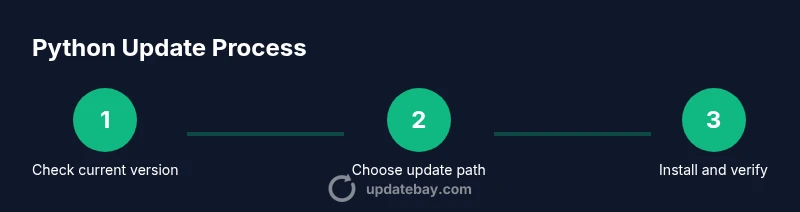
Check current Python version
Open your terminal or Command Prompt and run python3 --version (or python --version on some systems) to identify the current interpreter. This establishes a baseline before upgrading and helps you verify the update later.
Tip: If multiple versions exist, note which is used by your projects and decide whether to update the system Python or only user-local versions. - 2
Decide update path
Choose the update path that fits your setup: official installer on Windows, Homebrew or official installer on macOS, or your distro’s package manager on Linux. A version manager like pyenv can simplify handling multiple versions.
Tip: For project stability, consider upgrading with a per-project interpreter rather than changing the global default. - 3
Prepare for installation
Close active projects and open a clean terminal session. Ensure you have a current backup and a list of essential packages to reinstall if needed. Confirm you have admin rights and that your environment is ready for a short downtime.
Tip: Run a quick dry-run if your installer supports it to preview changes without applying them. - 4
Update on Windows using the official installer
Download the latest Windows Python installer. Run it and select Upgrade Now, ensuring Add Python to PATH is checked. Complete the prompts and allow the installer to finish. Open a new shell to verify the update with python --version.
Tip: If you rely on 32-bit vs 64-bit, choose the matching installer to avoid compatibility issues. - 5
Update on macOS using Homebrew or the official installer
If using Homebrew, run brew update && brew upgrade python. If using the official installer, download and run the macOS package from Python.org. After install, verify python3 --version and ensure your PATH points to the new interpreter.
Tip: If you manage multiple Python versions, consider pyenv to keep macOS defaults untouched. - 6
Update on Linux using the distro package manager
For Debian/Ubuntu, run sudo apt update && sudo apt install -y python3. For Fedora, sudo dnf update && sudo dnf install -y python3. Use the distro’s recommended commands and then confirm with python3 --version.
Tip: Some distros keep system Python as a separate binary; avoid removing core packages unless you’re sure of compatibility. - 7
Migrate and verify virtual environments
Recreate per-project virtual environments with the new Python interpreter and reinstall dependencies from requirements.txt. Ensure your scripts use the updated interpreter path. Run a quick test script to validate core functionality.
Tip: Document the interpreter path per project to prevent future confusion. - 8
Handle multiple versions with a version manager
If you need to keep multiple versions, install a version manager (like pyenv) and switch between interpreters as needed for different projects. Create a global default and per-project local versions.
Tip: Always configure your IDE/editor to use the project’s interpreter for consistency. - 9
Troubleshooting and rollback
If issues arise, verify PATH, examine installed dependencies, and consider rolling back to the previous Python version using the same method you used to install the update. Restore from backups if necessary and re-test.
Tip: Keep a changelog of installed packages and versions to ease rollback decisions.
Frequently Asked Questions
What is the safest way to update Python without breaking my projects?
Isolate changes with per-project virtual environments and, when possible, use a version manager to keep global and project runtimes separate. Test critical workflows after upgrading and maintain a rollback plan.
Use per-project virtual environments and a version manager to minimize disruption, then test your key workflows after upgrading.
Should I update Python if the latest version has breaking changes?
Assess the impact on dependencies and your codebase. If needed, pin to a compatible version for critical projects and update gradually, starting with non-production environments.
If breaking changes affect your code, proceed slowly in non-production environments and plan for dependency updates.
Can I have multiple Python versions installed at once?
Yes. Tools like pyenv or conda environments make managing multiple Python versions straightforward without breaking system tools.
Absolutely—use a version manager to run multiple Python versions side by side.
What about Python's pip and package manager after an update?
Update pip to the latest compatible version and reinstall dependencies within each new environment to ensure compatibility with the new interpreter.
Update pip and reinstall dependencies inside each new environment after updating Python.
How do I update Python on Linux if I’m not root?
Ask your system administrator to install a user-local Python or use a version manager that operates in your home directory. Avoid modifying system-wide Python without privileges.
If you’re not root, use a user-local approach or ask admin to install an updated version for you.
Watch Video
What to Remember
- Check current version before upgrading
- Choose an OS-appropriate update path
- Recreate and test virtual environments after upgrade
- Use version managers to manage multiple Python versions
- Document upgrade steps and keep backups