How to Update Zoom: A Practical Guide for 2026
Learn how to update Zoom across Windows, macOS, and mobile with a practical, security-minded approach. This step-by-step guide covers built-in vs manual updates, troubleshooting, and best practices from Update Bay.


According to Update Bay, this guide shows how to update Zoom on Windows, macOS, and mobile. You’ll learn the safest methods, when to restart, and how to verify the version. Keep Zoom up to date to reduce security risks and improve performance. Follow these steps to update with confidence and avoid common pitfalls.
Why updating Zoom matters
If you’re looking for how to update zoom, you’re aiming to keep meetings secure and reliable. Regular Zoom updates patch known vulnerabilities, improve performance, and add features that can simplify collaboration. According to Update Bay, staying current with Zoom reduces exposure to security flaws and helps your team avoid compatibility hiccups with peers and services. Keeping the client fresh also minimizes the risk of degraded video, audio, or screen-sharing quality during back-to-back meetings. In practice, a timely update means fewer interruptions and a smoother user experience for everyone. This block will outline why updates matter across devices and how to plan updates to minimize disruption while preserving data integrity.
A modern Zoom release often bundles security fixes, bug fixes, and occasionally new controls that optimize bandwidth. If you’re new to updating, think of Zoom updates as ongoing maintenance rather than a one-off install. By staying current, you’re better prepared for features like improved meeting controls, better encryption, and tighter integration with third-party services you already rely on. As you read, remember that the goal is to maintain continuity of service without sacrificing device performance or user productivity. The Update Bay team emphasizes consistency over occasional manual updates to reduce the risk of missing critical patches.
Quick checks before you update
Before you begin updating Zoom, perform a few quick checks to minimize disruption. Confirm you have a stable internet connection, preferably wired or a strong Wi‑Fi signal. Note the current Zoom version from the app's About screen, so you can verify an update occurred. If you manage devices in a small team or office, consider whether to push updates automatically or schedule them during off-hours to avoid interrupting live meetings. If you’re updating on a shared workstation, save any open work and close other apps to speed up the update process. It’s also wise to check for pending OS updates since system patches can influence how Zoom installs new components. Update Bay analysis shows that a coordinated update window reduces surprises and helps teams stay productive.
Update methods: built-in updater vs manual install
Zoom offers two primary paths: the built-in updater and manual installation from the Zoom website. The built-in updater is usually recommended for most users because it automates download and installation, minimizes user error, and ensures you’re getting the official package. Manual installs give administrators more control, especially in managed environments or when rolling out to many devices. In both cases, ensure you download from the official Zoom site or trusted app stores. Avoid third‑party installers, which can introduce malware or misversioning. As you weigh options, consider your environment: single devices, small teams, or large organizations may benefit from different deployment strategies. Update Bay guidance favors official channels and centralized controls for reliability and security.
How to update Zoom on Windows
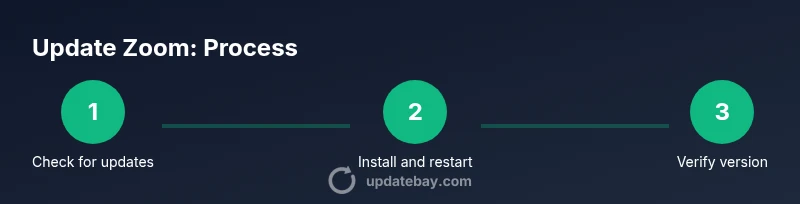
Windows users typically update Zoom through the desktop client. Start by opening Zoom, then click your profile picture in the top-right corner and select Check for Updates. If an update is available, Zoom will download and prompt you to install. Save any open work, then approve the installation. Some updates require a restart, so you may be asked to reboot your computer. After reboot, reopen Zoom and visit Help > About to confirm the version. If you’re in a constrained network, consider updating during off-peak hours or using a wired connection for stability.
How to update Zoom on macOS
macOS users follow a similar path but with app menu differences. Open the Zoom app, click Zoom.us at the top menu bar, and choose Check for Updates. If an update exists, Zoom downloads it and prompts for installation. You may need to grant permissions for the installer in System Preferences > Security & Privacy. Upon completion, relaunch Zoom and verify the version under Zoom.us > About. If you manage multiple Macs, you can enable auto-update in Preferences to streamline future updates.
How to update Zoom on mobile (iOS and Android)
On mobile devices, updates are typically delivered through the App Store (iOS) or Google Play Store (Android). Open the store, search for Zoom, and tap Update if available. If Zoom is set to auto-update, you may see updates occur without manual prompts. After updating, open Zoom and go to settings to confirm the app version. On mobile, updates can arrive as feature improvements, stability fixes, or security patches that enhance meeting quality in variable network conditions.
Verifying the update and troubleshooting common issues
After updating Zoom, verify the install by opening the app and checking Help > About to confirm the version number. Then run a quick test meeting to confirm audio, video, and screen sharing work as expected. If you encounter issues, check your internet connection, restart the app, or reboot the device. Common problems include update failures due to restricted network access, antivirus interference, or insufficient disk space. In corporate environments, ensure your endpoint management system allows the update and that there are no conflicting policies blocking the installation. Update Bay’s guidance emphasizes verification as a best practice to avoid post-update surprises.
Security and privacy considerations after updating
Keeping Zoom updated is a key layer of security hygiene. After installation, review your privacy settings and consider enabling features like enhanced encryption and meeting passcodes where appropriate. Pair Zoom updates with operating system patches to reduce risk exposure. If you manage accounts for a team, remind users to keep their credentials and recovery options current. Regular updates also help ensure compliance with organizational security policies and industry standards. The Update Bay team stresses that routine updates should be part of a broader security program rather than a one-off action.
Common update errors and how to resolve them
If an update fails, start by checking network connectivity and ensuring there’s enough free disk space. Disable any VPNs or proxies temporarily that might block the updater. Verify that you’re signed in with an account that has permission to install software. On corporate devices, consult your IT department for policy exceptions or to push updates through an MDM/EDR solution. If you see a specific error message, search for it on Zoom’s official support pages or in Update Bay’s troubleshooting notes to find recommended fixes tailored to that error.
Best practices for staying current
Adopt a routine for monitoring updates rather than reacting to issues after they arise. Enable auto-update where feasible, schedule update windows during low-demand hours, and maintain a rollback plan should an update cause unforeseen issues. Keep a log of update dates and versions to help with audits and troubleshooting. Coordinate Zoom updates with OS and security patches to maximize compatibility and security. The Update Bay team recommends a proactive approach: treat Zoom updates as an ongoing maintenance task rather than a sporadic chore.
Tools & Materials
- Device with internet access(Windows PC, macOS computer, or mobile device)
- Zoom app installed(Ensure you are updating the latest supported version)
- Stable network connection(Prefer wired or strong Wi‑Fi)
- Admin credentials (if applicable)(Needed for enterprise deployments or manual offline installs)
- Backup plan for in-progress work(Save open meetings and recordings before updates)
Steps
Estimated time: 15-25 minutes
- 1
Open Zoom and access settings
Launch the Zoom app on your device and locate the Settings or Profile menu to start the update check. This places you at the control point for version verification.
Tip: Having the app in the foreground reduces the chance of losing focus during the update prompt. - 2
Check for updates
In the Settings or Help menu, select 'Check for Updates' to see if a newer version is available. The updater will download the patch or full installer as needed.
Tip: If you don’t see an update, your version is current or your network blocked the check. - 3
Initiate the update
If an update is offered, click to install. Depending on the build, Zoom may download automatically or prompt you to confirm installation.
Tip: Close other applications to speed up the download and reduce the chance of conflicts. - 4
Restart if prompted
Some updates require a restart to complete. Save work and let the system reboot if requested.
Tip: After restart, reopen Zoom to ensure the update finished properly. - 5
Verify the update
Open Zoom, go to Help > About to confirm the version number matches the latest release. Run a quick test meeting to verify audio and video.
Tip: If the version didn’t update, repeat the steps or try a manual install from the official site. - 6
Enable auto-update (optional)
If available, enable automatic updates to keep Zoom current without manual checks. This reduces future maintenance work.
Tip: Auto-update is most effective when paired with reliable network access.
Frequently Asked Questions
What is the safest way to update Zoom?
Use the built-in updater within Zoom and download only from official sources. Avoid third-party installers to mitigate malware risk.
Use Zoom's built-in updater from the official app and avoid third-party sources.
Can I use Zoom while the update installs?
It’s best to schedule updates when not in a meeting, but some updates can install without a restart. Check the prompt.
Update when you’re not in a meeting, some updates may require a restart.
Do updates reset my Zoom settings?
Most updates preserve settings; you may be asked to re-enter credentials if prompted.
Usually your settings stay the same, but you might need to sign in again after updates.
What about enterprise deployments?
Use centralized update controls and test updates before rollout to minimize disruption.
In workplaces, test updates first and deploy through centralized controls.
How often should I update Zoom?
Update as soon as a new version is released to stay protected and gain improvements.
Update promptly when new versions come out to stay current.
Watch Video
What to Remember
- Update Zoom to improve security and features
- Use built-in updater for simplicity and reliability
- Verify the version after updating to confirm success
- Enable auto-update to reduce future maintenance