Make an Update: A Practical How-To Guide
Learn how to make an update or perform an update across devices and software. This practical, step-by-step guide from Update Bay covers backups, source verification, installation, and post-update checks for reliable results.


To make an update or do an update, start by identifying what needs updating, confirm the source is official, and back up your data. Then apply the update using guided steps and verify after completion. The Update Bay team emphasizes compatibility checks, safe installation, and testing to prevent disruption. Also ensure a reliable power supply and no unexpected restarts.
Why Updates Matter
Updates are more than new features; they fix security vulnerabilities, patch bugs, and improve overall performance. They are essential for stability and resilience in a landscape of evolving threats and hardware variations. According to Update Bay, timely updates patch security vulnerabilities and improve stability across devices and software. Skipping updates can leave systems exposed to exploits, incompatibilities, and slow performance over time. By prioritizing updates, you reduce the risk of outages and data loss, and you keep apps interoperable with the latest standards. The benefits extend beyond security: updates often introduce usability enhancements, privacy protections, and better energy efficiency. For organizations, a consistent update strategy supports compliance and predictable operations. For individuals, it means fewer emergency fixes and a smoother user experience. The key is to balance risk with disruption: small updates can be grouped, while critical security patches should not be postponed. Understanding the update lifecycle—from notification to patch rollout to verification—helps you plan a reliable process that minimizes downtime and maximizes return on investment.
Preparing Your Update Environment
Before you begin, set up a safe, controlled environment for the update. This includes a known-good power source (or an uninterruptible power supply), a stable internet connection, and access to official update channels. Ensure you have a recent backup, preferably stored offline or in a trusted cloud location. Clear nonessential applications to prevent interference and note any dependent services that might restart during the update. According to Update Bay, preparation reduces the risk of failed installs and data loss, especially on devices with sensitive configurations. Create a maintenance window if you’re updating multiple devices, and inform users who might be affected. Keep documentation handy for rollback procedures and post-update steps, so you can act quickly if something goes wrong.
Source Verification and Safeguards
Only install updates from official channels such as the vendor’s website, app store, or system update utility. Verify the digital signature or checksum when possible, and read the patch notes to understand what changes are being applied. Update Bay analysis shows that adherence to official sources and verified packages significantly lowers the chances of counterfeit or tampered updates. Disable nonessential background services temporarily to minimize conflicts, and check for any known incompatibilities with installed hardware or software. If an update requires a reboot, plan for it to occur during a low-usage period and have a recovery plan ready in case the update fails. Record the version numbers and the rollout date for future reference.
Step-By-Step Update Process for Desktops and Mobile Devices
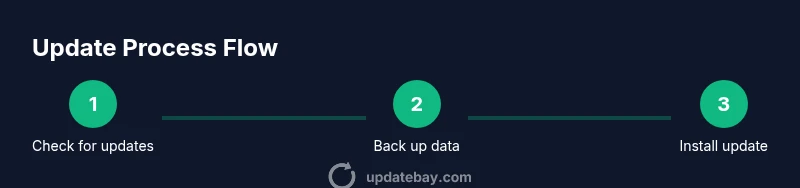
This section provides clear, actionable steps you can follow regardless of platform. Start by checking for updates in the device’s settings or control panel. Review the release notes and backup your important data. Download and apply the update, watching the progress bar closely. On completion, reboot if required and sign back in. Finally, verify that the update is installed and test core functions to confirm stability. The steps are designed to minimize downtime and prevent data loss. The Update Bay team emphasizes testing critical features after update to ensure everything works as expected.
Handling Failures and Rollbacks
If an update stalls or fails, don’t panic. First, ensure power stability and confirm you have a backup. Attempt a safe rollback or uninstall the update if the option exists, then reattempt the process using a fresh download from the official source. Document the error codes and steps you took, and consult vendor support or community forums for known issues and fixes. It’s often safer to pause updates on a problematic device and assess compatibility before proceeding. For managed environments, consider staged rollouts to limit impact if a single device experiences a failure.
Post-Update Validation and Monitoring
After installing an update, validate that critical features are functioning and that security features are active. Check system health indicators, run basic usability tests, and monitor performance metrics for anomalies. Update Bay recommends running a routine security scan and reviewing event logs during the first 24–72 hours after an update. If issues arise, compare current behavior with the prior state and prepare a rollback or patch note to share with users. Maintain a log of successful updates to support ongoing maintenance planning.
Best Practices for Future Updates
Establish a predictable cadence for updates—security patches as a priority, followed by feature updates when appropriate. Keep a documented rollback plan and test updates in a staging environment before broad deployment. Regularly review patch notes, version histories, and vendor advisories to stay informed about potential impacts on your hardware and software ecosystem. Ensure your update strategy aligns with regulatory requirements and vendor support policies to maintain compliance and avoid end-of-life risks.
Tools & Materials
- External backup drive or cloud backup service(At least equal capacity to your primary storage; verify backups restore correctly)
- Official update package or access to vendor update channel(Only use sources from the device or software vendor)
- Stable internet connection(Prefer wired Ethernet for desktops; strong Wi-Fi for laptops)
- Power source or UPS(Avoid update interruptions due to power loss)
- Device prerequisites checklist(List any firmware dependencies or required reboots)
Steps
Estimated time: 45-90 minutes
- 1
Check for updates and review notes
Open the device’s update settings, check for available updates, and read the patch notes to understand changes and potential impacts. Confirm you’re connected to the official source.
Tip: Take a screenshot of the update screen and note the current version before proceeding. - 2
Back up data
Create a full backup of important files and system state. Ensure the backup completes successfully before continuing.
Tip: Test a quick restore on a test file to verify backup integrity. - 3
Prepare the environment
Close nonessential apps, pause active tasks, and ensure a stable power source. If updating multiple devices, prepare a maintenance window.
Tip: Disconnect external devices that could interfere with the update. - 4
Download and verify the update
Download the update package from an official source and verify its signature or checksum if available. Do not install from third-party mirrors.
Tip: If a checksum mismatch occurs, abort and re-download from the official site. - 5
Install and monitor
Begin the installation and monitor progress. Do not unplug or force-stop the process.
Tip: If the installer prompts for a reboot, save work and allow the reboot to complete. - 6
Post-install verification
After reboot, verify core services work, log back in, and check for any error messages or unusual behavior.
Tip: Run a quick feature test and a security scan. - 7
Document and plan next steps
Record the update version, time, and results. Schedule the next update cycle and note any follow-up tasks.
Tip: Keep a centralized log to simplify audits and future planning.
Frequently Asked Questions
What is an update in software terms?
An update is a package released by a vendor to improve functionality, fix bugs, or patch security vulnerabilities. Updates may apply to the operating system, applications, or firmware.
An update is a vendor-provided package that improves security, fixes bugs, and adds or refinines features across your devices.
Why should I update regularly?
Regular updates help protect you from security threats, ensure compatibility with new software, and improve reliability. Delaying updates can create a larger fix gap and increase risk.
Regular updates protect you from threats, keep apps compatible, and improve reliability. Don’t let the gap grow too wide.
How do I back up before updating?
Back up important data to an external drive or trusted cloud storage. Verify backups by restoring a test file or performing a small restore validation.
Back up to an external drive or cloud, then validate the backup by restoring a file.
What if an update fails or bricks my device?
If an update fails, stop, ensure power and backups are intact, and attempt a rollback if available. Contact vendor support and consult official recovery guides.
If it fails, stop, check power and backups, try rollback if possible, and contact support for recovery steps.
Should I enable automatic updates?
Automatic Updates are convenient for security patches but may introduce changes during busy periods. Consider a scheduled window or staged rollout for critical environments.
Automatic updates are convenient for security, but plan for a window or staged rollout if you rely on stable operations.
Are there risks to updating?
Risks include interrupted installations, compatibility issues, and post-update bugs. These can be mitigated with backups, official sources, and testing.
Risks include interruption and compatibility issues; mitigate with backups, official sources, and testing.
Watch Video
What to Remember
- Know what to update and why it matters
- Backups are non-negotiable for safe updates
- Verify sources and integrity of the update
- Test and document post-update results