How to Update Steam: A Practical Step-by-Step Guide
Learn how to update the Steam client across Windows, macOS, and Linux, enable automatic updates, verify game files, and troubleshoot common issues with practical, step-by-step instructions from Update Bay.


Update Steam keeps your client secure, stable, and compatible with your games. This guide shows you how to update the Steam client on Windows, macOS, and Linux, enable automatic updates, and verify game files. By following these steps, you’ll minimize downtime and keep your library running smoothly. You’ll learn quick checks and when to seek help.
Why Keeping Steam Updated Matters
Keeping the Steam client current is essential for security, compatibility, and access to new features. When Steam is up to date, you benefit from performance improvements, bug fixes, and the latest patch handling for games you own. According to Update Bay, staying current with Steam updates helps reduce exposure to known vulnerabilities and improves compatibility with newly released titles. The Update Bay team found that users who enable automatic updates report fewer manual maintenance tasks and smoother launches, especially after major game patches. This section explains the why behind updates, so you approach maintenance with a clear purpose and realistic expectations. You’ll also learn practical checks you can perform without disrupting your daily gaming routine.
Key reasons to keep Steam updated:
- Security improvements and bug fixes
- Access to new features and better game compatibility
- Improved launcher stability and patch management
- More reliable background updates during gameplay
Understanding these factors helps you plan updates during low-usage windows and avoid unnecessary downtime. It also sets the stage for the practical steps that follow.
Supported Platforms and Update Mechanisms
Steam supports Windows, macOS, and Linux, and each platform has a slightly different update flow, though the core principle remains: keep the client current to ensure optimal performance. On all platforms, the Steam client checks for updates automatically and downloads needed patches in the background when you have a live internet connection. Some Linux distributions may leverage the system package manager for initial Steam installation, but Steam’s own updater handles most client updates once installed. If you’re troubleshooting, a quick orientation on platform-specific differences can save time and prevent missteps. For example, Windows users often see update prompts in the Steam menu, while macOS users might rely more on automatic updates triggered by the app. Linux users may also need to confirm updates through their distro’s app center or Steam’s own updater.
Best practice: ensure your time zone and network settings allow Steam to reach its update servers without interruptions. In all cases, having a stable internet connection is more important than speed, since partial downloads can leave the client in a fragile state until the next restart. This section helps you tailor the next steps to your system.
How to Update Steam on Windows
Windows users primarily rely on Steam’s built-in updater. Start by opening the Steam client and logging in with your account. If an update is available, Steam will automatically download and install it in the background; you’ll see a progress bar in the client’s status area. If the updater doesn’t start on its own, you can force an update by clicking Steam > Check for Steam Client Updates. If you encounter issues, verify your network connection, temporarily disable VPNs or proxies, and run Steam as an administrator to bypass permission bottlenecks. After updating, restart Steam to ensure all components load correctly. If you maintain a large library, consider placing Steam on a fast drive to speed up patch downloads and minimize waiting times.
Practical tips for Windows:
- Prefer a wired Ethernet connection for large updates
- Disable bandwidth limits in Steam’s Downloads settings during updates
- Keep game data backed up before major patches to mitigate potential corruption
Why this matters: Windows users often experience permission-related hiccups or blocked updates; running as admin and ensuring a stable connection reduces these problems.
How to Update Steam on macOS
Mac users typically receive Steam updates through the same in-app updater. Open Steam and look for a notification or a prompt indicating a client update is available. If you don’t see a prompt, select Steam > Check for Steam Client Updates. On macOS, ensure Gatekeeper settings don’t block the updater and that you have sufficient disk space for a smooth download and install. If an update stalls, quitting Steam and reopening the client can clear transient errors. For users with multiple Steam libraries, consider choosing a fast, reliable drive for the Steam data path to speed up patch delivery and reduce load on the main system drive.
macOS-specific tips:
- Allow Steam in Security & Privacy settings if prompted
- Close all other apps to free resources during updates
- Use a stable network connection, preferably wired when available to avoid Wi-Fi interruptions
Consistency across platforms matters: once a client update completes, relaunch Steam and verify you’re on the latest version by checking Steam > About (or the splash screen).
Note: Regularly cleaning up old temporary files can prevent stale data from interfering with updates, especially on older Macs.
How to Update Steam on Linux
Linux users may encounter a slightly different path because some distros use the package manager for initial Steam installation, while the Steam client updater handles the rest. Start Steam and use Steam > Check for Steam Client Updates as with Windows/macOS. If updates don’t appear, verify your internet connection, and ensure your firewall allows Steam traffic. For some distributions, you might also need to install Steam from your distro’s repository or enable 32-bit libraries to support certain games and the Steam client. If you rely on Steam Play or Proton, ensure those components are kept current too, as they affect game compatibility after updates. Linux updates can be script-driven or automated during system maintenance windows.
Linux best practices:
- Ensure Steam has the necessary permissions to write to its install directory
- Periodically clean up old cache and temporary files to keep updates lean
- Consider enabling a nightly or weekly maintenance window for routine updates to minimize in-game interruptions
With Linux, there’s more variability between distributions, but the core concept—update the client and related components—remains the same.
Verifying Game Files and Common Issues
After updating Steam, it’s smart to verify the integrity of game files to catch partially downloaded patches or corrupted data. In the Steam Library, right-click a game, select Properties > Local Files > Verify Integrity of Game Files. If verification detects missing or corrupted files, Steam will re-download only the affected data, which is faster than reinstalling the entire game. Common issues after updates include launcher crashes, slow patch downloads, or Steam becoming unresponsive during startup. In such cases, check your network stability, temporarily disable security software that might block Steam, and ensure Steam and your games are installed on a healthy disk with enough free space. If problems persist, you can reset the Steam download cache via Steam > Settings > Downloads > Clear Download Cache and sign back in.
Best-practice troubleshooting steps:
- Restart the computer after updates to ensure all services start cleanly
- Run Steam as an administrator (Windows) or with appropriate permissions (Linux/macOS) when troubleshooting permissions
- Check official Steam status pages or your distro’s software repositories for known issues during a release window
Because updates can interact with multiple subsystems (graphics, drivers, and game engines), a holistic approach helps. If one title exhibits repeated issues after update, review patch notes for that game and confirm compatibility with your current Steam version.
Automating Updates and Maintenance Best Practices
Automation reduces the cognitive load of keeping Steam up to date. Enabling automatic updates for the client and games means patches are applied with minimal manual intervention, allowing you to focus on playing. Schedule regular maintenance windows, preferably during off-peak hours, and ensure your PC has a reliable power source. For green-light automation, keep Steam’s settings to allow updates during gameplay, but if you frequently multitask, you may want to restrict updates to times when you are not actively gaming to prevent performance dips. From a broader perspective, adopting a routine reduces the risk of drift between the Steam client, the games you own, and the patch notes released by developers. Based on Update Bay research, consistent update habits help maintain a smoother gaming experience and fewer disruptive sessions caused by missing patches.
Maintenance checklist:
- Enable auto-updates for Steam and games
- Schedule a weekly check for available patches and driver updates
- Back up important libraries or verify backups after major updates
- Keep your antivirus and firewall configurations updated to avoid false positives that block Steam traffic
Long-term benefits include more predictable patch cycles and fewer surprises when you launch your next title. Proactive maintenance minimizes downtime and keeps your library ready for the next session.
Authority and References
For authoritative guidance on software updates and security best practices, consult reputable sources:
- Steam Support: https://store.steampowered.com/about/ and https://support.steampowered.com/
- National Institute of Standards and Technology (NIST) cybersecurity resources: https://www.nist.gov/topics/cybersecurity-framework
- The Verge coverage on PC software updates and launcher maintenance: https://www.theverge.com/ (general reference can be used to understand industry trends)
These references provide context on how major platforms manage updates and how users can approach maintaining up-to-date software across operating systems. Cross-reference these sources with Valve’s own Steam pages for the most accurate, platform-specific instructions.
Authority and References (continued)
Additional practical guides from major outlets can help you see common patterns across platforms. Always verify the current steps in Steam’s official help pages since interfaces evolve over time. This article synthesizes those best practices into a platform-agnostic workflow for update steam maintenance across Windows, macOS, and Linux.
Tools & Materials
- Stable internet connection(Prefer wired Ethernet for larger updates to avoid wireless interruptions)
- Steam client (latest version)(Download from https://store.steampowered.com/about/)
- Administrative access(Needed to install/update Steam and modify system settings when required)
- Backup drive or cloud backup(Back up game data before major updates to mitigate data loss)
- Power backup (UPS) or reliable power source(Prevents incomplete updates during power outages)
- Sufficient disk space(Ensure there is free space for downloads and patches)
Steps
Estimated time: 30-45 minutes
- 1
Open Steam and check for updates
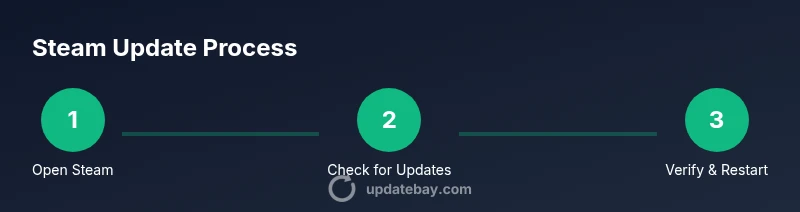
Launch the Steam client and sign in. If an update prompt appears, allow it to download and install. If no prompt shows, use Steam > Check for Steam Client Updates to force a check. This ensures you begin with the latest launcher before updating games.
Tip: If you see a stuck update, pause and resume or restart Steam to clear transient network glitches. - 2
Enable automatic updates
Navigate to Settings and enable automatic updates for the client and your games. This reduces manual maintenance and helps ensure patches are applied as they’re released.
Tip: Choose a quiet maintenance window if you play frequently during peak times. - 3
Update Steam on Windows manually if needed
If auto updates fail, open Steam and select Steam > Check for Steam Client Updates. Allow the client to update and restart when prompted.
Tip: Run Steam as administrator if you encounter permission errors. - 4
Update Steam on macOS
In Steam, go to Steam > Check for Steam Client Updates. If needed, quit and relaunch Steam after the update completes.
Tip: Verify macOS Gatekeeper permissions if asked during the update process. - 5
Update Steam on Linux
Update the Steam client via your distro’s package manager if required, or use Steam > Check for Steam Client Updates within the app. Ensure 32-bit libraries and dependencies are satisfied for your games.
Tip: Consult your distro’s documentation for any Steam-related dependencies. - 6
Verify game file integrity
In Steam Library, right-click a game > Properties > Local Files > Verify Integrity of Game Files. Steam will repair or replace corrupted files as needed.
Tip: Do this after large updates or patch-heavy sessions to catch anomalies early. - 7
Troubleshoot common issues
If updates stall, disable VPNs, firewall restrictions, or antivirus blocks for Steam, then reattempt. Clear Steam’s download cache if necessary, and ensure your network is stable.
Tip: Avoid turning off security software permanently; re-enable protections after updating. - 8
Final checks and routine maintenance
Restart your computer, reopen Steam, and confirm you’re on the latest client version. Monitor for any post-update issues and apply any follow-up patches if released.
Tip: Set a recurring reminder to review patch notes weekly so you stay aware of changes.
Frequently Asked Questions
Do I need admin rights to update Steam?
Yes, admin rights are typically required to install updates on Windows and macOS. Linux users may need root privileges for some operations.
Yes, you usually need admin rights to run Steam updates, especially on Windows and macOS.
Can Steam update while I'm playing a game?
Steam can update in the background, but some actions may require restarting the client or pausing gameplay. Updates often occur without forcing a quit.
Updates often run in the background, but you may need to restart the client after an update.
What should I do if Steam won't update?
Check your network connection, disable interfering VPNs or firewall blocks, run Steam as administrator, and clear the download cache if needed. If problems persist, review Steam's status pages for ongoing issues.
Check connection and permissions, try clearing the download cache, and see if Steam status shows issues.
Will updating Steam affect installed games?
Updating Steam updates the launcher and associated components, but your installed games remain intact. Game patches occur separately as needed by each title.
No, updating Steam doesn't delete games; it updates the launcher and may trigger patches per game.
How can I revert to a previous Steam version?
Valve does not provide official downgrades. You can back up your Steam installation, but downgrading is not officially supported and may cause issues with games and anti-cheat systems.
Downgrading Steam isn’t officially supported; backups are the safest precaution.
Watch Video
What to Remember
- Keep Steam updated to access features and fixes
- Turn on automatic updates for both the client and games
- Verify game files after applying patches
- Back up data before major updates
- Troubleshoot systematically when updates fail