Why Does Overwatch Update So Slow? A Troubleshooting Guide
Urgent troubleshooting guide to diagnose and fix slow Overwatch updates, with quick checks, step-by-step fixes, and pro tips from Update Bay to reduce patch times and keep your game moving.


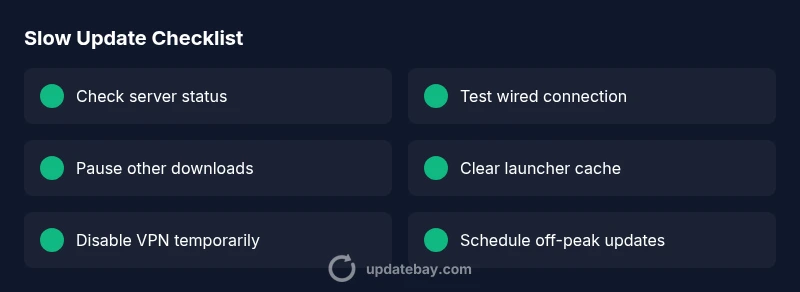
Why does overwatch update so slow? Most often, patch-server congestion, a congested network, or a cluttered launcher cache slow the process. Start by checking Blizzard's server status, then test a wired connection and pause other downloads. If the issue persists, follow the step-by-step fixes below to speed up the update and reduce wait times.
Understanding the Slow Update Problem
Understanding why updates stall is the first step toward a fast resolution. In practice, it can be a mix of server load, your home network, and launcher health. If you're asking why does overwatch update so slow, know that Update Bay has found these bottlenecks commonly occur during patch windows when demand spikes. The good news is that most delays are reproducible and addressable with a systematic approach. This guide, written with urgency and clarity, walks you through quick wins, mid-level checks, and deeper fixes so you can reclaim time spent waiting and get back to playing.
Steps
Estimated time: 20-60 minutes
- 1
Verify server status and patch intent
Begin by checking Blizzard’s status page for Overwatch updates and known issues. If servers are under heavy load, you may simply need to wait. This quick verification saves unnecessary changes.
Tip: Bookmark Blizzard’s status page and check it at patch launch times. - 2
Test network with a wired connection
Connect your PC or console directly to the router with an Ethernet cable. Run a speed test and compare results to your ISP’s advertised speeds. Note if latency spikes during patches.
Tip: If you use Wi‑Fi, try 5 GHz with minimal interference and move closer to the router. - 3
Pause other bandwidth-heavy activities
Pause or limit streaming, cloud backups, and large downloads during the patch window. Background processes can drastically cut the effective download speed.
Tip: Use your router’s QoS settings to prioritize game traffic if available. - 4
Clear launcher cache and restart
Log out of the launcher, clear cache files, and restart the launcher to ensure you pull fresh patch data. Corrupted cache can stall updates.
Tip: Back up important settings before clearing caches. - 5
Adjust firewall/antivirus and disable VPNs
Temporarily disable nonessential security features or VPNs that could throttle traffic. Re-enable once the patch is complete.
Tip: Only disable protection temporarily and re-enable after testing. - 6
Schedule patches during off-peak hours
If your time options allow, schedule updates for late-night or early-morning windows when server load and local traffic are lower.
Tip: Set automatic updates to off-peak hours if possible.
Diagnosis: Overwatch download/update stalls or is extremely slow
Possible Causes
- highServer-side patch deployment causing congestion
- highLocal network bottlenecks (ISP, router, Wi‑Fi interference)
- mediumLauncher cache corruption or outdated files
- lowFirewall, antivirus, or VPN/proxy throttling traffic
- mediumDNS resolution or regional routing issues
Fixes
- easyCheck Blizzard's official server status and patch notes to confirm if the slowdown is server-side
- easySwitch to a wired Ethernet connection and pause other high-bandwidth activities
- mediumClear the game launcher cache or perform a clean reinstall of the launcher if corruption is suspected
- easyTemporarily disable VPNs or proxies and ensure firewall allows Blizzard services
- easyFlush DNS or switch to a trusted public DNS and reset router/modem
- easyLimit background downloads and updates in other apps during the patch window
Frequently Asked Questions
Why is my Overwatch update so slow on PC?
Slow updates on PC often come from server congestion during patches, local network bottlenecks, or launcher cache issues. Run basic checks first, then follow targeted fixes to improve speed.
PC users usually see slow updates due to server load or local network issues. Start with server status and network tests, then apply the fixes in order.
Can changing DNS help with slow Overwatch updates?
Yes. Switching to a faster DNS can reduce query time and improve initial connection, especially if DNS resolution is a bottleneck. Pair this with other fixes for best results.
Switching DNS can help reduce lookup delays, but it’s usually most effective when combined with other steps like a wired connection.
Does using a VPN slow down or speed up updates for Overwatch?
VPNs can both help or hinder, depending on routing. If you suspect throttling or poor routing, try disabling the VPN temporarily to compare speeds.
A VPN may reroute traffic in a way that worsens speed; test with and without it to see which is faster.
Should I reinstall the Overwatch launcher to fix slow updates?
Reinstalling the launcher can fix corrupted cache or broken settings that slow updates. Back up important data first and use a clean install.
Reinstalling the launcher can clear stubborn cache issues that slow updates, but is more of a last-resort step.
How long should I wait after a patch drops before trying again?
Allow several minutes to an hour for servers to stabilize, then re-test. If issues persist, follow the step-by-step fixes in this guide.
Give servers time to stabilize after a patch, then test again before diving into deeper fixes.
When should I seek official support for slow updates?
If you’ve tried the full troubleshooting flow without improvement, contact Blizzard Support with your logs and network details for a deeper diagnosis.
If nothing helps after your tests, reach out to Blizzard Support with your diagnostics.
Watch Video
What to Remember
- Verify server status before tinkering
- Prioritize wired connections and paused background tasks
- Clear launcher cache to fix corrupted data
- Schedule patches for off-peak hours
- Re-test after each fix to isolate the cause