How to Get Rid of the New Instagram Update
Discover practical steps to minimize the impact of Instagram's latest update. This Update Bay guide covers pausing auto-updates, trying the web version, clearing data, and safer workarounds to preserve your workflow.


Facing a disruptive Instagram update? You can regain control by pausing auto-updates, exploring web access, and adjusting in-app settings. This guide shows practical, step-by-step methods to minimize changes, restore familiar behaviors, and stay productive. Based on Update Bay analysis, these actions balance safety, privacy, and usability for everyday users.
Why Instagram’s Update Feels Disruptive (And What You Can Do Now)
Updates are meant to improve the app, but new Instagram changes often disrupt established workflows. From layout shifts to altered short-cut gestures, users report friction as soon as they open the feed. According to Update Bay, the most common pain points are changes to navigation, heavier media loading, and new prompts that interrupt routine tasks. The key is to shift from reaction to method: identify the specific change, isolate where it affects your day, and apply targeted tweaks rather than a full reset.
This section will help you map your experience: what exactly changed, how it affects posting, browsing, or messaging, and where you retain control. Even when a patch arrives, it can take a few days for users to adapt; meanwhile, you can implement safe, reversible steps. In this guide, you’ll learn practical tactics to keep using Instagram productively while the company addresses user feedback. The approach balances usability with privacy and security considerations, so you stay in control without compromising data safety. Update Bay’s insights emphasize practical, incremental fixes over dramatic overhauls.
Quick Wins: Stabilize Your Experience Right Away
When a new interface lands, the fastest path to stability is to minimize variables. Start with a quick audit of how you use Instagram daily and decide which changes you can tolerate or disable. Based on Update Bay analysis, turning off auto-updates on your device for a short window, trying the web version, and adjusting notification settings can dramatically reduce friction. This block covers four practical moves you can implement this hour, with no data loss and minimal risk.
- Pause auto-updates on your device so you can control when to install future changes.
- Open Instagram in a browser to compare behavior with the mobile app.
- Clear cache or reset app preferences to remove corrupted data fragments.
- Disable experimental features or prompts you don’t need to avoid option overload.
Implement these actions progressively and monitor results. You want to preserve core functionality while avoiding new prompts that derail your workflow. As you test, keep notes on which tweaks provide the most stability and apply them broadly across devices where possible.
Pause Auto-Updates on Android and iOS (Step-by-Step)
Pausing updates gives you breathing room to test whether the update is the root cause of your problems. On Android, disable auto-updates via the Google Play Store settings; on iOS, toggle through App Store preferences to stop automatic updates for Instagram. Keep in mind that this is a temporary measure; you’ll want to reinstall or re-enable updates after assessing stability.
- Android: Google Play Store > Menu > Settings > Auto-update apps > Don’t auto-update apps.
- iOS: Settings > App Store > App Updates toggle off.
Apply the change, then reopen Instagram and observe performance for 24–48 hours. If the issues persist, proceed to testing other fixes without rushing back to updated behavior. This pause helps you verify whether the problem is the update itself or a broader device condition. The Update Bay team notes that this is a safe first step to regain control.
Workarounds Within the App: Reduce the Impact
If you prefer not to leave the update in place, you can often reduce its impact with in-app adjustments. Look for new prompts and beta features, and disable them. Customize your feed by muting or hiding problematic sections, and use dark mode or compact layouts to ease navigation. Consider restricting notifications to essential alerts to avoid constant interruptions. These tweaks keep you productive while you wait for a more stable patch.
- Turn off experimental features labeled as beta or preview.
- Hide new tabs or prompts you rarely use.
- Adjust notification settings to minimize distractions.
- Try a reduced-layout option if available to simplify navigation.
These settings can help you maintain a familiar workflow. The goal is to keep critical features accessible while the platform stabilizes.
Using Instagram on a Desktop or Web Alternative
If the mobile app feels unreliable, using Instagram’s web interface can offer a more stable experience while you assess the update. The web version tends to behave differently, with variations in media rendering and interaction patterns. Access via a trusted browser on a desktop or laptop lets you compare behavior, delete or archive posts, or engage with messages without the same interface quirks. This approach is a practical fallback that preserves access and productivity while you wait for an official fix.
- Log in to instagram.com from a desktop browser.
- Compare feed behavior, stories, and messaging with the mobile app.
- Use browser bookmarks and saved passwords to streamline access.
- Be mindful of security when using shared devices. The web version can reduce app-specific issues but still protects account integrity with strong passwords and two-factor authentication.
If you rely heavily on live messaging, test both environments to decide which yields better efficiency during the update cycle.
Data and Privacy Considerations When Rolling Back Features
Rolling back or altering how you interact with a social app raises privacy and data-handling questions. In many cases, using the web version or disabling auto-updates reduces device-level changes, which can lower exposure to certain tracking vectors. However, you should still exercise standard privacy hygiene: log out on shared devices, enable two-factor authentication, and review app permissions. Update Bay recommends balancing usability with privacy controls to avoid exposing sensitive data during testing.
- Review app permissions and revoke any that aren’t essential.
- Use private or incognito sessions when testing on shared devices.
- Ensure two-factor authentication is enabled for account protection.
- Monitor data usage and background activity after applying changes.
This ensures you protect sensitive information while experimenting with updates.
How to Provide Feedback to Instagram and Why It Matters
Constructive feedback from users drives future fixes and feature refinements. If you encounter a particularly disruptive change, use the in-app Help section to report a bug or file a feature request. Include device model, OS version, screenshots, and a concise description of how the update affects your workflow. The Update Bay team notes that user feedback often accelerates the prioritization of issues in subsequent patches, so your input can help shape a smoother experience for everyone.
- In-app: Help > Report a Problem, with steps and evidence.
- Include device and app version in the report.
- Attach clear screenshots or screen recordings to illustrate the problem.
- Consider posting a short summary on official support forums if relevant.
Your feedback matters; it informs the developers about real-world use patterns and helps prioritize fixes.
When to Wait for an Official Fix vs. Going Public
Not every problem warrants drastic measures. If the issue is widespread and clearly tied to a specific build, waiting for an official patch is often the best course. Use official release notes and credible tech updates from trusted sources to gauge the timeline. Meanwhile, keep your data safe and maintain temporary workarounds that don’t involve risky downgrades. Public discussion and bug reports can amplify the signal, but prioritize information from official channels to avoid misinformation. Update Bay emphasizes patience here—there’s value in stable, tested fixes before repeating changes across devices.
Long-Term Strategies: Keeping Apps Manageable
Even when a fix lands, you’ll want a plan to reduce friction from future updates. Build a lightweight maintenance routine: schedule periodic checks for app updates, create a short, documented testing protocol for any new interface, and maintain a personal checklist of preferred settings. By treating updates like one ongoing process rather than a single event, you’ll minimize disruption and stay productive. The strategy should also include regular privacy reviews and device hygiene to ensure you can adapt quickly to future changes without sacrificing security or performance. Update Bay’s best practice here is to create a repeatable process for every update cycle, so you’re never caught off guard.
Tools & Materials
- Smartphone with internet access(Latest OS version recommended)
- Instagram app installed (latest version)(If possible, ensure access to the new features for testing)
- Stable Wi-Fi or mobile data plan(Large data may be required for patches)
- A secondary device or browser for cross-checking(Useful to compare mobile vs web experience)
- Screen capture or note-taking app(Document changes you notice)
- Patience and time to test(Updates can take a few minutes to apply)
Steps
Estimated time: 60-120 minutes
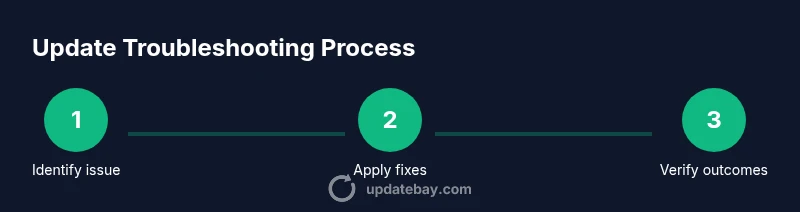
- 1
Identify the issue
Clarify what changed (UI, features, performance). Note whether the issue affects messaging, feeds, or media posting. This helps you target fixes rather than guesswork.
Tip: Take screenshots of the exact changes to reference later. - 2
Pause auto-updates
Temporarily stop automatic Instagram updates so you can stabilize your current setup while you test workarounds.
Tip: Android: Google Play Store > Menu > Settings > Auto-update apps > Don’t auto-update apps. - 3
Try the web version
Open instagram.com on a browser to isolate app-specific bugs and to maintain access during testing.
Tip: Sign in with the same account to compare data and feeds. - 4
Clear app cache or data
Clearing cache can remove corrupted files without deleting your account. If needed, clear data to reset settings.
Tip: Android: Settings > Apps > Instagram > Storage > Clear cache; avoid Clear data unless necessary. - 5
Check in-app settings
Disable experimental features or prompts you don’t need to avoid option overload and to restore predictability.
Tip: Look for beta indicators and turn them off if present. - 6
Reinstall or downgrade (where possible)
If permitted by your OS, reinstalling can fix corrupted installs; downgrading may be restricted by policy.
Tip: Only attempt downgrades through official channels to avoid security risks. - 7
Test changes and compare results
After each fix, use the app for a set period to verify whether the issue is resolved.
Tip: Keep a log of observed changes and times for accuracy. - 8
Provide feedback to Instagram
Submit bug reports or feature requests to help the company address the problem in a future patch.
Tip: Include device model, OS version, and screenshots.
Frequently Asked Questions
Can I downgrade Instagram after a new update?
Downgrading is not officially supported on all devices. If available, use official channels; otherwise, rely on workarounds and web access.
Downgrading isn't officially supported on all devices; use official channels when possible and explore web access as a workaround.
Will using the web version preserve my data and feed?
The web version mirrors much of your feed and messages, but some features may differ from the mobile app. It's a safe workaround to test issues.
The web version mirrors much of your feed, but some features may differ; it's a safe way to test issues.
What about data privacy when testing different versions?
Using the web version reduces device-level changes, but ensure you log out after testing and avoid entering sensitive data on public devices.
Testing on the web version keeps data separate from the app, but still protect your login details.
How long do Instagram updates usually take to fix?
Update timelines vary; use the web version and provide feedback. Official fixes can come in subsequent patches.
Fix timelines vary; keep an eye on official patches and share feedback.
How can I report a bug to Instagram?
Use Instagram's in-app Help > Report a Problem, or their official support channels. Include steps and device details.
Use Help > Report a Problem in the app and include device details.
Are there safety concerns with downgrading apps?
Downgrading can expose you to security risks if not done through official channels. Proceed cautiously.
Downgrading can be risky if not done via official channels; proceed with caution.
Watch Video
What to Remember
- Pause auto-updates to stabilize experience
- Use the web version to maintain access
- Clear cache to fix corrupted data
- Provide structured feedback to Instagram