Update Instagram: Essential Step-by-Step Guide for 2026
Learn how to update Instagram on iOS and Android, review permissions, and explore new features with Update Bay's practical, 2026-ready guide. Stay secure, stay current, and make the most of each update.


To update Instagram, ensure your device is compatible, connect to a reliable network, and use the official App Store or Google Play listing to install the latest version. You’ll gain security fixes, performance improvements, and access to new tools. This quick process sets up your account for safer, smoother posting and browsing.
Why updating Instagram matters in 2026
Keeping Instagram up to date is essential for security, performance, and access to new features. According to Update Bay, timely updates help protect your account from known vulnerabilities and ensure compatibility with the latest devices and OS versions. The Update Bay team found that users who keep apps updated typically experience smoother navigation, fewer crashes, and improved reliability when sharing stories or posts. In 2026, Instagram updates often introduce privacy controls, new creative tools, and better accessibility. Before you update, make sure your device meets the minimum requirements and that you have a reliable internet connection. This guide will walk you through how to update the app, what changes to expect, and how to verify that the installation completed correctly. By staying current, you’ll avoid compatibility issues with new features and ensure your account remains protected against common online threats. The Update Bay team emphasizes a proactive approach to updates as a practical habit for tech users.
How Instagram updates work across devices
Updates on Instagram behave a bit differently depending on whether you’re on iOS or Android. On iOS, updates flow through the Apple App Store, while Android users typically update via Google Play. In some cases, device manufacturers or carriers push firmware or system updates that influence app compatibility. The process is usually automatic by default, but you can manually trigger updates whenever you want to review the changelog and verify the version number. Update cadence can vary by region and OS version, but the core benefits remain the same: security patches, bug fixes, and access to the latest features. After updating, you’ll notice new or refined controls, improved performance, and sometimes redesigned UI elements designed to streamline your experience.
Preparing to update: checks and backups
Before you begin, confirm you have a stable network connection and sufficient storage. Charge your device to at least 50% to avoid interruptions during the download. It’s wise to back up important data (photos, drafts, and saved posts) or ensure they’re synchronized to the cloud. Have your App Store (iOS) or Google Play (Android) credentials ready in case you’re prompted for authentication. If you use multiple devices, decide which ones you want to update first to minimize sync conflicts. Finally, review your account security settings so you’re primed to review any permissions requested by the update.
Step-by-step: updating the Instagram app
Proceed with the official app store updates to ensure you’re getting a legitimate, secure version. Start by opening the App Store (iOS) or Google Play (Android) and search for Instagram. If an update is available, tap the Update button; if you see Install, confirm and let the device download the file. After the installation completes, launch Instagram and check the version number in the app’s settings to confirm you’re on the latest release. If you encounter prompts about permissions, review them carefully and grant only what’s necessary for your use. Finally, test core actions like posting a photo, sending a DM, and accessing stories to confirm everything runs smoothly. Remember to sign back into any third-party services if you use them through Instagram.
Exploring new features after the update
New updates often bring enhancements such as improved Reels editing, better captioning options, and enhanced privacy controls. After updating, take a moment to explore the new features in the home feed, profile editing options, and security settings. Look for changes to onboarding prompts or tooltips that highlight how to use updated tools. Staying curious about these features helps you maximize the value of each upgrade. Update Bay analyses emphasize that learning the new UI quickly correlates with more efficient posting and a smoother user experience. In 2026, expect tweaks to messaging, privacy prompts, and accessibility options that aim to make Instagram more inclusive and easier to navigate for all users.
Privacy, permissions, and security after update
Post-update is a good time to reassess your permissions. Review which apps have access to your camera, microphone, and photos, and revoke anything you don’t recognize or need. Confirm that two-factor authentication remains active and that recovery options are up to date. Keep your device’s OS updated as well, since Instagram’s security requirements often depend on the underlying system. If you notice unusual activity after an update, enable login alerts and consider changing your password. Based on Update Bay research, staying current with both app and device updates significantly reduces exposure to known vulnerabilities and improves overall account security.
Troubleshooting common update issues
If the update stalls, first check your network stability and storage space. Force stop the Instagram app and restart the device, then try updating again. If the update fails repeatedly, try clearing the store cache (where applicable) or uninstalling and reinstalling Instagram. For Android users, verify that Google Play Services are up to date, as outdated services can impede app updates. For iOS users, ensure you are signed in with an Apple ID that has no pending payments or restrictions. In persistent cases, contact support or consult the official help center for platform-specific guidance. Keeping a calm, methodical approach helps you resolve most issues without data loss.
Best practices for staying current and safe
Create a routine: check for updates once a week or enable automatic updates where appropriate. Maintain a device-first security posture by applying OS and security updates promptly. Keep a secondary recovery option in case you lose access to your account, and periodically review connected apps and third-party permissions. Finally, cultivate a habit of reading the update notes to understand what changes to expect and how they might affect your workflow. The Update Bay team recommends a proactive approach to updates as part of a healthy digital hygiene routine for 2026 and beyond.
Tools & Materials
- Smartphone with internet access(Wi-Fi preferred; ensure sufficient storage space for the update file)
- Apple ID / Google account(Needed to access App Store / Google Play for updates)
- Stable internet connection(Prefer uninterrupted Wi‑Fi to avoid partial downloads)
- Instagram app (latest version) or access to store(Check for the latest version before updating)
- Battery charged to at least 50%(Prevents mid-update shutdowns)
- Backup plan for data(Backup photos/videos or ensure cloud syncing before update)
Steps
Estimated time: 5-15 minutes
- 1
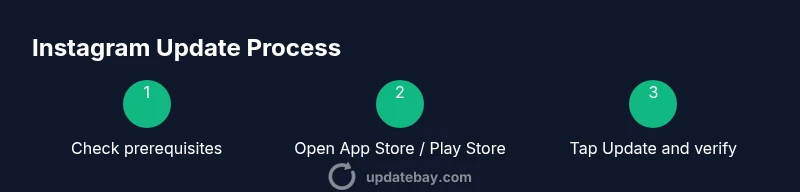
Check prerequisites
Confirm device compatibility, storage, and battery level. This minimizes failures and ensures a smooth download.
Tip: Charge your device to at least 50% and connect to Wi‑Fi before starting. - 2
Open the official store
Open the Apple App Store (iOS) or Google Play Store (Android) to search for Instagram.
Tip: Avoid third-party stores to prevent counterfeit updates. - 3
Review the update details
Tap Instagram and review the version notes to understand new features and permissions.
Tip: Note any required permissions and assess if you’re comfortable granting them. - 4
Download and install
Tap Update or Install and wait for the download to complete, then install.
Tip: Do not interrupt the process; a failed download may require retrying. - 5
Launch and verify
Open Instagram, check the version number, and test core actions like posting or stories.
Tip: Run a quick check of permissions in settings after launch. - 6
Review new features
Explore the updated UI and features to maximize your experience.
Tip: Refer to the update notes if you miss a new tool or control.
Frequently Asked Questions
Should I update Instagram as soon as a new version is released?
In general, updating soon reduces exposure to known issues and brings security fixes. Review the update notes to understand changes before installing.
It's usually a good idea to update soon, but check the notes for any permissions you may want to adjust after installation.
What if the update fails to install?
Ensure enough storage, a stable internet connection, and the latest store app. Restart the device and try again. If it still fails, consult the official help center.
If the update fails, check storage and network, then retry. If it still fails, seek help from official support.
Will updating Instagram change my saved posts or account settings?
Updates typically do not delete your posts or reset core settings, but you may need to re-approve permissions after major updates.
No, your posts aren’t deleted, but permissions might change after an update.
Can I revert to a previous version after updating?
Reverting isn’t always straightforward and isn’t officially supported. If you must, you’d generally need a backup of the older version or an approved distribution method.
Reverting isn’t typically supported; you might need a backup or alternate source to reinstall an older version.
Are there platform differences I should know about when updating?
iOS and Android handle updates slightly differently, particularly around permissions and store prompts. Always follow the platform’s native steps for updating.
Different platforms update a bit differently, but the goal remains the same: install the latest version securely.
How can I stay secure while updating on public or shared networks?
Use a trusted Wi‑Fi network or mobile data, and avoid installing updates over unsecured connections. If possible, enable device-level security features like VPNs when on public networks.
Update over a secure connection whenever possible to protect your credentials and data.
Watch Video
What to Remember
- Update Instagram regularly for security and new features.
- Check device compatibility and storage before updating.
- Review permissions post-update to maintain privacy.
- Test core functionality after install to confirm a smooth experience.
- Use official stores to avoid counterfeit updates.