How to Manage Updates on WhatsApp
Learn how to manage updates on WhatsApp across Android and iOS, back up chats, review release notes, and troubleshoot update issues with practical steps.


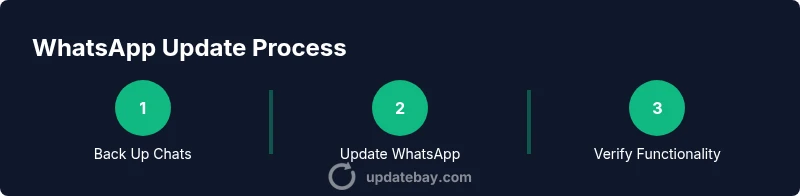
To manage updates on WhatsApp effectively, keep the app current by enabling automatic updates in your device settings, and periodically check release notes for new features or fixes. Ensure your device OS is compatible, back up chats before updating, and test core functions after the update. Regular maintenance reduces bugs and privacy risks.
Why Managing WhatsApp Updates Matters
Staying on top of WhatsApp updates isn’t just about new features. Updates often include security patches, privacy improvements, and performance tweaks that keep your messaging experience smooth and safe. For everyday users and tech enthusiasts alike, timely updates reduce the risk of bugs that disrupt chats, media sharing, or voice notes. According to Update Bay, proactive maintenance helps users avoid sudden outages and compatibility glitches as operating systems evolve. The Update Bay team found that devices with current WhatsApp versions tend to report fewer crashes and smoother media playback. As your phone’s ecosystem shifts—with refreshed OS sketches, new permissions, and evolving encryption standards—keeping WhatsApp aligned with those changes is a practical habit.
For the typical user, update management translates into fewer surprises and a more predictable messaging experience. You don’t need to chase every beta; rather, establish a simple routine: enable auto-updates, back up critical chats, and review release notes before major upgrades. This approach minimizes data loss, reduces downtime, and preserves access to stickers, voice messages, and end-to-end encryption improvements. The goal is reliability, not frenzy.
In this guide we’ll cover why updates matter, how WhatsApp distributes updates across platforms, how to prepare for them, and how to handle common issues without losing data or privacy control.
notePropertyForJSONToEnsureCompatibilityOnlyForBodyBlockIfNeededToInsertThisNoteForClarificationToEditorUnableToProcessNote
Tools & Materials
- Smartphone with internet access(Android or iOS device; ensure compatible OS version for the latest WhatsApp build)
- Charger or power bank(Keep device powered during the update to avoid mid-process failures)
- Stable internet connection (Wi‑Fi or mobile data)(Prefer Wi‑Fi for large backups and downloads)
- WhatsApp backup enabled (Google Drive/iCloud)(Back up chats before updating to prevent data loss)
- Access to official app store (Google Play Store or Apple App Store)(Update through trusted source to avoid tampered builds)
- Sufficient device storage(Clear space for the update package and backups)
Steps
Estimated time: 15-25 minutes
- 1
Back Up Your Chats
Initiate a chat backup to cloud storage before updating to protect messages and media. Open WhatsApp > Settings > Chats > Chat backup, choose your backup frequency, and start the backup.
Tip: Tip: Ensure backup completes successfully before proceeding to update. - 2
Check Storage and Battery
Verify you have enough free storage and a charged battery. If storage is tight, delete unnecessary files or move media to cloud storage before starting the update.
Tip: Tip: Run updates on a fully charged device or while plugged in. - 3
Update WhatsApp from Official Store
Open Google Play Store or Apple App Store, search for WhatsApp, and tap Update. If the button says Open, you already have the latest version.
Tip: Tip: Prefer automatic updates to stay current without manual checks. - 4
Verify Internet Connection
Ensure a stable connection during the update to prevent partial downloads or corrupted installations.
Tip: Tip: If possible, use a strong Wi‑Fi network rather than mobile data. - 5
Review Release Notes
Read the release notes to learn about new features, bug fixes, and any permission changes. This helps you adjust settings if needed.
Tip: Tip: Note any new permissions that apps request and decide if you want to grant them. - 6
Test Core Features
Open a few chats, send messages, attachments, and voice notes to confirm that essential functions work after the update.
Tip: Tip: Test group chats and media sharing to catch issues early. - 7
Enable Automatic Updates
Turn on automatic updates for WhatsApp so future updates install without manual intervention.
Tip: Tip: Pair auto-updates with regular backups for best resilience. - 8
Re-login and Sync
If you’re signed out, re-authenticate in WhatsApp and allow any required re-sync of chats and media.
Tip: Tip: Check chat history after re-log to confirm everything is intact.
Frequently Asked Questions
How do I know if WhatsApp needs an update?
WhatsApp will usually prompt you in the app stores when an update is available. You can also check WhatsApp > Settings > Help > About, or view the release notes in the store listing for version details.
Check your app store for any pending WhatsApp update and review the version notes for changes.
Will updating WhatsApp erase my chats?
If you’ve backed up chats recently, updating WhatsApp should not erase messages. Always perform a cloud backup before updating to minimize risk of data loss.
Back up first, updates don’t erase chats if backups exist.
Why does updating require storage space?
Updates replace app data and may download new files. You need enough free storage to accommodate the update package and additional resources.
You’ll need some free storage to download and install the update.
What should I do if the update fails?
If an update fails, retry on a stable network, restart the device, clear the Play/Apple Store cache, or reinstall the app if necessary. Check release notes for known issues.
Retry on a stable network and check the notes for any known issues.
Are beta updates worth it?
Beta updates let you try new features early but can be unstable. If you rely on WhatsApp for critical communication, stick to the stable public release.
Beta testing is optional; use it only if you’re comfortable with potential bugs.
Watch Video
What to Remember
- Enable auto-updates to stay current
- Back up chats before updating
- Review release notes for changes
- Test core features after update
- Regularly check privacy and permission settings