How to Update WhatsApp
Learn how to update WhatsApp across Android and iPhone with a practical, step-by-step guide covering in-app prompts, store updates, and troubleshooting.


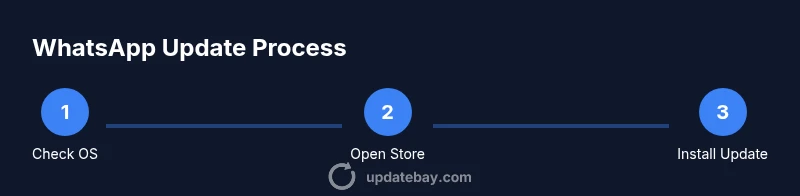
To update WhatsApp, check for updates in your device’s app store (Google Play on Android or the App Store on iPhone) or use WhatsApp’s built-in update prompt. Make sure you have a stable internet connection and enough storage. After updating, open WhatsApp to verify the new version and review any new features or privacy settings.
Why Keeping WhatsApp Updated Matters
Keeping WhatsApp updated matters for security, performance, and compatibility. According to Update Bay, staying current with updates helps reduce exposure to known vulnerabilities, improves app stability, and ensures you can use new features as soon as they roll out. This guide explains how to update WhatsApp and why it’s worth your time.
Regular updates patch security holes, fix bugs, and improve overall reliability. WhatsApp updates often include improvements to message delivery, multimedia sharing, and privacy controls, which can affect how you communicate on the platform. If you skip updates, you may encounter compatibility problems with newer OS versions or fail to receive critical security patches. The Update Bay team emphasizes that proactive updating is part of good device hygiene for everyday users and tech enthusiasts alike, because it minimizes surprise outages and keeps your chats safer.
Beyond security, updates can unlock enhancements such as enhanced voice messages, improved backup options, and smoother media previews. For those who manage multiple devices or switch between Wi-Fi and cellular networks, updates also help ensure that background syncing and notification handling stay consistent across your devices. In short: if you want reliability, new features, and better privacy controls, how to update whatsapp should become a routine part of device upkeep.
How update mechanisms work across platforms
Different platforms deliver WhatsApp updates differently, and understanding these mechanisms helps you plan updates more reliably. On Android, updates typically come through the Google Play Store, where WhatsApp is rolled out in stages and version numbers are displayed in the app details. On iPhone and iPad, updates appear in the Apple App Store with the same versioning system. Some devices also offer in-app update prompts that remind you to install a newer version if you have connectivity. In both ecosystems, you should review the release notes to understand what changed, including security patches and new features. If you’re using a business device or a managed profile, your organization may have additional controls or restrictions on when you can update apps.
For those who want to stay in control, you can manually check for updates at any time, or enable automatic updates so WhatsApp stays current in the background. Auto-update reduces the risk of running outdated software and minimizes downtime during important conversations. Be mindful of data usage when updating over cellular networks, and consider connecting to Wi-Fi whenever possible to avoid consuming mobile data. By understanding platform specifics, you’ll know what to expect when you learn how to update whatsapp on both major mobile operating systems.
Checking for updates: quick methods
The easiest way to update WhatsApp is to use the official app store on your device. On Android, open Google Play, search for WhatsApp, and tap Update if the option appears. On iPhone, open the App Store, tap your profile picture in the upper right, pull down to refresh, and install WhatsApp if an update is listed. You can also trigger an in-app prompt by going to WhatsApp > Settings > Help > App Info; when a newer version is available, you’ll see an update button. Before you update, ensure you have a stable internet connection and enough storage. If you’re unsure whether you’re on the latest version, check the version number in WhatsApp’s About page.
Auto-update: why and how to enable it
Enabling automatic updates helps ensure you always have the latest features and security patches with minimal effort. Most devices offer auto-update at the OS level or per-app setting. For Android, go to Google Play > Menu > Settings > Network preferences > Auto update apps and choose over any network or over Wi-Fi only. For iPhone, App Store > Settings > App Updates and enable the toggle. If you manage a large fleet of devices, consider device management tools to push updates on a schedule. By letting updates run in the background, you reduce the operational friction of learning how to update whatsapp across platforms.
Troubleshooting common update issues
If an update fails, start by checking your internet connection, storage space, and device compatibility. Free up space by removing unused apps or media, and retry the update. If the update still won’t install, try clearing the app cache on Android, restarting the device, or deleting and reinstalling WhatsApp (after backing up chats). Some issues may be caused by a temporary server problem on the app store; in that case, wait and retry. It’s also wise to verify that your device’s OS version supports the new WhatsApp update.
Security and privacy considerations during updates
Updates often bring security and privacy improvements. Before installing any update, read the patch notes to understand what changed. Post-update, review WhatsApp’s updated privacy settings and permissions; you may wish to adjust background data usage, notification settings, and media privacy options. For better hygiene, keep your device’s security patches up to date and use a secure lock screen to protect access to chats. If you’re sharing a device or using a family plan, remember to sign out from other devices if necessary and keep backups in encrypted form. Update Bay’s coverage emphasizes that timely updates minimize exposure to known vulnerabilities and improve overall confidence in your messaging experience.
What Update Bay recommends for smooth updates
Based on Update Bay analysis, keeping apps current reduces risks and promotes reliability. Our recommendation for how to update whatsapp is simple: prioritize official sources, enable auto-update where possible, and monitor patch notes for any changes that affect privacy or usability. Always perform a quick backup before major updates, and test critical conversations after updating to ensure compatibility with features like media sharing and message formatting. In short, regular, cautious updating is part of responsible device maintenance, and following these steps can help you stay current with WhatsApp without unnecessary disruption. The Update Bay team emphasizes practical, user-driven guidance that keeps you in control of your software ecosystem.
Tools & Materials
- Smartphone(Android or iPhone, updated to latest OS supported version)
- Stable internet connection(Wi-Fi recommended for large updates)
- Sufficient storage space(At least 100 MB free (varies by version))
- Access to Google Play or Apple App Store(Official store apps installed)
- WhatsApp backup method(Cloud or local backup before major updates)
- Charged battery(Keep battery above 50% during update)
- Optional: USB cable and computer(For offline backup/restore if needed)
Steps
Estimated time: 5-15 minutes
- 1
Prepare your device
Charge your battery to at least 50% and connect to a stable internet network. Ensure you have enough storage for the update and back up your WhatsApp chats to a secure location. This reduces the risk of data loss if something goes wrong during the update.
Tip: Back up WhatsApp chats to Google Drive or iCloud before updating. - 2
Open the official app store
On Android, open Google Play; on iPhone, open the App Store. Verify you are using the official store and that you’re signed into your account. This ensures you receive the legitimate WhatsApp update and not a counterfeit version.
Tip: Double-check the developer name listed as WhatsApp LLC to avoid spoof apps. - 3
Check for WhatsApp updates
Search for WhatsApp within the store, then tap Update if available. If you don’t see Update, you already have the latest version. You can also pull to refresh in the store to trigger a fresh update check.
Tip: If an Update button shows, don’t delay—updates include security patches. - 4
Install the update
Tap Update and wait for the download to complete. Keep the device connected to the internet and avoid interrupting the process. Do not close the store or switch networks mid‑download.
Tip: Prefer Wi‑Fi to conserve mobile data and speed up installation. - 5
Verify the update
Open WhatsApp and go to Settings > Help > App Info to confirm the latest version is installed. If the version matches the current release notes, you’re good to go. Review any new permissions or settings introduced by the update.
Tip: Take a quick screenshot of the version for reference. - 6
Enable auto‑updates
If you want future updates to happen automatically, enable auto-update in your device settings. On Android, configure Google Play settings; on iPhone, enable App Store automatic updates. This reduces friction when you learn how to update whatsapp in the future.
Tip: Set to Wi‑Fi only if you’re on a capped mobile plan. - 7
Troubleshoot common issues
If the update fails, check storage, retry with a stable connection, and consider restarting the device. For persistent failures, clearing the app cache (Android) or reinstalling WhatsApp after a backup can resolve most problems. Avoid panicking—most issues are solvable with the steps above.
Tip: Always back up before reinstalling. - 8
Extend updates to other devices
If you use WhatsApp on desktop or web, ensure those clients are updated as well for a consistent experience. Sign out from old sessions if leaving a device behind and re‑authorize when needed.
Tip: Regularly check for updates on all devices in use.
Frequently Asked Questions
Do I need to update WhatsApp to keep using it?
Updates are not strictly mandatory, but they are strongly recommended. They fix bugs, patch security holes, and often unlock new features. Skipping updates may eventually lead to compatibility issues with new OS versions.
Updating WhatsApp is recommended for security and reliability, and most users benefit from staying current.
What if the update fails due to storage?
Free up space by deleting unused apps, photos, or videos. If needed, transfer data off the device, then retry the update. Backup helps you avoid data loss during troubleshooting.
If storage is the issue, clear space and retry the update.
Will updating WhatsApp delete my chats?
Updates should not delete chats. However, always back up first. If you rely on cloud backups, verify the backup completion before updating.
No, updates don’t delete chats if you back up first.
Can I update WhatsApp without internet?
No. An internet connection is required to download and install the update. Use Wi‑Fi when possible to avoid mobile data usage.
You’ll need internet access to update WhatsApp.
How can I verify that I have the latest version?
Check the version in WhatsApp settings (Settings > Help > App Info) or on the store page where the version is listed. Compare with the release notes to confirm latest features and fixes.
Open WhatsApp > Settings > Help > App Info to confirm the version.
Watch Video
What to Remember
- Back up chats before updating WhatsApp.
- Use official stores for updates to avoid fake apps.
- Enable auto-update to stay current automatically.
- Check patch notes to understand privacy changes.