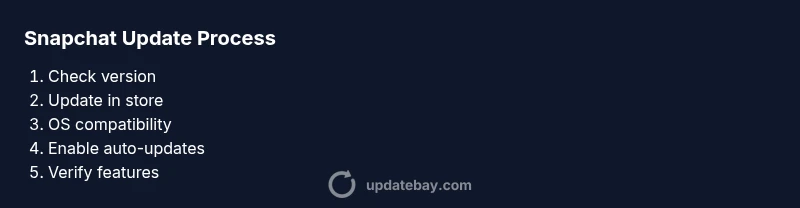
How to Snapchat Update: A Practical Step-by-Step Guide
Learn how to Snapchat update on iPhone and Android with a practical, step-by-step guide. Prereqs, troubleshooting, and tips to stay current.


According to Update Bay, here’s how to Snapchat update across devices. You’ll need a phone with internet, access to the App Store or Google Play, and the Snapchat app installed. This guide covers updating the app, updating the OS, enabling auto-updates, and verifying the update. We’ll also share troubleshooting steps if updates fail.
Why Snapchat updates matter
Keeping Snapchat up to date is more than a matter of enjoying new filters and features. Each update includes bug fixes, security improvements, and performance optimizations that affect how smoothly the app runs, how it uses data, and how it interacts with your device. For everyday users, a current version reduces crashes, speeds up launches, and improves compatibility with the latest OS releases. For power users who rely on Bitmoji, AR Lenses, and story features, updates often unlock enhancements that change how you create and share content. Based on Update Bay analysis, staying current on Snapchat lowers security risks, reduces the chance of data syncing problems, and ensures you access the latest privacy controls. In short, regular updates help you get the best experience with fewer headaches. This guide lays out practical steps to update Snapchat across iOS and Android, plus quick tips to troubleshoot if an update stalls.
Check prerequisites and compatibility
Before updating Snapchat, verify your device is ready. Ensure you have a reliable internet connection, enough storage space, and the latest version of your OS that supports the Snapchat update. On iOS, newer Snapchat features often require iOS 14+ or higher; on Android, requirements vary by device and version, so check the Google Play listing for the minimum Android version. Clear some space if your device is almost full; updates can download more data temporarily. Enable auto-update for apps if you want Snapchat to update automatically in the future. If you’re on a restricted network (work or school), you may need to switch to a personal Wi‑Fi network to complete the download. Finally, sign into your account on a trusted network to ensure your chats and settings sync properly after the update.
Update paths on iOS and Android
Snapchat updates are delivered through the App Store on iOS and the Google Play Store on Android. On iOS, open the App Store, tap your profile icon, pull to refresh, and look for Snapchat under Available Updates. Tap Update to install; if the button shows Open, you already have the latest version. On Android, open Google Play, tap Menu > My apps & games, and locate Snapchat. If Update is available, tap Update; if the app isn’t listed, open Snapchat’s store page and press Install. After the update finishes, open Snapchat to verify you see the new features. If you’re mid-session, a quick restart helps implement changes smoothly.
If the update isn’t appearing, try these: reboot the device, check your date/time settings, and ensure you are connected to the internet. If the update requires a newer OS than you have, you may need to update your device OS first or free up space to complete the upgrade.
Troubleshooting common update issues
If Snapchat won’t update, start with the basics: ensure a stable internet connection, sufficient storage, and that you’re signed into the correct account. Pause background apps to speed downloading, and try again after a few minutes. If the update downloads but won’t install, restart the phone, then retry. For Android users, clearing Google Play Store cache can help; on iOS, sign out and back into the App Store. If you still can’t install, consider reinstalling Snapchat. Note that a reinstall may remove local data such as locally stored caches; ensure chats remain safe on the server before reinstalling. If you’re in a corporate or restricted network, switch to a home network to avoid restrictions.
Staying up to date going forward
Once you’ve updated Snapchat, reduce future friction by enabling automatic updates and keeping a regular OS update schedule. Periodically check the store for new Snapchat versions and read the release notes to understand new features and permissions. Backup important data and ensure your account recovery options are current. If you frequently use experimental features or AR effects, participate in beta programs when available. By combining regular checks with automatic updates, you’ll minimize downtime and get the best possible experience.
Tools & Materials
- Smartphone (iOS or Android)(Ensure device is compatible with the latest Snapchat version)
- Stable internet connection(Wi-Fi or mobile data with good signal)
- Snapchat app installed(Prefer the latest official version)
- Access to App Store or Google Play(To download and install updates)
- Sufficient storage space(At least 100MB free space recommended)
- Backup option for data(Optional, helpful before OS updates)
Steps
Estimated time: 15-30 minutes
- 1
Check current Snapchat version
Open the App Store (iOS) or Google Play (Android). Search for Snapchat and compare the installed version with the latest listing. If the store shows Update, proceed; if it shows Open, you’re up to date and can skip to OS checks.
Tip: If you don’t see an Update option, ensure you’re signed in and connected to the internet. - 2
Update Snapchat from the store
Tap Update (or Install) and wait for the download to finish. Launch Snapchat after installation to confirm the new features load correctly.
Tip: Prefer a Wi‑Fi connection for larger updates to avoid mobile data overages. - 3
Update device OS if required
Go to Settings > General > Software Update (iOS) or Settings > System > Software Update (Android). If an OS update is available and Snapchat requires it, install it.
Tip: Back up data before performing a major OS upgrade. - 4
Enable automatic updates
In your device settings, turn on automatic app updates so Snapchat stays current without manual checks.
Tip: Keep battery charged during updates or perform them on a plugged-in device. - 5
Verify the update and sign back in
Open Snapchat, verify you see the new features, and re-authenticate if prompted. Check that chats and media are intact.
Tip: If you use two-factor authentication, have your code handy during sign-in.
Frequently Asked Questions
How do I know if Snapchat needs an update?
Open the App Store or Google Play and check Snapchat's update status. If Update is available, install it. If nothing is shown, you already have the latest version.
Check the App Store or Play Store for an available Snapchat update; if Update is shown, install it.
What if Snapchat update isn’t available in my region?
Updates depend on your device and region. Try refreshing store data, or wait for regional release. You can also enable auto updates to get future releases.
Region delays can happen; refresh the store or wait for release.
Will updating Snapchat delete my chats?
App updates do not delete user data stored on servers. Your chats should be preserved, but always back up important conversations.
Updates don’t delete your chats; your data stays on Snapchat servers.
Do I need to update my device OS as well?
Yes, Snapchat sometimes requires newer OS versions for features and security. Check Settings > General > Software Update, and install if available.
OS updates can affect app functionality; update when prompted.
What should I do if the update fails?
Try a restart, ensure stable internet, free storage, and retry. If the problem persists, reinstall Snapchat.
Restart, check internet, ensure storage, and retry; reinstall if needed.
Watch Video
What to Remember
- Update Bay recommends enabling auto-updates for Snapchat.
- Keep your OS in sync with app requirements for best performance.
- Verify after updating to confirm new features load correctly.
- If problems occur, consult official support channels rather than third-party advice.