What is wrong with Snapchat update? Quick Fix Guide
Urgent troubleshooting guide to diagnose and fix Snapchat update issues with practical steps, a diagnostic flow, safety tips, and guidance from Update Bay.


The most likely cause is a corrupted cache or incompatible data after the Snapchat update, plus possible server-side rollout delays. Start by restarting your device, then clear the app cache or reinstall Snapchat to reset data. If the problem persists, update your OS, ensure sufficient storage, and check Snapchat's server status before contacting support.
What is wrong with Snapchat update? Understanding the scope and urgency
When a Snapchat update goes live, millions of users may be affected in different ways. The question what is wrong with snapchat update isn't just about new features; it's about core functionality like sending snaps, loading stories, and accessing chats. In many cases, problems stem from a mismatch between the app's new code and older device environments, or from server-side rollout issues. For everyday users, issues include brief outages, slowed performance, missing messages, or crashes on launch. Treat update problems as a triage process: start with the simplest explanations first and then verify broader causes such as device compatibility, storage space, network conditions, and software versions. The goal is to restore normal operation quickly while preserving data privacy and preventing further data loss. As you read this guide, remember the overarching principle: most Snapchat update issues are solvable with a methodical approach, not a rush to reinstall without understanding the root cause.
How updates typically disrupt apps like Snapchat
Software updates are bundles of new code, security patches, and server-side toggles. For an app as widely used as Snapchat, even small changes can ripple through user devices. Factors include OS version compatibility, device hardware limits, storage availability, and background services. When an update is pushed, the app may temporarily cache new assets, reconfigure permissions, or change internal APIs. If any of these steps fail or mismatch, users can see crashes, freezes, or features that don’t load. This section explains common disruption patterns and why they happen, along with practical steps to minimize impact on daily use. Remember that updates often roll out gradually; your device may be one of many waiting its turn.
Common symptoms you might notice after a Snapchat update
- Crashes on launch or during camera use
- Messages failing to send or disappearing from chats
- Stories failing to load or disappearing from the feed
- Notifications not arriving or being delayed
- Settings not saving or permissions being reset
- Slower performance or higher battery drain
These symptoms signal different underlying causes. For example, crashes can point to corrupted cache, while delayed notifications may indicate server load or network issues. This section helps you categorize what you’re experiencing, so you can apply the right fix, not just a generic reset. In Update Bay's experience, symptoms often cluster around three areas: device compatibility, data integrity after update, and network/server status. By identifying which bucket your problem fits into, you improve your chances of a fast resolution.
Diagnostic mindset: mapping symptoms to causes
A robust diagnostic flow helps you avoid chasing the wrong culprit. Start with the symptom you observe and map it to potential causes in order of likelihood. For each cause, test a focused fix and move to the next if the first doesn’t resolve the issue. Typical cause categories include: 1) local device problems (cache, storage, permissions), 2) app data integrity (corrupted cache or data), 3) OS compatibility and resources, 4) network conditions (Wi‑Fi vs mobile data), and 5) server-side status (outages, rollout delays). This approach keeps you moving toward a solution without unnecessary steps or data loss. Use the diagnostic flow as a checklist and document what you tested so you can report reproducible issues to Snapchat support when needed.
Quick checks you can do right now (no tools required)
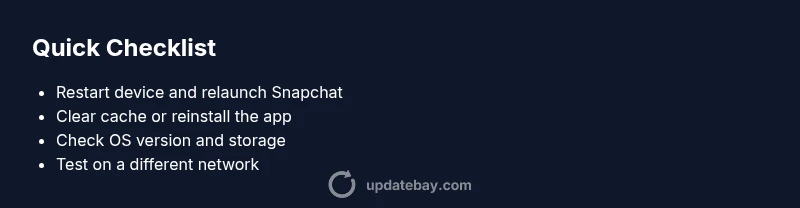
- Restart your device and relaunch Snapchat
- Check your OS version and available storage; free at least a few hundred megabytes
- Clear the Snapchat cache or reinstall if needed (Android users have a one-tap cache option)
- Test on a different network; disable VPNs or proxies
- Review app permissions (camera, microphone, storage) and disable power-saver modes
- Confirm Snapchat server status or known outages; wait if rollout is in progress
These checks address common, low-friction causes and often resolve issues without data loss. If you still see the problem after these steps, proceed to deeper fixes and consider reaching out to Snapchat support with a brief reproduction scenario. The emphasis is on evidence-based, incremental progress, not guesswork.
When to escalate: professional help and reporting issues
If symptoms persist after completing the quick checks and the diagnostic flow, you should escalate. Gather details such as device model, OS version, Snapchat app version, timestamp of the issue, and copies of error messages or screenshots. Share these with Snapchat Support or the official help center. You can also report ongoing outages to DownDetector or the official Snapchat status page. For enterprise or managed devices, contact your IT admin before performing deep resets. In some cases, the bug may require a server-side patch or a new app build, which only the development team can deploy. Timely escalation reduces user downtime and helps the community get back to normal use sooner.
Getting the most out of reinstallation and data safety
If you reach the point where reinstalling is warranted, take precautions to protect your data. Back up locally and ensure chats or memories you value are saved or exported, if possible. On Android, clearing cache can fix a lot without losing media; on iPhone, a full reinstall is often necessary to reset all app data. After reinstall, sign back in and test core features: sending snaps, chat messages, and stories loading. If issues continue after reinstall, verify network settings and account integrity. This step emphasizes caution: a reinstall can help, but it may not restore a broken server-side issue, and you should avoid multiple reinstalls in rapid succession, which can complicate troubleshooting.
Prevention and best practices for future Snapchat updates
- Keep your device OS within the supported range for the latest Snapchat version
- Maintain adequate free storage and avoid filling the device
- Enable automatic app updates from trusted sources to minimize compatibility gaps
- Regularly clear stale app data and manage cache intelligently
- Monitor official status pages and community reports before updating during peak times
- Back up memories and chats where possible
By adopting these practices, you reduce the likelihood of recurring issues and shorten recovery time after future Snapchat updates. Update Bay recommends documenting updates you apply and noting any residual problems; with good records, you can quickly identify regressions and coordinate with support if needed.
Steps
Estimated time: 30-60 minutes
- 1
Identify the problem symptoms
Note when the issue started, which features are affected, and whether it happens on Wi-Fi, mobile data, or both. Record device model, OS version, and Snapchat app version to anchor your diagnosis.
Tip: Document exact error messages and times to reproduce the issue. - 2
Restart the device
Power off your device for at least 30 seconds, then power back on and relaunch Snapchat to see if the issue clears.
Tip: A simple restart often resolves transient glitches. - 3
Clear cache or reinstall
Android: Settings > Apps > Snapchat > Storage > Clear Cache (and then Clear Data if needed); iOS: delete and reinstall the app. This resets in-app data without affecting your overall account.
Tip: Back up important chats or memories if possible before clearing data. - 4
Check for updates to app and OS
Ensure Snapchat is on the latest stable version and that your device OS is supported by that version. Install any pending updates.
Tip: Enable auto-update to reduce future issues. - 5
Test network conditions
Switch between Wi‑Fi and mobile data, disable VPNs, and try a different network to rule out connectivity problems.
Tip: If using a corporate network, confirm there are no firewall blocks affecting Snapchat. - 6
Review permissions and power settings
Verify camera, microphone, storage, and location permissions are granted; disable battery saver modes that may throttle Snapchat.
Tip: Recheck permissions after updates, as they can reset during install. - 7
Reinstall and test in a clean environment
Uninstall Snapchat completely and reinstall. Log back in and test core features to confirm whether the issue persists.
Tip: Use a known-good account for testing if possible to avoid account-specific data issues.
Diagnosis: User reports Snapchat crashes on launch after updating or features not loading
Possible Causes
- highCorrupted app data or cache after update
- mediumIncompatible device OS version or insufficient storage
- lowServer-side rollout delay or outage
Fixes
- easyClear Snapchat cache and data (Android) or reinstall the app to reset data
- easyUpdate device OS or free up storage by deleting unused apps/media
- easyCheck Snapchat server status and wait for rollout to complete
- easyReset network settings or switch networks
- mediumIf problems persist, contact Snapchat support and capture logs
Frequently Asked Questions
Why does Snapchat crash after updating?
Crashes are often caused by corrupted cache, incompatibilities with OS versions, or server-side issues during rollout. Start with a cache clear, then verify OS compatibility and wait for server stabilization.
Crashes after an update are usually cache or compatibility issues; begin with cache clear and OS checks.
Should I reinstall Snapchat to fix update problems?
Reinstalling can resolve corrupted data, but you should back up chats and memories first. If the issue persists after reinstallation, investigate OS, storage, and network factors.
Reinstalling can help, but back up first and test other factors if issues continue.
Why aren’t some features loading after the update?
Feature load issues often stem from incomplete updates, server delays, or permission problems. Check updates and permissions, then test on a different network.
Feature loading problems usually point to server or permission issues; try updates and permissions first.
Is the problem device-specific?
Yes. Older devices or operating systems may struggle with newer Snapchat updates due to higher hardware or API requirements. Consider updating the device or maintaining an older app version if supported.
Older devices may have trouble with newer updates; check compatibility and consider alternatives.
When should I contact Snapchat support?
If issues persist after trying standard fixes and server status checks, reach out with your device model, OS version, app version, and steps to reproduce the issue.
If problems continue after all fixes, contact Snapchat support with details.
Will updates rollback automatically?
Rollback isn’t automatically available to users. You can delay updates and wait for a patch, but generally you’ll need to apply an updated release.
Rollbacks aren’t user-initiated; you can wait for patches or use an older version if offered.
Watch Video
What to Remember
- Start with the simplest fix: restart and clear cache
- Check device OS and storage before reinstalling
- Monitor server status and rollout delays
- Back up data before major changes, and document steps