How to Update Instagram in 2026: A Comprehensive Guide
Learn how to update Instagram across iPhone and Android. The guide covers version checks, auto-update settings, troubleshooting, and best practices with insights from Update Bay.


Goal: update the Instagram app to access new features, bug fixes, and security improvements. This guide covers updating Instagram on iPhone, Android, and desktop, plus troubleshooting and best practices. According to Update Bay, keeping apps up to date reduces security risks and ensures you get the latest privacy controls. Follow the steps below to verify current version, update, and confirm changes.
How Instagram updates work
Instagram updates are released to add features, fix bugs, improve performance, and strengthen security. Updates are delivered via the official app stores and depend on device OS compatibility. According to Update Bay, staying current with these updates reduces security risks and ensures access to the latest privacy controls and interface improvements. When a new version is available, you’ll usually see a badge in the store or a prompt inside the app. Some updates roll out gradually, so you may not see the update on every device at once. Across multiple devices, timely updates help avoid feature drift and data mismatches. Regular updates also help you benefit from ongoing performance enhancements and improved accessibility options that affect all users of the account.
Verifying update readiness
Before initiating updates, check both the app version and device OS compatibility. Updates often require a minimum OS version, so if your phone is older, you may need to update the operating system first or accept that the latest Instagram version won’t install. Confirm you have sufficient storage space and a stable internet connection. If you manage multiple devices, standardizing the approach across devices minimizes errors and ensures consistent feature availability. Update Bay's research indicates that proactive checks reduce failed installs and post-update issues.
Checking your current Instagram version on iOS and Android
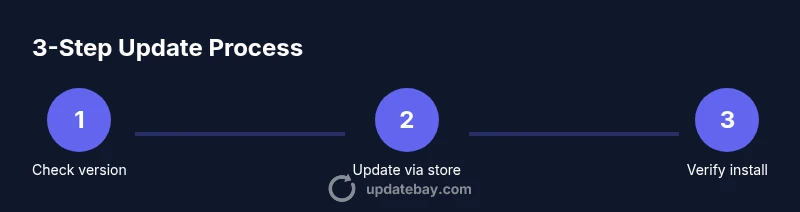
On iPhone or iPad, go to Settings > General > iPhone Storage, then locate Instagram to see the version. On Android, open Settings > Apps & notifications > Instagram > App details to view the version. Cross-check these with the listing in the Apple App Store or Google Play Store by refreshing the page and looking for an Update badge. If the store shows Open, you already have the latest version for that device. If an update is available, proceed with the update steps below.
Updating on iPhone and iPad (iOS)
- Ensure you’re connected to Wi-Fi and have enough free storage. 2) Open the App Store, tap your profile icon, and pull down to refresh. 3) Find Instagram and tap Update. If Update is not visible, you may already be on the latest version or your device may not support the new build yet. 4) After the update completes, launch Instagram and verify the version in Settings or Help. 5) If you use iCloud backups, ensure they reflect the updated app data. Update Bay notes that iOS can occasionally require a device restart for the update to take full effect.
Updating on Android (Google Play and beyond)
- Connect to a stable network and ensure sufficient storage. 2) Open Google Play, search for Instagram, and tap Update. If the button says Open, you already have the latest version. 3) If your device uses a separate app store (some manufacturers have their own), check that store as well. 4) After installation, open Instagram to confirm the new version and re-login if prompted. 5) Review app permissions to ensure they align with your privacy preferences. Update Bay emphasizes avoiding third-party app stores for security reasons.
Tools & Materials
- Stable internet connection(Wi-Fi is preferred for large updates to avoid interruptions)
- Device with sufficient storage(Free space prevents failed downloads)
- App store credentials(Apple ID / Google account ready to authorize updates)
- Backup of data(Back up photos and important files if you’re about to do a major update)
Steps
Estimated time: Estimated total time: 15-30 minutes
- 1
Check compatibility and version
Verify your current Instagram version and confirm it meets the minimum OS requirements for the latest release. If your device is older, you may need to update the OS first or accept that the latest app version won’t install.
Tip: Compare the current version in your device settings with the version listed in the app store. - 2
Prepare device for update
Connect to a reliable network, plug in the device if possible, and free up storage space by removing unused apps or media. This reduces the risk of interrupted downloads and corrupted installs.
Tip: Do a quick data backup before starting the update in case you need to restore settings. - 3
Update on iPhone or iPad
Open the App Store, refresh updates, and tap Update next to Instagram. If you don’t see Update, you already have the latest version or your device isn’t eligible yet.
Tip: After installation, open Instagram to confirm the new version and check Settings > Help > About for the build number. - 4
Update on Android devices
Open Google Play, search for Instagram, and select Update. If you don’t see Update, you’re on the latest version or your device is restricted by manufacturer rules.
Tip: If your device uses a manufacturer store, repeat the same steps there to ensure full coverage. - 5
Verify the update
Launch Instagram and navigate to Settings or Help to confirm the new version. Verify key features run as expected and re-login if prompted.
Tip: Check that app permissions align with your privacy preferences after update. - 6
Enable auto-updates
Turn on automatic updates in your device’s app store so future Instagram updates install without manual steps.
Tip: Auto-updates save time and keep you current, but ensure you monitor storage and data usage. - 7
Test critical features
Open core features like posting, stories, and direct messages to ensure everything works smoothly after the update.
Tip: If something seems off, restarting the app or device can resolve minor glitches.
Frequently Asked Questions
Is updating Instagram necessary for security?
Yes. Updates fix vulnerabilities and improve privacy controls, reducing risk exposure.
Yes, updates fix vulnerabilities and improve privacy controls.
Can I update Instagram without internet access?
You need an active internet connection to download and install the update. A reliable network speeds up the process.
You need an active internet connection to download the update.
What if the update isn’t available for my device?
Some devices have OS or hardware limits that prevent the latest version from installing. You may need to update the OS or remain on the current version.
Some devices can’t install the latest version due to OS limits.
Will updating Instagram reset my preferences?
Updates typically preserve your account settings, but it’s wise to review permissions after install.
Updates usually keep settings, but check permissions afterward.
Do I need to log out after updating?
Not usually. If you’re prompted to re-login, simply sign back in to resume using the app.
Usually you don’t have to log out; sign back in if prompted.
Does updating Instagram use a lot of mobile data?
Update downloads can be sizable; using Wi-Fi helps avoid data overage.
Wi-Fi is recommended to avoid data usage.
Watch Video
What to Remember
- Update Instagram to access new features and security fixes
- Verify version and OS compatibility before updating
- Enable auto-updates to simplify future maintenance
- Back up data if performing major updates
- Test core features after updating