Updating Your Browser Safely in 2026: A Practical Guide
Learn how to update your browser securely, keep extensions in check, and protect your data with clear, step‑by‑step guidance for popular browsers in 2026. Practical tips from Update Bay to stay current and safe.


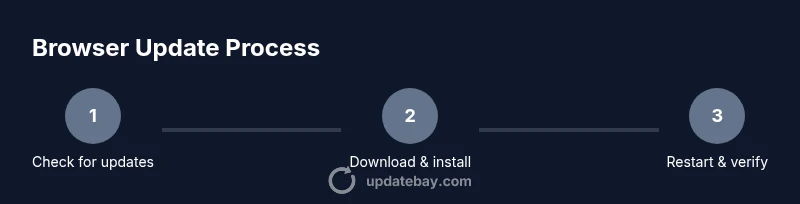
To update your browser, open the browser menu, select Help or About, and choose Check for updates. Install any available updates, then restart the browser. Repeat this process monthly or enable automatic updates where supported. For added security, verify you’re downloading updates from the official site and review extension permissions after updating.
Why Browser Updates Matter
Web browsers are the gateway to your online life. Every update patches security vulnerabilities, fixes bugs, and improves compatibility with newer web standards. If you’re wondering how to stay safe online, regular browser updates are among the most effective protections you can deploy. According to Update Bay, many recent security incidents involve exploited browser flaws that could have been mitigated with timely patches. Beyond safety, updates can boost performance, speed, and reliability, especially on slower devices or networks. New features—such as stronger sandboxing, improved anti‑phishing protections, and refined privacy controls—often arrive via updates rather than a full application rewrite. For everyday users, this translates into fewer crashes, quicker page loads, and reduced risk of data loss from malicious scripts. This section explains why updates matter, what actually gets updated, and how to approach updating across Windows,
Update Channels and What They Do
Browsers use update channels to deliver patches with varying risk and speed. The stable channel provides tested releases for daily use, the beta/preview channel lets you try upcoming features, and the nightly/developer channel exposes the newest changes at the cost of stability. Update Bay notes that most users should rely on the stable channel, with optional participation in beta programs if you want early access. Automatic updates typically run in the background, applying critical security fixes as soon as they’re available. If you manage several devices, subscribing to vendor newsletters or status pages can help you stay informed about notable changes that may impact privacy or extension compatibility. Understanding these channels helps answer: how do update my browser without surprises, and when should you opt into a beta for testing? This section covers best practices for choosing the right channel for your needs.
How to Update Chrome on Windows and
How to Update Firefox on Windows and
How to Update Edge on Windows and
How to Update Safari on
Enabling Auto-Updates and Managing Extensions
To maximize protection with minimal effort, enable automatic updates where offered and review settings to ensure updates aren’t paused or blocked. In addition, review your installed extensions after each major browser update. Some extensions may require permission changes or updates themselves to maintain compatibility. The post‑update hygiene step is essential because even a small extension misconfiguration can expose you to privacy risks or degrade performance. Keeping extensions lean and necessary reduces attack surfaces and improves overall browser health.
Troubleshooting Update Failures and Verification
If an update fails to install, start by checking your internet connection and retrying. Clear any corrupted download caches and try again. If the problem persists, look for error codes in the update dialog and search official support pages for guidance. After installation, always verify the version in the About dialog to ensure the update took effect. Sometimes, corporate devices restrict updates, or antivirus software blocks the process; temporarily disabling such protection (if safe) or consulting IT support can resolve blockers. Finally, consider performing a manual install from the official website if the built‑in updater remains stubborn.
Post-Update Hygiene: Extensions, Permissions, and Privacy
After updating, review each installed extension for permission requests and data access. Some extensions may gain new permissions after an update, which could affect your privacy. It’s a good practice to disable or remove extensions you no longer use and to regularly audit permissions such as access to tabs, browsing history, and data on websites. Enable strong privacy settings, including tracking protection and clear on exit options where available. Regularly reviewing privacy and security settings after updates helps keep your browsing experience safer and more predictable.
Tools & Materials
- Stable internet connection(A reliable connection (at least 5 Mbps) to download updates without interruptions)
- Admin access on your device(Needed on some systems to install or modify software updates)
- Backup of bookmarks and passwords(Export bookmarks and ensure you have access to your password manager in case of issues)
- List of browsers you use(Helpful to verify update steps across multiple browsers)
- Charged device(Keep the device charged during longer update processes)
Steps
Estimated time: 15-40 minutes
- 1
Open the browser menu
Access the browser menu from the top-right or top-left corner. The menu icon varies by browser, but it’s typically a three-dot or hamburger icon. This step starts the update flow.
Tip: If you can’t find the menu, try keyboard shortcuts (Alt on Windows, ⌥ on macOS) to reveal the menu. - 2
Open About/Help to locate updates
Navigate to the About or Help section to find the update status. This is where most browsers expose the update mechanism, version, and any pending patches.
Tip: Look for a label like 'About' or 'About [Browser Name]' to quickly access the updater. - 3
Click Check for updates
Trigger the update check. The browser will contact the vendor servers, compare versions, and start the download if a newer build is available.
Tip: If you don’t see an option labeled exactly as 'Check for updates', look for 'Update' or 'Refresh' in the About screen. - 4
Install updates and wait for download
Allow the browser to download and install the update. This may take a few minutes depending on your connection and platform. Don’t close the browser during this process.
Tip: Use a stable connection and avoid heavy network tasks until the install finishes. - 5
Restart the browser
After installation, restart the browser to apply the update. Some updates also require a system restart for full effect.
Tip: If prompted, choose to reopen all previously closed tabs to preserve your workflow. - 6
Verify the update version
Reopen the About page to confirm the latest version is active. This ensures the update completed successfully.
Tip: Note down the version number in case you need to support staff later. - 7
Chrome-specific: update path
For Chrome, open Menu > Help > About Google Chrome. If an update is available, it will download automatically and prompt a restart.
Tip: If the update is paused, resume it from the same About screen. - 8
Firefox-specific: update path
For Firefox, go to Menu > Help > About Firefox. The browser will check for updates and install any available patches, potentially restarting itself.
Tip: After updating, review add-ons for compatibility. - 9
Edge-specific: update path
For Edge, select Menu > Help and Feedback > About Microsoft Edge. Edge will download and install updates, then prompt a restart if required.
Tip: Edge enterprise users may see update options in Windows Update. - 10
Safari/macOS-specific: update path
Safari updates are delivered via macOS updates. Open System Settings > General > Software Update to install the latest macOS updates, which include Safari improvements.
Tip: If macOS is on an older major version, consider upgrading the OS to gain newer Safari features and protections. - 11
Enable automatic updates where possible
In each browser’s settings, enable automatic updates to reduce manual checks and ensure timely patches.
Tip: Auto-update is your best defense against emerging threats. - 12
Review extensions post-update
After updating, review extension permissions and remove any add-ons you no longer use or trust. Incompatibilities can arise after major updates.
Tip: Disable extensions temporarily if you notice odd behavior and re-enable after verification.
Frequently Asked Questions
Why should I update my browser regularly?
Regular updates patch known security flaws, improve performance, and maintain compatibility with the latest websites. Staying current reduces exposure to exploits and enhances overall safety.
Regular updates patch security flaws and improve performance.
Can I enable automatic updates for all major browsers?
Yes. Most browsers offer a setting to enable automatic updates. This minimizes manual checks and keeps you protected with the latest fixes.
Auto-updates are available in most browsers.
What if an update fails to install?
Retry the update, check your internet connection, and restart the browser. If the problem persists, check error codes and consult official support pages.
If an update fails, retry and check connectivity.
Are browser updates safe to install?
Yes. Updates from official channels are tested for safety and compatibility. Avoid third‑party installers to reduce risk.
Updates from official sources are safe.
Do updates affect saved passwords and extensions?
Most updates won’t delete saved passwords, but some extensions may need reauthorization or updates for compatibility.
Updates may affect extensions; review after updating.
How often should I check for updates?
Aim to check monthly, or rely on automatic updates that run in the background for security patches.
Check monthly or enable auto-update.
Watch Video
What to Remember
- Enable auto-updates across all major browsers
- Always verify update sources are official
- Review extensions after each major browser update
- Keep your OS and browser in sync for best compatibility