How to Update Chrome: A Practical 2026 Guide
Learn how to update Google Chrome across desktop and mobile devices with step-by-step instructions, troubleshooting tips, and best practices for 2026. Updated by Update Bay for tech enthusiasts and everyday users.


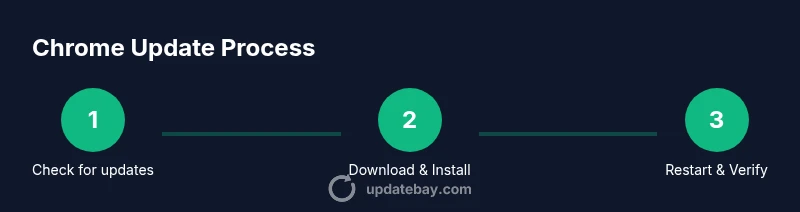
You can update Chrome in minutes by using built-in update checks, or let it update automatically. Start by opening Chrome, click the three-dot menu, choose Help > About Google Chrome, and allow the browser to install any available updates. This keeps you secure, improves performance, and ensures you have the latest features.
Why Keeping Chrome Updated Matters
Keeping Chrome updated is essential for security, performance, and compatibility. Each new build closes security gaps, fixes bugs, and brings speed improvements that affect day-to-day browsing. For many users, updates also unlock new features that improve productivity and usability. This is especially important on devices that handle sensitive data, like banking or work accounts, where an unpatched browser can be an attractive target for attackers. According to Update Bay, regular updates are one of the most reliable ways to reduce exposure to known threats and to ensure you have the latest protections built into Chrome. Beyond security, updates can improve page rendering, reduce memory leaks, and provide better support for modern web standards. If you share your device with others, enabling updates helps ensure everyone benefits from the latest fixes without manual intervention. Note that in workplaces, IT policies may govern how updates are deployed, but end users should still understand the basic process to stay informed. In short: stay current to stay safer and faster online.
Quick overview of update methods
Chrome supports several update paths to keep you current. The simplest option is automatic updates, which run in the background and apply patches as they become available. Manual checks are still useful, especially if you use multiple devices or have strict IT controls. On desktops, updates are delivered through the browser itself; on mobile platforms, updates may come via Google Play or the App Store. For mixed environments, you can set device policies to enforce update cadence, but users can still initiate a check when needed. Understanding these methods helps you plan a reliable update rhythm: set automatic updates where possible, schedule periodic manual checks, and verify that each device completes the process successfully. The goal is to minimize vulnerability exposure while preserving a smooth browsing experience.
Check that your Chrome version is up to date
Knowing your current version is the first step to staying secure. Open Chrome and navigate to the About page to see the installed build and the status of any pending updates. If an update is available, Chrome will begin downloading it automatically and ask you to relaunch once finished. Update Bay analysis shows that users who regularly verify their version and apply updates promptly tend to encounter fewer security incidents and faster bug fixes. If you see a stale version or repeated update prompts, try the manual check on another device or reset the app to clear cached update signals. Keeping a habit of checking version numbers once a week can prevent surprises and keep your browsing experience consistent across sites and services.
Desktop update steps (Windows,
Mobile updates: Android and
Troubleshooting common update issues
If Chrome won’t update, start by verifying your internet connection and the device time (incorrect clocks can block updates). Clear the browser cache or restart the app to refresh update signals. On some systems, antivirus software or firewall rules can interfere with downloads; temporarily pause protections and retry if safe to do so. If updates still fail, consider reinstalling Chrome or using the browser’s official cleanup tool to fix corrupted files. For enterprise devices, check policy settings or consult an IT administrator before making changes that could affect other apps.
Enabling automatic updates and best practices
Automatic updates are the safest, easiest path to staying current. In desktop Chrome, turn on automatic updates through the browser settings where available, and ensure your OS keeps apps updated as well. On mobile, keep Google Play and the App Store set to automatic updates. Create a simple routine: once a week, quickly verify that all devices show the latest Chrome version and that no update prompts are pending. Back up bookmarks and open tabs before major updates so you can recover quickly if something goes awry. Finally, consider syncing your Chrome data to your Google account to keep a consistent experience across devices.
Final checks and next steps
The core habit is simple: update Chrome promptly when prompted, and verify the version after each update. This is not merely about new features; it’s a foundational security practice recommended by experts. The Update Bay team recommends making Chrome updates a regular habit as part of a practical security routine. If you manage multiple devices, document your update cadence and communicate it with other users so everyone benefits from the latest protections. With a consistent routine, you’ll reduce friction, improve performance, and enjoy a smoother, safer browsing experience.
Tools & Materials
- Stable internet connection(Broadband or faster)
- Device with Chrome installed(Desktop, laptop, or mobile)
- Power source(Laptops should be plugged in during updates)
- Backup of bookmarks and data(Optional but recommended before major updates)
- Sufficient disk space(At least a few hundred MB free)
Steps
Estimated time: 8-12 minutes
- 1
Open Chrome menu
Click the three vertical dots in the top-right corner to open the main menu. This is your access point for updates, settings, and bookmarks.
Tip: Have a stable internet connection before starting. - 2
Navigate to About Google Chrome
From the menu, select Help and then About Google Chrome. This page checks for updates and shows your current version.
Tip: If you don’t see About Chrome, try the Help sub-menu first. - 3
Allow updates to download
If an update is available, Chrome will download it automatically. Do not close the browser while the download runs.
Tip: Keep the window active on a reliable network during download. - 4
Relaunch to apply
When the download finishes, click Relaunch to apply the update. Some systems may require a full restart.
Tip: Save work before restarting to avoid data loss. - 5
Verify the update
Return to About Google Chrome to confirm the version number matches the latest release.
Tip: If the version didn’t update, try again or restart your device. - 6
Update on mobile devices
For Android, open Google Play > Chrome > Update. For iOS, open App Store > Updates > Chrome.
Tip: Enable automatic updates in the respective store settings. - 7
Handle blocked updates
If an update is blocked by device management, consult your IT admin before attempting changes.
Tip: Document the policy to prevent surprises later. - 8
Post-update hygiene
After updating, clear browser caches if you notice odd performance, and verify extensions still work.
Tip: Back up important tabs or bookmarks as a safety net.
Frequently Asked Questions
Do I need to restart Chrome after updating?
Yes, updates usually require a restart to complete installation.
Yes, you typically need to restart Chrome after updating to apply changes.
Can Chrome update automatically on all devices?
Most devices support automatic updates; ensure settings allow auto-update and devices are connected to the internet.
Chrome can auto-update on supported devices; keep the internet connection active.
What should I do if updates fail?
Check your internet connection, restart the browser, or reinstall Chrome if necessary.
First check your connection, then try restarting; if needed, reinstall Chrome.
Will updating Chrome remove bookmarks and extensions?
In most cases, bookmarks and extensions stay; some extensions may temporarily disable during updates.
Your bookmarks usually stay; some extensions might pause briefly.
How do I update Chrome on Android?
Open Google Play, search for Chrome, and tap Update; enable automatic updates in Play settings for ongoing protection.
Update Chrome on Android via Google Play.
How do I update Chrome on iPhone?
Update Chrome on iOS through the App Store by checking for updates.
Update Chrome on iPhone through the App Store.
What to Remember
- Update Chrome regularly to strengthen security.
- Enable automatic updates for consistency across devices.
- Verify the version after each update to confirm success.
- Back up bookmarks before major updates.