How to Update Safari for Mac: A Practical Guide
Learn how to update Safari for Mac with a clear, step-by-step guide. Get prerequisites, troubleshooting tips, and best practices to keep Safari secure and fast.


To update Safari on a Mac, start by checking macOS updates. Safari updates come through macOS Software Update, not a separate app install. Ensure your Mac is on a supported macOS version, back up your data, and connect to a reliable internet connection. Then install any available macOS updates to get the latest Safari.
Why updating Safari matters
If you’re wondering how to update safari for mac, you’re not alone. Keeping Safari up to date is essential for security, performance, and compatibility with the latest web standards. As the Update Bay team notes, modern threats exploit outdated browsers, and Safari updates include important security patches, privacy enhancements, and performance optimizations. Regular updates also ensure compatibility with new websites and online services, reducing the risk of site breakage. In this guide, we’ll cover the why, the when, and the exactly how to update Safari for Mac, with practical steps you can follow today. You’ll learn how Safari updates are delivered through macOS, what prerequisites you should check, and how to verify a successful installation.
How Safari updates are delivered on macOS
Unlike standalone apps that you might update from separate stores, Safari updates are bundled with macOS updates. Apple distributes new Safari features, performance improvements, and security fixes as part of macOS Software Update. That means your Mac needs to be running a supported version of macOS to receive the latest Safari improvements. If you’re asking how to update safari for mac, the process is essentially to update macOS itself. This centralized approach helps ensure that browser and system components remain compatible, so you get a smoother browsing experience with fewer surprises. As highlighted by Update Bay, this integration reduces the risk of version mismatches that can affect site rendering and security.
Prerequisites before updating
Before you start, make sure you have a reliable internet connection and enough free disk space to download and install updates. Back up your data so you can recover quickly if something goes wrong during the update. Ensure your Mac is plugged in if you’re on battery power, and note your admin password in case you’re prompted to authorize changes. If you use a fleet of devices, consider scheduling updates during off-peak hours to minimize impact on work. These pre-flight checks are essential for a smooth update and align with best practices from Update Bay.
Checking your current Safari and macOS versions
To determine whether you need an update, open Safari and click Safari > About Safari to see the version. Then check the macOS version by clicking the Apple menu and selecting About This Mac. Compare with Apple’s supported versions to confirm if updates are available. If your Safari version is already current but macOS is older, you may still need system updates for security reasons. Tracking version details helps you understand the scope of a potential update and avoids unnecessary installs. This careful review also helps you plan the update window to minimize disruption.
How to prepare and begin the update (overview)
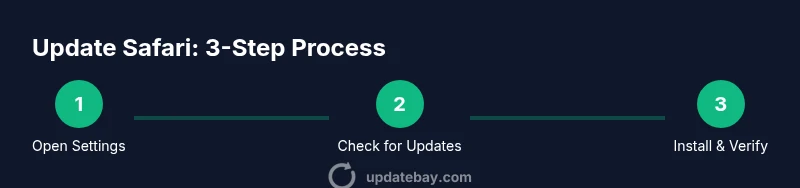
In this section we outline the general approach to updating Safari via System Settings or System Preferences. The exact labels vary by macOS release, but the steps remain consistent: access Software Update, install available items, and restart if prompted. After completing these steps, re-open Safari to confirm version information and test performance with a few sites you use regularly. If you face any issues, consult the troubleshooting tips below. Remember, following these steps reduces the chance of post-update glitches and aligns with Update Bay’s recommended workflow.
Step-by-step: update verification and post-install checks
After installation completes, verify the Safari version in the About Safari window and recheck your preferred settings, such as Privacy, Extensions, and Security. Test a few websites to confirm page rendering, autofill, and privacy controls. If you notice abnormal behavior, you can reset Safari settings or disable problematic extensions. Keeping a log of post-update observations can help with future updates and ensures you’re using the latest features safely.
Troubleshooting common update problems
If updates fail to install, check your internet connection, ensure there is enough disk space, and review any error messages for clues. For macOS updates that stall, try restarting the update process or running again after a short wait. If you’re still stuck, boot into Safe Mode and reattempt the update, or use Recovery mode to reinstall macOS if needed. Always back up before attempting more invasive steps. These rescue steps save time and minimize data loss when updates don’t go as planned.
Special cases: updating on older macOS versions and Safari compatibility
Older Macs may support Safari via macOS versions that no longer receive security patches. In such cases, you may need to upgrade to a newer Mac or accept that Safari updates are limited. If you’re on macOS Big Sur or earlier, you can still update Safari within the constraints of your OS, but you won’t access newer Safari features. Always verify compatibility by checking Apple’s official support pages for your device and macOS release. Update Bay emphasizes choosing updates that align with your hardware capabilities to avoid slowdowns.
After-update maintenance and ongoing maintenance
With Safari updated, consider enabling automatic updates for future patches. Review privacy and security settings, clear caches periodically, and monitor for any extensions that might become obsolete after major browser updates. Regularly reviewing your browser configuration helps you maintain a fast, secure, and private browsing experience. By keeping a routine review, you’ll minimize post-update issues and stay ahead of emerging threats.
Tools & Materials
- Mac computer with administrator rights(You may need to enter your admin password during updates)
- Active internet connection(Stable Wi-Fi or Ethernet recommended during download)
- Backup drive or Time Machine setup(Create a full backup before updating)
- Sufficient free disk space(Aim for 10-20 GB free space to accommodate updates)
- Fully charged or plugged-in Mac(Keep power connected to prevent interruption)
Steps
Estimated time: 30-60 minutes
- 1
Open System Settings/System Preferences
Access the system settings hub from the Apple menu. Depending on your macOS version, this may be labeled System Settings or System Preferences. This is where you manage all software updates including Safari.
Tip: If you see Software Update highlighted, you’re in the right place. - 2
Navigate to Software Update
In System Settings, select Software Update to check for available updates. This is the central hub for both macOS and Safari updates. If you’re on an older macOS, you might find an App Store route instead.
Tip: Ensure you’re connected to the internet before initiating the check. - 3
Check for updates
Click or tap Check for updates to see if any macOS or Safari updates are available. The system will scan and present compatible updates for your device.
Tip: Be prepared to enter your admin password to authorize changes. - 4
Review and select updates
Review the list of available updates. If Safari appears together with macOS, select both or the relevant items you want to install. Avoid miscellaneous changes unless they’re known to be beneficial for your setup.
Tip: If you’re unsure, install the macOS update first; Safari will install as part of that package. - 5
Start installation
Click Install Now or Update. The process will download and install the chosen updates. Your Mac may restart automatically as part of the process.
Tip: Keep the Mac plugged in if on battery power to prevent an interruption. - 6
Wait for completion
Let the update run without interruption. The download and installation can take some time depending on your connection and hardware.
Tip: Avoid closing lid or forcing shutdown during installation. - 7
Restart if prompted
If prompted, allow the Mac to restart. A successful restart completes the installation and prepares Safari for use.
Tip: After restart, give the system a minute to settle before launching apps. - 8
Verify the update
Open Safari, choose About Safari to confirm the version. Check System Settings > Software Update again to ensure there are no pending updates.
Tip: If Safari isn’t updated, consider repeating the check or rebooting the device. - 9
Test and finalize
Launch a few sites to test rendering, autofill, and privacy controls. Review extensions and settings to ensure full compatibility with the latest Safari.
Tip: Document any post-update issues for later reference.
Frequently Asked Questions
Do I need to update macOS to update Safari?
Yes, Safari updates are delivered with macOS updates. If your macOS version is outdated, you may not receive the latest Safari version.
Safari updates come with macOS updates; updating macOS gets you Safari upgrades.
What if no update appears for Safari?
If no updates appear, check your macOS version compatibility and ensure you’re connected to the internet. You might need a restart or to wait for the next schedule.
If no update shows, check your macOS version and connection, then try again later.
Can I update Safari without installing a macOS update?
Generally, Safari updates come with macOS updates. In some rare cases Apple releases separate security patches, but the standard path is through macOS updates.
Safari updates usually come with macOS updates.
Will updating Safari affect my extensions?
Most extensions remain compatible after Safari updates, but some may require updates from their developers. Check Extensions in Safari after updating.
Extensions can require updates; check Extensions settings after update.
Is it safe to update Safari on battery power?
It's best to plug in your Mac during updates to avoid power loss and potential incomplete installs.
Yes, but it’s safer to be plugged in.
How often should I update Safari?
Update Safari as soon as updates are available to benefit from the latest security and performance improvements.
Update as soon as updates arrive.
Watch Video
What to Remember
- Update Safari through macOS updates.
- Back up before updating to protect data.
- Verify the update and test Safari after install.
- Enable automatic updates for future patches.